Seeing a "Not registered on network" or "Emergency calls only" message on your Galaxy S25 Ultra means it's lost its connection to your carrier. You won't be able to make calls, send texts, or use mobile data. This can happen for a bunch of reasons, from a simple software hiccup to a more stubborn SIM card problem.
Before you worry about anything serious, the quickest thing to try is toggling Airplane Mode. Swipe down twice from the top of your screen to open the full Quick Settings panel and tap the Airplane Mode icon. Wait about 15 seconds, then tap it again to turn it off. This forces your phone's modem to completely re-scan for and register on the network, which often clears up temporary glitches.
Perform a Force Restart
If Airplane Mode didn't help, a force restart is your next best step. This is different from a normal restart and can clear deeper system errors that might be affecting the cellular radio. Press and hold the Volume Down button and the Side button (power button) at the same time. Keep holding them for about 10 seconds until you see the Samsung logo appear on the screen, then let go. Your phone will boot up fresh.
Check Your SIM Card
A loose or dirty SIM card is a surprisingly common culprit. Power off your S25 Ultra completely. Use the SIM ejector tool (it came in the box) to pop open the SIM tray on the bottom edge of the phone. Carefully remove the SIM card and give both the gold contacts on the card and inside the tray a visual inspection. If you see any dust or debris, gently wipe the contacts with a soft, dry cloth before reseating the card firmly and rebooting.
Verify Your Carrier Account Status
Sometimes the issue isn't with your phone at all. If your prepaid plan has expired or there's an issue with your postpaid account, your carrier will block network access. I'd recommend using another device to log into your carrier's app or website to confirm your account is active and in good standing. You can also call customer support from a different phone to check.
Update Your Phone's Software
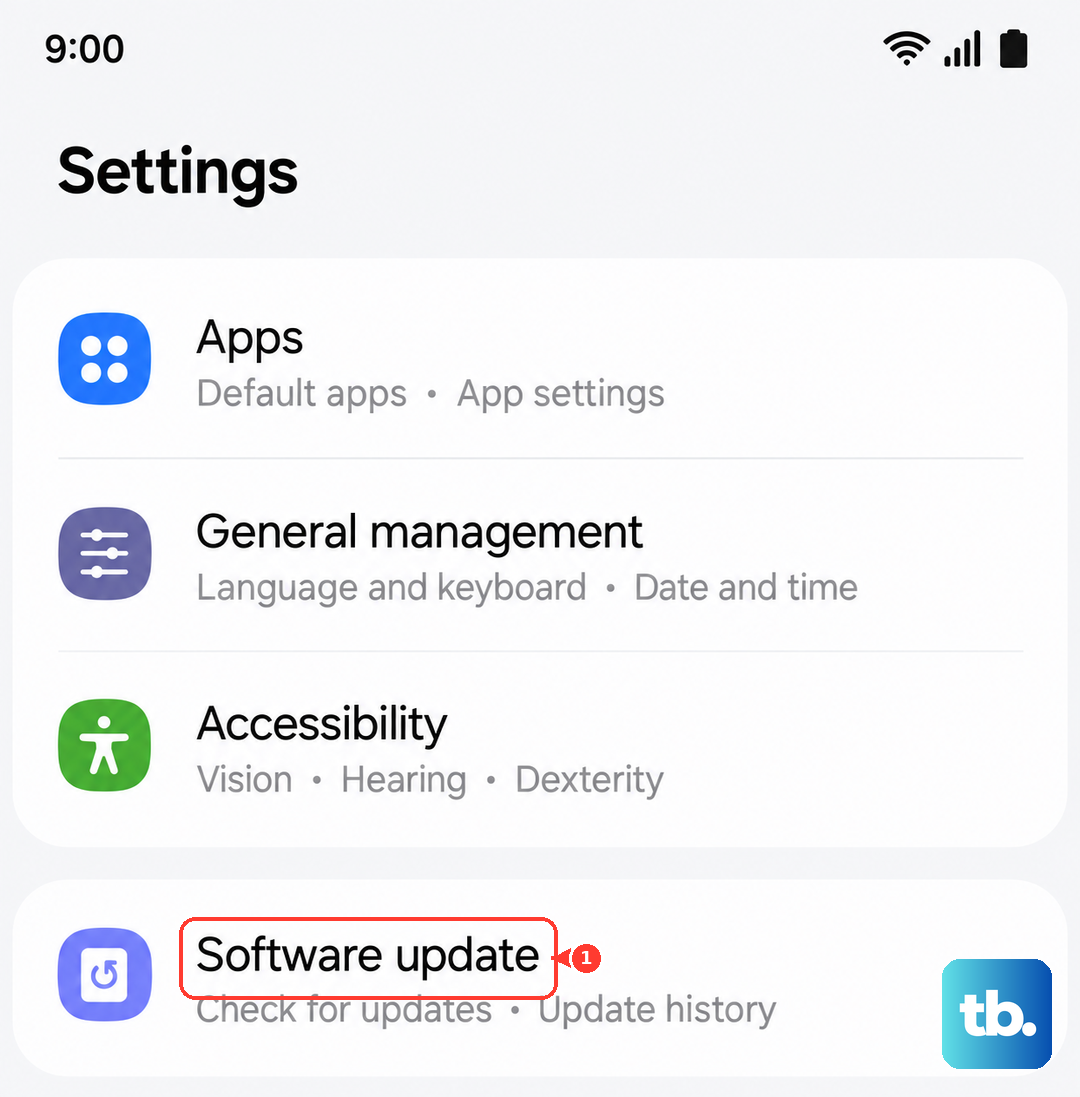
Samsung and your carrier release updates that frequently include fixes for connectivity bugs. Running outdated software on your S25 Ultra could be the root of the problem. Go to Settings > Software update and tap Download and install. Make sure you're connected to Wi-Fi first. If an update is available, let it install completely and then check your network connection again.
Reset the Network Settings
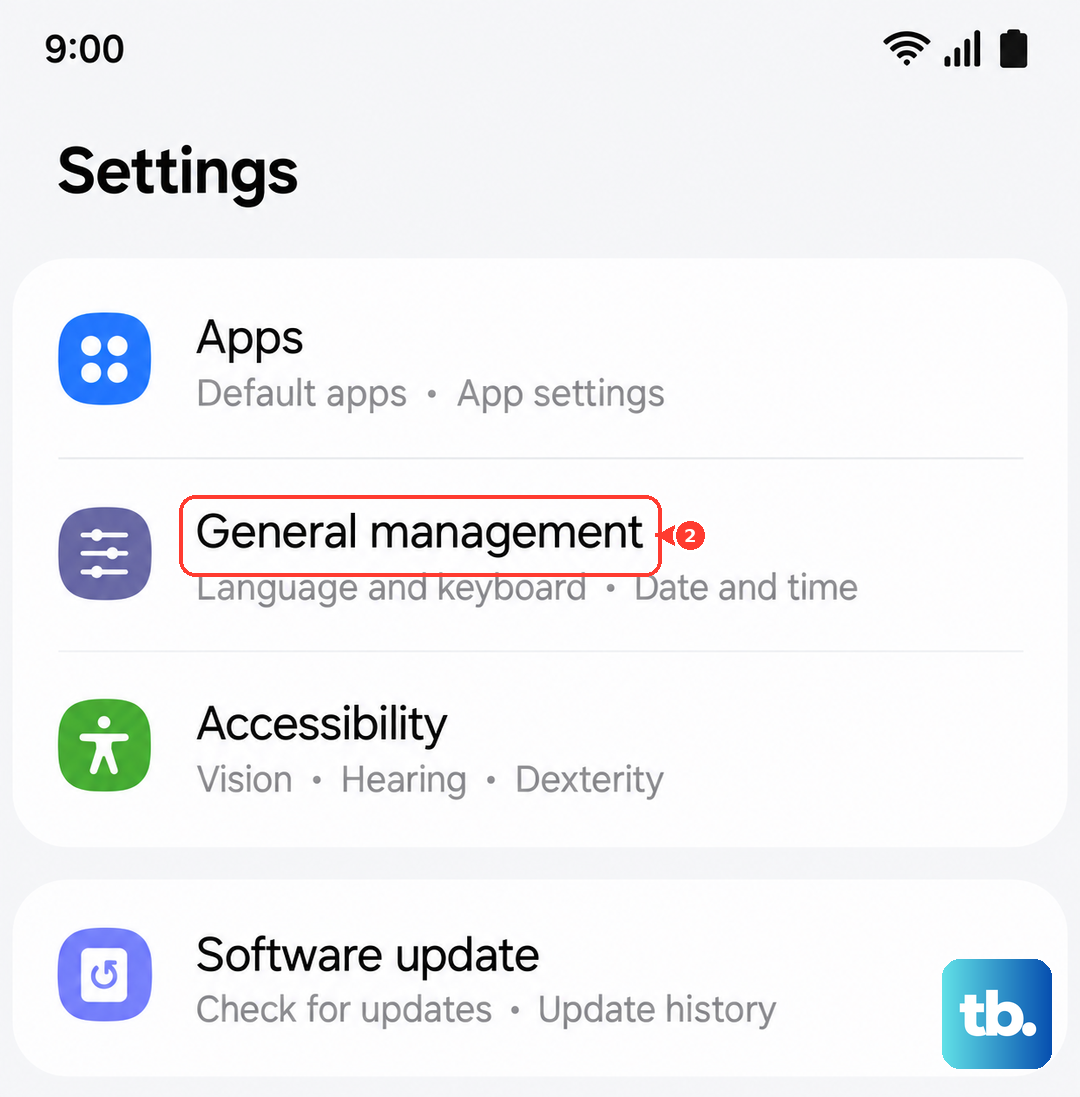
This step clears all your saved network configurations, including Wi-Fi passwords, Bluetooth pairings, and cellular settings. It's a great way to wipe out any corrupted data that's preventing a proper handshake with the cell towers. You can find this option by going to Settings > General management > Reset > Reset network settings. Tap to confirm, and your phone will restart. You'll need to rejoin Wi-Fi networks afterward, but it often solves the issue.
Manually Select Your Network Operator
Your phone might be trying to automatically connect to a network that's having temporary issues. You can force it to search for and pick your carrier manually. Open Settings > Connections > Mobile networks > Network operators. Tap Search networks, wait for the list to populate, and then select your specific carrier from the list. This bypasses the automatic selection process.
Try a Different SIM Card
This is a key diagnostic step. If you can borrow a known-working SIM card from a friend or family member (on any carrier), pop it into your S25 Ultra. If their SIM card connects to the network without any "not registered" errors, then you know the problem is with your original SIM card. You'll need to contact your carrier for a replacement. If the borrowed SIM also fails, the issue is almost certainly within your phone.
Check for IMEI Corruption
The IMEI is your phone's unique identifier on the network. If it becomes corrupted or shows as null, registration will fail. You can check it by opening your Phone app and dialing *#06#. A valid IMEI for the S25 Ultra will display a 15-digit number. If you see "IMEI null" or a string of zeros, the problem is more serious. Before panicking, try the network reset and a factory reset, as these can sometimes restore a corrupted IMEI from a backup partition in the software.
Perform a Factory Reset
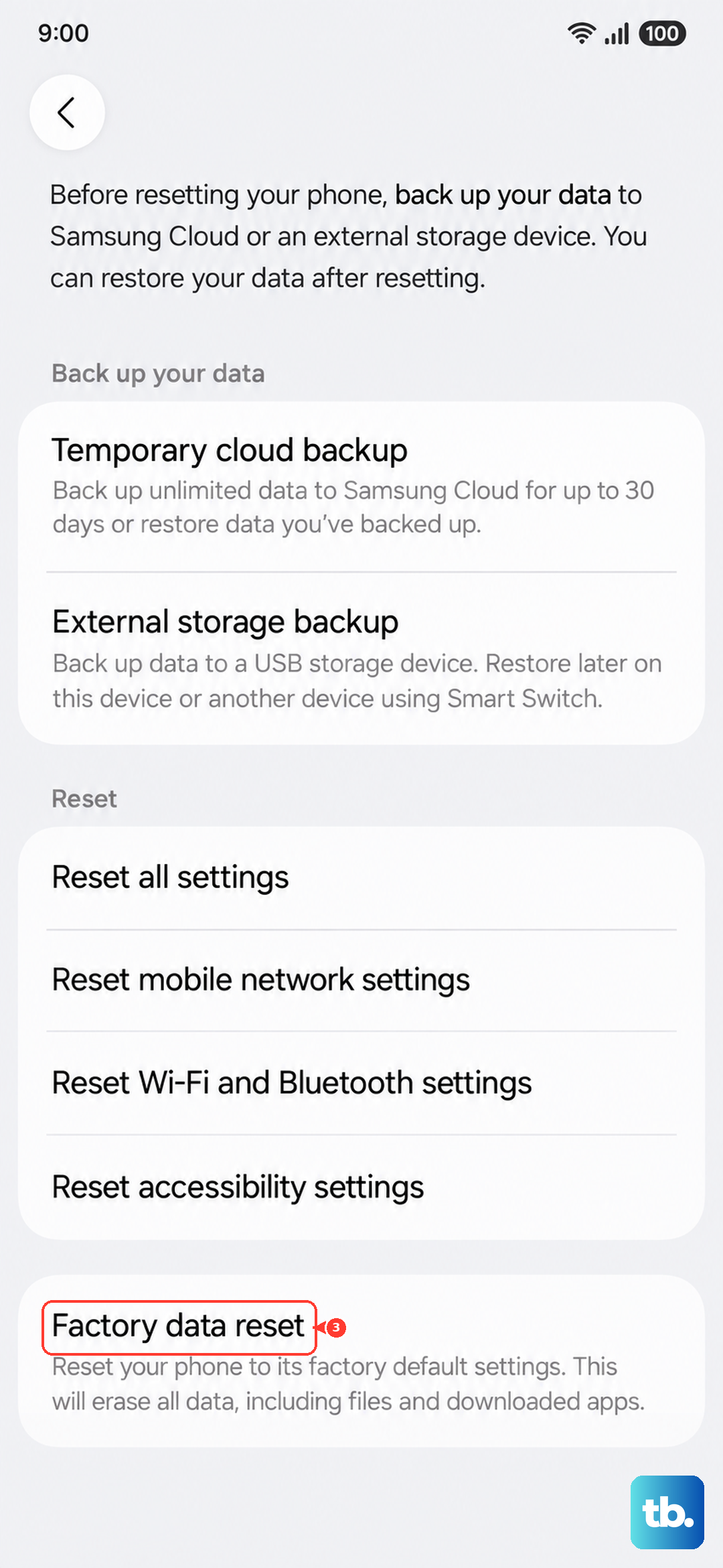
This is your last resort software fix. A factory reset will erase all data from your phone, so it's absolutely critical to back up everything important first using Samsung Cloud or a computer. Once backed up, go to Settings > General management > Reset > Factory data reset. Follow the prompts to erase the device. After it restarts, go through the minimal setup just enough to test the cellular connection. If the "not registered" error is still there after a clean factory reset, the issue is likely a hardware fault with the phone's internal modem or antenna, and professional repair is the next step.