


When your Samsung Galaxy S25 Ultra shows a photo or video message that just won't download, it breaks the flow of a conversation. MMS messages need a specific setup to work, and a small glitch in your network, settings, or the app itself can stop them in their tracks.
Let's get those pictures and videos coming through again. I'd start with the quick fixes at the top, as they solve the majority of these download hiccups on the S25 Ultra.
Restart Your Galaxy S25 Ultra
A force restart is often the fastest fix. It clears out temporary software bugs that can block MMS downloads. Press and hold the Volume Down button and the Side key together for about ten seconds.
You'll see the Samsung logo appear as the phone reboots. Once it's back on, check your messaging app to see if the stuck MMS will now download.
Check Your Mobile Data Connection
MMS doesn't use your Wi-Fi to download, it requires an active mobile data connection. First, make sure mobile data is turned on. You can swipe down twice from the top of your screen to open the Quick Settings panel and tap the mobile data icon.
Also, check your signal strength. If you're in a low-coverage area, the large file might simply be timing out. Try moving to a different location or, if you're indoors, near a window.
Relaunch Samsung Messages
The app itself might have gotten hung up. Swipe up from the bottom of your screen and hold to enter the recent apps view. Find the Messages app and swipe it all the way up or off the screen to close it completely.
Then, tap the Messages icon again to reopen it. This gives the app a fresh start, which can clear up the download queue.
Enable MMS Auto-Retrieve in Settings
Your phone might be set to wait for your permission before downloading MMS, which can look like a failure. Open the Samsung Messages app and tap the three-dot menu in the top right. Go to Settings > Multimedia messages.
Here, make sure the switch for Auto download is turned on. While you're here, if you travel, it's a good idea to also enable Auto download while roaming.
Verify Your APN Settings
Incorrect Access Point Name (APN) settings are a common culprit. These tell your phone exactly how to connect to your carrier's multimedia service. The settings are unique to your carrier.
You can check them by going to Settings > Connections > Mobile networks > Access Point Names. The best move is to contact your carrier's support or visit their website to get the exact, updated APN details for your S25 Ultra and plan.
Clear the Messages App Cache
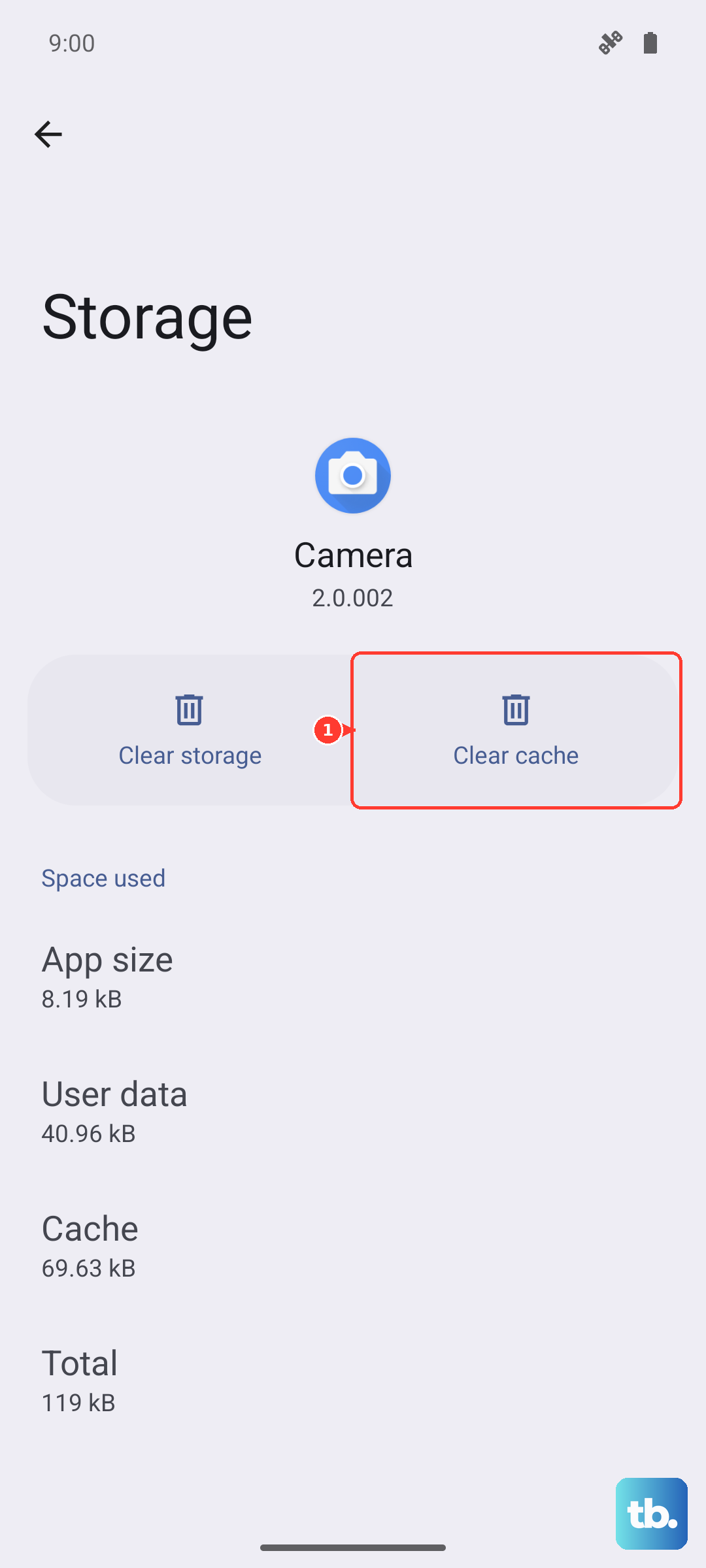
Corrupted temporary files in the app's cache can cause all sorts of strange behavior. Clearing it is safe and won't delete your messages. Go to Settings > Apps, then find and tap on Messages.
Select Storage and then tap Clear cache. For more stubborn issues, you can tap Clear data, but be warned this will erase your entire message history within the app, so only do this if you're okay with that or have a backup.
Reset Your Network Settings
This is a more comprehensive step that resets all Wi-Fi, Bluetooth, and cellular connections back to default. It won't touch your personal files like photos or contacts. On your S25 Ultra, navigate to Settings > General management > Reset > Reset network settings.
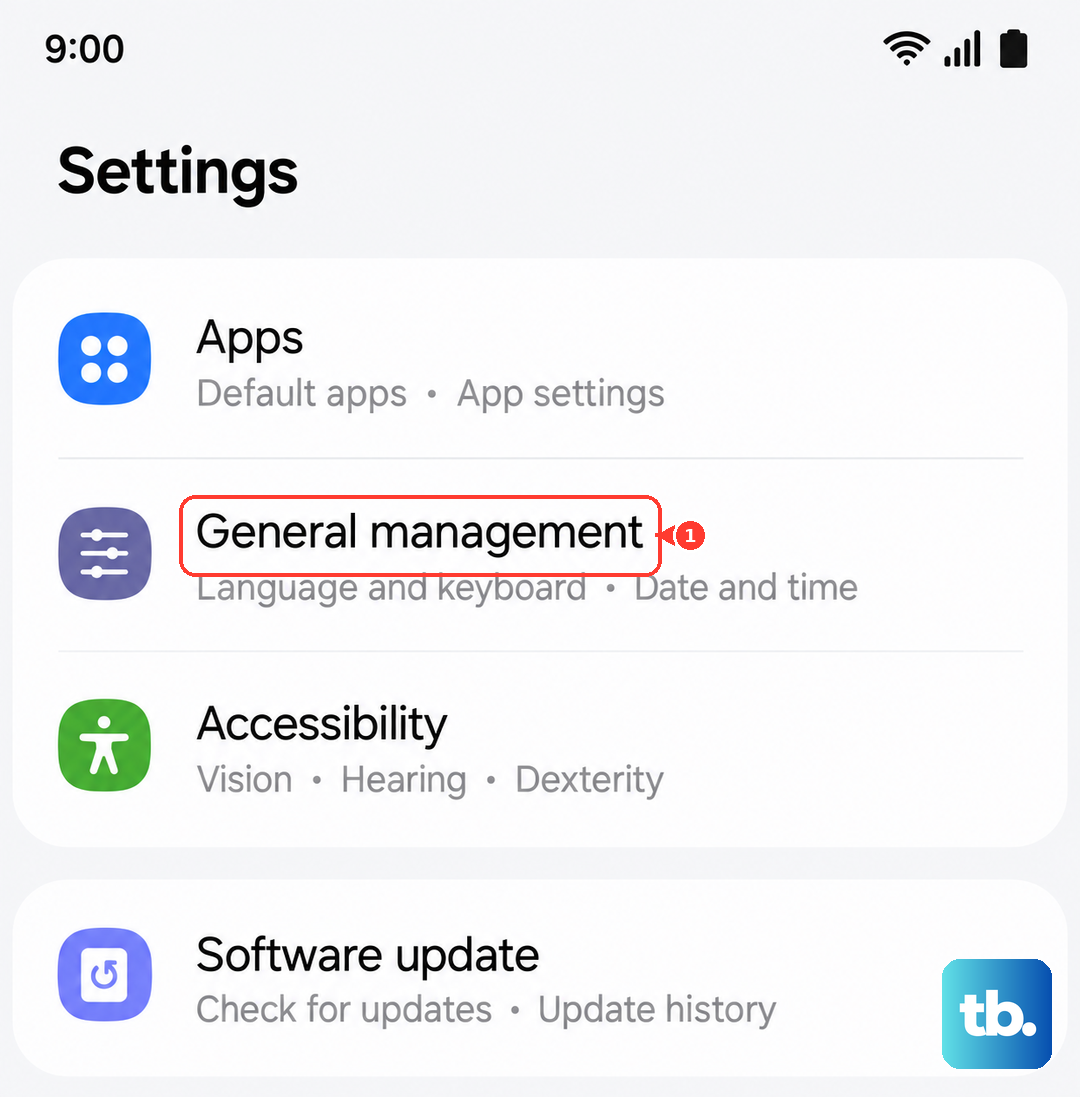
Tap to confirm, and your phone will reboot. Afterward, you'll need to reconnect to Wi-Fi networks and re-pair Bluetooth devices, but it often clears up persistent MMS issues.
Check for a Software Update
Outdated software can have bugs that affect messaging. Samsung regularly releases updates that fix these kinds of problems. Go to Settings > Software update > Download and install.
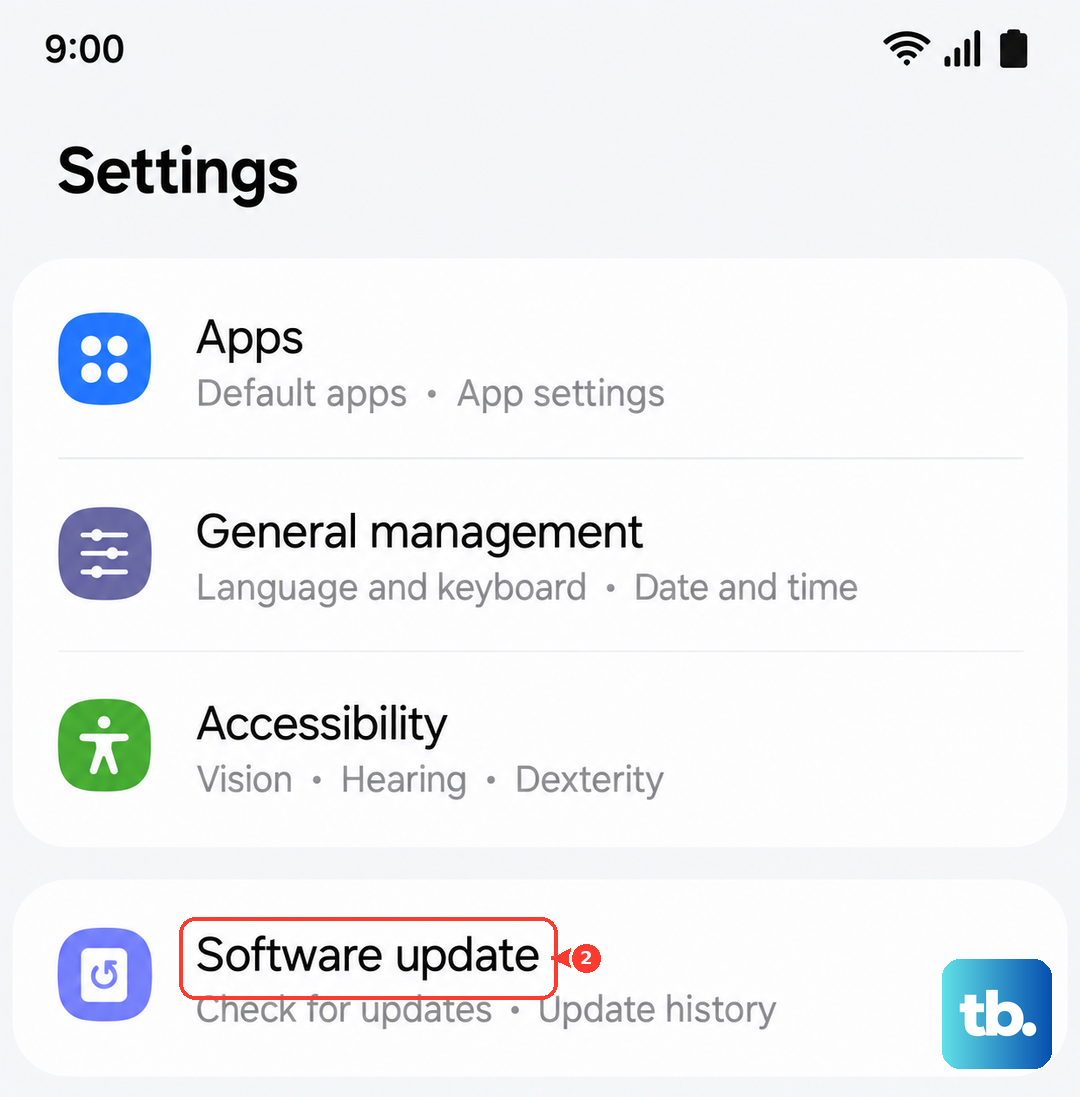
Let the phone check for updates. If one is available, I'd recommend installing it while connected to Wi-Fi and a charger, as it can take a few minutes and use some battery.
Review Your Storage Space
If your phone's internal storage is completely full, there may be no room to save the incoming MMS file. Go to Settings > Device care > Storage to see how much space you have left.
If it's critically low, consider moving photos and videos to the cloud or deleting unused apps. The S25 Ultra's Snapdragon 8 Elite chip is powerful, but it can't work miracles if there's literally no space to write data.