If your Galaxy S25 Ultra's camera is acting up, start with a simple restart. Press and hold the Volume Down and Side button together for about 10 seconds until you see the Samsung logo. I've found this clears up most temporary software glitches that cause the camera app to freeze or produce black screens.
Key Points
- Clear the Camera App Cache: This is often the fastest fix for lag, crashes, or settings not saving.
- Check for Software Updates: Samsung frequently releases camera improvements and bug fixes through updates.
- Clean the Lenses Thoroughly: The advanced multi-lens array is prone to smudges that ruin image quality.
- Disable Conflicting Modes and Labs Features: Experimental features can sometimes cause instability.
- Inspect for Physical Damage or Moisture: The S25 Ultra's IP68 rating doesn't make it immune to all damage.
- Reset Camera Settings or Perform a Factory Reset: A last resort to wipe corrupted configuration data.
Give the phone a full minute to reboot completely before opening the camera app again. This allows all background processes to restart cleanly.
If the camera started misbehaving after you installed a new app, especially one that requests camera permissions, that app could be the culprit. Try uninstalling any recent apps and see if the camera stabilizes. Some third-party social media or editing apps don't play nicely with the S25 Ultra's advanced camera hardware.
Clear the Camera App Cache and Data
Over time, the camera app stores temporary data that can become corrupted. Clearing this cache is a safe first step that won't delete your photos. Go to Settings > Apps > Camera. Tap on Storage, then hit Clear cache.
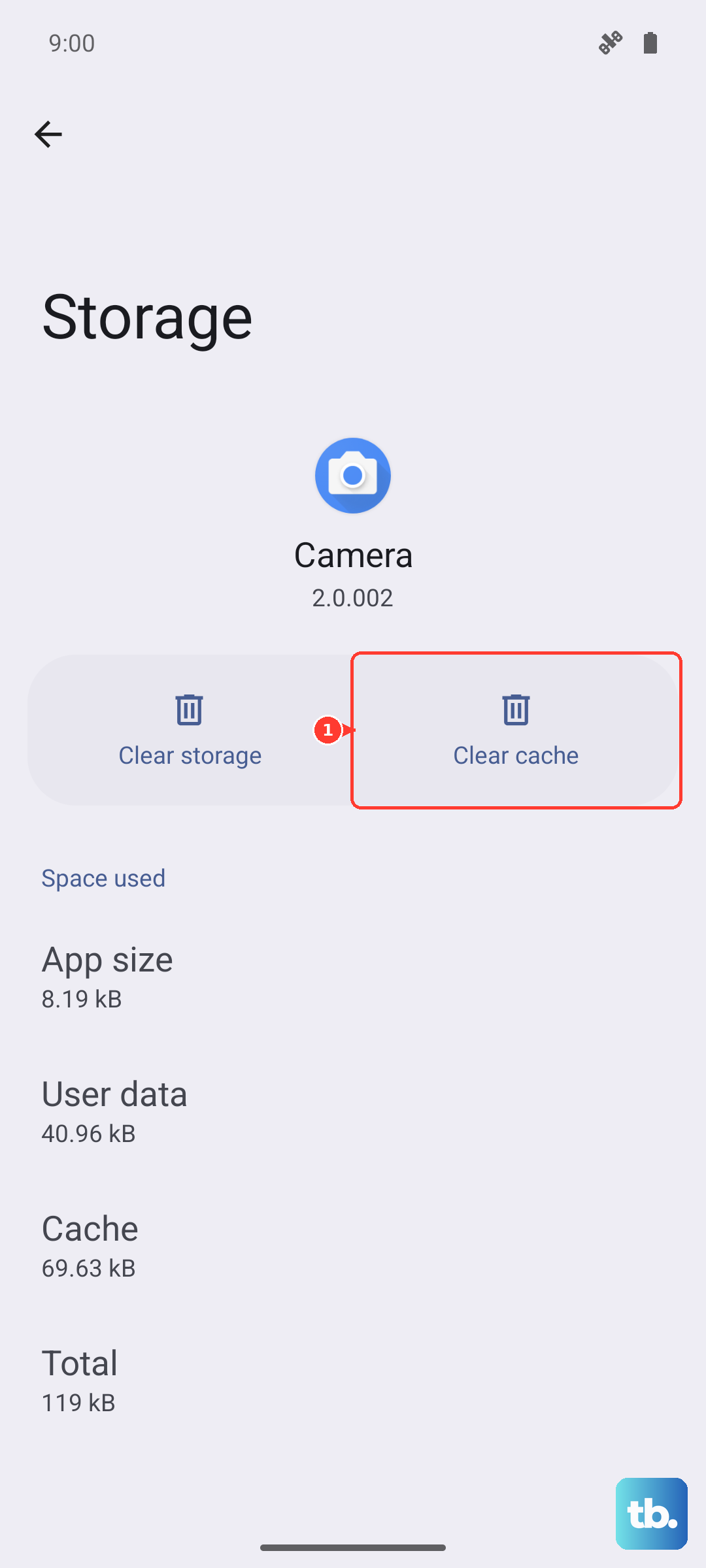
If the problem persists, like the camera failing to open or modes being grayed out, you can take the next step. From the same Storage menu, tap Clear data. A warning will pop up noting this will reset the camera app to its default settings. Your pictures and videos are safe in your Gallery, but you'll need to reconfigure any custom camera settings you had.
Install the Latest Software Update
Samsung is constantly tweaking camera performance with software updates. These updates can fix autofocus issues, improve image processing for the 200MP sensor, or resolve bugs with the telephoto lenses. To check, open Settings > Software update > Download and install.
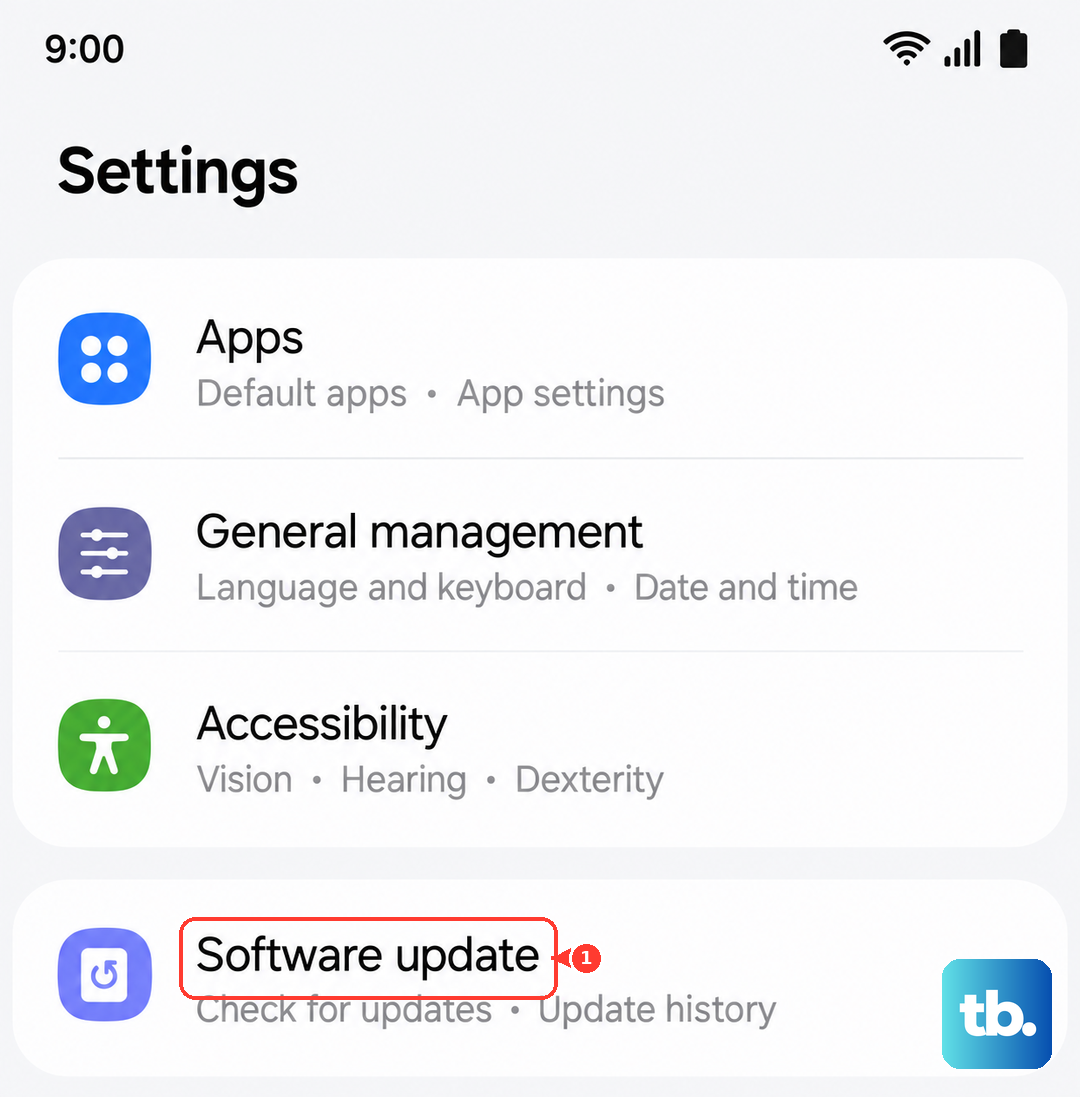
Make sure your phone is connected to Wi-Fi and has at least 50% battery before proceeding. After the update installs, do a full restart of your phone. This ensures the new camera software integrates properly with the rest of the system.
Give the Lenses a Proper Clean
This sounds obvious, but it's the most common cause of blurry or hazy photos. The S25 Ultra has a large camera island with multiple lenses and sensors. Use a clean, dry microfiber cloth, like the kind for cleaning glasses, and gently wipe each lens in a circular motion.
Check for any tiny scratches on the Gorilla Armor 2 lens cover, as these can scatter light. Avoid using harsh chemicals or paper towels, which can leave micro-scratches. Pay special attention to the laser autofocus sensor and the flash module, as dirt there can throw off the camera's calculations.
Disable Advanced or Experimental Features
The S25 Ultra packs powerful but complex features that can sometimes conflict. If you're experiencing crashes when switching between lenses or in specific modes, try turning off Samsung's camera labs features. Open the Camera app, go to Settings (the gear icon), and look for Labs or Advanced features.
Toggle off any experimental options you have enabled. Also, try switching your photo resolution down from 200MP to 50MP or 12MP to see if the issue is related to processing huge image files. If you were using Pro mode or Expert RAW when the problem occurred, switch back to standard Photo mode as a test.
Check for Physical Issues
Inspect the camera bump for any cracks or deep scratches, especially over the lenses. Even a hairline crack can distort images. If you've recently been in a humid environment or near water, check the lens covers for condensation inside. While the phone is IP68 rated, extreme temperature changes can still cause temporary fogging.
Listen for any unusual rattling sounds when you gently shake the phone. A loose optical image stabilization (OIS) module in one of the telephoto cameras can cause a malfunction. If you suspect physical or water damage, stop trying to fix it with software, as you might cause further issues.
Reset Camera Settings or the Entire Phone
If you've tried everything else and the camera is still unreliable, you can reset just the camera settings. This reverts all your preferences without touching other phone data. Go to Settings > Apps > Camera > Storage, and this time tap Manage storage. Look for and select Reset settings.
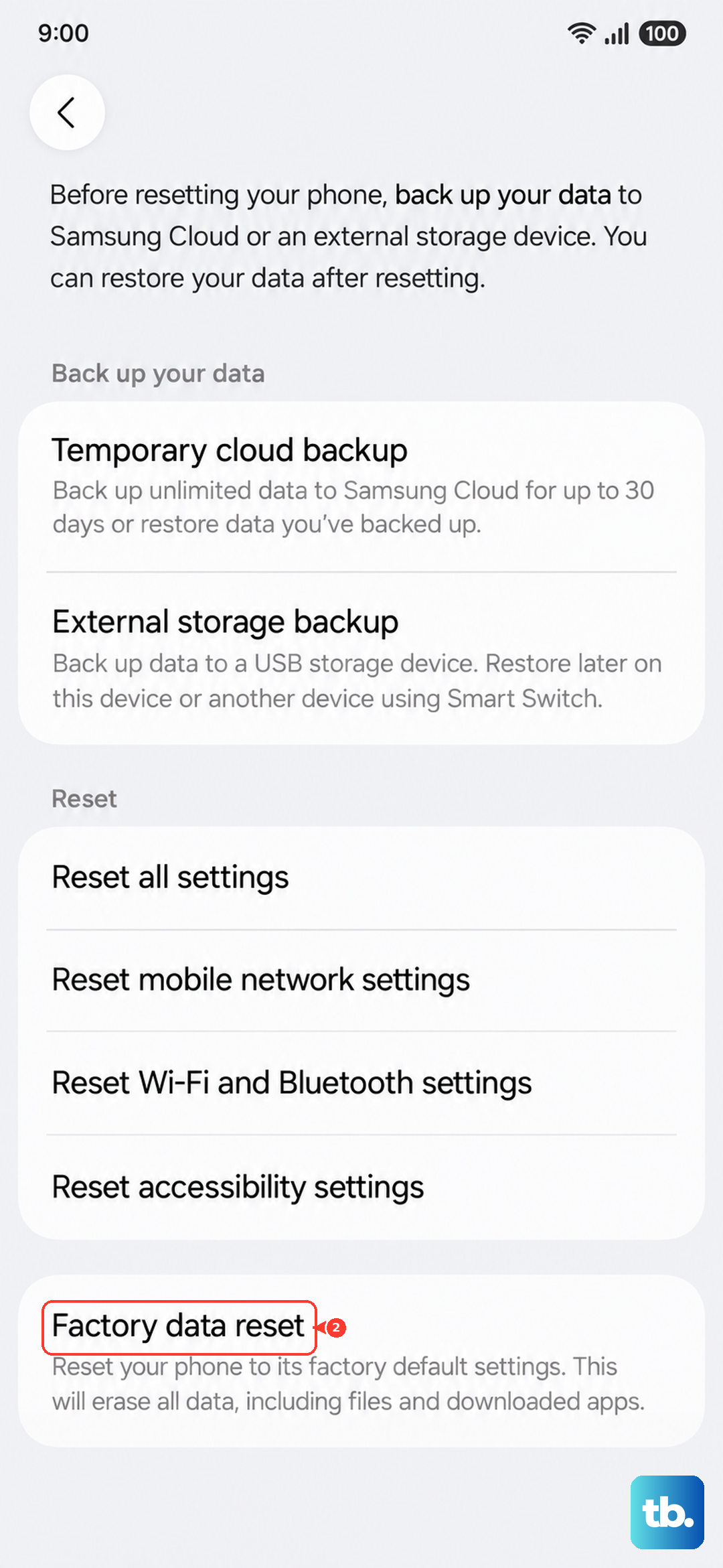
As an absolute last resort, you can perform a factory reset. Before you do this, it is critical to back up all your important data, photos, and files to Samsung Cloud or a computer. A factory reset will erase everything and can fix deep-seated software corruption. You can initiate this from Settings > General management > Reset > Factory data reset.