
If your Samsung Galaxy S25 Ultra's screen is stuck in one orientation, the quickest fix is to pull down the Quick Settings panel from the top of your screen. Look for the icon that says "Portrait" or has a lock symbol on it and tap it. When it's blue and says "Auto rotate," the feature is back on.
This is the most common reason the screen won't flip, and it takes about two seconds to check. I've seen plenty of people accidentally toggle this off when pulling their phone out of a pocket or bag.
Enable Home Screen and App Rotation
Your S25 Ultra has a separate setting that controls whether the home screen and certain apps can rotate. Even with auto-rotate on, your home screen might stay in portrait if this isn't enabled.
To turn it on, pull down the Quick Settings panel and tap the text label under the auto-rotate icon, not just the icon itself. In the menu that pops up, make sure the switch for "Home screen" is turned on. There's also a separate "Voice call screen" switch that lets the phone dialer app switch to landscape.
Restart Your Galaxy S25 Ultra
A simple restart can clear out temporary software glitches that might be confusing the accelerometer. Just hold the side button until the power menu appears, then tap "Restart." Wait for the phone to fully boot back up and see if rotation works.
If a standard restart doesn't do the trick, try a force restart. This is a bit more thorough for clearing system caches. Press and hold the Volume Down button and the Side button together for about 10 seconds, until you see the Samsung logo appear.
Check for App-Specific Problems
Not every app supports landscape mode. If rotation works perfectly in your camera app or YouTube but fails in a specific game or social media app, the app developer might have locked it to portrait.
You can test this by opening a few different apps. If the problem is isolated to one app, check the Google Play Store for an update for that app, as the developer may have fixed the issue. Clearing that app's cache through Settings > Apps can also help.
Update Your Phone's Software
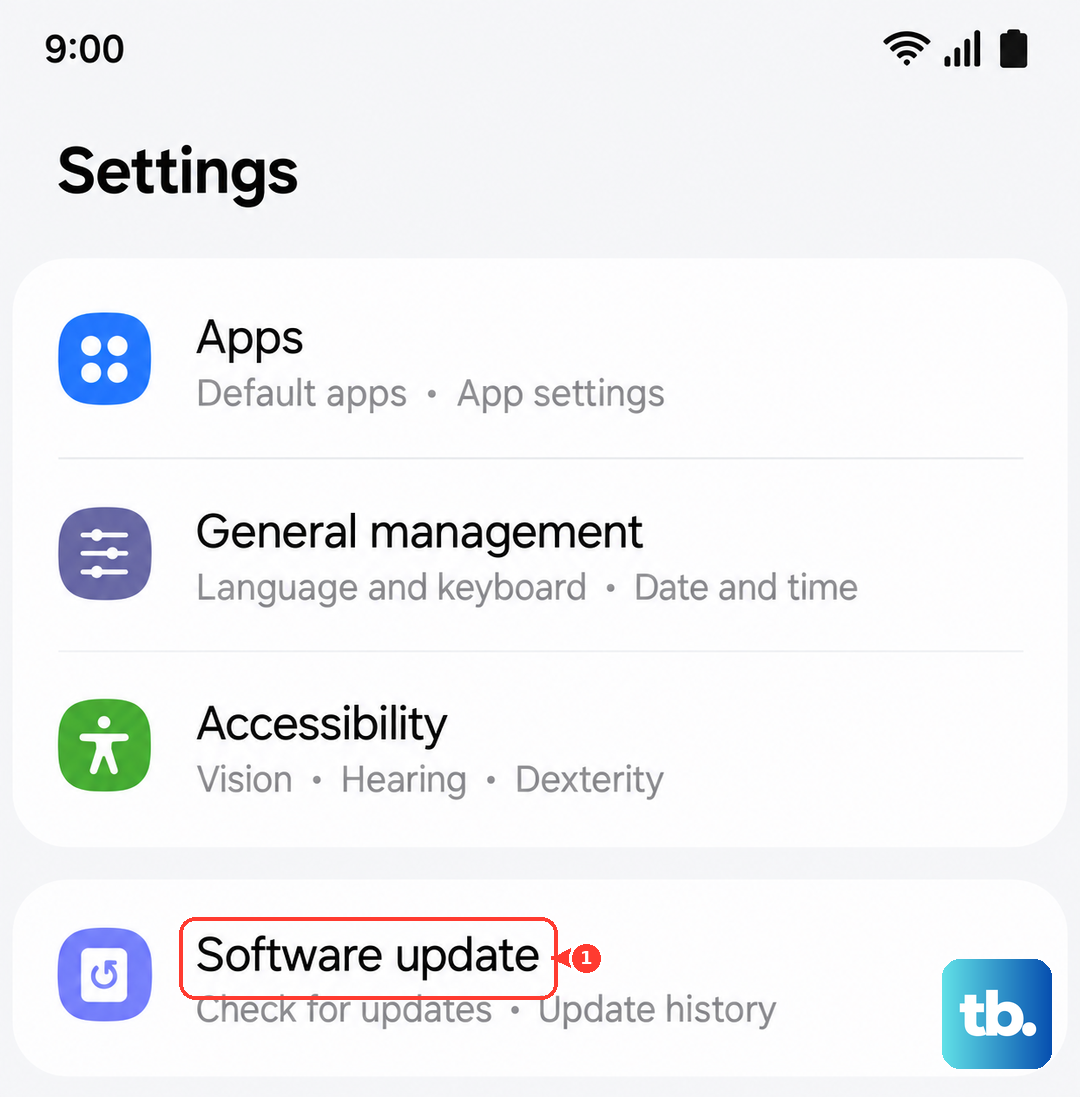
Since the S25 Ultra now runs Android 16 with One UI 8, it's important to keep it updated. Samsung regularly releases patches that fix bugs, including ones that might affect sensor performance.
Go to Settings > Software update > Download and install. If an update is available, install it. Make sure your phone is connected to Wi-Fi and has a good charge, preferably over 50%, before starting.
Test the Phone's Sensors
The auto-rotate feature depends on the accelerometer and gyroscope. Samsung includes a hidden diagnostic menu to test these hardware components. Open your Phone dialer and enter *#0*# to launch the secret test menu.
Tap on "Sensor" from the list. You'll see a screen with various readings. Try tilting and rotating your phone. The X, Y, and Z angle values should change responsively. If they don't budge at all, it could point to a sensor issue.
Check for Physical Interference
This sounds simple, but make sure you're not touching the screen when you try to rotate the phone. The S25 Ultra's touchscreen is extremely sensitive, and palm contact can sometimes prevent the rotation from triggering.
Also, if you're using a very thick or poorly fitted case, it might be putting pressure on the frame in a way that interferes with the sensors. Try removing the case and testing rotation to rule that out.
Consider a Software Reset
If you've tried everything else and the sensors test fine, a deeper software issue might be the cause. Before doing anything drastic, try booting into Safe Mode. This temporarily disables all third-party apps.
To enter Safe Mode, press and hold the side button until the power off prompt appears. Then, press and hold the "Power off" option on your screen until you see a prompt to reboot to Safe Mode. If auto-rotate works perfectly in Safe Mode, a recently installed app is likely causing the conflict.
As a last resort, you can reset all settings. This won't delete your personal data like photos or messages, but it will revert all system settings (Wi-Fi, Bluetooth, display, etc.) back to default. You can find this option under Settings > General management > Reset > Reset all settings.