
When Bixby or Google Assistant stops responding to your voice on your Galaxy S25 FE, it can feel like you've lost a helpful sidekick. The issue can pop up after a software update, when a new app is installed, or sometimes for no clear reason at all. Let's get your voice assistant listening again.
Start With a Quick Restart
Before diving into settings, give your phone a fresh start. This clears out any temporary glitches in the system that might be blocking the microphone or voice services. Just press and hold the Volume Down button and the Side button together for about ten seconds until you see the Samsung logo appear.
I've seen this simple step fix voice command problems more often than you'd think. It's quick, it's easy, and it doesn't change any of your data or settings.
Check Your Primary Assistant Settings
Your S25 FE can use Bixby or Google Assistant, and you need to make sure the one you want is properly set up. Open your Settings app and head to Apps, then select your default assistant app, either Bixby or Google.
Inside the assistant's settings, look for the "Voice wake-up" or "Hey Google" option. Make sure this feature is toggled on. Also, verify that the microphone permission is granted. Sometimes an app update can reset these permissions without you noticing.
Retrain Your Voice Model
If your assistant hears you but doesn't activate, it might need a refresher on your voice. Background noise, different speaking patterns, or even a minor software update can throw off the recognition.
For Bixby, open the Bixby app, tap on your profile icon, and go to Voice wake-up. You'll find an option to retrain the voice model. For Google Assistant, say "Hey Google, open Assistant settings," then navigate to Voice Match and select "Retrain voice model." Follow the prompts, speaking clearly in a quiet room.
Review Sound and Accessibility Features
Certain features in One UI are designed to help but can accidentally interfere. Go to Settings > Accessibility > Hearing enhancements. Look for features like "Mono audio" or "Sound detectors" and make sure they are configured correctly or turned off for testing.
Also, check if any routine or Bixby command is set to put your phone on silent or "Do not disturb," which can mute voice responses. You can find these in the Modes and Routines or Bixby Routines section of your settings.
Check for Physical Microphone Blockages
The S25 FE has multiple microphones. The main one is at the bottom next to the USB-C port, and there are others near the top earpiece and on the back for video recording. If any are blocked by a case, dirt, or a screen protector, voice pickup will suffer.
Take off your case and inspect the microphone holes. A can of compressed air can gently clear out any lint. Be careful not to use anything sharp like a pin, as you could easily damage the internal mic mesh.
Update Your Phone's Software
Voice recognition is heavily dependent on software. Bugs in Android 15 or One UI 7 can sometimes break the "Hey Google" or "Hi Bixby" functions. Samsung regularly releases patches to fix these kinds of issues.
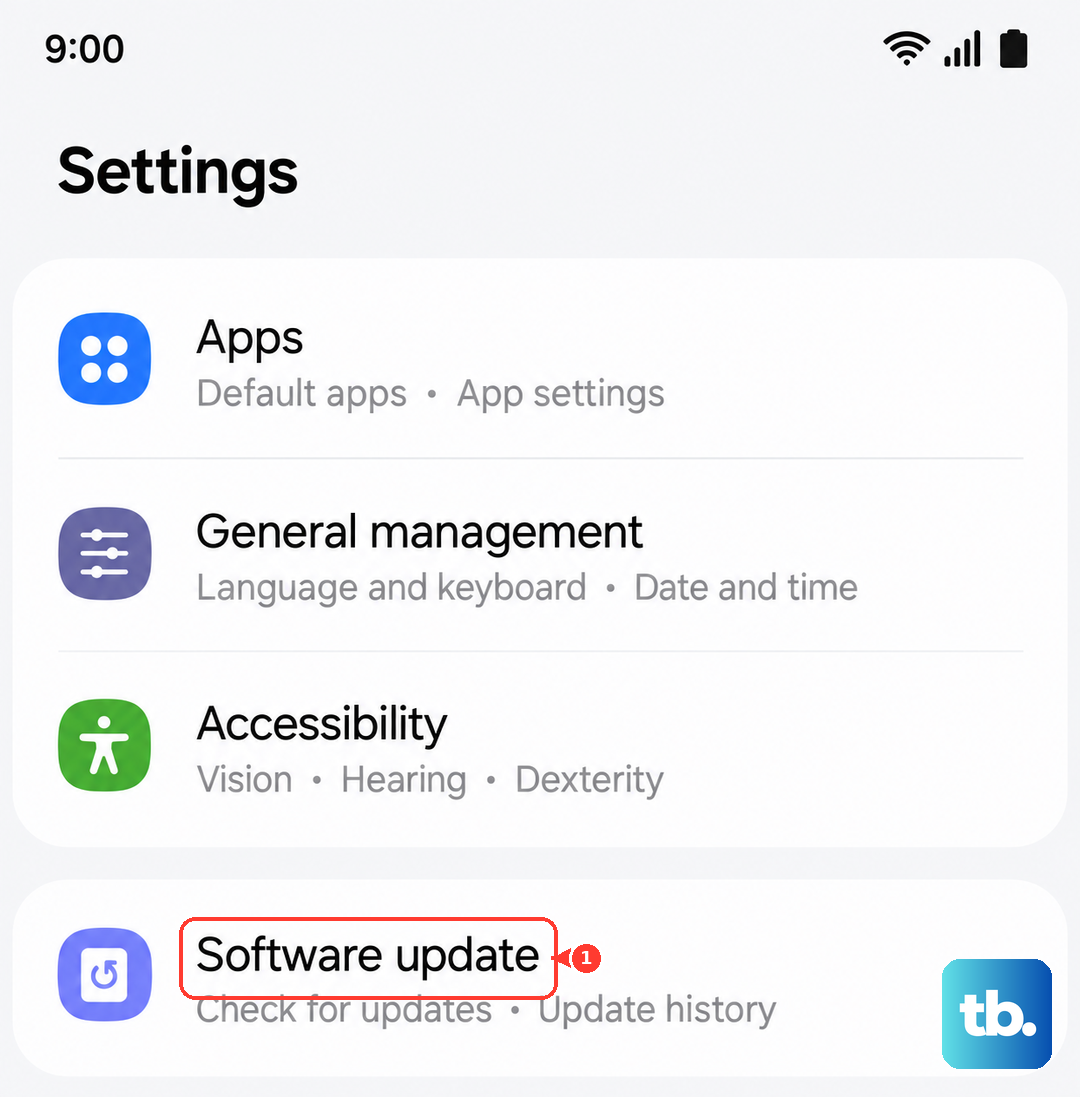
Head to Settings > Software update and tap "Download and install." If an update is available, let it install completely. After the phone reboots, give your voice commands another try. This is a very common fix for problems that appear out of the blue.
Clear the Cache for Your Assistant App
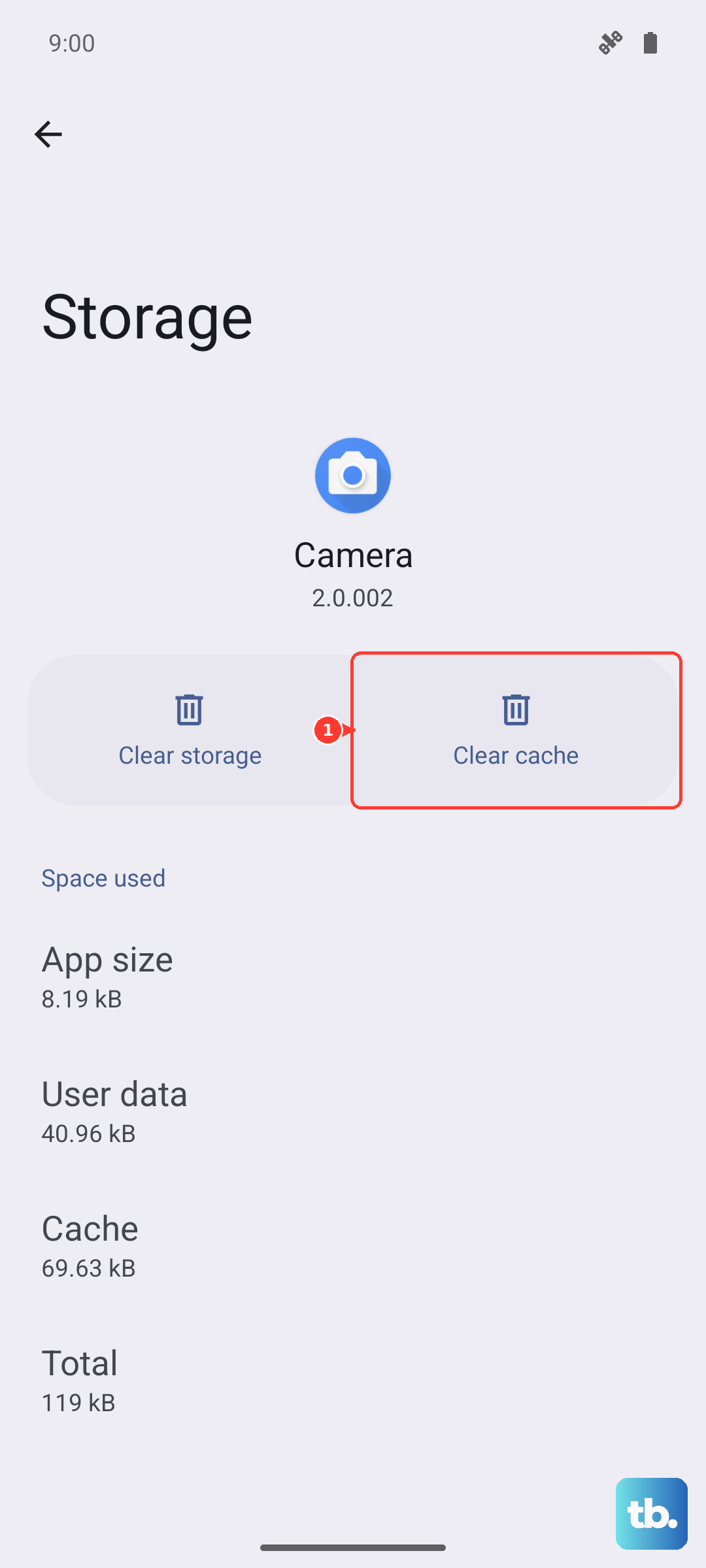
Cached data can get corrupted over time, leading to odd behavior. Go to Settings > Apps, then find either Bixby or Google. Tap on it, then select Storage.
Tap "Clear cache." This won't delete your personal data or voice model, but it will force the app to rebuild its temporary files. After doing this, restart your phone once more to see if the voice trigger starts working.
Verify No Power-Saving Modes Are Active
Aggressive battery saving can disable background processes, including the always-listening function for your voice assistant. Go to Settings > Battery.
Make sure you're not on a restrictive power saving mode. For the most reliable voice commands, I'd recommend using either "Optimized" or enabling Adaptive Battery instead, which learns your usage without being overly restrictive.
Reset App Preferences
This is a broader step that resets all your app permissions, default apps, and background restrictions back to their factory defaults. It won't delete any app data, but you will have to re-grant permissions the next time you use each app.
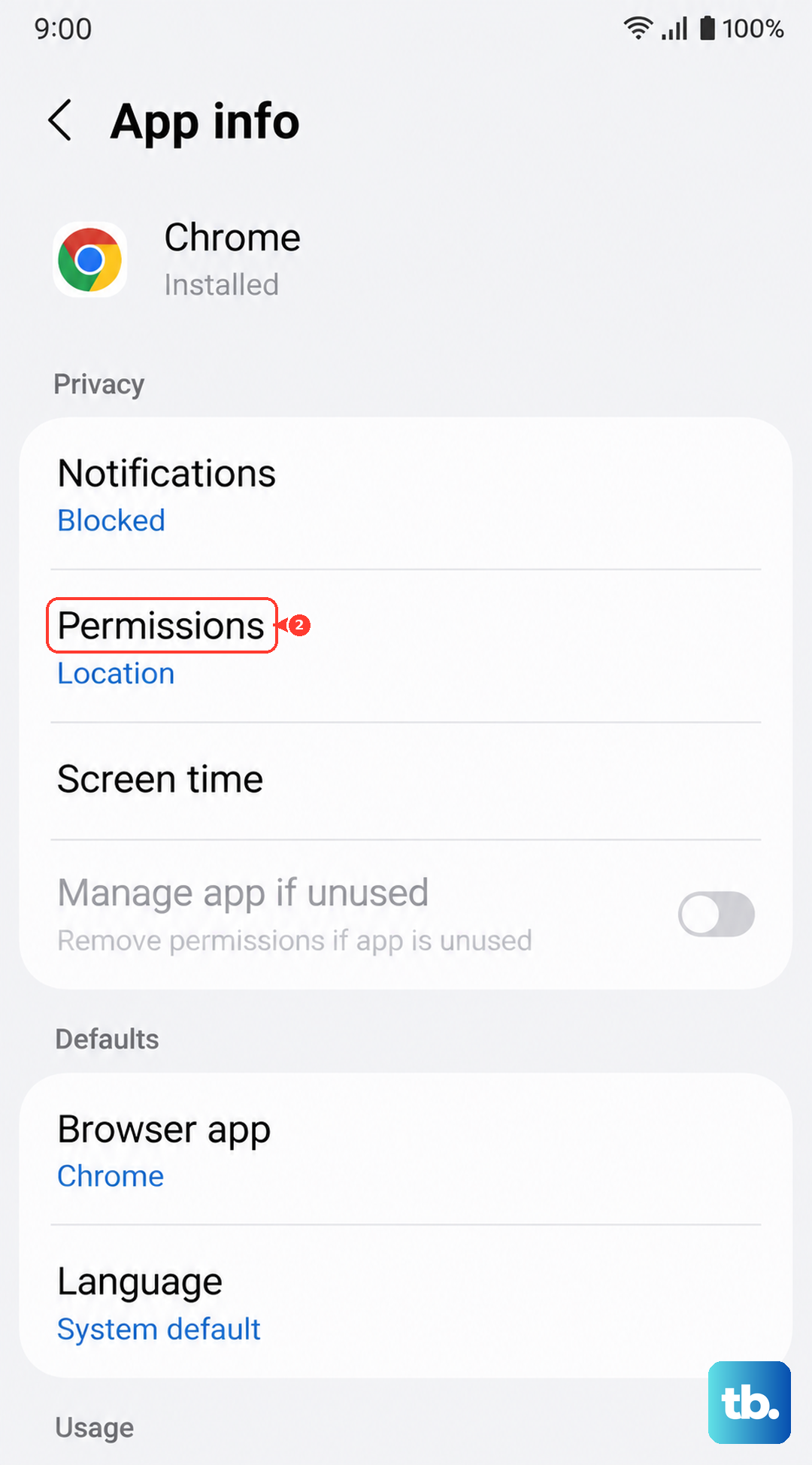
Go to Settings > Apps > Menu (three dots) > Reset app preferences. Confirm the reset. After your phone applies the changes, you'll need to go back into your assistant app and re-enable the microphone permission and voice wake-up feature.
Check for Conflicting Third-Party Apps
Some apps, especially those that also use the microphone for voice or sound recording, can create conflicts. Think about any new audio recorders, voice changers, or even gaming apps with voice chat you've installed recently.
Try booting your S25 FE into Safe Mode. Press and hold the power button, then tap and hold on the "Power off" icon on your screen until you see the Safe Mode prompt. In Safe Mode, test your voice commands. If they work, a third-party app is likely the culprit. You'll need to uninstall apps one by one to find the offender.