
If your Samsung Galaxy S25 FE camera app is crashing, freezing, or just showing a black screen, the first thing to try is a simple restart. Press and hold the Volume Down and Side button together for about 10 seconds until you see the Samsung logo. This force restart clears temporary software glitches that can lock up the camera system.
It takes seconds to confirm the camera works with an online webcam test. If the preview stays black there too, keep reading, because the steps below target exactly that.
Key Points
- Restart and Update: A force restart is the fastest way to fix a temporary camera crash.
- Clear the Camera App's Data: This resets the app to its default state, fixing settings corruption.
- Check for App Conflicts in Safe Mode: Boot into Safe Mode to see if another app is interfering.
- Inspect Physical Camera Lenses: Smudges or a damaged lens protector can ruin photo quality.
- Verify App Permissions: The camera needs permission to access the microphone and storage.
- Reset All Settings: This fixes deeper system conflicts without deleting your personal data.
After the phone reboots, give it a moment and then open the camera again. I'd start with this one, as it resolves most immediate "camera won't open" issues.
Update Your Phone's Software
Outdated software is a common culprit for camera problems, especially after a major update like the move to Android 15 and One UI 7. Samsung regularly releases patches that fix bugs affecting the camera and other hardware. To check, go to Settings > Software update and tap Download and install.
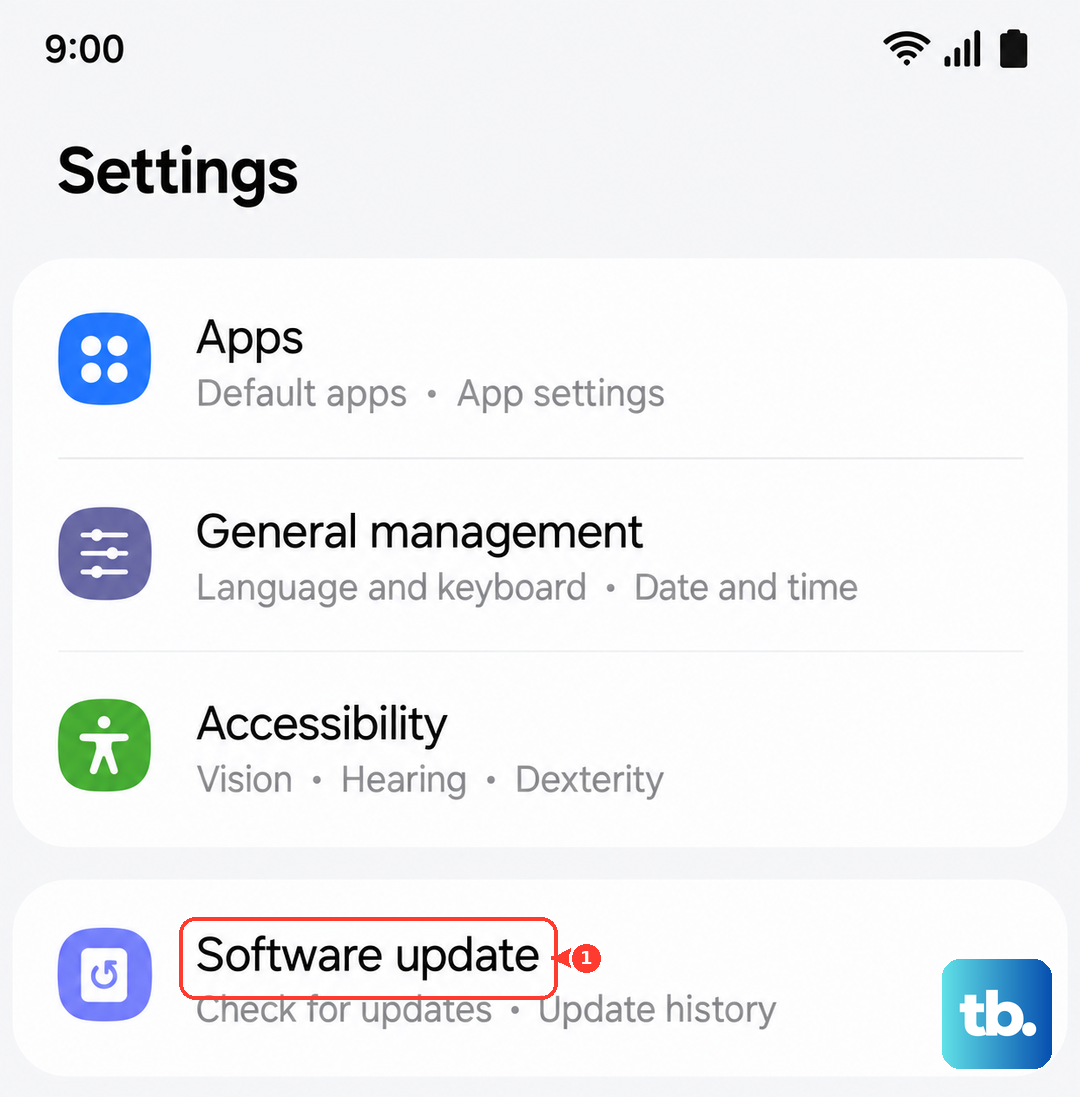
Make sure your phone is connected to Wi-Fi and has at least a 50% charge before starting the update. Once it's installed, do another force restart to ensure all the new software components load correctly. This often fixes issues like the camera freezing when switching modes or failing to save photos.
Clear the Camera App's Cache and Data
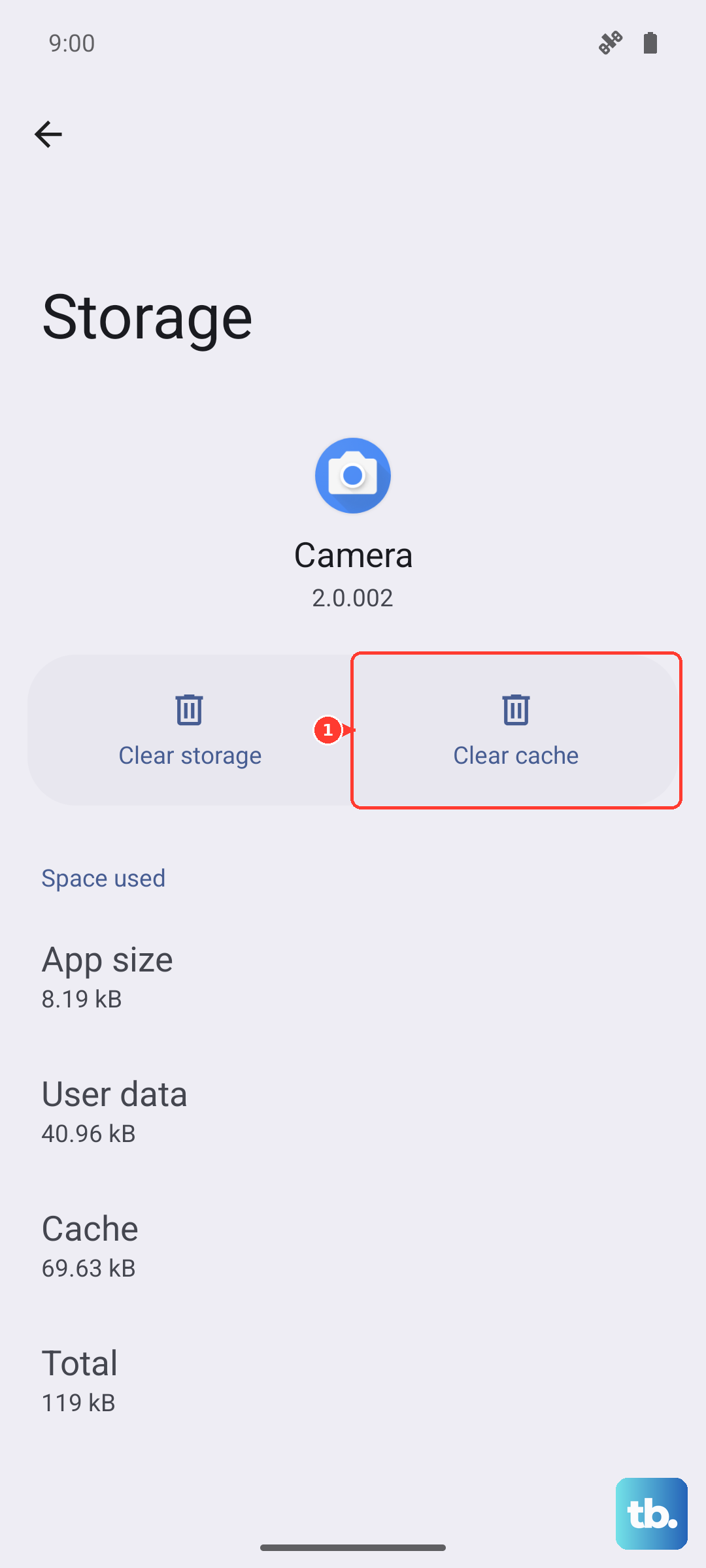
If the camera app itself is buggy, clearing its stored data can help. This resets the app's settings without affecting your photos. First, go to Settings > Apps, then find and tap on Camera.
Tap on Storage, and you'll see two options: Clear cache and Clear data. Tap Clear cache first. This removes temporary files and often fixes minor glitches. If the problem persists, go back and tap Clear data. Be aware this will reset all your in-app settings, like your preferred shooting mode or grid lines, but your photos and videos remain safe in your gallery.
Boot Into Safe Mode to Check for App Conflicts
A third-party app you installed could be causing a conflict that crashes the camera. Booting into Safe Mode temporarily disables all downloaded apps. To enter Safe Mode, press and hold the power button until the power off menu appears.
Then, press and hold the Power off option on your screen. A prompt will appear asking if you want to reboot to Safe Mode. Tap OK. Once your phone restarts, you'll see "Safe mode" in the bottom corner. Try opening the camera now.
If the camera works perfectly in Safe Mode, you know a downloaded app is the problem. Restart your phone normally to exit Safe Mode, and then start uninstalling recently added apps one by one, testing the camera after each one.
Clean the Camera Lenses and Check for Damage
It sounds simple, but fingerprints and smudges on the lenses are a frequent cause of blurry or hazy photos. Use a soft, dry microfiber cloth to gently wipe all the camera lenses on the back of your S25 FE. Avoid using harsh chemicals or paper towels, which can scratch the lens coating.
Also, check if you have a thick or poorly aligned phone case. Some cases can partially obstruct the camera lenses or the flash, causing dark corners or focus issues. Try removing the case and taking a few test shots to see if the image quality improves. If you see any physical scratches or cracks on the glass covering the lenses, that will require professional repair.
Verify Camera Permissions for Other Apps
The problem might not be with the main Camera app, but with another app like Instagram, Snapchat, or your banking app that uses the camera. If the camera fails only within a specific app, check that app's permissions. Go to Settings > Apps, select the problematic app, and tap Permissions.
Make sure the Camera permission is set to Allow. While you're there, also check the Microphone permission if you're having trouble with video recording audio. Some apps need both to function correctly. If permissions are on but it still doesn't work, try clearing that specific app's cache and data using the same method described for the Camera app.
Reset All Settings on Your Phone
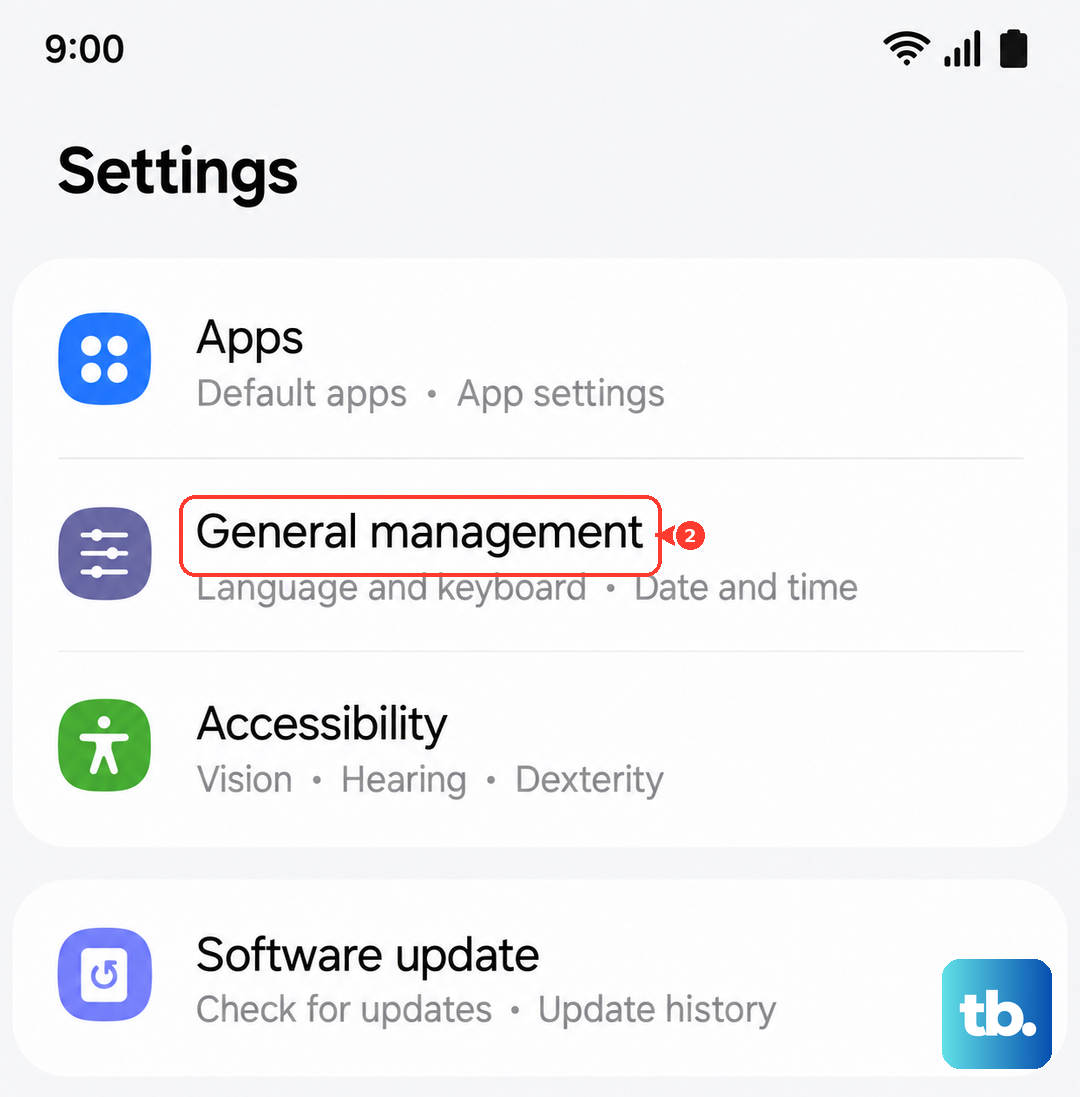
This is a more thorough step if you suspect a system-wide setting is causing the conflict. Resetting all settings will revert your Wi-Fi passwords, Bluetooth connections, display preferences, and app permissions back to default, but it won't delete any of your photos, messages, or apps. It's a good middle ground before considering a full factory reset.
To do this, go to Settings > General management > Reset > Reset all settings. Enter your PIN or password if prompted, and confirm. Your phone will restart. After it boots up, you'll need to reconfigure things like your wallpaper and connect to Wi-Fi again, but it often resolves persistent hardware access issues.
Check for Overheating Issues
The Galaxy S25 FE with the Exynos 2400 chip can run warm during intensive tasks. If your phone is overheating, it may automatically shut down the camera app to protect the hardware. You might see a warning message or the camera might just close unexpectedly.
If the phone feels hot, stop using it for a few minutes, remove any case, and let it cool down in a shaded area. Avoid using the camera for extended video recording or while the phone is charging, especially with a fast 45W adapter, as this generates additional heat. Once the temperature normalizes, the camera should work again.
Perform a Factory Reset (Last Resort)
If none of the above software fixes work, a factory reset is the final step. This will erase all data from your phone and return it to its original out-of-the-box state. It's crucial to back up everything important first. You can use Samsung Cloud or Google One to back up your settings, apps, and data.
To start the reset, go to Settings > General management > Reset > Factory data reset. Tap Reset and follow the prompts. After the reset is complete, set up your phone as new initially to test the camera. If the camera works perfectly on the fresh system, you know the issue was software-related. If it still fails, the problem is likely with the camera hardware itself.