
If your Samsung Galaxy S25 is having trouble connecting to your wireless earbuds, car, or smartwatch, it can be incredibly frustrating. Bluetooth issues are common on Galaxy phones, and Samsung's current troubleshooting guidance points to a few specific checks that often get things working again.
I'd start with the simplest fix first. Pull down the notification shade twice to see your full quick settings panel. Tap the Bluetooth icon to turn it off, wait about ten seconds, and then tap it again to turn it back on. This quick refresh can clear up a temporary glitch and is worth trying before anything else.
Check Your Basic Connections
Before moving to more involved steps, run through this quick checklist. Make sure both your S25 and the device you're trying to connect to have enough battery, ideally above 20%. Keep them within a few feet of each other without obstructions.
Also, confirm the other device is actually in pairing mode. For many Samsung accessories, like Galaxy Buds or a Galaxy Watch, you'll need the Galaxy Wearable app open and ready. Double-check that no other phone is currently connected to the device you're trying to pair with.
Restart Your Phone and the Accessory
A full restart clears the phone's memory and stops any background processes that might be interfering. Press and hold the Volume Down button and the Side button together for about ten seconds until you see the Samsung logo appear.
Once your S25 boots back up, restart the Bluetooth accessory as well. For headphones, this usually means holding a button until they power off and then on again. After both devices are fresh, try the pairing process one more time.
Forget and Re-Pair the Device
If the device is already in your list but won't connect properly, removing it and starting over often works. Open your phone's Settings and go to Connections > Bluetooth.
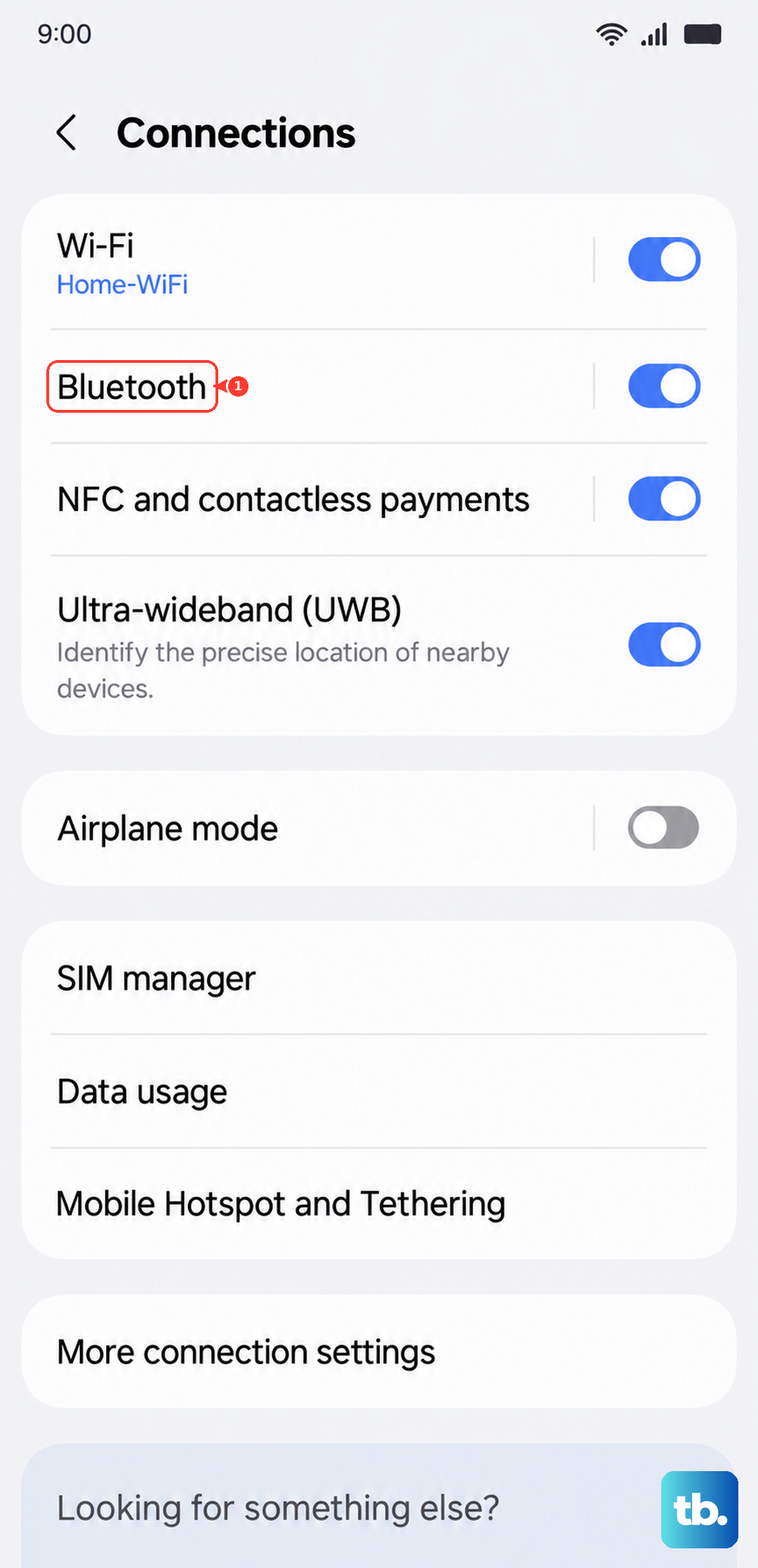
Find the problematic device in your list of paired devices. Tap the gear icon next to its name, then select Unpair or Forget. Once it's removed, put the accessory back into pairing mode and search for it again on your S25 to establish a new connection.
Clear the Bluetooth System Cache
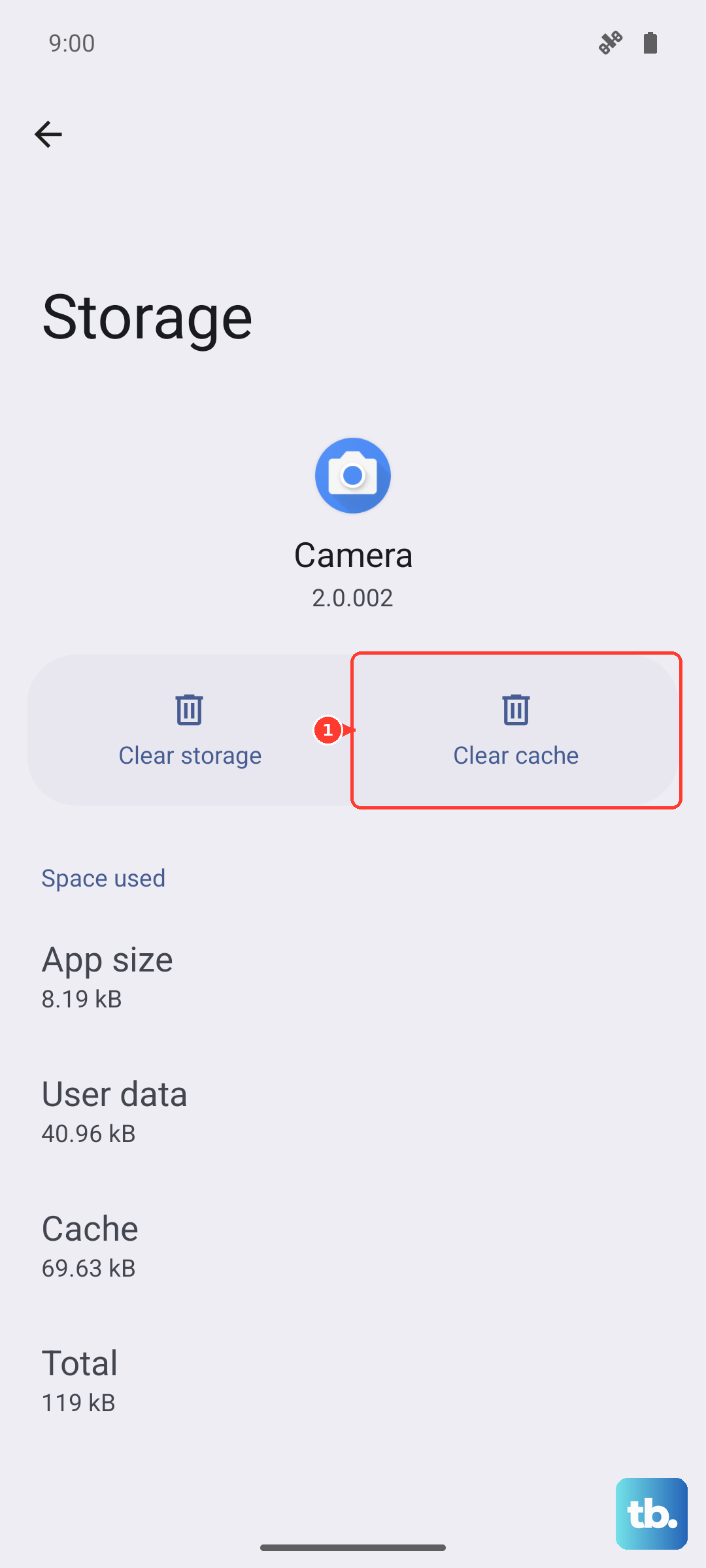
Corrupted temporary files can cause all sorts of connection problems. Clearing the Bluetooth cache is a safe, effective step that doesn't delete your paired devices. Go to Settings > Apps.
Tap the three-dot menu in the top right and select Show system apps. Scroll down and find Bluetooth in the list, then tap on it. Select Storage and tap Clear Cache. Restart your phone and test Bluetooth again.
Check for Software Updates
Outdated software is a frequent cause of Bluetooth bugs, especially with new devices like the S25. Samsung regularly releases updates to fix these kinds of issues. Go to Settings > Software update and tap Download and install.
Also, check if your Bluetooth accessory has a companion app, like the Galaxy Wearable app for Samsung earbuds. Open that app and look for a firmware update section, as updating the accessory itself can resolve compatibility problems.
Reset Your Network Settings
For Bluetooth problems, reset the Wi-Fi and Bluetooth settings rather than mobile network settings. This will remove saved Wi-Fi networks and Bluetooth pairings, so you'll need to reconnect to Wi-Fi and pair Bluetooth devices again. Navigate to Settings > General management > Reset.
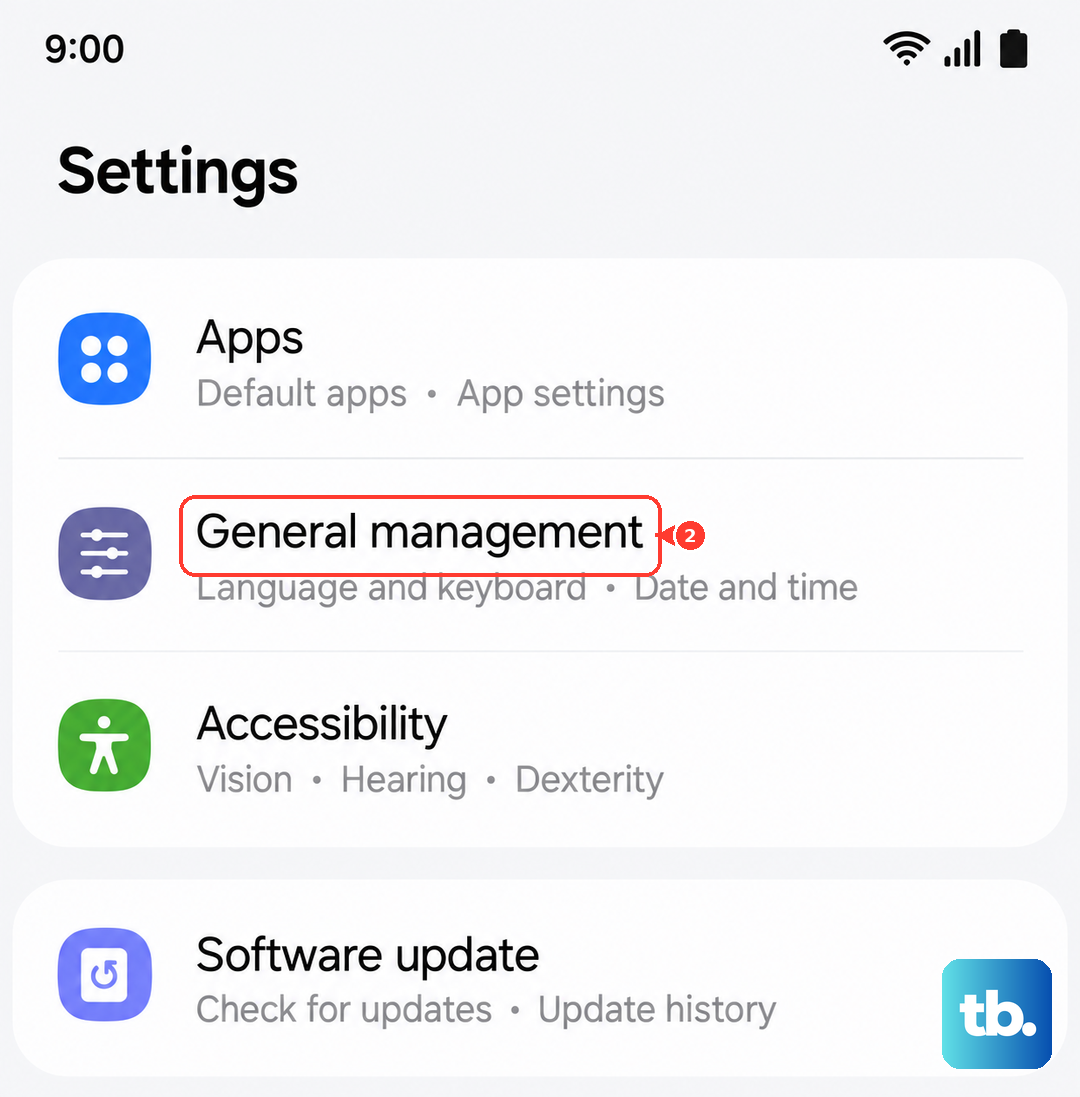
Tap Reset Wi-Fi and Bluetooth settings, then tap Reset settings. You may be prompted for your security credentials and, depending on region or software version, you may need to tap Reset to confirm. After the reset finishes, pair the Bluetooth device again.
Boot Into Safe Mode
Safe Mode disables downloaded apps and loads only the original software, which helps you test whether an app is affecting Bluetooth. If Bluetooth works in Safe Mode, a recently downloaded app is likely involved.
Open the Power menu first. On devices without a dedicated Power button, Samsung says to swipe down from the top right to open the Quick settings panel and tap the Power icon. Touch and hold Power off until the Safe mode icon appears, then tap Safe mode. If Bluetooth works here, exit Safe Mode and uninstall recently downloaded apps one by one, checking after each uninstall.
Address Car Bluetooth Problems
Car systems can be particularly finicky. The most reliable method is to clean the slate on both sides. First, go into your S25's Bluetooth settings and forget the car. Then, go into your car's infotainment system menu and delete your phone from its memory.
With both devices cleared, restart your S25 and your car's stereo system. Put the car back into pairing mode and search for it with your phone as if it were a brand new device. This full reset often solves persistent car connection drops.
Consider a Factory Reset
If you've tried every other step and Bluetooth is completely non-functional, a factory reset is the last software option. This will erase all data on your phone, so it's crucial to back up everything important first using Samsung Cloud or a computer.
Once backed up, go to Settings > General management > Reset > Factory data reset. Follow the prompts to complete the process. After the reset, set up your phone as new and test Bluetooth before restoring your apps and data, to see if the problem persists.