
If your Samsung Galaxy S24 is completely black and won't respond when you press the side button, don't panic just yet. A completely dead battery may be the reason, but there are a few other things you can try before assuming the worst. I'd start with the simplest fix first.
Charge Your Phone Properly
Your S24 might have a battery so drained that it needs a proper wake-up charge. Plug it into a wall outlet using the original USB-C cable and a compatible 25W Samsung charger if you have one. Let it charge, undisturbed, for at least 1 hour.
The charging indicator may take up to 10 minutes to appear. After charging for at least 1 hour, disconnect the charger and press and hold the Side button for 15 to 20 seconds to try turning the phone on. If the screen turns on, turn the phone off and reconnect the charger until it's fully charged.
If it doesn't charge, try a different cable and power adapter. Make sure the USB-C port on your phone is completely clean and free of lint, which can prevent the cable from seating fully.
Perform a Force Restart
This is the equivalent of pulling the plug on a frozen computer and often works when the screen is black. Press and hold the Volume Down button and the Side (power) button simultaneously.
Keep holding them both for 20 seconds to try a force restart. If the phone restarts, the Samsung logo will appear on the screen. This forces a hard reboot without deleting any of your personal data or settings.
It can clear temporary software glitches that might be preventing the phone from waking up. If the screen stays black and nothing happens after 20 seconds, move on to the next step.
Check for a Moisture Detection Error
If moisture is detected in the USB-C port, charging may stop to protect the phone. Check for a moisture detection notification if the screen responds. The port must be completely dry before you try charging again.
If you've recently been in a humid environment or there's any chance of condensation, this could be the culprit. Gently shake the phone to remove moisture from the port, wipe it with a soft, clean cloth, and leave it in a well-ventilated area with cool air.
For visible lint or debris, turn the phone off, inspect the port with a flashlight, and carefully clean it with a soft, dry brush without metal objects or liquids. Avoid using heat or inserting anything like a cotton swab, as you could damage the sensitive pins inside the port.
Inspect Your Charging Gear
Your phone might be fine, but your charger or cable could be the problem. The S24 supports 25W Super Fast Charging, but only with a compatible PPS (Programmable Power Supply) charger, like Samsung's official one.
Try a different USB-C cable and a different power brick altogether. Plug it into a known-good wall outlet, not a computer or a car charger, to ensure it's getting maximum power. Also, if you're using a case, try removing it in case it's preventing the cable from plugging in all the way.
Wireless charging is another good test. Place your S24 on a Qi wireless charger. If it begins charging wirelessly, the USB-C port, wired cable, or power adapter may be the problem.
Boot Into Safe Mode
If your phone turns on but gets stuck on the Samsung logo or during startup, a recently installed app might be causing a conflict. Booting into Safe Mode loads the phone with all third-party apps disabled.
First, completely power off the phone. Turn it on and, when the Samsung logo appears, press and hold the Volume down button. Keep holding it until you see "Safe mode" in the bottom-left corner of the screen.
If the startup problem disappears in Safe mode, a downloaded app is likely causing it. Start uninstalling apps that were installed or updated when the problem began. After each uninstall, restart the phone to exit Safe mode and check whether it boots normally.
Check Battery Protection Settings
Your Galaxy S24 has a "Battery protection" feature whose Maximum mode limits charging to a selected level of 80%, 85%, 90%, or 95% to prolong the battery's lifespan. If you were already low on battery and it only charged to 80% before you unplugged it, it might have died faster than you expected.
This isn't a fix for a phone that won't turn on at all, but it's a good setting to know about for the future. You can find it in Settings > Battery > Battery protection.
If you need every bit of charge for a long day, you can toggle "Battery protection" off. Just remember to turn it back on if you want to keep using the feature for daily battery health.
Wipe the Cache Partition
Wiping the cache partition in recovery mode clears temporary system files without touching your personal data.
First, turn the phone off completely and connect it to a computer with a USB cable. Then, press and hold the Volume Up button and the Side button together. When the Samsung logo appears, release only the Side button but keep holding Volume Up until you see the Android Recovery screen.
If "Wipe cache partition" appears in the menu, use the Volume Down button to navigate to it and press the Side button to select it. The option may not appear on current software. Confirm the action, then select "Reboot system now" when it's done. This process may help with boot loops after a software update.
Consider a Factory Reset
This is your last resort before seeking repair, as it will erase everything on your phone. If you can open Settings, go to Settings > General management > Reset > Factory data reset. Review the information, tap Reset, enter any requested screen lock or Samsung account password, and tap Delete all. If Settings won't open but recovery mode works, use the recovery menu mentioned in the previous step.
In the Android Recovery screen, navigate to "Wipe data/factory reset" using the volume buttons. Select it with the Side button, confirm with "Yes" or "Factory data reset," then select "Reboot system now." After a recovery reset, you may need the last Google account's username and password and your previous screen lock to complete setup.
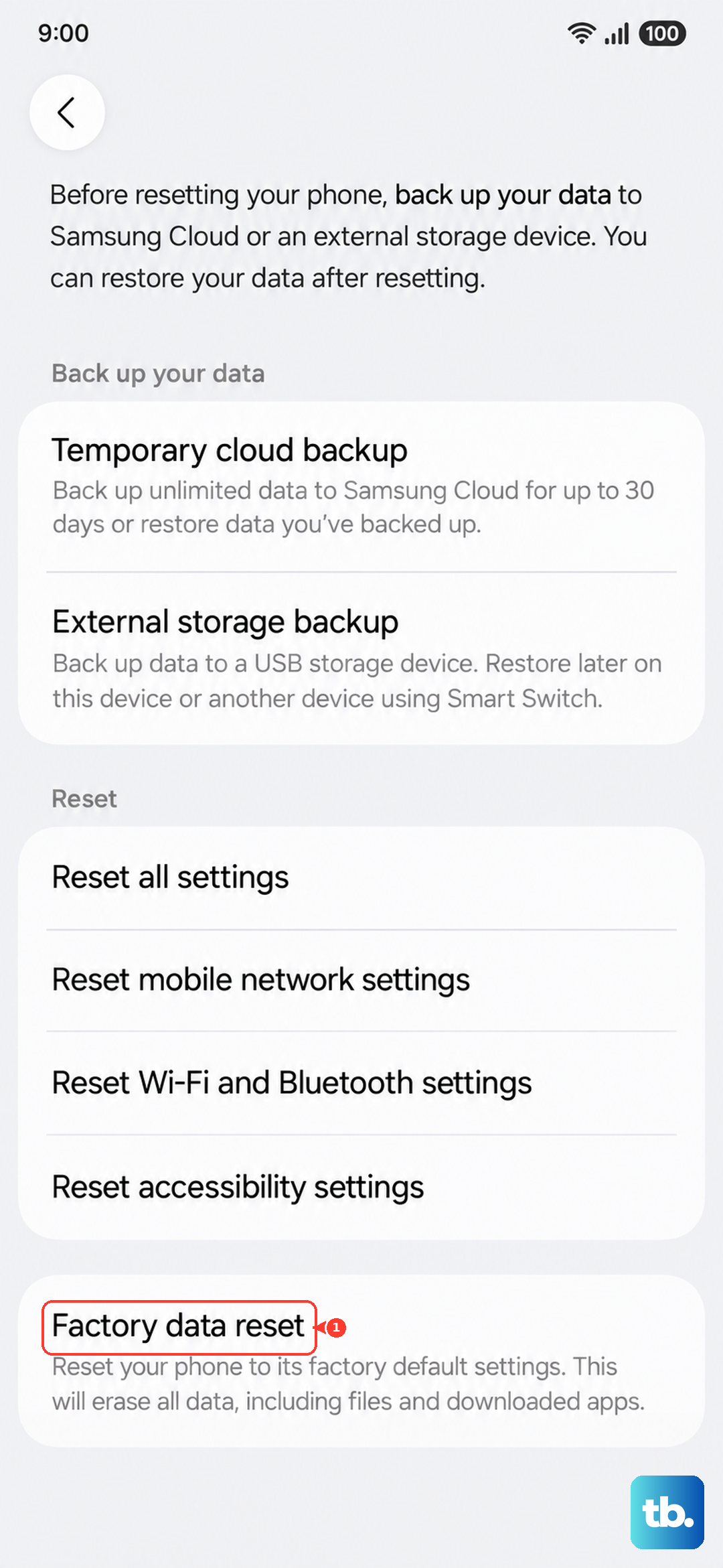
The phone will reset and reboot, which can take several minutes. Only try this if you have a recent backup of your data in Samsung Cloud or on your Google account, as the reset erases the data stored on your phone.