
If your Samsung Galaxy S24 won't connect to your earbuds, car, or smartwatch, it can be incredibly frustrating. Bluetooth issues are common, but on a new phone like the S24, they're usually caused by a software setting or a minor glitch. I'd start with the basics and work through these steps, which should get you reconnected without too much hassle.
Check the Simple Things First
Before you dive deep, take a quick look at a few obvious culprits. Make sure both your S24 and the device you're trying to connect to have enough battery, ideally above 20%. Pull down your notification shade twice and verify the Bluetooth icon is blue and active.
Keep the devices within a few feet of each other when pairing. Also, ensure the accessory is actually in pairing mode, this often involves holding a button until a light flashes. For Samsung-specific gear like Galaxy Buds or a Galaxy Watch, you might need the Galaxy Wearable app for the initial setup.
Toggle Bluetooth and Restart
The quickest fix is often just turning Bluetooth off and back on. Swipe down from the top of your screen to open the Quick Panel, tap the Bluetooth icon to turn it off, wait about ten seconds, and tap it again to turn it on. Then try pairing again.
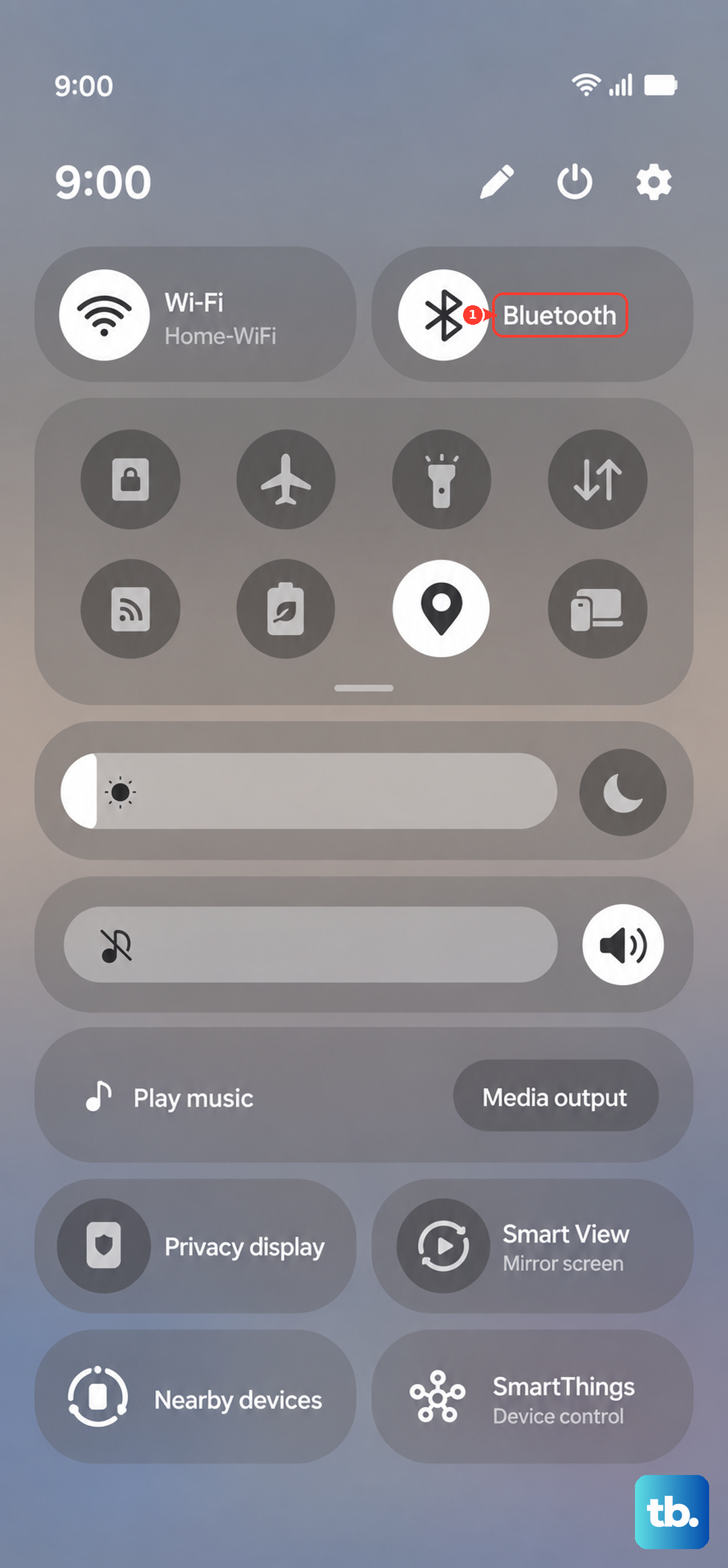
If that doesn't work, a full restart of both devices is your next best move. For your Galaxy S24, press and hold the Side key and Volume Down button for about ten seconds until you see the Samsung logo. Do the same for your Bluetooth accessory, then attempt to pair them fresh.
Forget and Re-Pair the Device
Sometimes a pairing gets corrupted. The fix is to remove the device from your phone's memory and start over. Go to Settings > Connections > Bluetooth. Find the problematic device in your list of paired gadgets and tap the gear icon next to it.
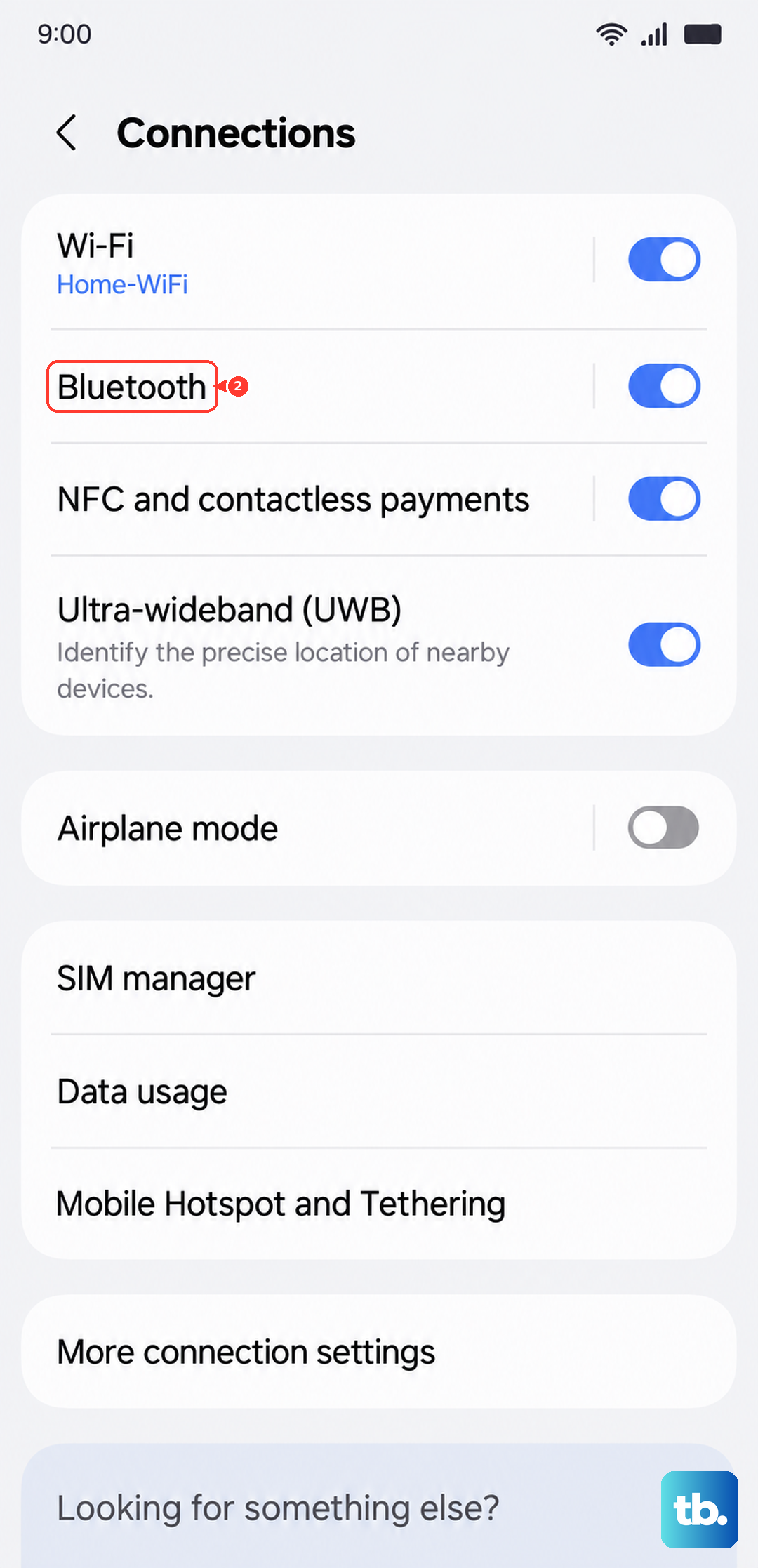
Tap Unpair or Forget. Once it's removed, put your accessory back into pairing mode and select it from the "Available devices" list on your S24 to create a new connection.
Clear the Bluetooth System Cache
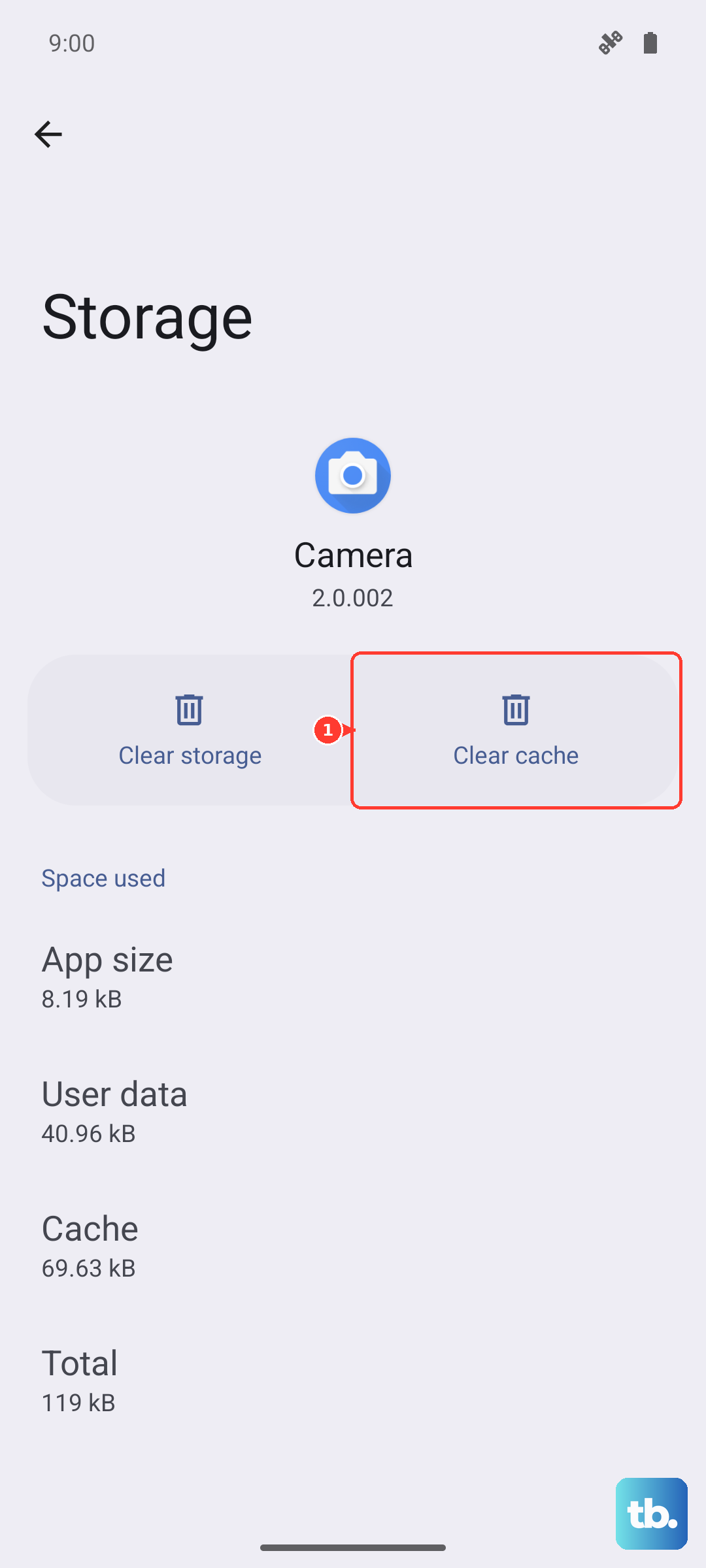
Your phone stores temporary data to help Bluetooth run faster, but this cache can become corrupted. Clearing it is safe and won't delete your paired devices. Open Settings and go to Apps.
Tap the three-dot menu in the top right and select Show system apps. Scroll down and find Bluetooth, then tap on it. Select Storage and tap Clear cache. After doing this, restart your phone and test Bluetooth again.
Reset Your Network Settings
This is a more comprehensive step that resets all wireless radios, including Wi-Fi and mobile networks, back to their default states. It will erase all your saved Bluetooth pairings and Wi-Fi passwords, so be ready to re-enter them.
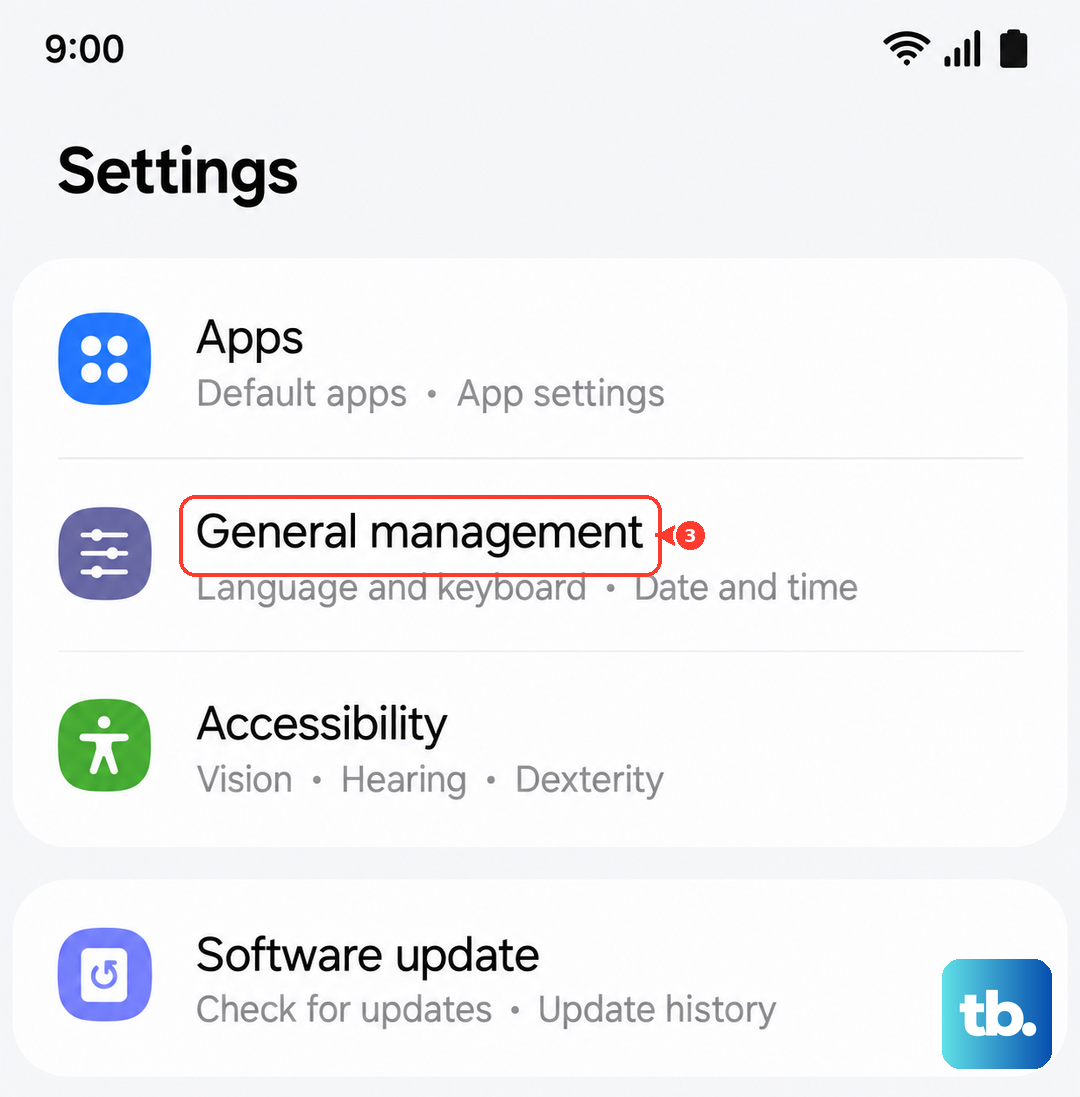
To do this, navigate to Settings > General management > Reset. Tap on Reset network settings and confirm. Your phone will reboot, and you'll need to re-pair all your Bluetooth devices from scratch.
Check for a Software Update
Samsung frequently releases updates for One UI that fix bugs, including Bluetooth connectivity problems. It's always worth checking if you're running the latest software. Go to Settings > Software update and tap Download and install.
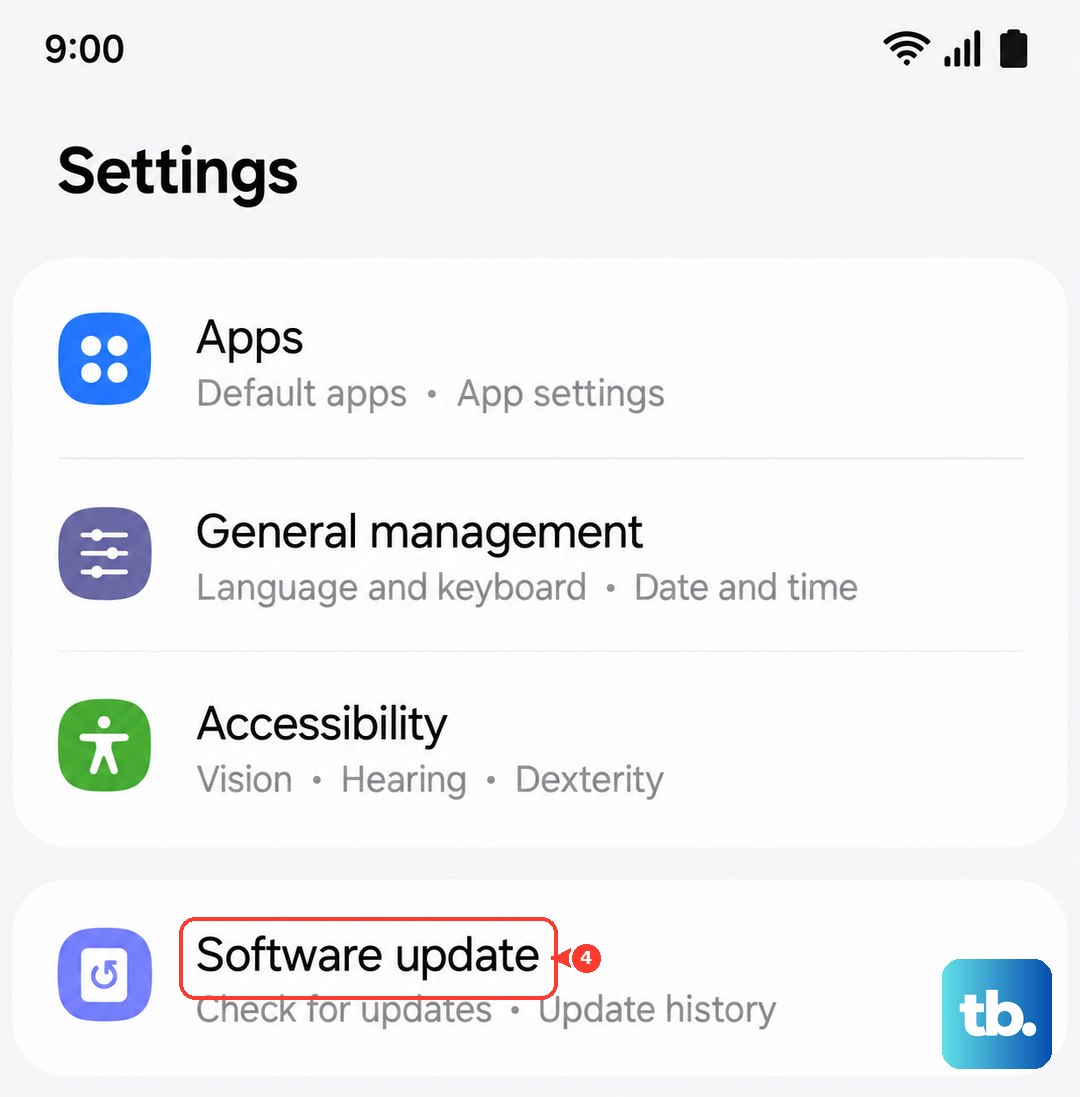
If an update is available, install it and see if it resolves your Bluetooth issue. Also, check the companion app for your Bluetooth device (like the Galaxy Wearable app or the manufacturer's app) for any available firmware updates for the accessory itself.
Boot Into Safe Mode
If a recently downloaded third-party app is causing a conflict, Safe Mode can help you find it. Safe Mode temporarily disables all apps you've installed. Press and hold the Side key until the power menu appears.
On that menu, tap and hold the Power off option. You'll see a prompt to reboot to Safe Mode, tap OK. If Bluetooth works perfectly in Safe Mode, you know a downloaded app is the problem. Restart normally and try uninstalling recent apps one by one to find the culprit.
Clear Bluetooth App Data
If clearing the cache didn't help, the next step is to clear the Bluetooth app's data. This is more drastic, as it will wipe out all your paired devices. You'll have to set everything up again, but it can clear out deeper corruption.
Go back to Settings > Apps > Bluetooth (remember to show system apps). Tap Storage and this time, select Clear data. Confirm, restart your phone, and then go through the pairing process with your devices as if they were brand new.
Address Known S24 Quirks
The Galaxy S24 has a few features that can sometimes interfere. First, check if a power-saving mode is enabled. Go to Settings > Battery and make sure any power saving mode is turned off, as these can limit background processes for Bluetooth.
Also, if you're trying to connect to multiple devices at once, like earbuds and a watch, try disconnecting one to see if the other connects reliably. Some users have reported that the S24's Bluetooth can be finicky with certain car systems, requiring you to delete the phone from the car's memory and the car from the phone's memory before re-pairing.
Consider a Factory Reset
If you've tried everything else and Bluetooth is completely non-functional, a factory reset is the last software step. This will erase everything on your phone, so you must back up your photos, messages, and app data first using Samsung Cloud or a computer.
Once backed up, go to Settings > General management > Reset > Factory data reset. Follow the prompts to reset the phone. After it restarts, set it up as new and test Bluetooth before restoring your data, to see if the problem persists on a clean system.