
If your Samsung Galaxy S24 screen is stuck in one orientation, the quickest thing to check is the auto-rotate toggle. Swipe down from the top of your screen twice to open the full Quick Settings panel. Look for the icon that says "Portrait" or has a lock symbol on it. Tap it once to change it to "Auto rotate." The icon should turn blue when it's active.
This is the most common fix, as it's easy to accidentally tap that icon when pulling down the notification shade. Give your phone a tilt to see if the screen now rotates with you.
Enable Home Screen Rotation in One UI
By default, the S24's home screen and app drawer won't rotate to landscape, even with auto-rotate on. This is a Samsung design choice, not a bug. If you want your home screen to rotate, you need to enable it separately.
Go to Settings > Home screen. Here, you'll find the toggle for "Rotate to landscape mode." Turn this on. Now, when you turn your phone sideways with auto-rotate enabled, your home screen and supported apps should follow.
Restart Your Galaxy S24
A simple restart can clear out temporary software glitches that might be confusing the accelerometer. Just press and hold the Side button and either Volume button until the power menu appears, then tap "Restart." Wait for the phone to fully boot back up and test the rotation again.
I'd try this right after checking the auto-rotate toggle. It's a quick step that resolves a lot of minor hiccups in One UI.
Perform a Force Restart
If a normal restart doesn't help, or if your phone is unresponsive, a force restart is the next step. This is different from a standard reboot and doesn't erase any data. Press and hold the Volume Down button and the Side button together for about 10 seconds.
You'll see the Samsung logo appear as the phone shuts down and starts back up. Release the buttons when you see the logo. This can clear deeper system caches that might be affecting sensor performance.
Check for App-Specific Rotation Lock
Some apps, especially video players and games, have their own internal rotation settings that override the system. If rotation fails in just one app like YouTube or Netflix, check within that app's settings for a portrait lock or rotation option.
Also, see if the problem started after installing a new app. A poorly coded app can sometimes interfere with system sensors. You can boot into Safe Mode to test this. Hold the power off option on the screen until "Safe Mode" appears, tap it, and see if rotation works normally there.
Update Your Phone's Software
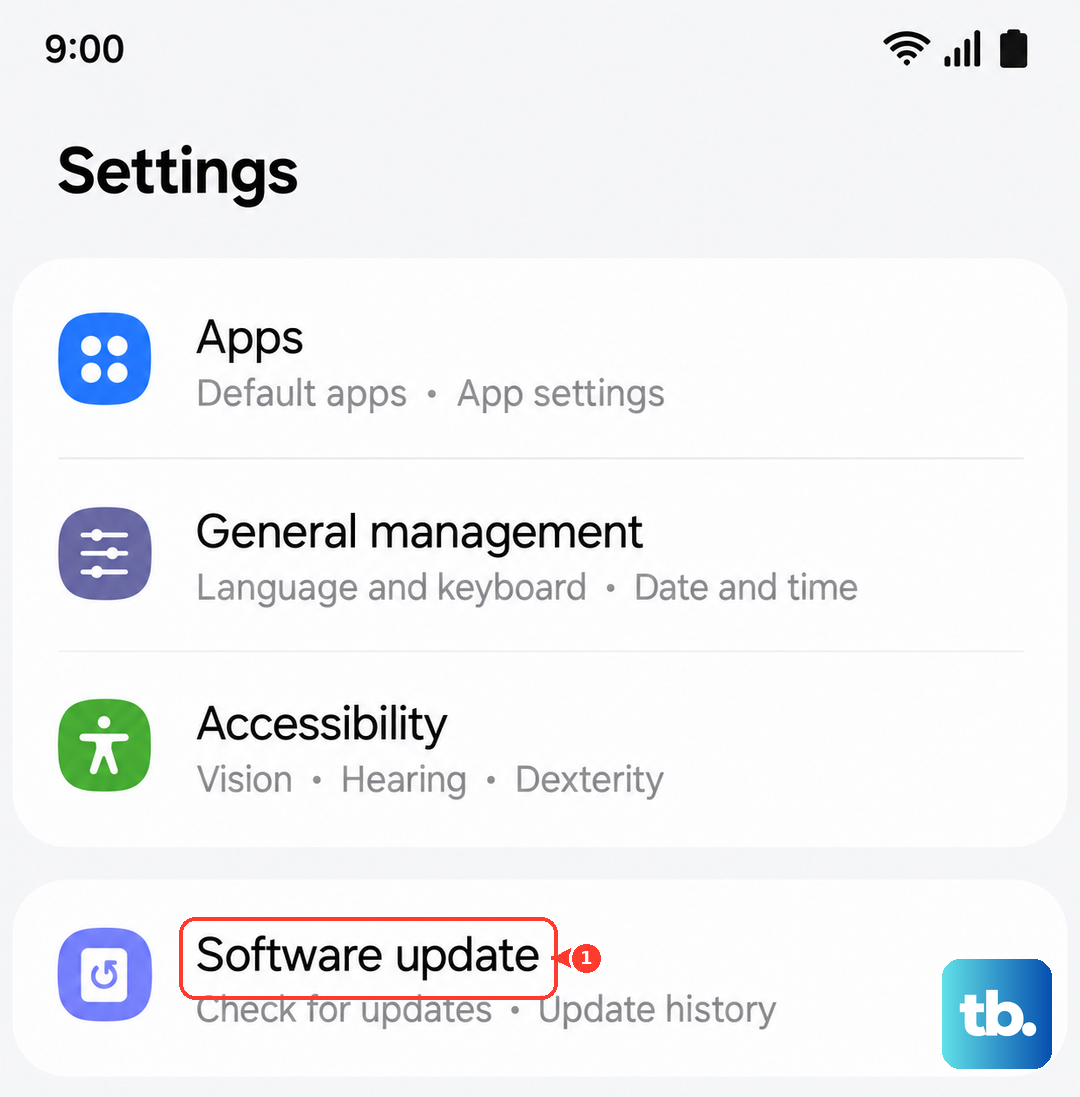
Software bugs in One UI or Android can occasionally break sensor functions. Samsung regularly releases updates that include fixes for these kinds of issues. Make sure your S24 is running the latest software.
Go to Settings > Software update > Download and install. If an update is available, install it. It's a good idea to be on Wi-Fi and have your phone charged above 50% before starting.
Test the Sensors with Diagnostics
The S24 has a built-in diagnostic tool to check if the accelerometer and gyroscope are functioning. Open your Phone dialer and enter *#0*#. This will open the secret test menu.
Tap on "Sensor." You'll see a live readout of all the sensor data. Tilt and rotate your phone. The "Accelerometer Sensor" values for X, Y, and Z should change rapidly as you move. If they're stuck at zero or don't respond, there's likely a hardware problem.
Check for Physical Obstructions or Damage
Make sure you're not accidentally touching the screen with your palm when you try to rotate the phone. The touch detection can sometimes prevent rotation. Also, check if you have a very thick or poorly fitted case that might be pressing on the frame and interfering with the device.
Consider if the phone has had any recent impacts or exposure to moisture. Physical damage can affect the internal sensors. While the S24 is water-resistant, a significant drop could still disrupt the delicate components responsible for detecting motion.
Reset App Preferences or Settings
If all else fails, you can reset app preferences. This won't delete any app data, but it will reset permissions, notifications, and default app settings. Go to Settings > Apps > tap the three-dot menu > Reset app preferences.
As a last resort, you could back up your data and try resetting all settings. This is found in Settings > General management > Reset > Reset all settings. It will revert all system settings (like Wi-Fi passwords and ringtones) to default but won't touch your personal files or apps.