
Press and hold the Volume Down button and the Side button together for about 10 seconds. Keep holding them until you feel the phone vibrate or see the Samsung logo appear. This force restart is the quickest way to jolt the system back to life if the screen is frozen or completely black.
I'd start with this one every time. It works for most unresponsive screen issues, especially if they started after a recent app install or a minor software glitch. The phone should power back on normally once you release the buttons.
Check Your Charger and Cable
Plug your Galaxy S23 into the original Samsung 25W charger or a certified high-quality USB-C cable. Let it charge for at least 30 minutes, even if the screen shows no sign of life. A completely drained battery can cause the phone to appear dead.
Try a different power outlet and a different charging brick if you have one. The S23 can be picky with third-party chargers, and some won't deliver enough consistent power to wake the phone from a deep discharge. Wireless charging is an option too, so try placing it on a Qi charger for a while.
Look for any signs of damage or debris in the USB-C port. Lint packed into the bottom of the port is a common culprit that prevents a proper connection. Use a plastic toothpick or a can of compressed air to gently clean it out.
Boot Into Safe Mode
If the screen turns on but is then unresponsive to touch, a third-party app might be causing the problem. To check, you need to boot into Safe Mode. First, force restart the phone using the Volume Down and Side button method.
As soon as you see the Samsung logo appear on the screen, release the buttons and immediately press and hold the Volume Down button. Keep holding it until the phone finishes booting. You should see "Safe mode" in the bottom left corner of the screen.
If the touchscreen works perfectly in Safe Mode, you've confirmed a bad app is to blame. You'll need to uninstall recently downloaded apps one by one from Settings > Apps to find the offender.
Check for a Software Update
Samsung has released several updates for the S23 series that address bugs, including some related to touch responsiveness and system stability. To check for an update, you'll need a working screen, so this step comes after a successful restart.
Go to Settings > Software update > Download and install. If an update is available, install it. I've seen the Android 14 update cause some odd battery and performance issues for a small number of users, and subsequent patches often fix them.
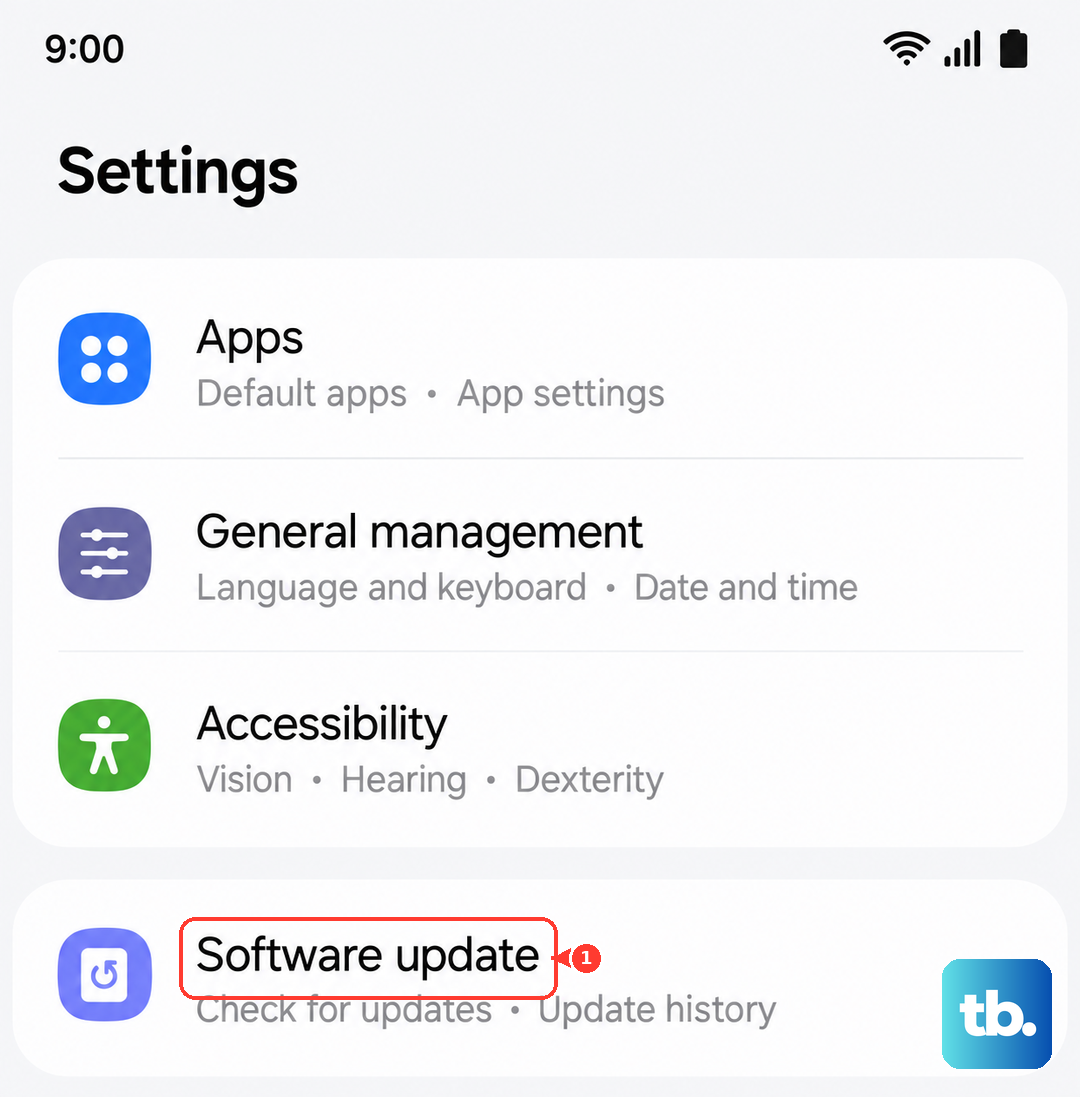
Make sure your phone is connected to Wi-Fi and has at least a 50% charge before starting the update. It's a good habit to check for updates monthly, as Samsung is consistently rolling out improvements.
Clear the System Cache
Corrupted temporary system files can sometimes cause the screen or touch interface to malfunction. Clearing the cache partition is a safe way to clean these without deleting any of your personal data like photos or messages.
First, power off your phone completely. Connect it to your computer with a USB cable. Now, press and hold the Volume Up button and the Side button together. Keep holding them until you see the Samsung logo, then release.
You'll boot into the Android Recovery menu. Use the Volume Down button to highlight "Wipe cache partition" and press the Side button to select it. Confirm the action, then select "Reboot system now" when it's done.
Address Moisture Detection Alerts
The Galaxy S23 has a sensitive moisture detection feature for its USB-C port. If it gets triggered incorrectly, it can disable charging and data transfer, which might make you think the phone is dead. You'll usually see a water droplet icon in the notification panel if this is active.
If you see this alert, unplug any cable and power the phone off. Use a can of compressed air to blow gently into the charging port to dislodge any moisture or debris. Let the phone sit for a few hours in a dry, warm place to ensure it's completely dry.
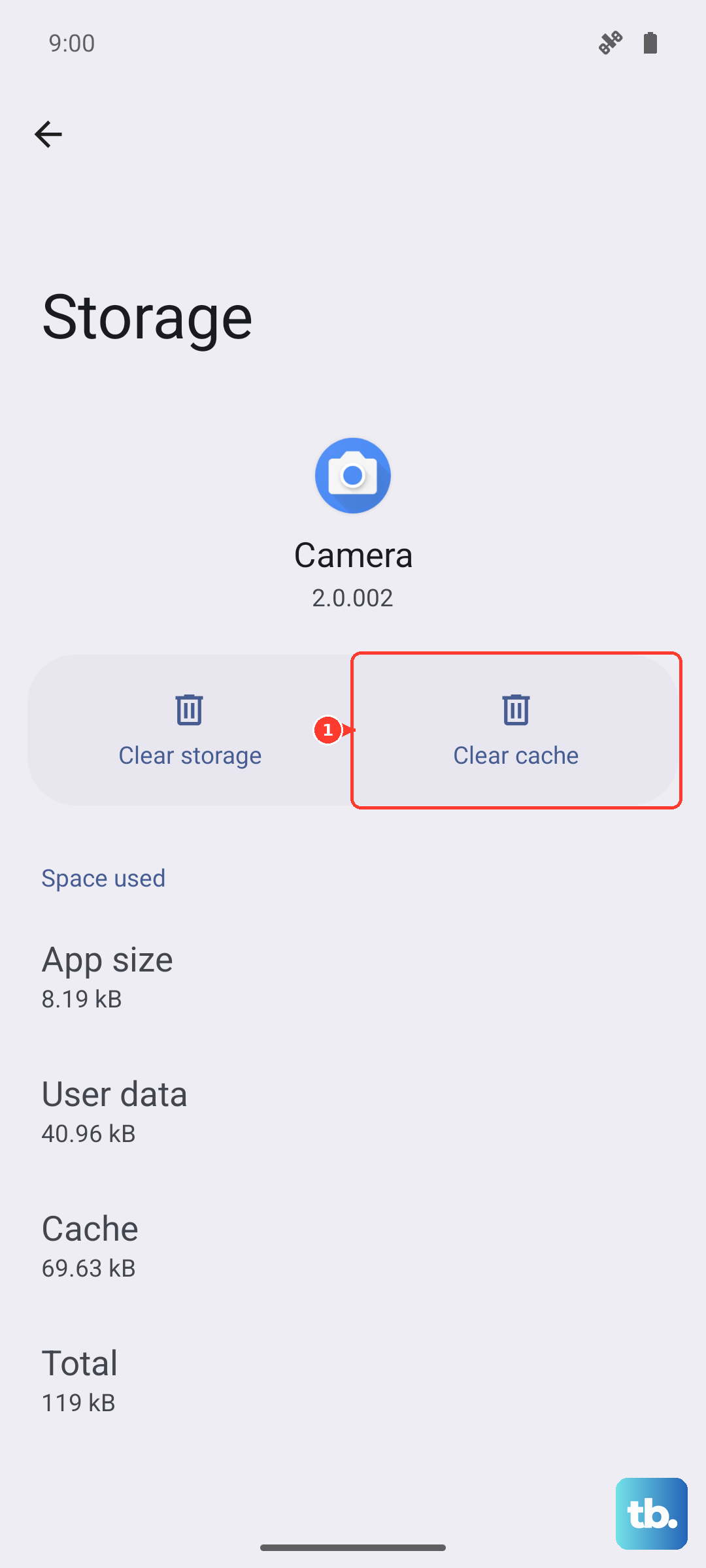
You can also try clearing the cache for the USB settings app. Go to Settings > Apps, tap the filter icon and select "Show system apps," then find "USBSettings" and tap Storage > Clear cache.
Consider a Factory Reset
This is a last resort because it will erase everything on your phone. Back up your data first if you can access the settings, or if the screen works intermittently. You can initiate a reset from the Recovery menu if the touchscreen is completely dead.
To do that, boot into Recovery mode using the Volume Up and Side button method. Use the volume buttons to navigate to "Wipe data/factory reset" and select it with the Side button. Confirm your choice, then select "Reboot system now" after it completes.
The phone will restart as if it were brand new. This step eliminates any deep-seated software corruption that might be causing the screen to be unresponsive. If the problem persists after a factory reset, it's likely a physical hardware issue.