
If your Samsung Galaxy S23 is showing a "No SIM" or "Emergency calls only" message, you can't make calls or use mobile data. This is a common hiccup that's usually easy to fix yourself. Let's start with the simplest solutions that often clear it right up.
First, give your phone a quick restart. Press and hold the side button and volume down button together for about ten seconds until you see the Samsung logo. This can clear out any temporary software glitches that might be confusing the SIM reader.
Next, check your quick settings panel. Swipe down from the top of your screen twice to see all the toggles. Make sure Airplane Mode is turned off. If it's on, tap it to disable it, wait a few seconds, and then check your signal again.
It's also worth verifying the SIM is actually enabled in your settings. Go to Settings > Connections > SIM card manager. Make sure the switch next to your SIM card is toggled on. Sometimes a software update or a rogue app can accidentally turn it off.
Check the SIM Card and Tray
If the software checks don't work, the next step is a physical inspection. You'll need the SIM ejector tool that came with your phone. Power the S23 off completely before you start.
Gently insert the tool into the small hole on the SIM tray, usually on the bottom edge. Pop the tray out and carefully remove the SIM card. Look at the gold contacts on the card for any scratches, dirt, or corrosion.
Use a dry, soft cloth to gently wipe the contacts clean. Blow into the SIM tray slot on the phone as well to dislodge any pocket lint. When reinserting, make sure the SIM card is seated correctly in the tray and that the tray itself goes back in smoothly without force.
To rule out a bad SIM card, try putting it into another phone if you have one available. If it also fails to work in the other device, the SIM itself is likely the problem and you'll need to contact your carrier for a replacement.
Update Your Phone's Software
Outdated software can cause all sorts of connectivity bugs. Samsung has released several updates for the S23 that specifically address network and modem issues. Checking for an update is a quick fix that can resolve the problem.
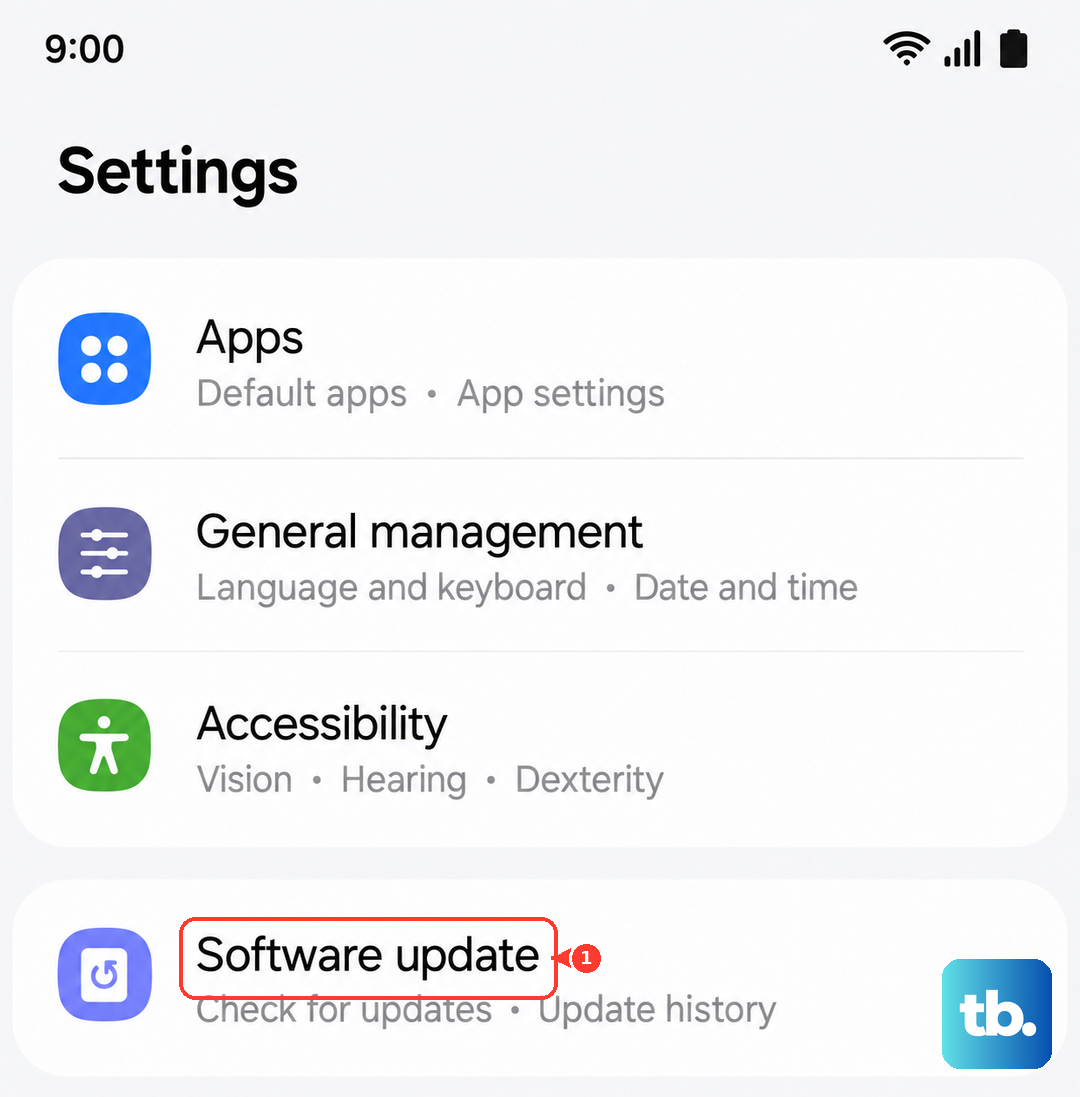
Go to Settings > Software update > Download and install. If an update is available, let it download and install, then restart your phone. I've seen this clear up persistent "No SIM" errors, especially after a major OS update like the move to Android 14.
Reset Your Network Settings
This is a more thorough step that clears out all your saved network configurations without touching your personal photos or apps. It will erase your Wi-Fi passwords, Bluetooth pairings, and mobile network settings, resetting them to factory defaults.
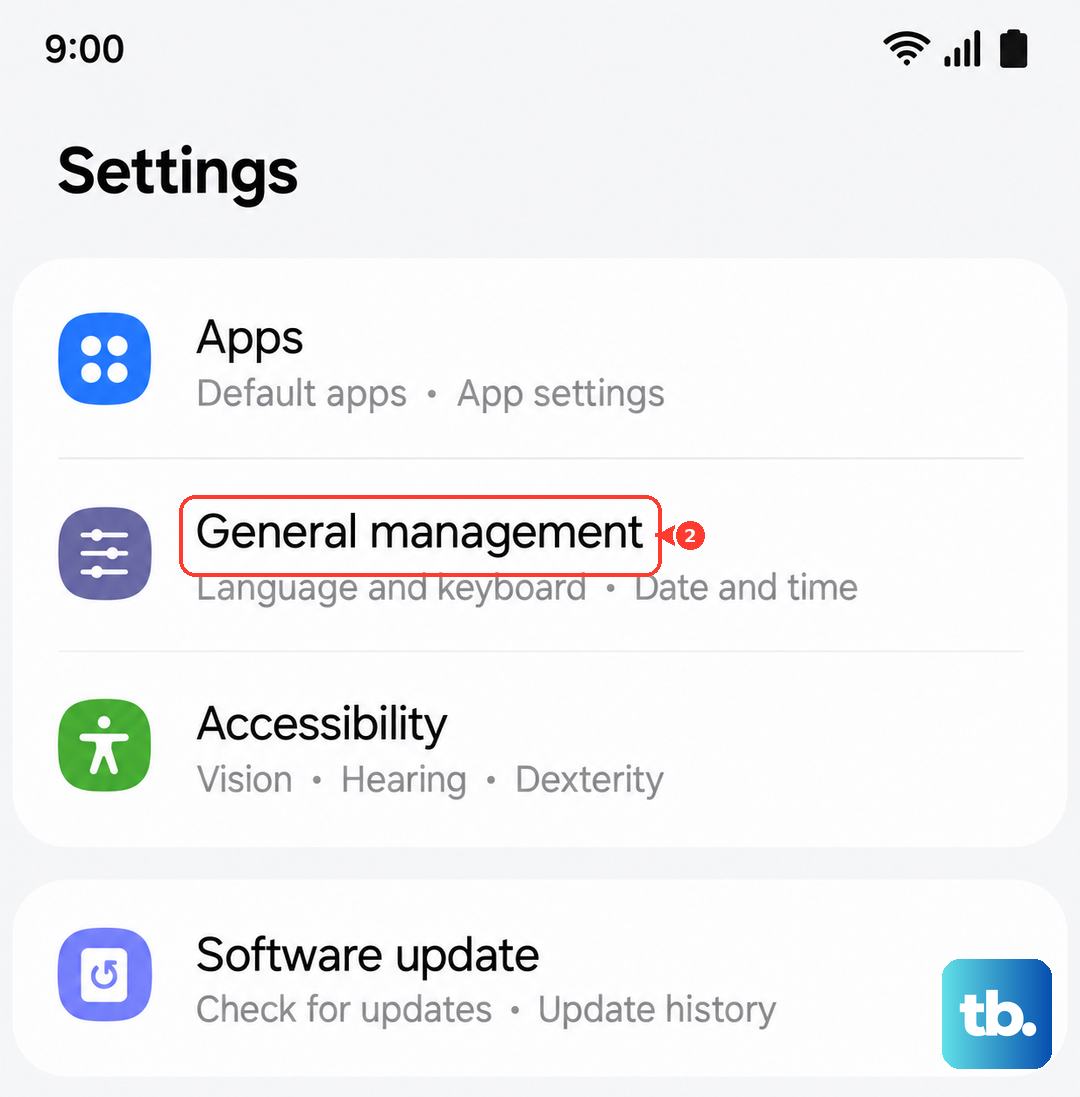
To do this, navigate to Settings > General Management > Reset > Reset network settings. Tap to confirm. After the phone reboots, you'll need to reconnect to Wi-Fi and re-pair Bluetooth devices, but it often fixes stubborn SIM detection problems.
Boot Into Safe Mode
A third-party app you installed could be interfering with the phone's ability to read the SIM card. Booting into Safe Mode temporarily disables all downloaded apps, letting you see if one of them is the culprit.
To start Safe Mode, press and hold the side button until the power off menu appears. Then, press and hold the "Power off" option on your screen. A prompt will ask if you want to reboot to Safe Mode. Tap "OK".
If your SIM card works perfectly in Safe Mode, you know a downloaded app is causing the issue. You'll need to restart normally and then uninstall apps one by one, starting with the most recent, to find the offender.
Adjust Your Network Settings
Sometimes the phone's automatic network selection gets stuck. You can manually search for and select your carrier. Go to Settings > Connections > Mobile networks > Network operators.
Tap "Search now" and wait for the list to populate. Select your carrier's name from the list. This forces the phone to register on that specific network, which can bypass a temporary glitch in the automatic system.
You can also check the Access Point Name (APN) settings. These are the gateway between your phone and your carrier's network. Go to Settings > Connections > Mobile networks > Access Point Names.
Tap the three-dot menu in the top right and select "Reset to default". This will load the standard APN settings from your SIM card. If you had to manually enter APN details before, you may need to re-add them after this step.
Clear System App Cache
Cached data for system services related to the SIM can become corrupted. You can clear this cache without losing any personal information. Go to Settings > Apps.
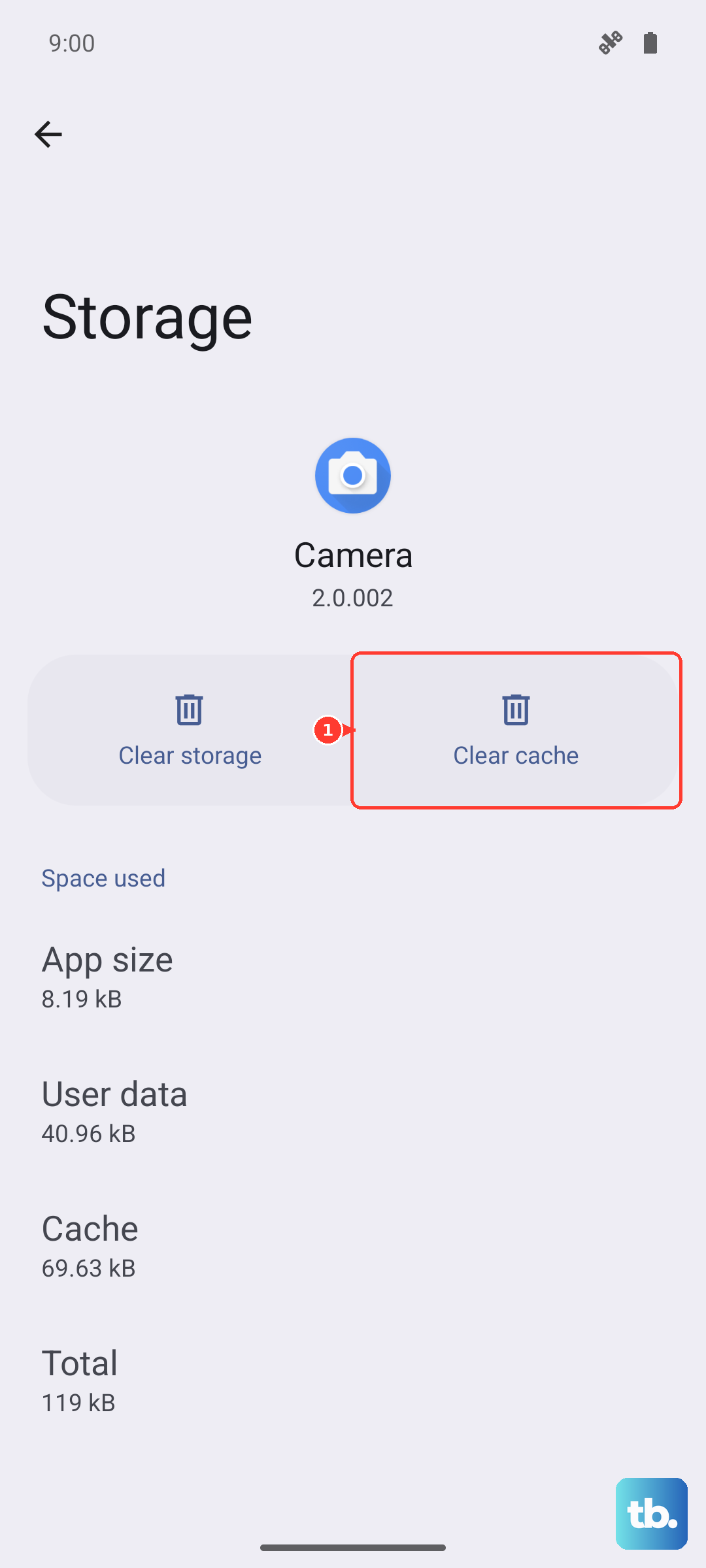
Tap the three-dot menu and select "Show system apps". Scroll down and find "SIM Card manager". Tap on it, then go to "Storage". Tap "Clear cache". Do the same for "SIM Toolkit" if you see it in the list. Restart your phone afterward.
Consider Using an eSIM
The Galaxy S23 supports eSIM technology. If your physical SIM card slot seems problematic or the card itself is frequently failing, switching to an eSIM is a great permanent solution. You'll need to contact your mobile carrier to see if they support eSIM activation and to get the necessary QR code or activation details.
Moving to an eSIM eliminates the physical connection point that can get dirty or damaged. It's a digital SIM profile downloaded directly to your phone, and many users have found it resolves ongoing detection issues.