
If your Samsung Galaxy S23 camera app won't open or keeps crashing, start with a simple restart. Press and hold the Volume Down button and the Side button for about 10 seconds until you see the Samsung logo. This clears temporary glitches that can freeze the camera.
Before digging into settings, open a quick quick webcam test in your browser. If the preview shows a live picture, the camera hardware works and the issue is with app permissions or configuration.
Key Points
- Restart and Update Your Phone: A force restart is the fastest way to fix a frozen camera app.
- Clear the Camera App's Cache and Data: Corrupted temporary files are a common cause of camera crashes.
- Check for Conflicting Apps in Safe Mode: A third-party app might be interfering with the camera hardware.
- Inspect Your Camera Hardware: A dirty or obstructed lens will always cause blurry photos.
- Reset All Camera Settings: This reverts any custom settings that might be causing instability.
- Scan for Software Issues: Samsung's built-in diagnostic tools can detect camera hardware problems.
- Review App Permissions: The camera app needs proper permissions to access the lens and sensors.
- Consider a Software Repair: A deeper reset via recovery mode can fix persistent software bugs.
- Check for Physical or Water Damage: Impact or moisture can permanently damage the camera module.
Give the phone a moment to fully reboot, then try opening the camera again. I'd start with this one, as it fixes most temporary software hiccups.
Next, check for any available software updates. Samsung has released several updates for the S23 series that specifically address camera stability and performance bugs. Go to Settings > Software update and tap Download and install.
Install any pending updates and restart your phone afterward. This ensures any camera-related patches are fully applied.
Clear the Camera App's Cache and Data
If the camera app opens but is laggy, freezes, or shows a black screen, the app's stored data might be corrupted. Clearing the cache is a safe first step that won't delete your photos.
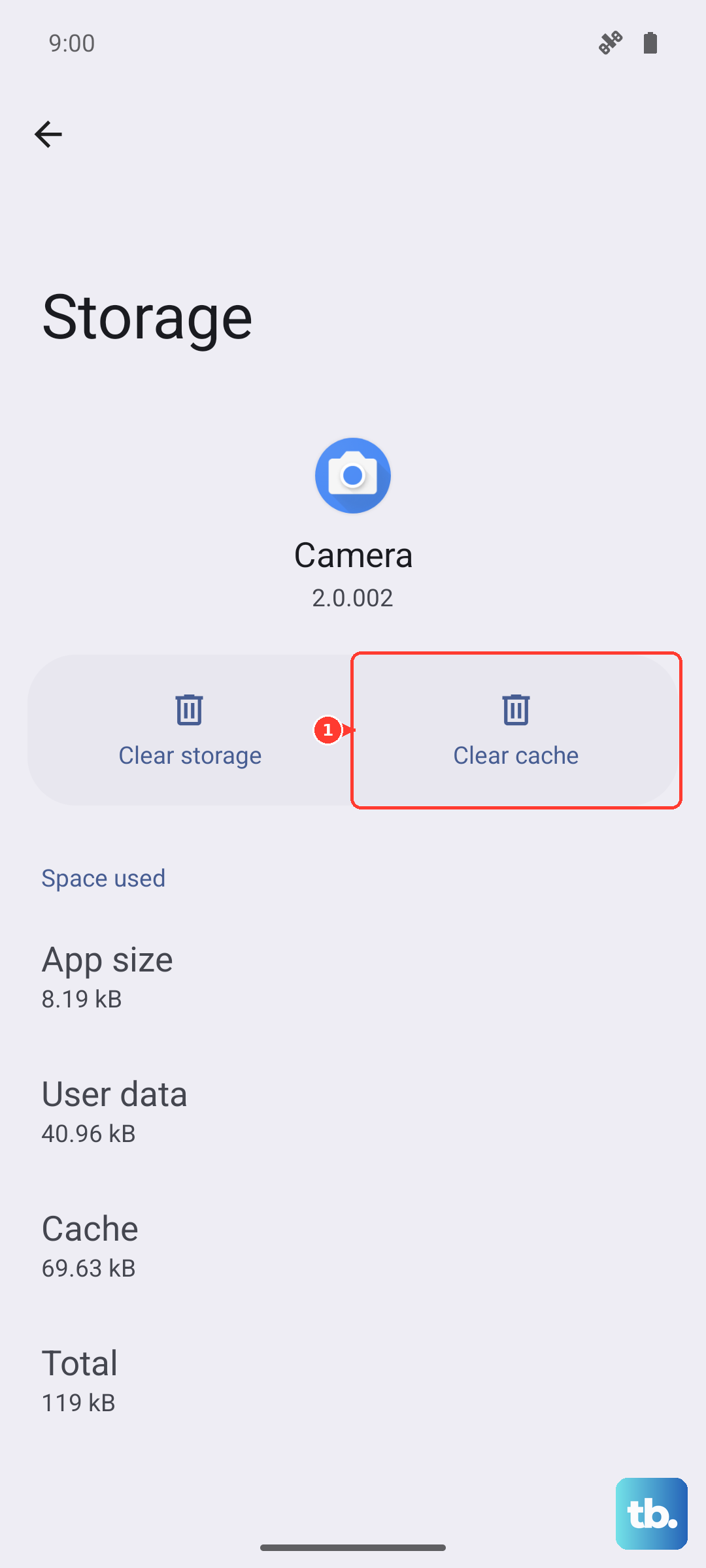
Go to Settings > Apps, then find and tap on Camera. Select Storage and tap Clear cache. Try the camera again. If the problem persists, go back and tap Clear data. This will reset the camera app to its default settings, so you'll need to reconfigure any custom modes or settings.
Check for Conflicting Apps in Safe Mode
Booting into Safe Mode temporarily disables all third-party apps. If your camera works perfectly in Safe Mode, you know a downloaded app is causing the conflict. To enter Safe Mode, press and hold the Side and Volume Down buttons until the power off menu appears.
Then, tap and hold the Power off option until you see a prompt to reboot to Safe Mode. Tap it. Once in Safe Mode, test your camera. If it works, restart your phone normally to exit Safe Mode and start uninstalling recently added apps one by one, testing the camera after each removal.
Inspect Your Camera Hardware
Sometimes the issue is simple. Check all the camera lenses on the back of your S23. Smudges, fingerprints, or a dirty phone case obstructing the lens will result in consistently blurry or hazy photos.
Use a soft, dry microfiber cloth to gently clean each lens. Also, make sure any plastic screen protector or case isn't covering the lenses. Even a slight obstruction can throw off the camera's focus.
Reset All Camera Settings
If you've changed a lot of settings like scene optimizer, shot suggestions, or advanced recording options, one of them might be causing a conflict. You can reset everything without affecting your personal files.
Open the Camera app, tap the settings gear icon, and scroll all the way down. Tap Reset settings and confirm. This reverts all picture, video, and general settings back to factory defaults, which often resolves instability.
Scan for Software Issues
Your Galaxy S23 has a built-in diagnostics tool that can check the camera hardware. Open the Samsung Members app and tap on Get help at the bottom, then select Tests.
Run the Camera (Rear) and Camera (Front) tests. The app will guide you through checking each lens. If a test fails, it strongly suggests a hardware problem. If all tests pass, the issue is almost certainly software-based.
Review App Permissions
The camera app needs the correct permissions to function. Go to Settings > Apps > Camera > Permissions. Make sure the Camera permission is set to Allow.
While you're there, also check Microphone if you're having issues with video recording audio. Sometimes updates or permission managers can accidentally revoke these critical access rights.
Consider a Software Repair
For persistent crashes or a camera that won't work at all, a deeper software reset can help. This is more thorough than a simple restart but doesn't erase your personal data like a factory reset would.
You'll need to use the phone's recovery mode. Connect your phone to a computer with a USB cable. Then, press and hold the Volume Up and Side buttons until the recovery menu appears. Use the volume buttons to highlight Repair apps and press the Side button to select it. This process can take a few minutes.
Check for Physical or Water Damage
If your phone has been dropped, exposed to liquids, or shows any visible damage to the camera bump, the module itself could be faulty. Look for cracks over the lenses or any signs of moisture inside the lens cover.
The S23 has an IP68 rating, but water damage can still occur, and it often affects the camera first. If you suspect physical damage, the camera module will likely need professional replacement to function properly again.