
Screen flickering on your Galaxy Book 4 Pro is incredibly distracting, whether it's a rapid flash, intermittent blackouts, or faint horizontal lines. It makes working or watching anything a real chore. Let's get it sorted out.
Update Your Display Drivers
Outdated or corrupted graphics drivers are the most common cause of flickering. For your Galaxy Book, you should check both Intel and NVIDIA drivers if you have the dedicated GPU model. Don't just rely on Windows Update for this.
Head to the Samsung Update app or the official Samsung support site, enter your model number, and download the latest display driver package. I'd also visit the Intel and NVIDIA websites directly to grab their latest stable drivers. Install them, restart your laptop, and see if the flickering calms down.
Check the Task Manager Trick
This is a quick diagnostic step. Press Ctrl + Shift + Esc to open Task Manager. Watch it closely. If the Task Manager window itself flickers along with everything else, the problem is almost certainly a system-wide driver or Windows issue.
If the Task Manager window remains perfectly stable while your desktop and other apps flicker, the culprit is likely a specific third-party application running in the background. This instantly points you in the right direction for the next fix.
Uninstall Problematic Software
If Task Manager was stable, start thinking about what you've recently installed. Common software that can conflict with display drivers includes certain antivirus suites, VPN clients, screen recording tools, and older utility apps. Citrix Workspace and some versions of iCloud for Windows have also been known to cause problems.
Go to Settings > Apps > Installed apps and uninstall any recently added programs one at a time, restarting after each removal to check if the flickering stops. It's a process of elimination, but it often works.
Adjust Your Display Refresh Rate
Your Galaxy Book 4 Pro's high-refresh-rate AMOLED display is gorgeous, but sometimes the selected refresh rate can cause compatibility flickers. Right-click your desktop and select Display settings.
Scroll down and click Advanced display. Here, you can try changing the refresh rate. If it's set to 120Hz, try switching to 60Hz to see if the flickering stops. If it's on 60Hz, see if there's a 59.94Hz option. Switching back and forth can reset the handshake between Windows and your display.
Disable Hardware Acceleration in Apps
Many apps, like web browsers, use your GPU to render content faster. This "hardware acceleration" can sometimes conflict with your drivers. In Google Chrome, go to Settings > System and turn off Use hardware acceleration when available.
You should do the same in other apps like Discord, Slack, or Microsoft Edge if you use them. Restart the app after making the change. This takes the graphics processing load off the GPU for that specific app, which can eliminate flickering that only happens in a browser or messaging window.
Boot Into Safe Mode
If the flickering is constant and severe, booting into Safe Mode is a great way to test. Safe Mode loads Windows with only the essential drivers. If the screen is perfectly stable in Safe Mode, you've confirmed a driver or startup program is the root cause.
To get into Safe Mode, go to Settings > System > Recovery and click Restart now next to "Advanced startup." After the reboot, choose Troubleshoot > Advanced options > Startup Settings > Restart. Then press 4 or F4 to enable Safe Mode.
Roll Back a Recent Display Driver
Did the flickering start right after a driver update? Rolling back to the previous driver version can be a instant fix. Press the Windows key, type "Device Manager," and open it. Expand the Display adapters section.
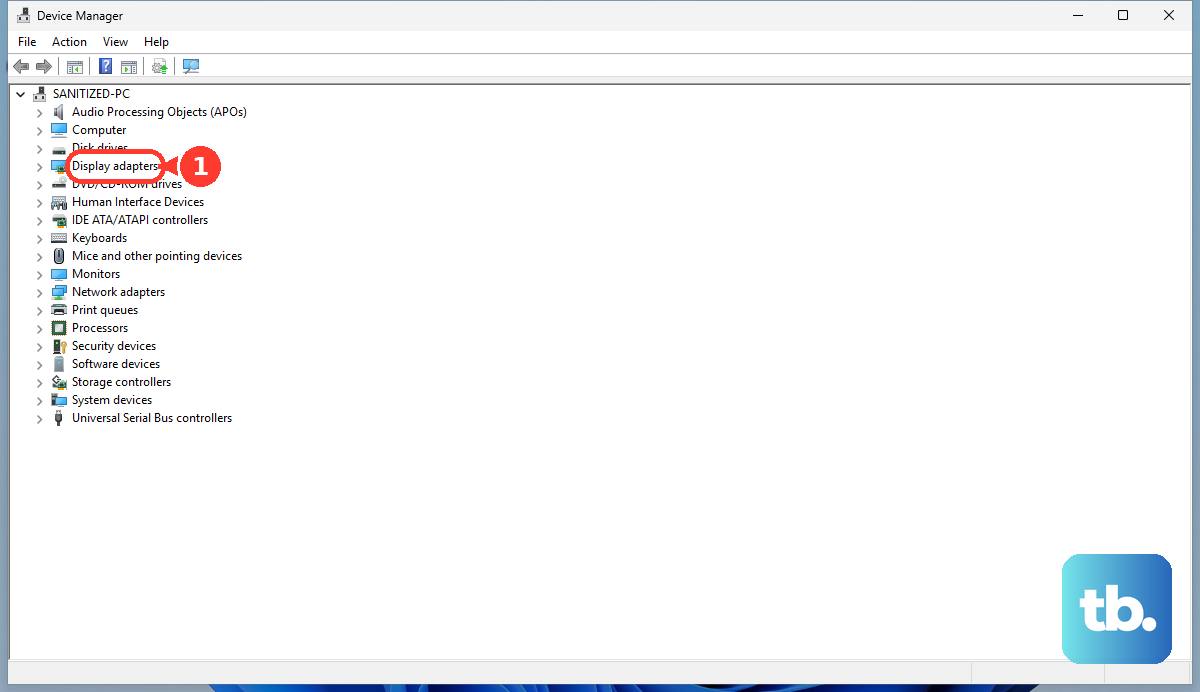
Right-click on your Intel Iris Xe or NVIDIA GPU and select Properties. Go to the Driver tab. If the Roll Back Driver button is clickable, select it and follow the prompts. Your system will revert to the older driver and restart.
Manage Settings in the Samsung App
Your Galaxy Book 4 Pro comes with the Samsung Settings app, which manages power profiles and performance. Sometimes its optimizations can conflict with Windows power settings, affecting the display. Open the Samsung Settings app and look at the performance mode settings.
Try switching between "Optimized," "Quiet," and "Performance" modes to see if one behaves better than another. Also, check for any display-specific settings within the Samsung app, like variable refresh rate controls, and try toggling them.
Check for Physical Connection Issues
This is a less common but possible hardware cause. If the flickering only happens when you physically move the laptop lid or gets worse at a specific hinge angle, the internal display cable might be slightly loose. This ribbon cable connects the motherboard to the screen and can wear over time.
Unfortunately, this isn't a simple fix you can do at home without the right tools and know-how, as it requires opening the laptop chassis. If all software solutions fail and the flickering is tied to movement, this would point toward a hardware inspection.











