
When Bluetooth stops working on your Samsung Galaxy Book 4 Pro, your wireless mouse, headphones, or speakers become useless. The connection might drop, a device won't pair, or the Bluetooth icon might vanish completely. Let's get it working again.
Toggle Bluetooth On and Off
First, click the notification area in your taskbar and look for the Bluetooth icon in the quick settings panel. If you see it, click it to turn Bluetooth off, wait a few seconds, and click it again to turn it back on. This simple reset often clears up a temporary radio glitch.
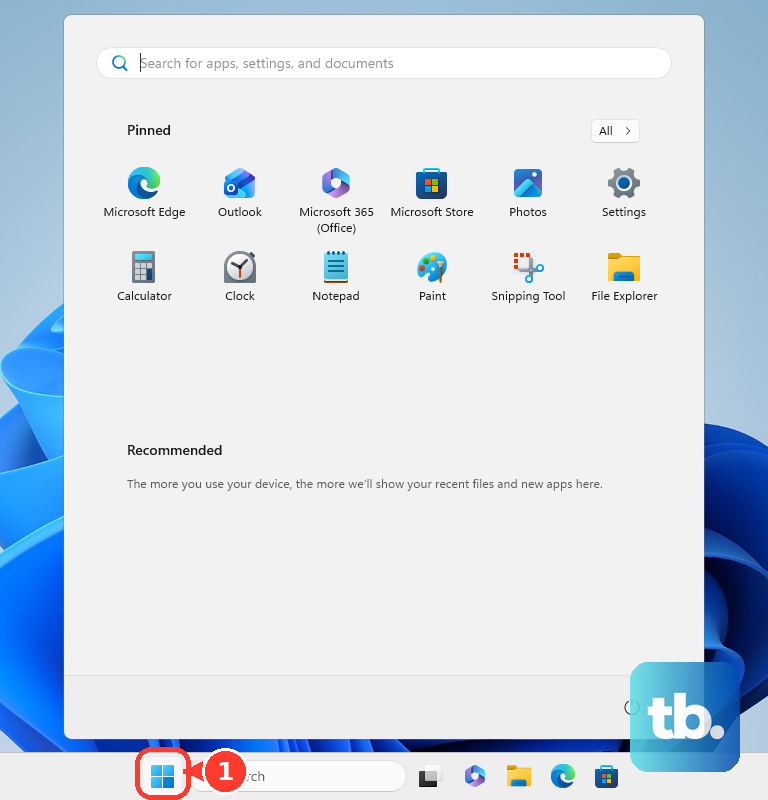
If the icon isn't there, open the Start menu and go to Settings > Bluetooth & devices. Make sure the main Bluetooth toggle at the top is switched to On. Sometimes a Windows update or a system hiccup can turn it off without you noticing.
Restart Your Galaxy Book
A full system restart is one of the most reliable fixes. It reloads all the drivers and services, including the Bluetooth stack, which can get stuck. I'd do this before diving into more complex solutions, especially if the problem started after the laptop woke from sleep mode.
Click the Start button, select the power icon, and choose Restart. Don't just shut down and turn it back on; a full restart ensures a clean boot. Give it a minute after it comes back up, then try your Bluetooth device again.
Remove and Re-Pair the Problem Device
Corrupted pairing data is a frequent culprit. Go to Settings > Bluetooth & devices and click on Devices. Find the gadget that's giving you trouble, click the three dots next to it, and select Remove device.
Now, put that device into pairing mode. The process varies, but you usually hold a button until a light flashes. Back on your Galaxy Book, click Add device and select Bluetooth. Your device should appear in the list for a fresh pairing.
Run the Built-in Bluetooth Troubleshooter
Windows has a handy tool that can automatically find and fix some common configuration problems. Open Settings and go to System > Troubleshoot > Other troubleshooters.
Find the Bluetooth troubleshooter in the list and click the Run button next to it. Follow the prompts on screen. It will check for issues with services, drivers, and radio status, and it might apply a fix automatically.
Update Your Bluetooth Drivers
Outdated or corrupted drivers are a common source of Bluetooth problems. Press the Windows key + X and select Device Manager from the menu. In the window that opens, find and expand the Bluetooth category.
Right-click on your Bluetooth adapter, it might be listed as something like "Intel(R) Wireless Bluetooth(R)", and select Update driver. Choose Search automatically for drivers. If Windows finds an update, let it install and then restart your laptop.
Check the Samsung Settings App
Since you're on a Galaxy Book, there's an extra layer to consider. Open the Samsung Settings app. Sometimes, power-saving or performance profiles here can affect wireless radios to conserve battery.
Look for any settings related to Bluetooth, WiFi, or general power management. Make sure nothing is set to aggressively disable Bluetooth. I've seen conflicts where Windows settings say one thing, but the manufacturer's app overrides it.
Restart the Bluetooth Support Service
The Bluetooth functionality in Windows runs as a background service. If it stops, Bluetooth disappears. Press Windows key + R, type services.msc, and hit Enter.
In the Services window, scroll down and find Bluetooth Support Service. Right-click on it and select Restart. While you're here, double-click it to open its properties and ensure the Startup type is set to Automatic.
Check for Interference and Distance
Bluetooth shares the 2.4 GHz band with WiFi and many other devices. If your Galaxy Book is surrounded by wireless routers, cordless phones, or even a busy USB 3.0 port, it can cause interference.
Try moving the Bluetooth device closer to your laptop. Also, test with the device in different orientations; sometimes just turning your laptop can improve the signal. If you're using a USB 3.0 external drive or dock, try unplugging it temporarily to see if the connection stabilizes.
Install All Windows Updates
Microsoft regularly releases updates that include driver and connectivity fixes. Go to Settings > Windows Update and click Check for updates. Install any available updates, especially if they are labeled as optional driver updates.
After the updates install, you'll likely need to restart your Galaxy Book. It's a good practice to keep Windows updated, as patches have resolved specific Bluetooth audio stuttering and dropout issues for many users.
Reinstall the Bluetooth Adapter
If nothing else has worked, a clean driver reinstall is the next step. Go back to Device Manager and expand the Bluetooth section. Right-click your Bluetooth adapter and select Uninstall device.
In the dialog box that appears, check the box that says Attempt to remove the driver for this device. Click Uninstall. Once it's done, restart your Galaxy Book 4 Pro. Windows will detect the hardware on boot and reinstall the Bluetooth driver from its stock library or Windows Update.











