
If your Samsung Galaxy S25+ won't connect to your headphones, car, or smartwatch, it can be incredibly frustrating. Bluetooth issues are common, especially on a new phone like the S25+ running Android 15 and One UI 7. The good news is that most of these problems are software glitches you can fix yourself in a few minutes.
I'd start with the basics every time. Make sure both your phone and the device you're trying to connect to have enough battery, ideally above 20%. Check that the Bluetooth device is actually in pairing mode, which is often indicated by a flashing light. Keep them close together, within about 10 feet, to rule out distance as the issue.
Also, remember that some Samsung accessories, like Galaxy Buds or a Galaxy Watch, require the Galaxy Wearable app for the initial setup and pairing. If you're trying to connect one of those, make sure the app is installed from the Galaxy Store or Google Play Store first.
Toggle Bluetooth and Restart Your Phone
Pull down the Quick Settings panel from the top of your screen and tap the Bluetooth icon to turn it off. Wait a solid 10 seconds, then tap it again to turn it back on. This simple refresh of the Bluetooth radio can clear up a temporary hiccup. Try pairing your device again right after.
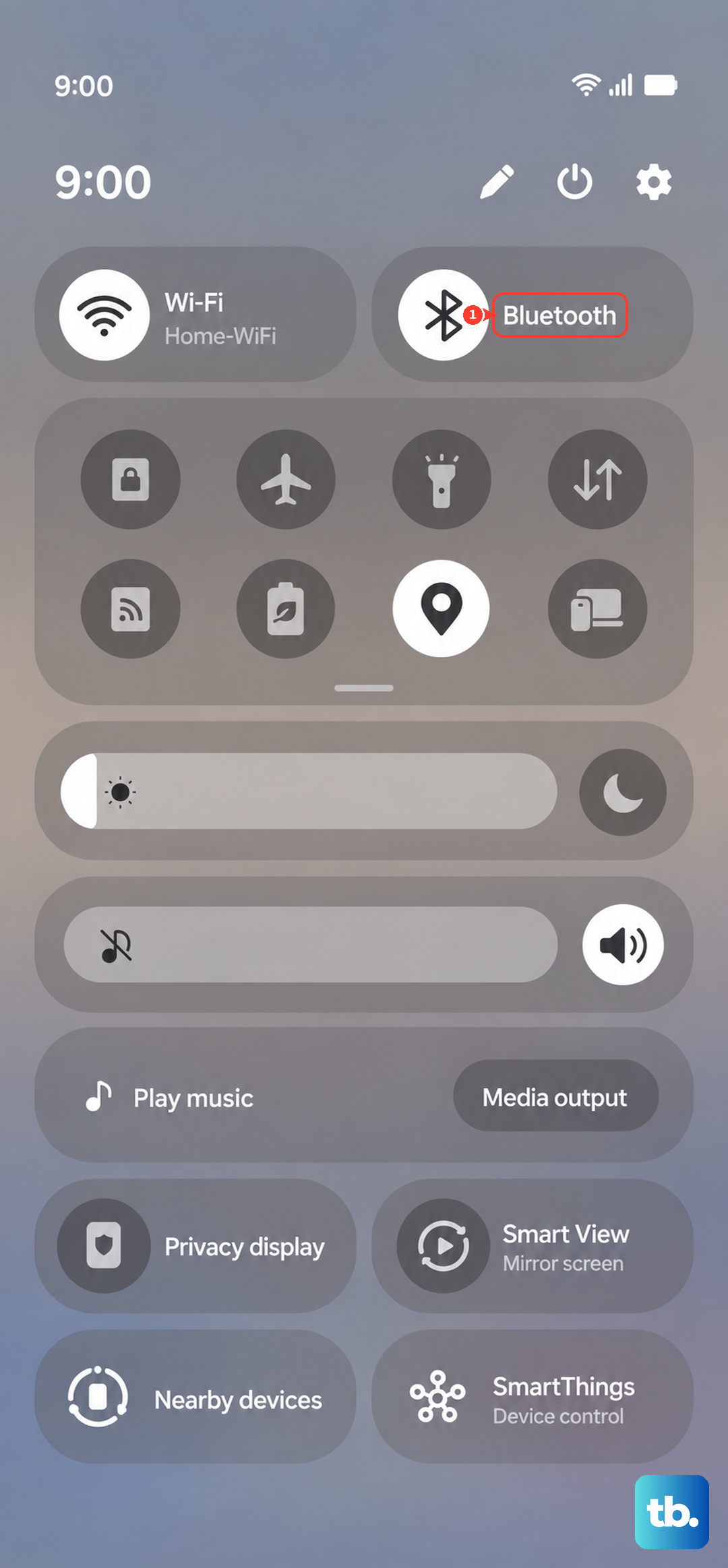
If that doesn't work, give your S25+ a full restart. Sometimes background processes in One UI can interfere. Press and hold the Side button and Volume Down button together for about 10 seconds until you see the Samsung logo. This force restart is more thorough than a standard shutdown and is my go-to second step.
Forget and Re-Pair the Device
Go into your phone's settings and navigate to Connections > Bluetooth. You'll see a list of previously paired devices. Tap the gear icon next to the problematic device and select Unpair or Forget. This completely removes its connection profile from your phone.
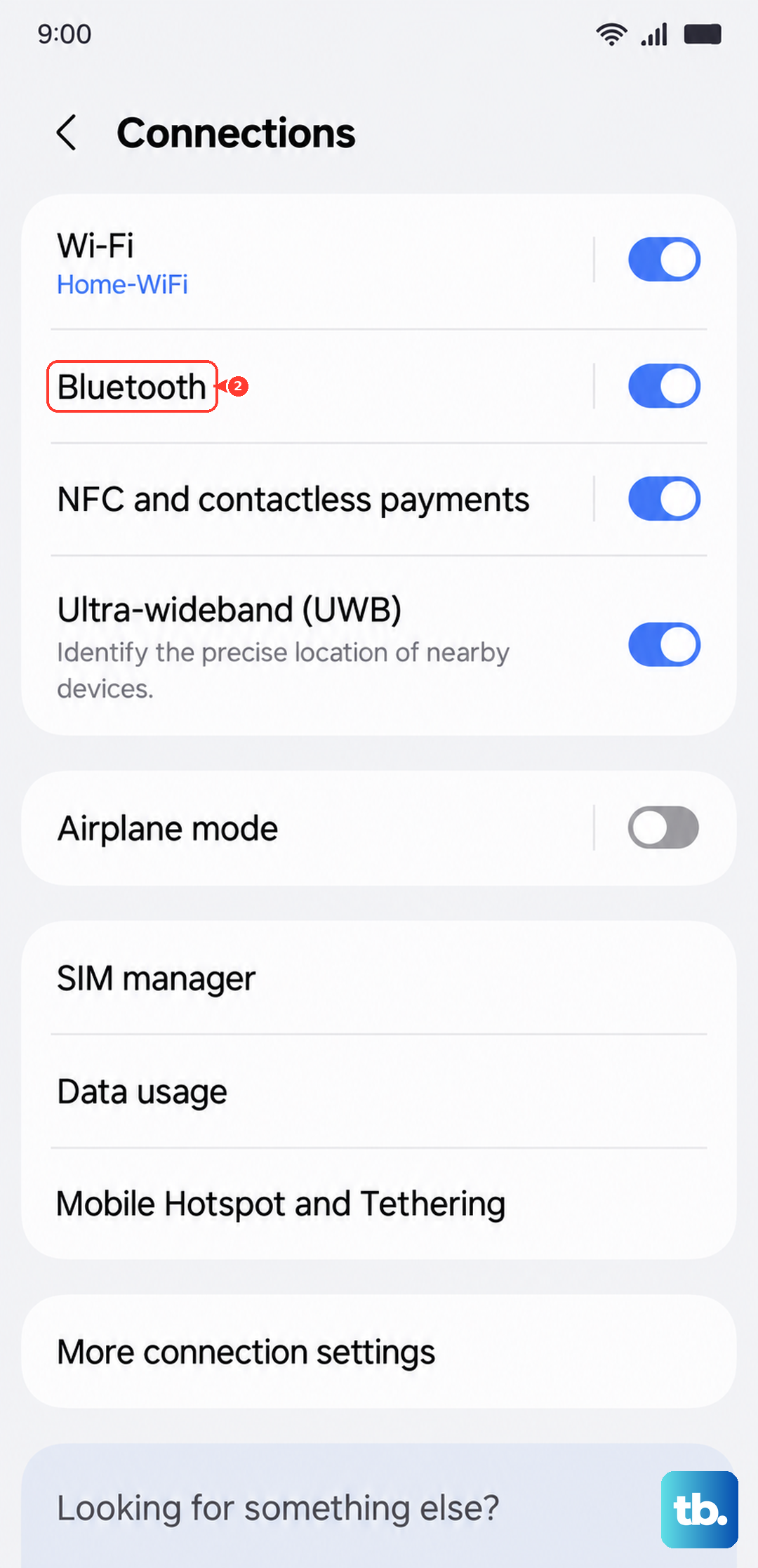
Now, put the Bluetooth device back into discovery mode. On your S25+, make sure Bluetooth is on and tap Scan at the bottom of the Bluetooth settings screen. When your device appears in the list, tap its name to initiate a fresh pairing. This often solves issues where the connection was partially corrupted.
Clear the Bluetooth System Cache
Android and One UI create temporary cache files to help apps run faster. Sometimes, the cache for the Bluetooth system service gets corrupted. Clearing it is safe and won't delete your personal data or paired devices.
Open Settings and go to Apps. You might need to tap See all apps first. In the app list, tap the three-dot menu in the top right and select Show system apps. Scroll down and find Bluetooth in the list, then tap on it.
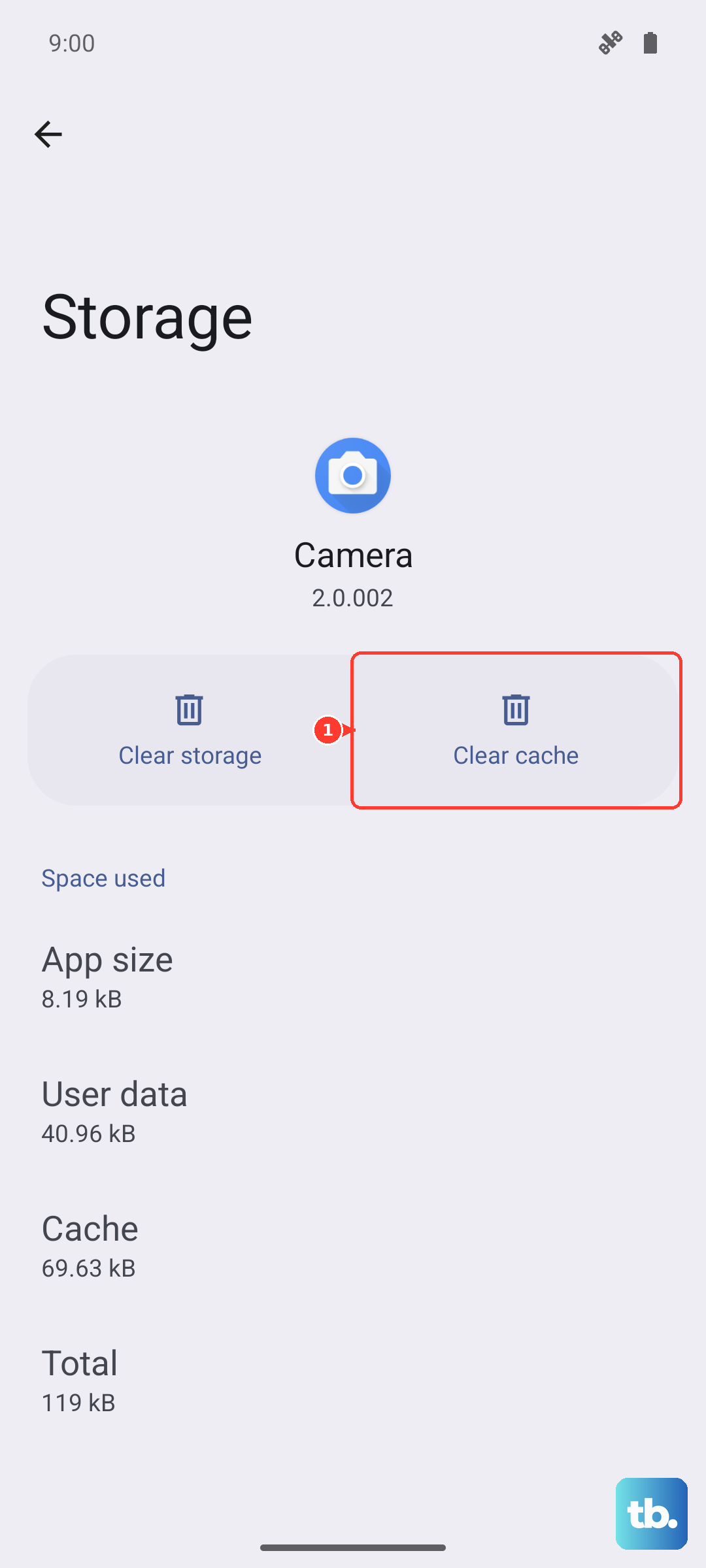
Tap Storage, and then tap Clear Cache. After doing this, restart your phone and try connecting your Bluetooth device again. If the problem is particularly stubborn, you can go back to the same menu and tap Clear Data. Be aware this will forget all your paired devices, so you'll have to set them up again.
Reset Your Network Settings
This is a more comprehensive step that resets all network-related features on your S25+ to their default state. It affects Wi-Fi, mobile data, and Bluetooth. You'll lose saved Wi-Fi passwords and paired Bluetooth devices, but it can resolve deep-seated connection conflicts.
To do this, go to Settings > General management > Reset. Tap on Reset network settings. You'll be asked to confirm your PIN, pattern, or password. After confirming, your phone will reset and reboot. Once it's back on, you'll need to re-pair your Bluetooth accessories and reconnect to Wi-Fi networks.
Check for Software Updates
Samsung frequently releases updates that fix bugs and improve device compatibility, including for Bluetooth. An outdated software version on your S25+ could be the root cause of your connection problems.
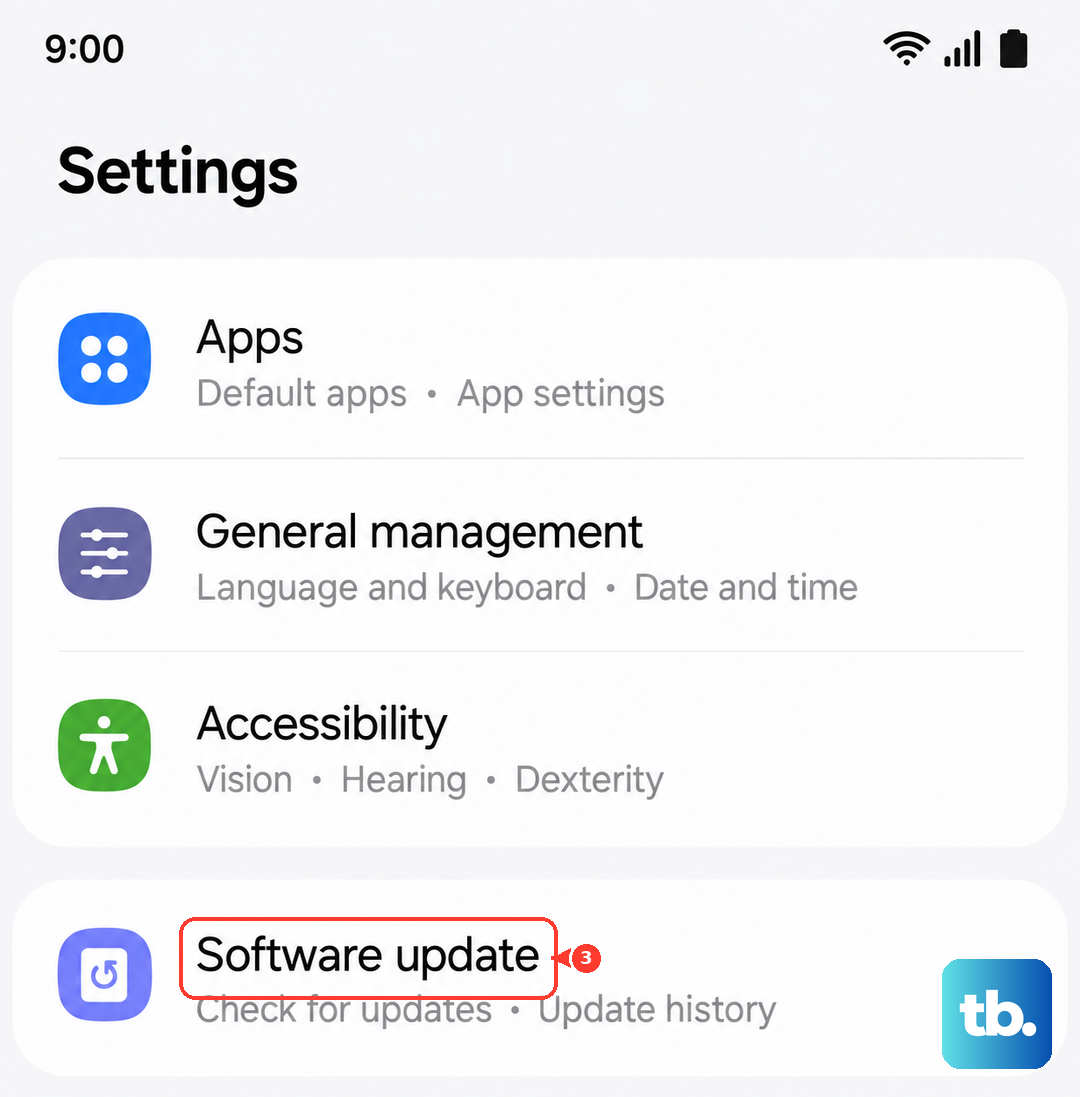
Open Settings and tap Software update. Then, tap Download and install. If an update is available, follow the prompts to install it. It's a good idea to be connected to Wi-Fi and have your phone charged above 50% before starting. Also, check if the Bluetooth device itself has a firmware update available through its own companion app.
Boot Into Safe Mode
Safe Mode temporarily disables all third-party apps you've downloaded. If a recently installed app is causing a conflict with Bluetooth, this will help you identify it. To enter Safe Mode on the S25+, press and hold the Side button and Volume down button until the power menu appears.
On the power menu, tap and hold the Power off option. After a moment, a prompt will appear asking if you want to reboot to Safe Mode. Tap OK. Your phone will restart, and "Safe Mode" will appear in the bottom corner of the screen. Try using Bluetooth now. If it works perfectly in Safe Mode, you know a third-party app is the culprit.
Restart your phone normally to exit Safe Mode. Then, try uninstalling apps you installed around the time the Bluetooth issues began, starting with any audio helpers, battery savers, or VPN apps, as these commonly affect connectivity.
Address Specific Connection Scenarios
For car Bluetooth problems, the forget-and-repair method is crucial. Delete your S25+ from your car's stereo system memory, and delete the car from your phone's Bluetooth list. Then, with the car ignition on (and often in park), initiate pairing from both sides fresh. Some older car systems have trouble with newer Bluetooth standards, so patience is key.
If Bluetooth simply won't turn on at all, even from the settings menu, the combination of a force restart followed by clearing the Bluetooth cache and data is your best path forward. This points to a system software issue rather than a problem with a specific device.
After trying these steps, your Samsung Galaxy S25+ should be able to connect to Bluetooth devices reliably. The process usually involves clearing out old connection data or updating software, both of which are straightforward fixes for a very common problem.











