
When your Samsung Galaxy S23's volume buttons stop responding, it can feel like you've lost a basic function. You press them, but nothing happens, no volume change, no haptic feedback, no response at all. The good news is that most of the time, this is a software hiccup or a simple obstruction that you can fix yourself without a trip to the repair shop.
Before you assume the worst, work through these solutions. I'd start with the force restart, as it's often the quickest fix for a frozen button.
Remove Your Phone Case
Begin with the simplest check. Take your S23 out of its case. Some cases, especially rugged or ill-fitting ones, can press against the buttons or restrict their movement just enough to make them feel unresponsive. With the case off, test the buttons again to see if they click properly.
Perform a Force Restart
A force restart is the go-to fix for many random glitches on the Galaxy S23, including unresponsive buttons. It clears the phone's temporary memory without touching your personal data or settings. For the S23, you press and hold the Volume Down button and the Side (power) button together for about 10 seconds.
Keep holding both until you see the Samsung logo appear on the screen, then let go. The phone will boot up normally. Once it's back on, test your volume buttons immediately.
Check for Software Updates
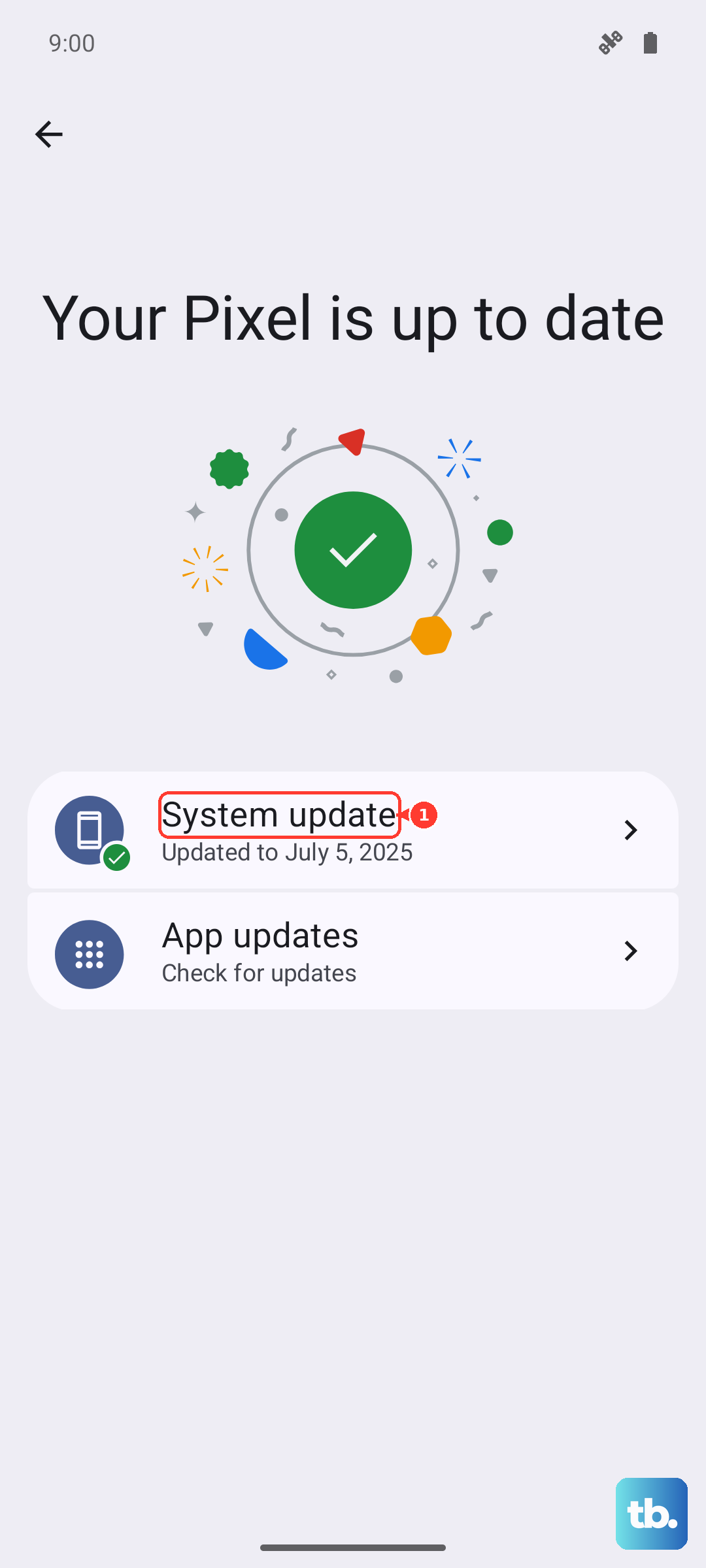
Samsung has been actively releasing updates for the S23, especially for those running One UI 6 based on Android 14. Some updates specifically address system stability and touch response issues that could affect buttons. Go to Settings > Software update and tap Download and install.
Make sure your phone is connected to Wi-Fi and has at least 50% battery before starting the update. This is one of the most effective fixes if the problem started after a recent system update.
Boot Into Safe Mode
If a recently installed third-party app is causing a conflict, it could interfere with system controls like the volume buttons. Booting into Safe Mode temporarily disables all downloaded apps. To enter Safe Mode on the S23, press and hold the Side button until the power menu appears.
Then, tap and hold the "Power off" option on your screen. You'll see a prompt to reboot to Safe Mode; tap it. If your volume buttons work perfectly in Safe Mode, you know a downloaded app is the culprit. You can then restart normally and uninstall apps one by one to find the offender.
Clean the Volume Buttons
Dust, lint, or pocket debris can easily get packed around the buttons on the S23's aluminum frame. This is a very common cause of a button feeling mushy or not clicking. Use a can of compressed air to gently blow around the edges of the volume rocker.
For any sticky residue, lightly dampen the corner of a microfiber cloth with a tiny bit of isopropyl alcohol (90% or higher) and wipe around the button. Avoid pouring liquid directly into the phone. Let it dry for a minute before testing again.
Test the Buttons in Different Apps
Open a few different apps to see if the problem is universal or app-specific. Try adjusting media volume in YouTube or Spotify, then try adjusting the ringtone volume from the home screen. Also, try using the buttons to take a screenshot (Volume Down + Side button) to test their combined function.
If they work in some scenarios but not others, it points more toward a software or settings issue rather than broken hardware.
Check Your Sound Settings
While Samsung's One UI doesn't have a direct "change with buttons" toggle like some phones, it's worth checking your sound profiles. Swipe down twice to open the Quick Settings panel and make sure you're not in Silent or Vibrate mode, though this usually doesn't disable the buttons entirely.
Also, go to Settings > Sounds and vibration and check that your media, ringtone, and notification volumes are adjusted above zero using the on-screen sliders.
Enable and Use the On-Screen Volume Panel
You can still control your volume easily. Just tap on any volume level that appears on screen when you press a button, or go to Settings. A handy trick is to add the "Media output and volume" panel to your Quick Settings. Swipe down, tap the pencil icon, and drag that tile to your active panel for one-tap access to all volume sliders.
Inspect for Physical or Liquid Damage
Think back, has your phone taken any recent drops or spills? Even a small impact can dislodge the delicate ribbon cable that connects the button assembly to the motherboard. The S23 is water-resistant, but exposure to liquids can still trigger moisture detection warnings that sometimes affect other functions.
If you see any cracks near the buttons or the phone has warned about moisture in the USB-C port, physical damage becomes a more likely cause.
Reset All Settings
If a deeper software configuration is causing the trouble, resetting your settings can help. This will revert all your sound, display, network, and accessibility settings back to factory defaults, but it won't delete your apps or personal files. Go to Settings > General management > Reset > Reset all settings.
You'll need to enter your PIN and confirm. After the phone reboots, you'll have to reconfigure things like Wi-Fi passwords and wallpaper, but it often resolves stubborn system glitches.