
Press and hold the Volume Down button and the Side button (power button) together for about 10 seconds. Keep holding them until you feel the phone vibrate or see the Samsung logo appear. This force restart is the single most effective fix for a frozen or unresponsive touchscreen on the Galaxy A55, as it clears the phone's temporary memory and reboots the system.
I'd start with this one every time. It's quick, doesn't delete any data, and works for a huge range of temporary software glitches. If the screen is completely dead but you can hear notifications or feel it vibrate, this is still the first thing to try.
Clean the Screen Thoroughly
Turn the phone off first if you can. Then, take a soft, lint-free microfiber cloth and wipe the entire screen down with a bit of pressure. Smudges, oils, and moisture from your hands can sometimes create a conductive layer that confuses the touch sensor.
Pay special attention to the edges of the screen. If you use a screen protector, check for any bubbles, peeling, or damage. A poorly applied or low-quality screen protector is a very common cause of touch issues.
Remove the protector temporarily to see if touch response improves. For a deep clean, slightly dampen a corner of the cloth with distilled water, wipe the screen, and then immediately dry it with the other side of the cloth.
Check for and Remove Any Case Interference
Take your Galaxy A55 completely out of its case. Some cases, especially rugged or ill-fitting ones, can press against the edges of the screen and interfere with touch sensitivity.
Inspect the case itself for any debris or moisture trapped inside. Run your finger along the screen's bezel with the case off to see if touch works normally now.
If the problem disappears without the case, you might need a different one. Look for cases that are certified not to interfere with touchscreen function.
Boot Into Safe Mode
Safe mode temporarily disables all third-party apps you've downloaded. If the touchscreen works perfectly in safe mode, you know a recently installed app is causing the conflict.
To enter safe mode, first turn the phone off. Then, press and hold the Side button until you see the Samsung logo. As soon as the logo appears, immediately press and hold the Volume Down button. Keep holding it until the phone finishes booting up. You'll see "Safe mode" in the bottom-left corner of the screen.
Test the touch response thoroughly. If it works, restart the phone normally to exit safe mode and start uninstalling apps you installed just before the problem began.
Adjust Touch Sensitivity Settings
The Galaxy A55 has a setting specifically for this. Go to Settings > Display and look for an option called "Touch sensitivity" or "Increase touch sensitivity."
Turn this setting on. It's designed for use with screen protectors, but it can help with general touch responsiveness issues, too. This tells the phone's digitizer to look for a stronger touch signal.
After toggling it, test the screen. If there's no improvement, try turning it off again. Sometimes the wrong setting here can cause problems.
Run a Touch Screen Diagnostic
Samsung's supported diagnostic route is the Samsung Members app. Open Samsung Members, tap Diagnostics, then tap Phone diagnostics and choose the Touch screen test.
Follow the on-screen prompts and draw across the full panel. If the test misses touches, shows broken lines, or fails, use the app's suggestions or contact Samsung support because that points to a hardware or service issue rather than a setting you can calibrate.
If Samsung Members is not installed, get it from the Galaxy Store or Play Store. Avoid relying on hidden service menus as a fix; use them only as a hardware test if Samsung support asks you to.
Update Your Phone's Software
Outdated software can have bugs that affect touchscreen drivers. Connect to Wi-Fi and go to Settings > Software update > Download and install.
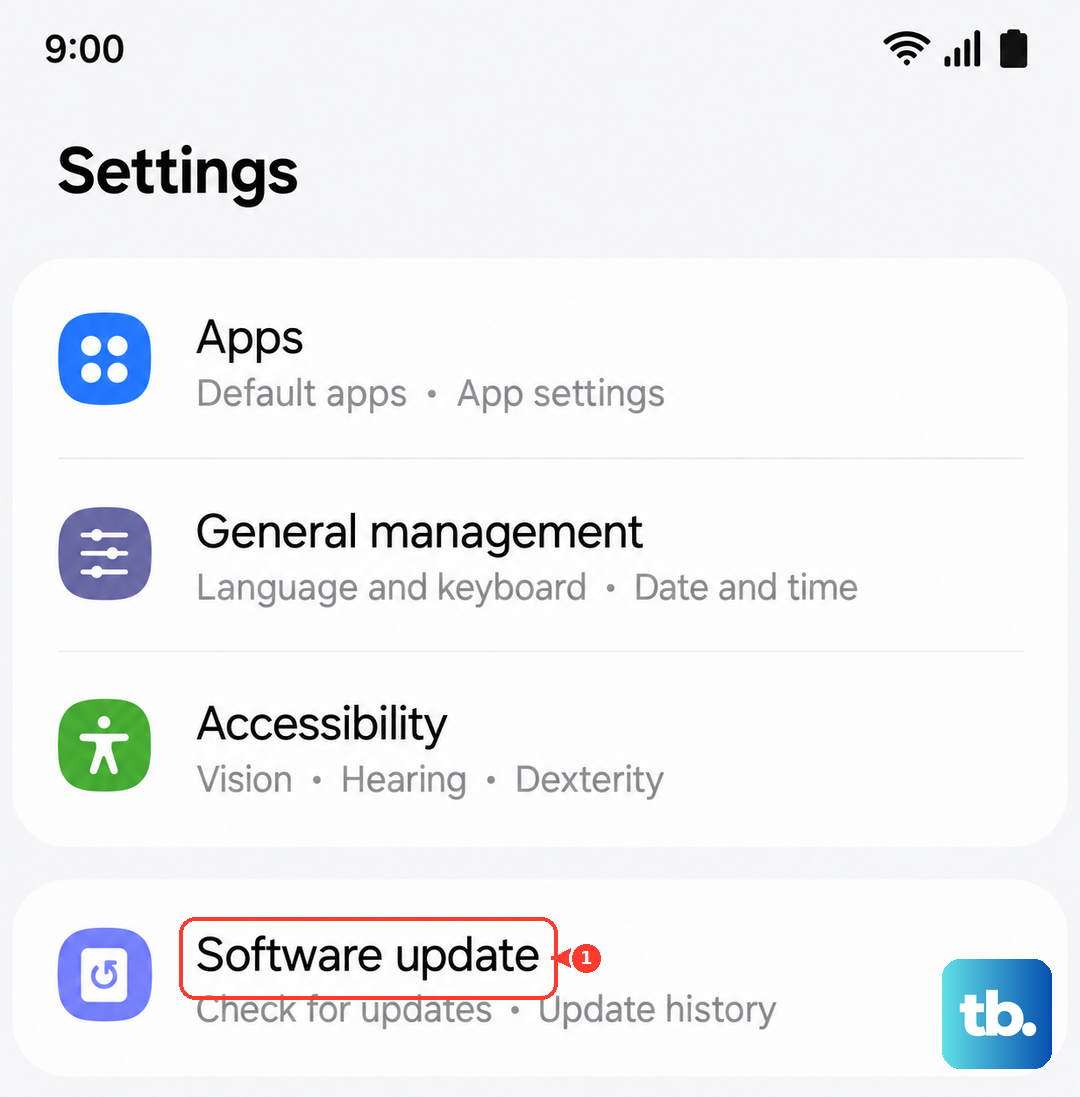
Let the phone check for updates. If one is available, install it. These updates often include patches for performance and stability issues, including touchscreen fixes.
Make sure your phone is charged above 50% and plugged into a charger before starting the update. A 25W USB-C PD charger is ideal, as Samsung doesn't include one in the box.
Perform a Factory Reset
This erases all data and returns the phone to its original factory state. It's a last resort for persistent software problems. Before you start, ensure you've backed up everything important to Samsung Cloud or a computer.
You can initiate it from the settings if the screen is partly working. Go to Settings > General management > Reset > Factory data reset.
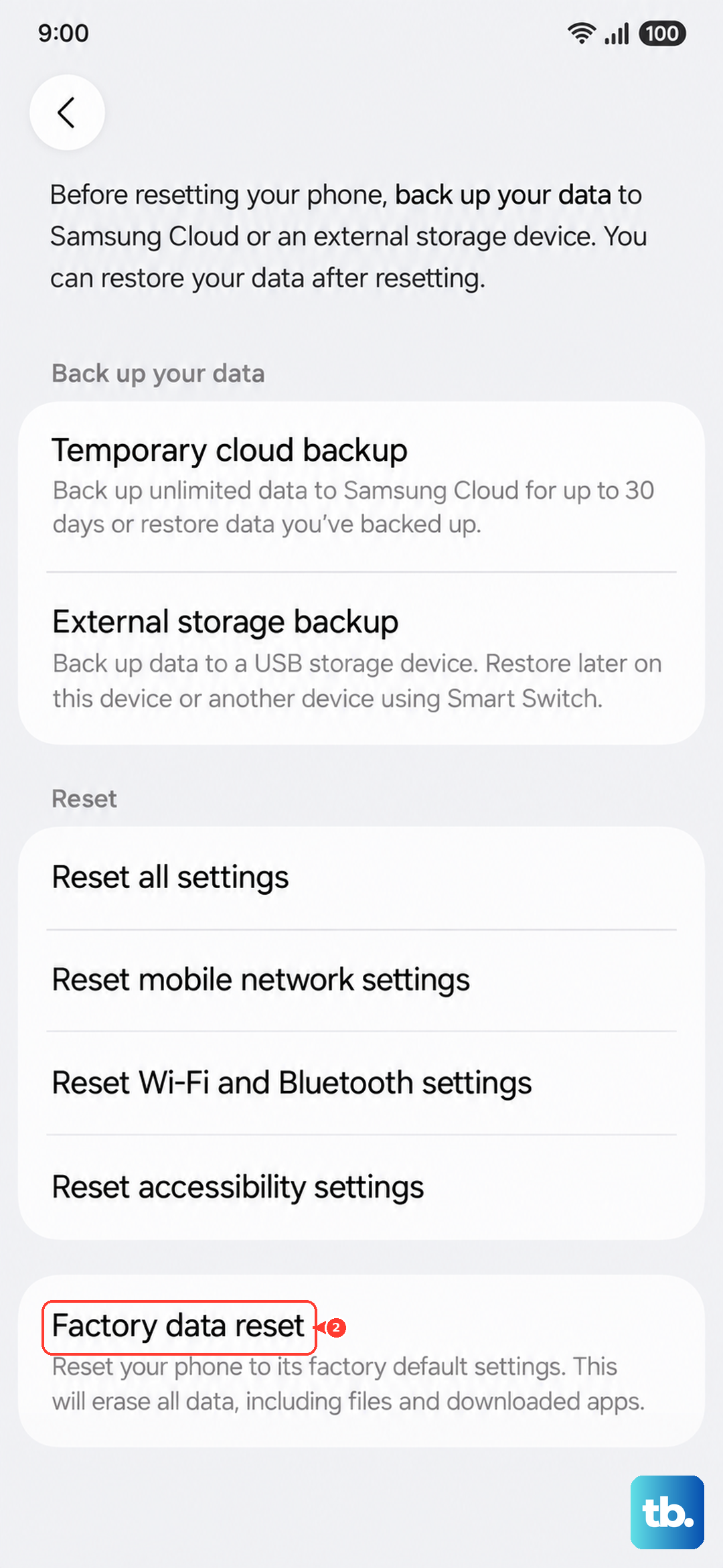
If the screen is completely unresponsive, you can use the hardware buttons. Turn the phone off, plug it into a computer with a USB cable, then press and hold Volume Up and Side together until the phone vibrates and the Samsung logo appears. Release both buttons, then use the volume buttons to highlight "Wipe data/factory reset" and select it with the Side button.