
When your Samsung Galaxy A55 stops ringing for incoming calls, it can leave you feeling completely disconnected. This is a surprisingly common hiccup with the 2024 model, and it usually comes down to a setting that got flipped or a temporary network glitch. The good news is you can almost always fix it yourself without needing a trip to the repair shop.
Let's jump straight into the most common fix. Pull down the notification shade from the top of your screen twice to see all your Quick Settings tiles. Look for the airplane icon. If it's highlighted, tap it to turn Airplane Mode off. If it was already off, tap it to turn it on, wait about 10 seconds, and then tap it again to turn it back off. This single action refreshes all your phone's wireless connections and solves a huge number of call reception problems instantly.
Restart Your Galaxy A55
If toggling Airplane Mode didn't do the trick, your next move should be a simple restart. This clears out any minor software bugs that might be interfering with the phone app or radio. Just press and hold the Side button (also called the Power button) and the Volume Down button together for about 10 seconds.
You'll feel a vibration and see the Samsung logo appear as the phone reboots. Once it's back on, try having someone call you again. I've found this resolves the issue more often than not, especially if the problem started suddenly.
Check Your Do Not Disturb and Focus Modes
One UI has several ways to silence your phone, and sometimes they get enabled by accident. Swipe down from the top and check for a moon icon in your Quick Settings panel. If you see it, tap it to disable Do Not Disturb. For a more thorough check, go into Settings > Notifications > Do Not Disturb.
Look at the rules and schedules here to make sure you haven't set up a block for certain times. Also, check your Focus Modes in Settings > Digital Wellbeing and parental controls > Focus modes. If a mode like "Work" or "Sleep" is active, it could be blocking all calls except from your favorites.
Review Call Blocking and Spam Protection
Samsung's built-in spam protection is great for stopping robocalls, but it can sometimes be a little too aggressive. Open your Phone app and tap the three-dot menu in the top right, then select Settings > Caller ID and spam protection.
Make sure the feature is turned on, but also tap on "Block numbers" to see your list. If a number you're expecting calls from is on that list, tap the red minus icon next to it to remove the block. You can also check if "Block unknown callers" is enabled further down in the settings, which would send all calls not in your contacts straight to voicemail.
Inspect Your Call Forwarding Settings
It's worth verifying that your calls aren't being secretly forwarded to another number. This can sometimes happen if you accidentally press a code or if there's a carrier glitch. Open the Phone app, tap the three-dot menu, and go to Settings > Supplementary services.
Tap on "Call forwarding." You should see four options: Always forward, When busy, When unanswered, and When unreachable. Each one should say "Not forwarded" or be set to your voicemail number. If any are set to a different phone number, tap on that option and select "Disable" to turn forwarding off.
Examine Your SIM Card
A loose or faulty SIM card is a classic culprit for call issues. You'll need the SIM ejector tool that came in the box with your Galaxy A55. Gently push it into the small hole on the SIM tray on the top edge of the phone to pop it out.
Carefully remove the SIM card, give the gold contacts a quick look for any dirt or damage, and then reinsert it firmly into the tray. Push the tray back into the phone until it clicks. After the phone reconnects to the network, test for calls again. If you have access to another phone, you could also test your SIM card in it to rule out a problem with the card itself.
Reset Your Network Settings
If you're still having trouble, resetting your network settings can clear up deeper configuration problems. This will erase all saved Wi-Fi passwords, Bluetooth pairings, and mobile network settings, so be prepared to reconnect to your wireless networks afterward.
To do this, go to Settings > General management > Reset > Reset network settings. Tap "Reset settings" and confirm. Your phone will reboot. Once it's back on, you'll need to reconnect to your Wi-Fi and re-pair any Bluetooth devices, but this often resolves persistent calling and network issues.
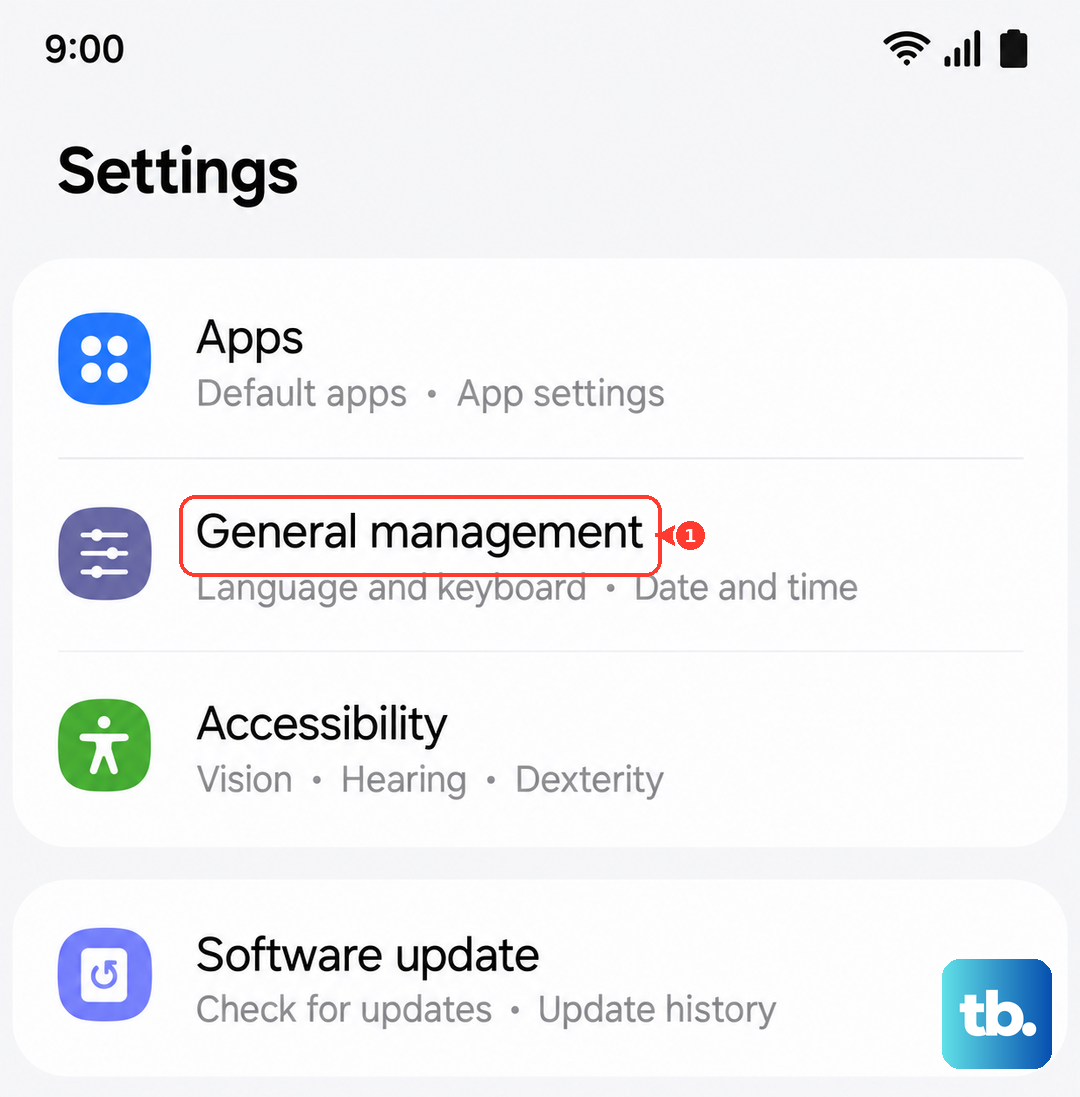
Update Your Phone's Software
Samsung regularly releases software updates that fix bugs, including ones related to calling and network connectivity. It's a good idea to make sure your Galaxy A55 is running the latest version of One UI. Go to Settings > Software update > Download and install.
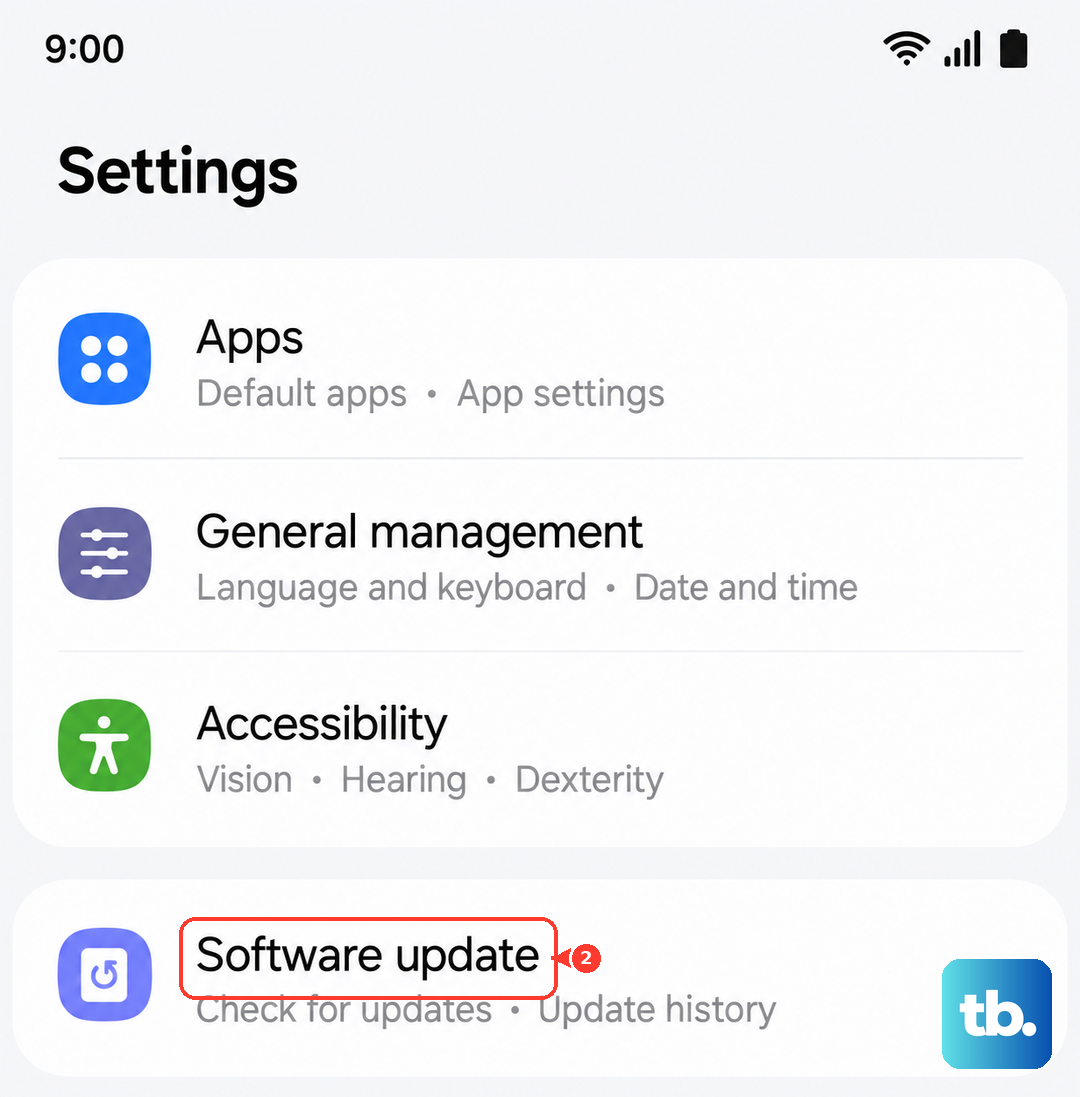
Let the phone check for updates. If one is available, connect to Wi-Fi and follow the prompts to install it. These updates can include important patches that directly address problems with the phone's radio or dialer app, so this step is more important than it might seem.
Clear the Phone App's Cache and Data
The Phone app itself can accumulate corrupted temporary files. Clearing its cache is a safe first step that won't delete your call history or contacts. Go to Settings > Apps > Phone. Tap on "Storage" and then tap "Clear cache."
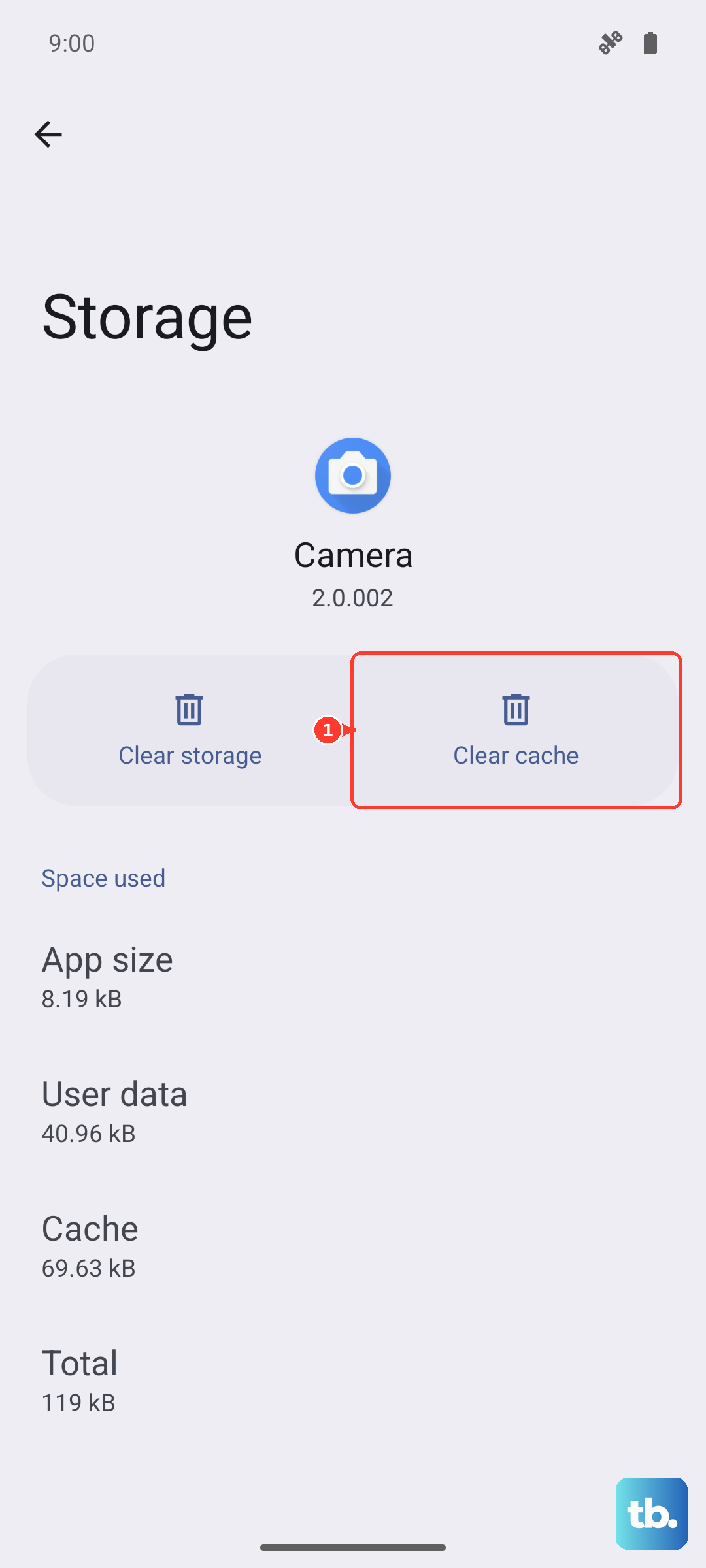
If the problem persists, you can go back and tap "Clear data." Be aware that this will reset the Phone app to its default state, which may erase your call log. Your contacts are safe as they're synced with your Google or Samsung account. After clearing data, restart your phone.
Contact Your Mobile Carrier
Sometimes the issue is entirely on your carrier's end. There could be a local tower outage, a problem with your account provisioning, or even a service disruption. Before you call, try inserting your SIM into another phone if possible, to see if the problem follows the SIM.
If it does, or if you can't test another phone, contact your carrier's customer support. They can check your account status, refresh your connection on their network, and tell you if there are any known service issues in your area. They can also verify that all the necessary calling features are properly enabled on your line.