
Hold down the volume down button and the power button together for at least 10 seconds. Keep holding them until you feel the phone vibrate or see the Samsung logo appear on the screen. This force restart is the quickest way to jolt an unresponsive Galaxy A36 back to life, especially if it's frozen after an app crash or a buggy update.
I'd start with this one every time. It doesn't delete any of your data, and it works for most temporary software glitches. If the screen stays black, try holding the buttons for a full 15 seconds to be sure.
Check Your Charger and Cable
Plug your Galaxy A36 into a wall outlet using a known-good USB-C cable and a powerful enough charger. Since the A36 supports up to 45W wired charging, using a compatible USB-PD charger can help rule out a power issue. Let it charge for at least 30 minutes while powered off.
A completely drained battery can sometimes make the phone appear dead. If you see a faint battery icon or a charging LED (if your model has one), you know it's getting power. Remember, Samsung doesn't include a charger in the box, so the one you're using might not be optimal.
Try a different cable and wall adapter if you can. A faulty cable that only works for data transfer won't deliver enough power to wake the phone from a deep discharge.
Boot Into Safe Mode
If the phone turns on but the screen becomes unresponsive after loading, a recently installed app might be the culprit. To check, you need to boot into Safe Mode. First, force restart the phone as described above.
As soon as you see the Samsung logo appear after the restart, immediately press and hold the volume down button. Keep holding it until the phone finishes booting up. You should see "Safe Mode" in the bottom-left corner of the screen.
In Safe Mode, all third-party apps are disabled. If your touchscreen works perfectly here, you know a downloaded app is causing the problem. You can then restart normally and start uninstalling recent apps one by one to find the offender.
Clean the Screen and Check for Damage
Power the phone off completely and give the screen a thorough clean with a soft, microfiber cloth. Sometimes accumulated grease, moisture, or a poorly applied screen protector can interfere with touch sensitivity. Pay special attention to the edges where your palms might rest.
Inspect the screen closely for any new cracks or scratches. The Galaxy A36 uses Gorilla Glass Victus+, which is tough against drops but can be prone to fine scratches. While minor scratches usually don't cause unresponsiveness, a significant impact could damage the digitizer layer underneath the glass.
Also, check if the issue is worse in humid conditions. Some users have noted sensor performance can lag with moisture, so dry your hands and the screen thoroughly.
Clear the System Cache Partition
This step clears temporary system files that can become corrupted and cause all sorts of weird behavior, including screen freezes. First, power off your Galaxy A36 completely. Connect it to your computer with a USB cable, or make sure it has at least 20% battery.
Now, press and hold the volume up button and the power button simultaneously. Release both buttons when you see the Samsung logo. You'll boot into the Android Recovery Menu. Use the volume buttons to navigate to "Wipe cache partition" and select it with the power button.
Confirm the action, wait for the process to complete, then select "Reboot system now." This won't erase your photos, messages, or apps, but it can resolve underlying software conflicts from the One UI 7 update.
Consider a Factory Reset
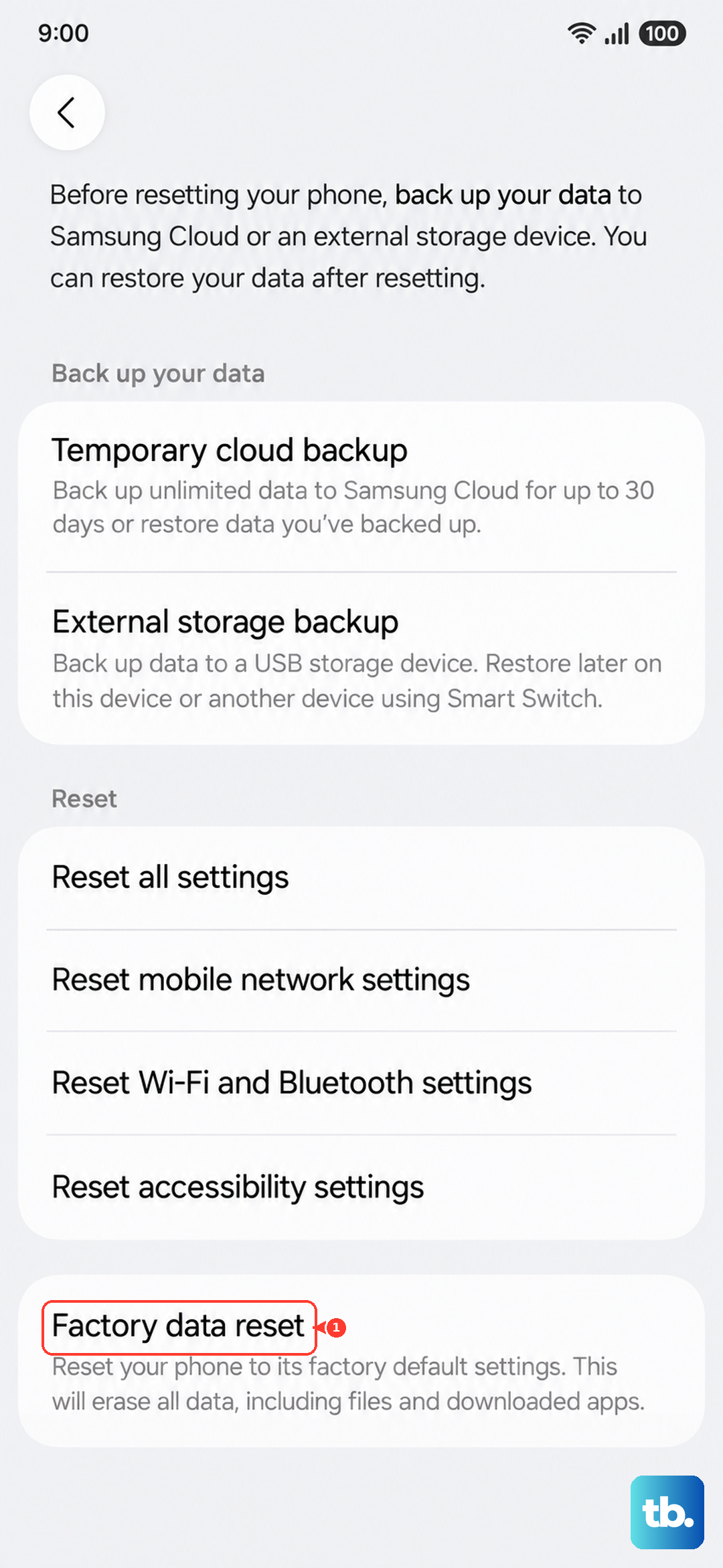
If none of the above steps work, a software issue is likely deeply rooted. A factory reset will erase everything on your phone and return it to its original out-of-the-box state. This is a last resort, so ensure you have a recent backup if possible.
You can initiate this from the Recovery Menu if the screen is still unresponsive during boot. Navigate to "Wipe data/factory reset" and confirm. If you can get into the settings, you can also go to Settings > General management > Reset > Factory data reset.
After the reset, set up the phone as new without restoring a backup immediately. This helps determine if the problem was with your data or the core system software. If the screen works perfectly after a fresh start, a corrupted file in your previous setup was likely to blame.