Press and hold the Volume Down button and the Side/Power button together for about 10 seconds. Keep holding them until you see the Samsung logo appear on the screen. This force restart is the go-to fix for an unresponsive screen, especially if the phone is new and might have a temporary software glitch.
Key Points
- Force Restart Your Phone : This is the first and most effective step for a frozen screen.
- Check for a Software Update : Early software bugs are a known possibility on new devices like the S26 Ultra.
- Charge Your Phone Properly : Use a Samsung 60W charger for Super Fast Charging 3.0 and ensure the port is clean.
- Boot Into Safe Mode : This helps determine if a recently downloaded app is causing the screen to freeze.
- Check for Physical or Screen Damage : Inspect the screen and the area around the S Pen slot for any issues.
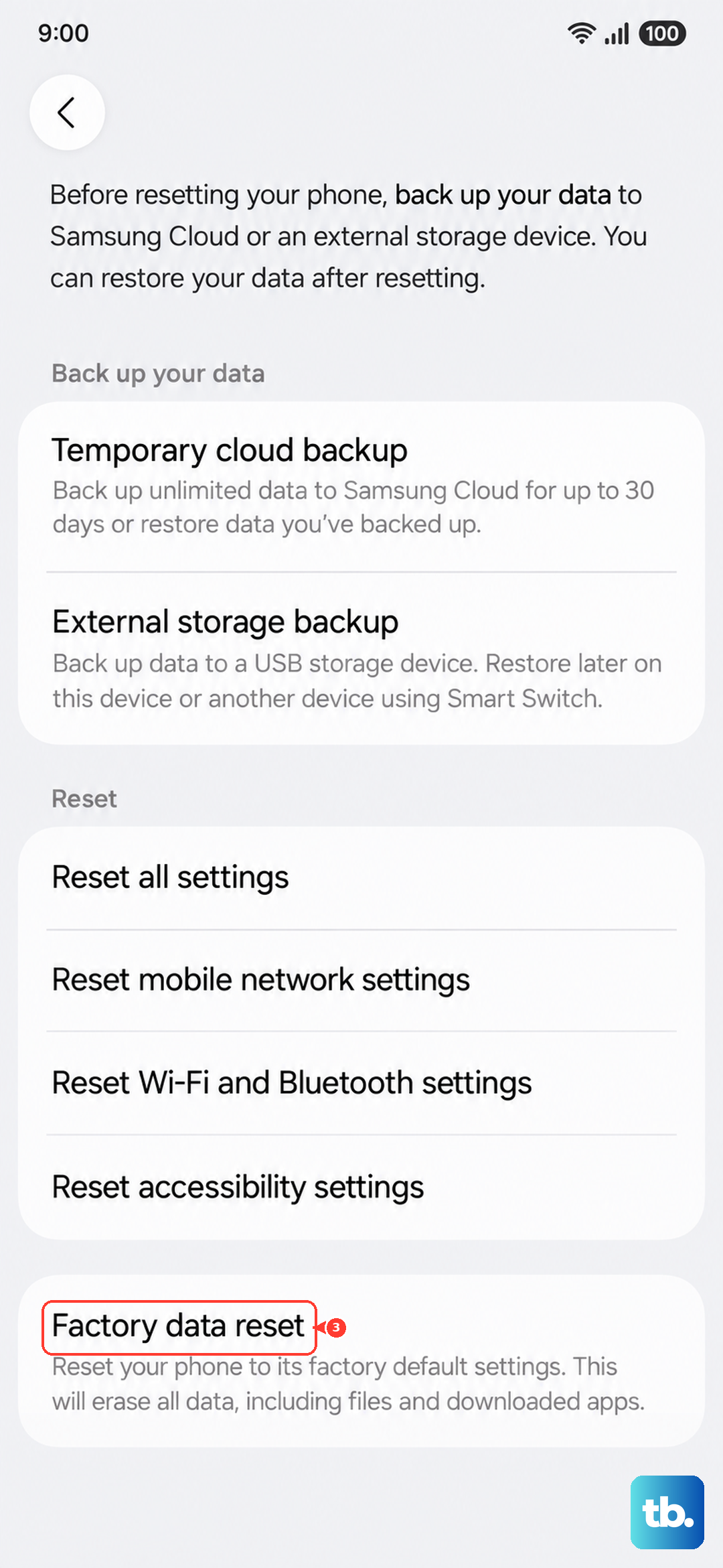
- Perform a Factory Reset : This erases all data, so back up first and use it as a last resort.
I'd start with this one every time. It's a soft reset that doesn't delete any of your data, and it can clear out the minor hiccups that cause the touchscreen to stop responding. If the screen is completely black but you feel a vibration when you press the power button, this method can often bring it back to life.
Update Your Phone's Software
Since the Galaxy S26 Ultra is a brand new device, early software bugs are a real possibility. If your screen is working enough to navigate, go to Settings > Software update > Download and install.
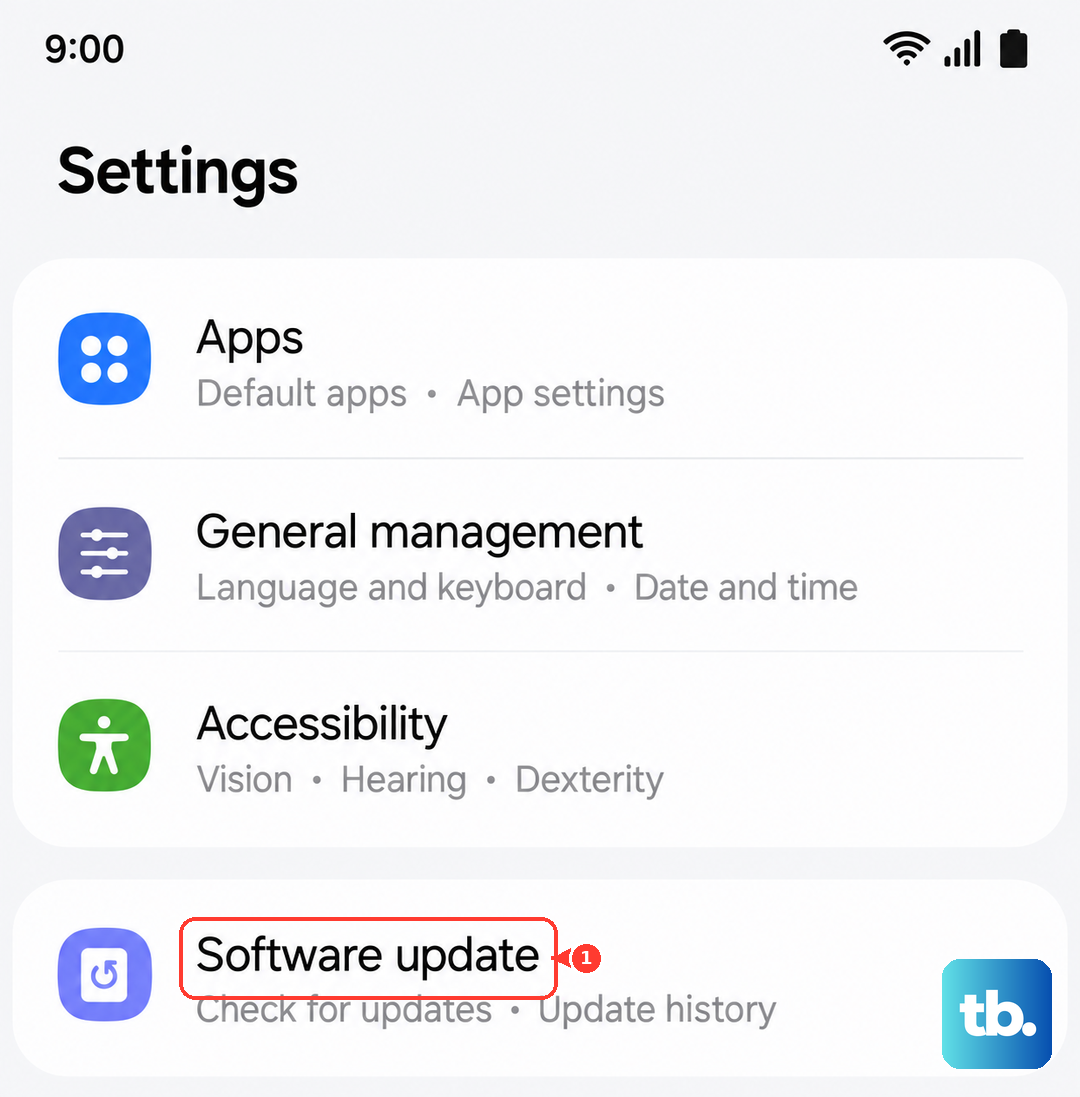
Connect to a strong Wi-Fi network and plug in your charger. Let the update download and install completely, which can take 10 to 20 minutes. I've seen day-one updates resolve a lot of weird touchscreen behavior on new Samsung phones.
If your screen is unresponsive, you can sometimes trigger an update check using Samsung's Smart Switch software on a computer, but the force restart is usually needed first to get the phone communicating.
Ensure Your Phone is Charging Correctly
A completely drained or faulty battery can make the screen appear dead. Plug your S26 Ultra into a wall outlet using the original Samsung 60W Super Fast Charging 3.0 brick and a high-quality USB-C cable. Look for the charging indicator on the screen or a notification LED if enabled.
Let it charge for at least 30 minutes. Remember, the Battery Protection feature is on by default, which limits charging to 85% to preserve battery health. You can toggle this in Settings > Battery > More battery settings if you need a full 100% charge for troubleshooting.
Also, check the USB-C port and the S Pen slot right above it. Debris from the S Pen slot can migrate and block the charging port, preventing a proper connection. Gently clean it out with a dry toothpick or compressed air.
Start Your Phone in Safe Mode
Booting in Safe Mode temporarily disables all third-party apps. If your screen works perfectly in Safe Mode, you know a downloaded app is the culprit. To enter Safe Mode, first force restart your phone as described above.
As soon as you see the Samsung logo appear after the restart, immediately press and hold the Volume Down button. Keep holding it until you see "Safe Mode" in the bottom corner of the screen.
Navigate around in Safe Mode to see if the touch response is fixed. If it is, you'll need to uninstall recently downloaded apps one by one to find the problematic one. Restart your phone normally to exit Safe Mode.
Inspect for Physical Damage
Look very closely at the screen for any new cracks, even hairline ones, or spots where the display might be discolored or bleeding. A damaged screen or digitizer will cause unresponsive areas or a completely dead touch layer.
Check if you have a screen protector installed. Sometimes a poorly applied or thick protector can interfere with the S26 Ultra's ultrasonic fingerprint sensor and touch sensitivity. Try removing it temporarily to see if responsiveness improves.
Also, feel the back of the phone. If it's unusually hot, the device may have overheated and shut down the display as a safety measure. Place it in a cool spot, out of direct sunlight, and let it cool down for 15-20 minutes before trying to turn it on again.
Reset All Settings
This resets all your system settings (like Wi-Fi passwords, Bluetooth pairings, and display preferences) back to default without deleting your personal photos, messages, or apps. It can fix conflicts caused by a misconfigured setting.
If you can access settings, go to Settings > General management > Reset > Reset all settings. Enter your PIN if prompted and confirm. Your phone will restart.
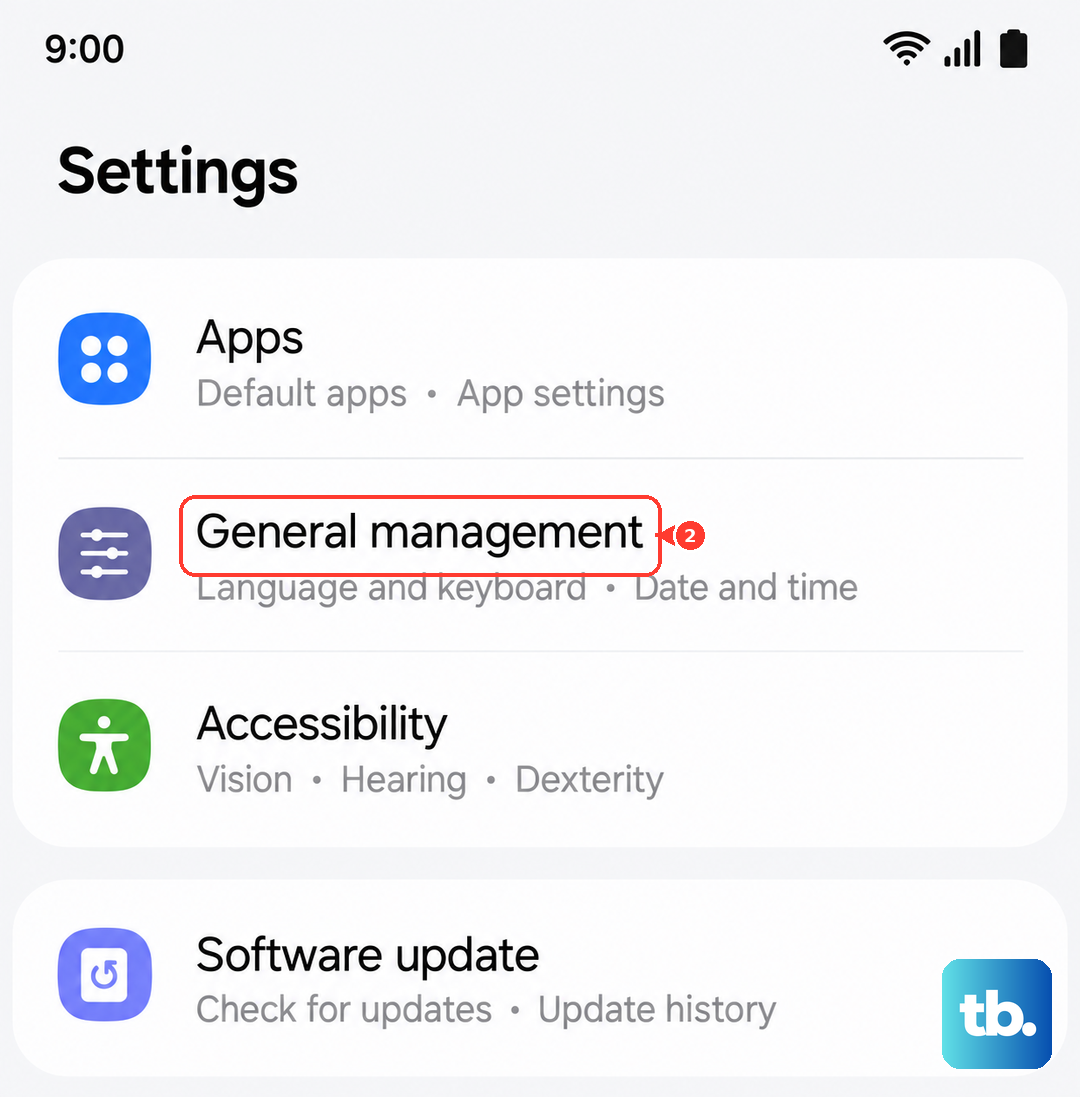
You'll have to reconfigure things like your ringtone and wallpaper, but it's a much less drastic step than a full factory reset. This often resolves issues related to display scaling or touch sensitivity settings that got messed up.
Perform a Factory Reset
This is your last resort software fix, as it will erase everything on your phone. Before you do this, if possible, try to back up your data using Samsung Cloud or a computer. You can initiate a factory reset through the settings menu if the screen is working.
If the screen is black, you can use hardware buttons. Power off the phone completely. Then, press and hold the Volume Up button and the Side/Power button together. When the Samsung logo appears, release only the Power button but keep holding Volume Up until you see the Android Recovery menu.
Use the Volume Down button to highlight "Wipe data/factory reset" and press the Power button to select it. Confirm by selecting "Factory data reset". Once it's done, select "Reboot system now". This will return the phone to its out-of-box state, eliminating any deep-seated software corruption.