It's easy to miss something important when your Galaxy A26 5G decides to stop showing notifications. Whether you're not getting texts, emails, or app alerts, the problem usually comes down to a few common culprits on One UI 7.
Start with a Force Restart
Before diving into settings, a quick force restart clears up temporary software hiccups. On the Galaxy A26 5G, press and hold the Volume Down and Power buttons together for about 10 to 15 seconds. The Samsung logo will appear, and your phone will boot back up fresh.
Check Your Modes and Routines
One UI 7 has a powerful Modes and Routines feature that can automatically silence your phone based on your activity. Head to Settings > Modes and Routines and make sure no active mode is blocking your notifications. You should also pull down the quick settings panel to check if Do Not Disturb is accidentally turned on.
Review Per-App Notification Settings
Sometimes a specific app's notification channel gets muted without you realizing it. Long-press the app icon, tap the (i) info button, then select Notifications. Make sure the individual categories like "Messages" or "Alerts" are toggled on, as Android 15 lets you fine-tune these independently.
Turn Off Battery Optimization for Key Apps
Samsung's battery management is aggressive on the A26 5G to save power, but it can kill background notification services. Go to Settings > Apps, select the app you're having trouble with, tap Battery, and select Unrestricted. This allows the app to check for messages in the background as it should.
Clear Badge Provider Data
If you're seeing phantom unread message badges, the Badge Provider app is usually the culprit. This system app manages the little numbers on your app icons. Open Settings > Apps, tap the three dots menu, select Show system apps, find BadgeProvider, and tap Storage > Clear data. Restart your phone afterward, and the false counts should disappear.
Clear a Stuck App's Cache
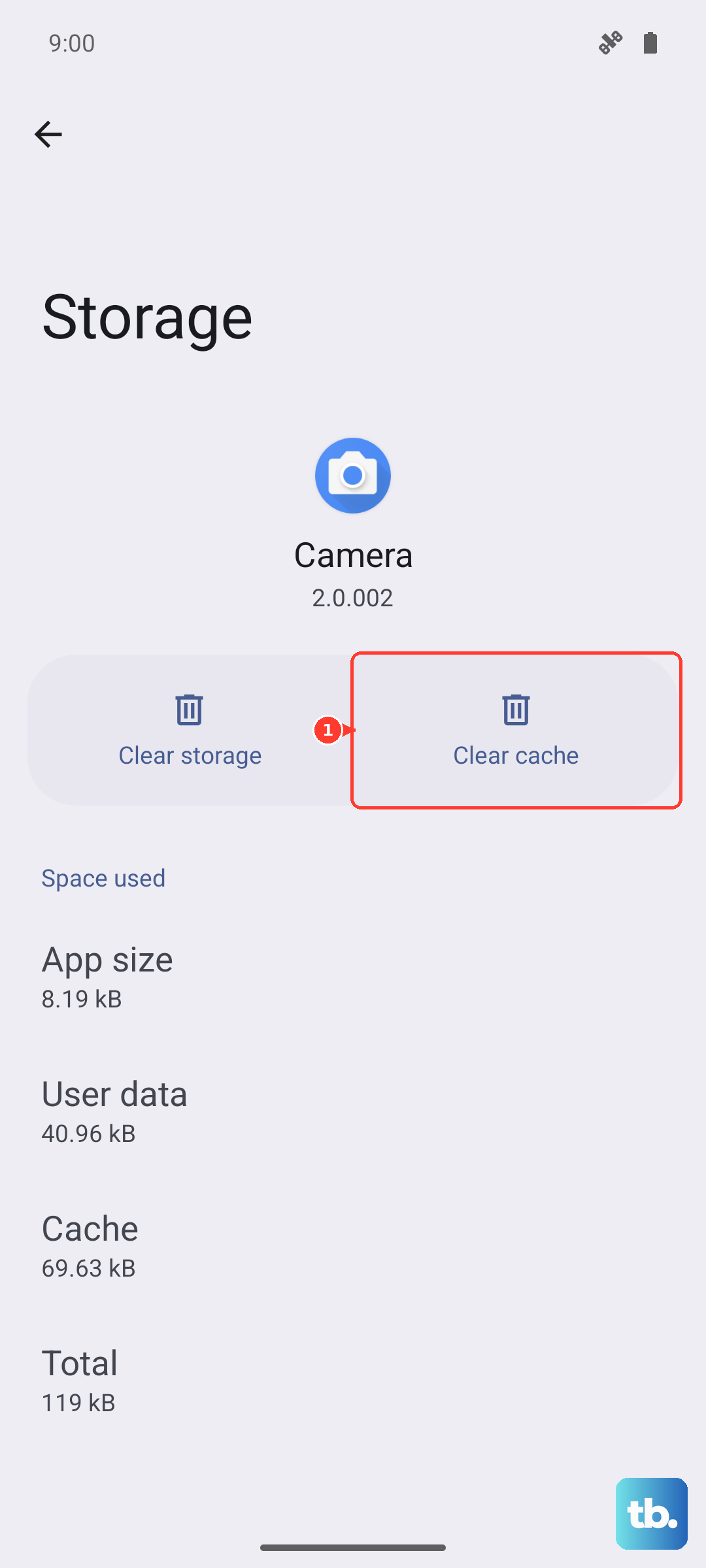
A corrupted cache can freeze the notification system for a specific app. Go to Settings > Apps, tap the problematic app, choose Storage, then hit Clear cache. You won't lose your login info or messages by doing this, and it often resolves delays or missing alerts right away.
Install the Latest One UI 7 Update
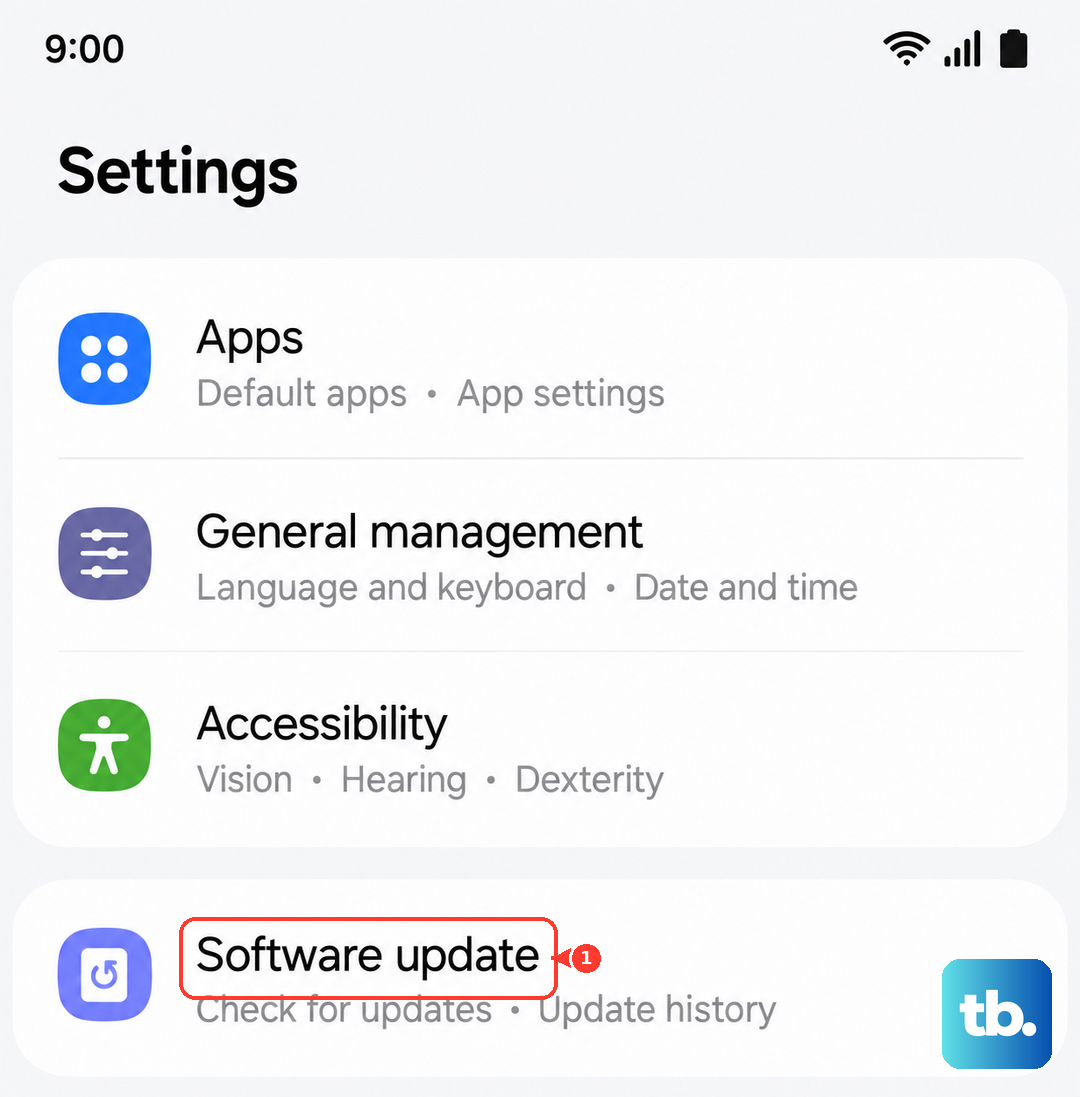
Software bugs that affect notifications are often patched in updates. Open Settings > Software Update > Download and install. If there's a pending security patch or One UI 7 hotfix, installing it might solve your problem without any further tinkering.
Wipe the System Cache Partition
For deeper glitches, clearing the system cache partition is a safe next step. This removes temporary system files without touching your personal data. Here's how on the A26 5G:
Turn off the phone completely. Connect it to a computer via the USB-C cable (this is often required for the menu to show). Now press and hold Volume Up and Power. When the Android logo appears, release the buttons. Use the volume keys to scroll to Wipe cache partition and press the Power button to select it. Reboot the system when it's done.
Reset App Preferences
If you've accidentally disabled a required system app or denied a critical permission, resetting app preferences fixes everything in one shot. Go to Settings > Apps (on Xiaomi, POCO, and Redmi phones, tap Manage apps first), then tap the three-dot menu in the top corner and select Reset app preferences. This won't delete your data, but it will restore default permissions and re-enable any apps you may have hidden.
Reset All Settings
When simpler fixes don't work, a full settings reset usually clears up notification issues. Navigate to Settings > General Management > Reset > Reset all settings. You'll have to reconnect to Wi-Fi and adjust your wallpapers, but your files, messages, and apps stay exactly where they are.
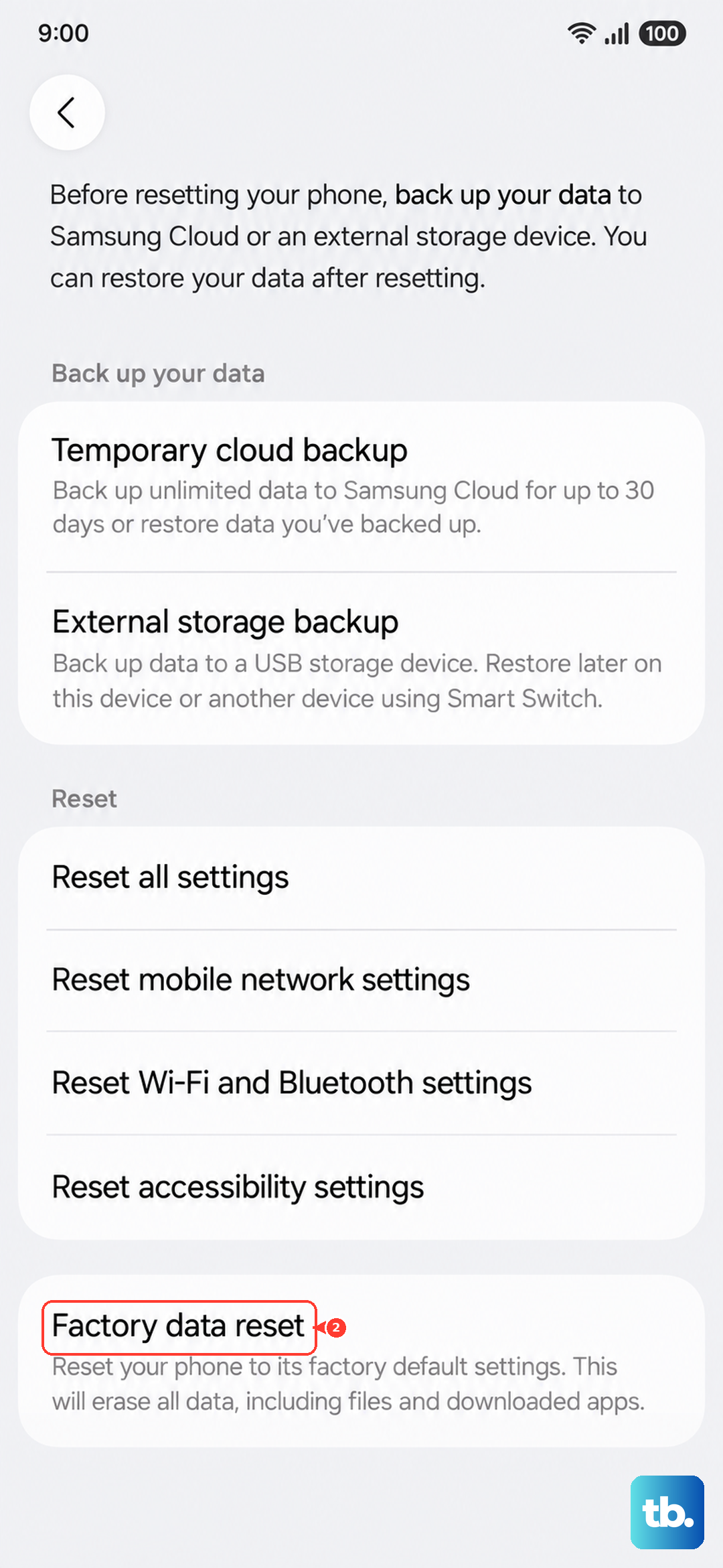
Back Up and Factory Reset
As a last resort, a factory reset restores your A26 5G to a clean state. Make sure you back up your photos and data to Google Drive or Samsung Cloud first. Then go to Settings > General Management > Reset > Factory data reset. This wipes the phone clean, which eliminates any persistent software conflicts that were preventing notifications from working.