
When you plug your Samsung Galaxy Book 4 Pro into a monitor or TV and get no signal, it's usually a quick settings or cable fix. The most common culprit is the laptop not being set to output to the external screen.
Press the Windows + P keys together. A menu will pop up on the right side of your screen. Select Duplicate or Extend. If it's on "PC screen only," nothing will show on your external display. Toggling through these options often wakes up the connection immediately.
Inspect Your HDMI Cable and Ports
Unplug the HDMI cable from both your laptop and the monitor, then firmly reconnect it. I'd try a different HDMI cable if you have one, as cables can fail internally without any visible damage.
Make sure your monitor or TV is powered on and set to the correct HDMI input source. You might need to press the "Source" or "Input" button on the monitor's remote or side panel to cycle to HDMI 1, HDMI 2, etc.
Adjust Windows Display Settings
Go to Settings > System > Display. Click the Detect button. If Windows sees your external display, it will appear as a second screen. You can then drag it around to match your physical setup.
If the display is detected but shows a blank or scrambled image, try lowering the resolution. Select the external display in the settings and choose a standard resolution like 1920 x 1080 to see if that stabilizes the signal.
Update Your Graphics Drivers
Outdated Intel Iris Xe or Arc graphics drivers are a frequent cause of HDMI problems on the Galaxy Book 4 Pro. Open Device Manager, expand Display adapters, right-click your Intel graphics driver, and select Update driver.
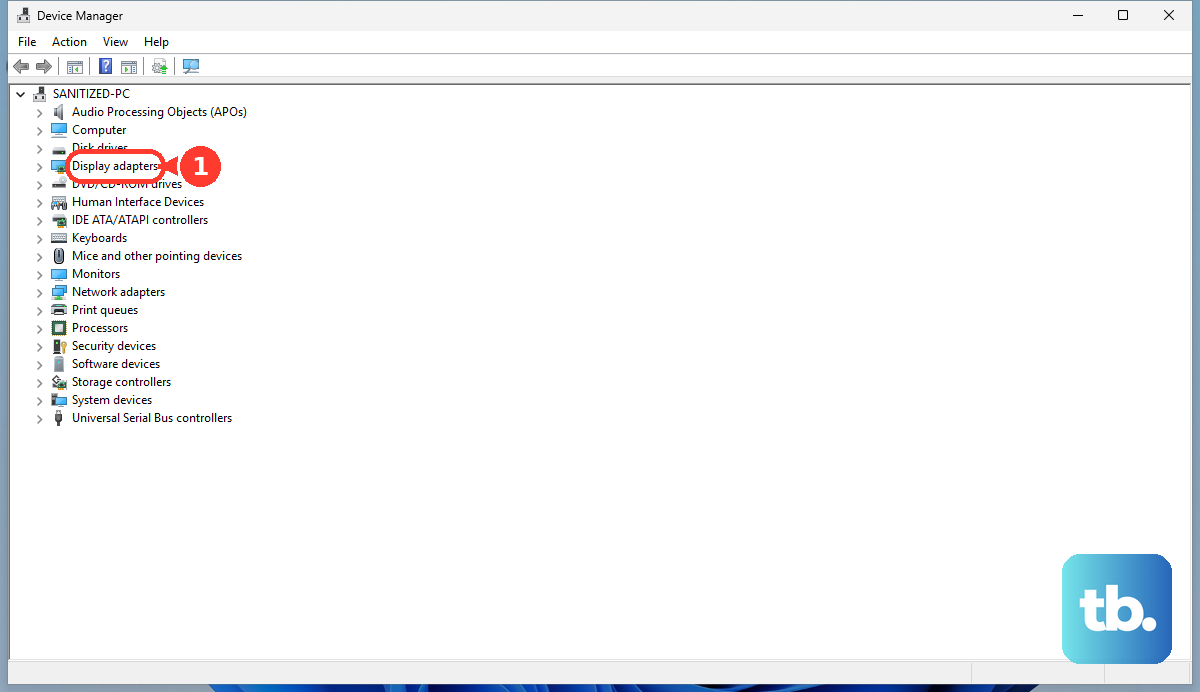
For the most reliable result, visit the Intel Driver & Support Assistant website or the Samsung Update app to download and install the latest graphics driver package directly. A driver update specifically resolves many external display handshake issues.
Restart with the Cable Connected
Shut down your Galaxy Book 4 Pro completely. With the HDMI cable still plugged into both the laptop and the monitor, turn the laptop back on. Some systems only fully initialize the HDMI port during the boot sequence, and a restart can force this detection.
Try the USB-C/Thunderbolt 4 Ports
The Galaxy Book 4 Pro's USB-C ports support DisplayPort Alt Mode. If you have a USB-C to HDMI adapter or a USB-C monitor cable, try connecting through one of those ports instead.
If the HDMI output works through a USB-C adapter but not the dedicated HDMI port, the issue is likely with the physical HDMI port itself. This helps narrow down where the problem lies.
Check for Samsung Software Conflicts
The Samsung Settings app can sometimes interfere with Windows power and display management. Open the Samsung Settings app and look for any display-specific modes or battery optimization settings that might be disabling external outputs.
As a test, you can temporarily close the Samsung Settings app from the system tray (next to the clock) and see if your HDMI output starts working. This can indicate a software conflict that needs a future update from Samsung.
Refresh the Display Adapter in Device Manager
Go back to Device Manager and find your display adapter under the "Display adapters" section. Right-click on it and choose Disable device. Wait about ten seconds, then right-click it again and select Enable device.
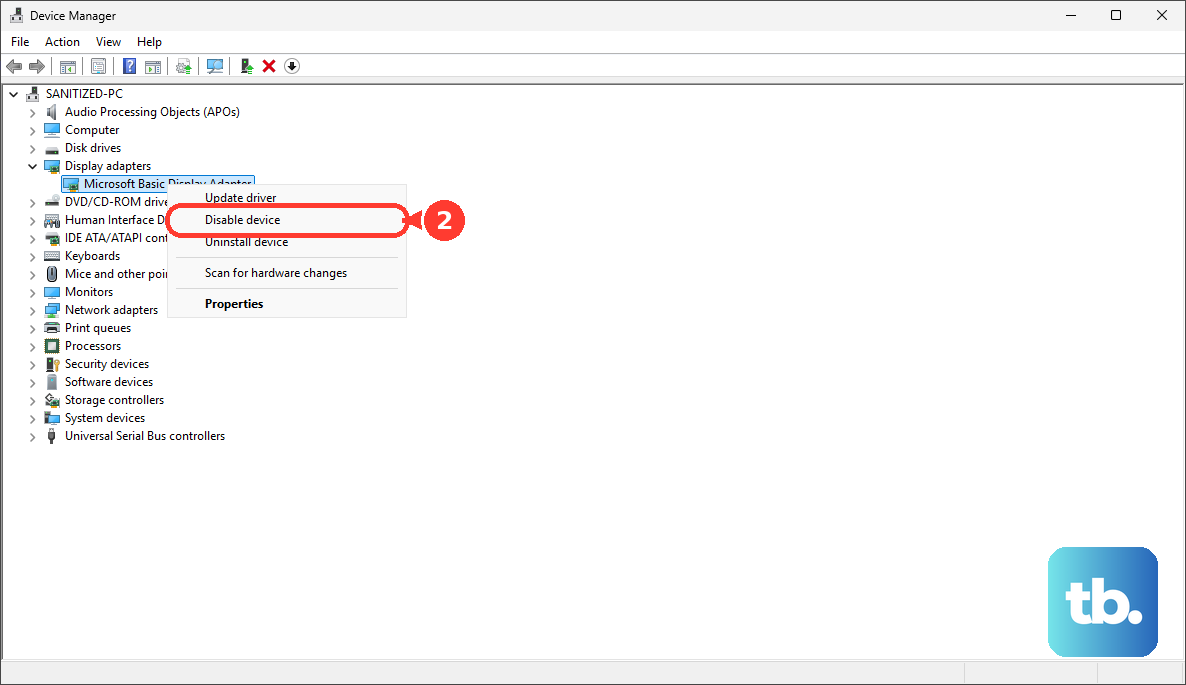
This action forces Windows to reload the graphics driver, which can clear up a stuck state and re-establish the connection to your HDMI port.
Test with a Different Monitor or TV
Connect your laptop to a completely different external display, if possible. If the HDMI output works on a second monitor, then the problem is with the settings or hardware of your first display.
This simple test saves a lot of time troubleshooting the laptop for an issue that actually resides in the other device.
Review BIOS/UEFI Settings
On the Galaxy Book 4 Pro, you can enter the BIOS by pressing F2 repeatedly as soon as you press the power button to turn it on. Once in the BIOS, navigate carefully using the keyboard.
Look for any settings related to display output, primary display, or GPU configuration. It's uncommon, but a BIOS update or reset can sometimes change a setting that affects external video. If you're unsure, the default "Optimized" settings are usually correct.