
When your Samsung Galaxy S23's Mobile Hotspot stops working, it leaves your laptop or tablet stranded without internet. Whether other devices can't see it, fail to connect, or get kicked off, the fixes are usually straightforward.
Start by opening the Quick Settings panel and tapping the Mobile Hotspot icon to turn it off. Wait a few seconds, then tap it again to turn it back on. If that doesn't do it, go into Settings > Connections > Mobile Hotspot and Tethering and toggle the main switch off and on there. This quick reset often clears a temporary software glitch.
Restart Your Galaxy S23
Press and hold the Volume Down button and the Side button together for about 10 seconds. Release them when you see the Samsung logo appear. This force restart is more thorough than a standard reboot and can resolve deeper system issues affecting the hotspot service.
Verify Your Mobile Data Connection
Your hotspot relies entirely on your phone's cellular data. Swipe down to check you have a strong signal. You can also try loading a webpage in your phone's browser to confirm data is flowing. If you're in a low-signal area, the hotspot will struggle. Also, double-check with your carrier that your specific plan includes tethering, as some budget plans don't.
Check the Hotspot Configuration
Head to Settings > Connections > Mobile Hotspot and Tethering > Mobile Hotspot and tap the three-dot menu for "Configure." Make sure the network band is set to 2.4 GHz, as it has better range and compatibility with older devices. Verify your password is correct and consider changing it to something simple to rule out special character issues.
Reset Your Phone's Network Settings
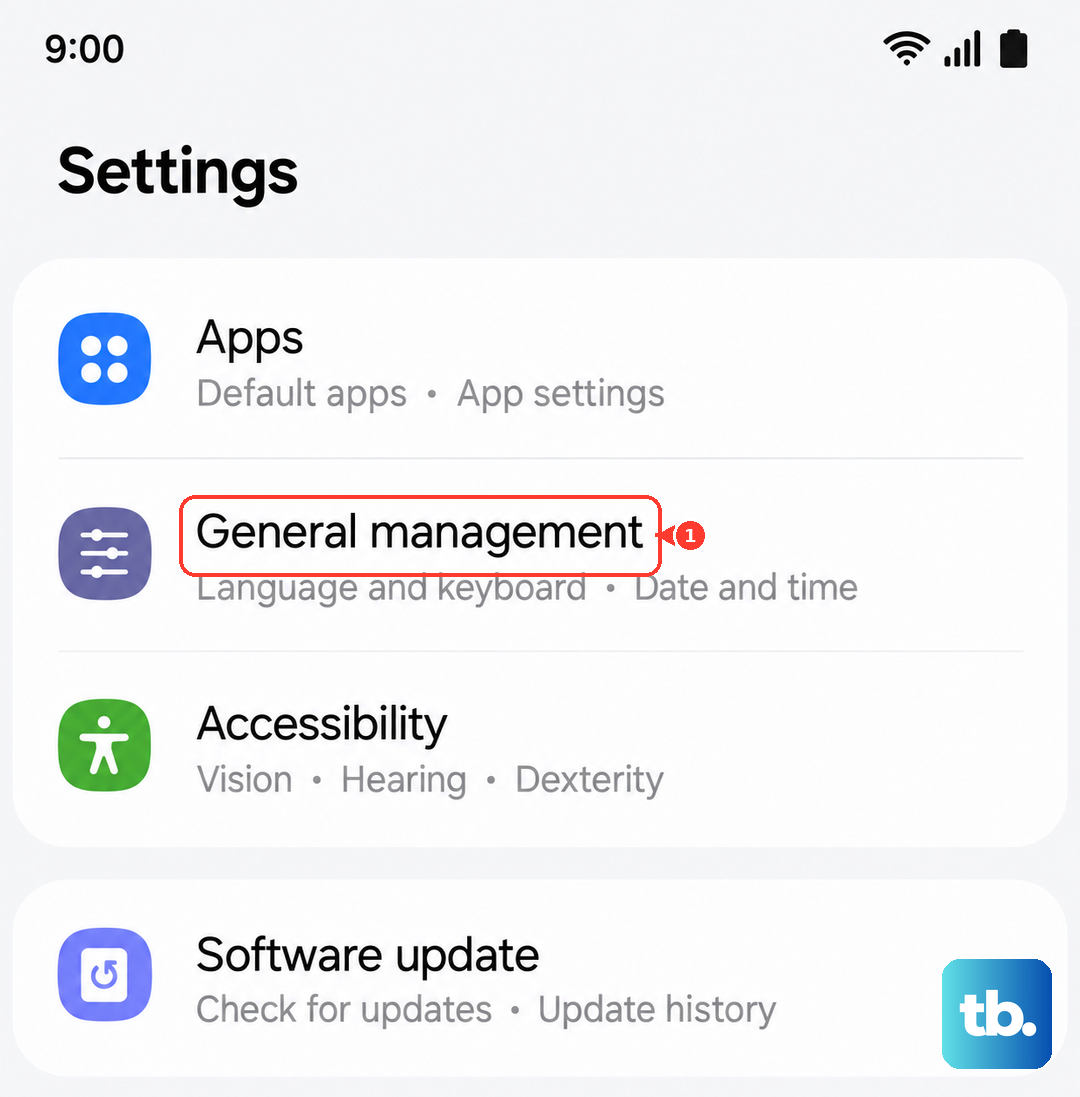
This will erase all your saved Wi-Fi networks and Bluetooth pairings, but it's a powerful fix for network bugs. Go to Settings > General Management > Reset > Reset network settings. Tap reset and confirm. After your phone reboots, you'll need to reconnect to your Wi-Fi and re-pair Bluetooth devices, but this often resolves stubborn hotspot problems.
Update Your Software
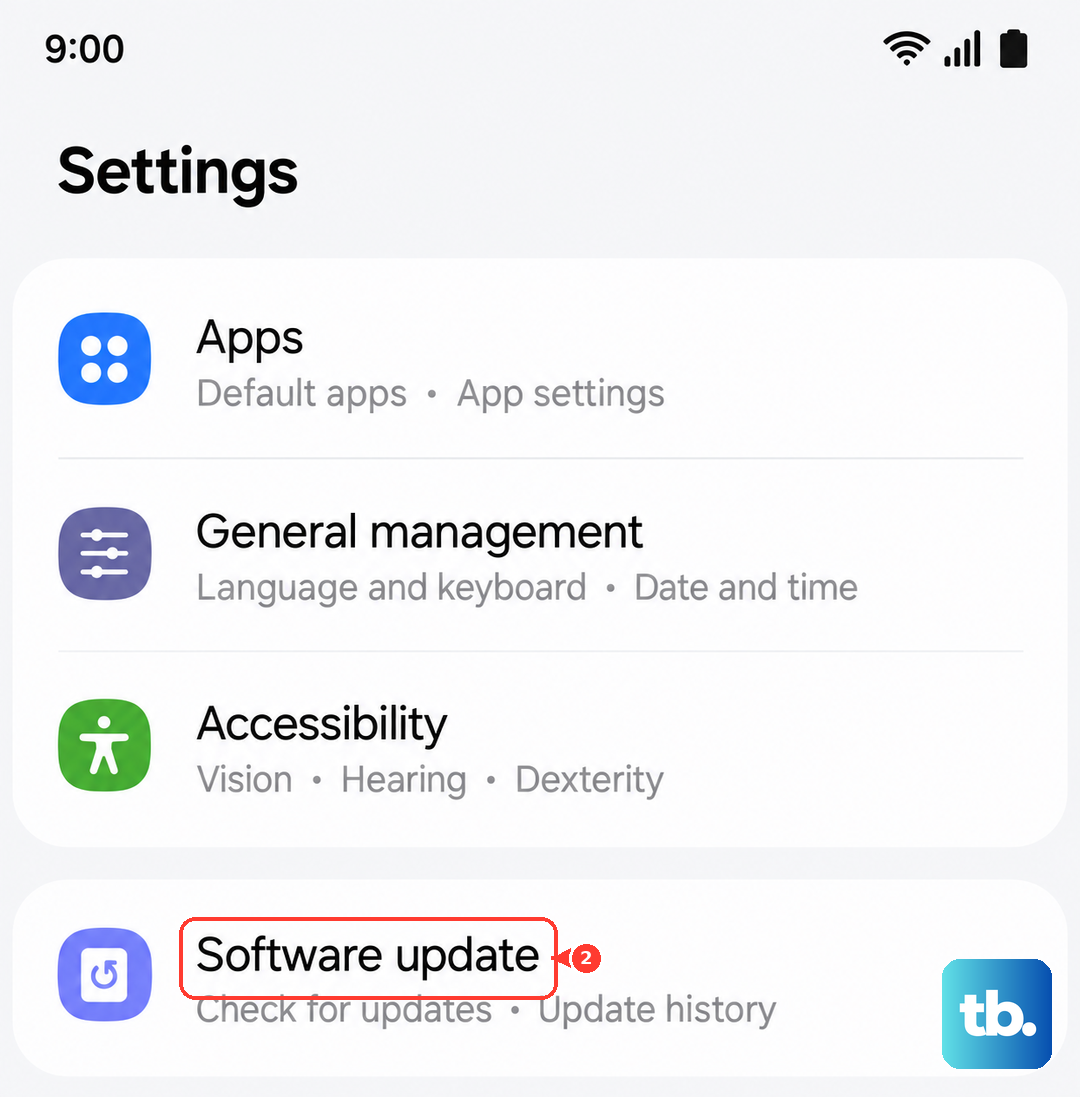
Samsung has released several updates for One UI 6 that address connectivity bugs. Go to Settings > Software update > Download and install. If an update is available, install it. I've seen updates specifically mention "improved network stability," which frequently includes fixes for the hotspot feature.
Forget the Network on the Connecting Device
The problem might be with the device trying to connect. On your laptop or tablet, go into its Wi-Fi settings and find your phone's hotspot network. Choose to "Forget" or "Remove" it. Then, search for available networks again, select your S23's hotspot, and enter the password fresh. This clears any corrupted connection data on the other device.
Try a Different Tethering Method
If Wi-Fi hotspot is being difficult, use a USB cable or Bluetooth. Connect your S23 to your computer with a USB-C cable, then go to Settings > Connections > Mobile Hotspot and Tethering and turn on USB tethering. For Bluetooth, pair the two devices first, then enable Bluetooth tethering on the same settings page.
Boot Into Safe Mode
A third-party app could be interfering. To check, press and hold the power button until the power menu appears. Tap and hold the "Power off" option until you see a prompt to reboot to Safe Mode. Tap it. If the hotspot works perfectly in Safe Mode, you know a downloaded app is the culprit. You'll need to uninstall recent apps one by one to find the offender.
Contact Your Mobile Carrier
If you've tried everything, the issue might be on your carrier's end. There could be a temporary network outage in your area, a provisioning error on your account, or a data limit on your hotspot feature has been reached. A quick call to their support can confirm if the hotspot service is active and working properly on their network.











