If your Samsung Galaxy A16 camera is showing a black screen, start with a simple restart. Press and hold the Volume Down and Power button together for about 10 seconds until the Samsung logo appears. I've found this clears up most temporary software glitches that cause the camera app to freeze or show a black viewfinder.
Key Points
- Restart the Camera App: Force stop the app to clear its current session and any corrupted temporary data.
- Check for Software Updates: Outdated system software can cause conflicts with the camera hardware.
- Clear the Camera App's Cache: Corrupted cache files are a common culprit for camera malfunctions.
- Verify App Permissions: The camera needs permission to access your device's camera and microphone to function.
- Boot Into Safe Mode: This helps determine if a recently downloaded third-party app is interfering.
- Reset All Settings: This reverts system settings to default without deleting your personal data.
Give the phone a moment to fully boot up, then open the camera app again to see if the view is back.
Restart the Camera App
Sometimes the app itself gets stuck. Swipe up from the bottom of your screen and hold to enter the recent apps view, then swipe the Camera app card away to close it completely. If that doesn't work, you can force stop it through the settings.
Go to Settings > Apps, find and tap on Camera. On the app info page, tap Force stop and confirm. Wait a few seconds, then tap Open to launch the camera fresh. This clears its current session and can resolve a black screen caused by a temporary hang.
Check for Software Updates
Outdated system software can cause conflicts with the camera hardware. Samsung regularly releases updates that include bug fixes and performance improvements for the A16. To check, open Settings > Software update > Download and install.
If an update is available, connect to Wi-Fi and let it install. Your phone will restart automatically. It's a good practice to check for app updates in the Google Play Store too, as the Camera app itself might have received a patch.
Clear the Camera App's Cache and Data
Corrupted cache files are a frequent cause of camera malfunctions. Clearing the cache is safe and won't delete your photos. Go back to Settings > Apps > Camera. Tap on Storage, then tap Clear cache.
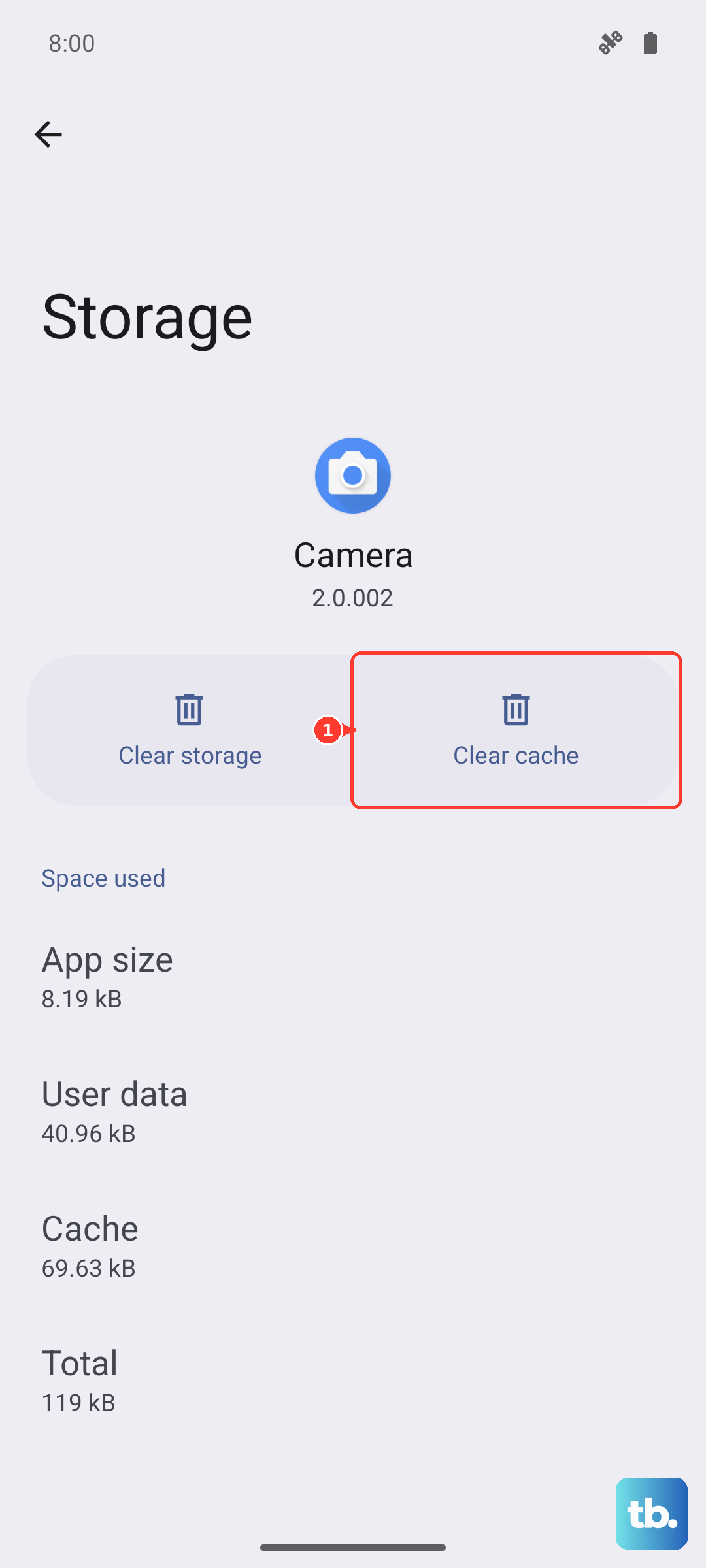
If the black screen persists, you can try clearing the app data as a next step. Tap Clear data on the same screen. A warning will appear noting that this will reset the app to its default settings. You'll lose any custom camera modes or settings within the app, but your gallery photos and videos remain safe.
Verify App Permissions
The camera app needs explicit permission to access your device's camera and microphone. If these were accidentally revoked, the app might show a black screen. Open Settings > Apps > Camera > Permissions.
Make sure the Camera and Microphone permissions are set to "Allow." While you're there, it doesn't hurt to also check the permission for any other camera app you might be using, like Instagram or Snapchat, if the issue occurs there too.
Check for Physical Obstructions
This sounds simple, but it's worth a look. Ensure there's no plastic film, case, or sticker covering the camera lenses on the back of your Galaxy A16. Also, check the small front-facing camera cutout at the top of the screen for any debris.
Gently wipe the lenses with a soft, dry microfiber cloth. Smudges and fingerprints usually cause blurry photos, but heavy grime could potentially interfere with the sensor's initialisation.
Boot Into Safe Mode
Booting into Safe Mode temporarily disables all third-party apps you've downloaded. This helps you figure out if one of them is causing a conflict. Press and hold the Power button until the power menu appears, then tap and hold the Power off icon.
You'll see a prompt to reboot to Safe Mode, tap OK. Once the phone restarts, you'll see "Safe mode" in the bottom corner. Try opening the camera app. If it works normally in Safe Mode, a recently installed app is likely the problem.
You'll need to restart your phone normally to exit Safe Mode. Then, start uninstalling apps one by one, beginning with the most recent downloads, to find the culprit.
Reset All Settings
If you've tweaked a lot of system settings, one might be interfering with the camera. Resetting all settings will revert your Wi-Fi, Bluetooth, display, and sound configurations back to factory defaults, but it won't touch your photos, messages, or apps.
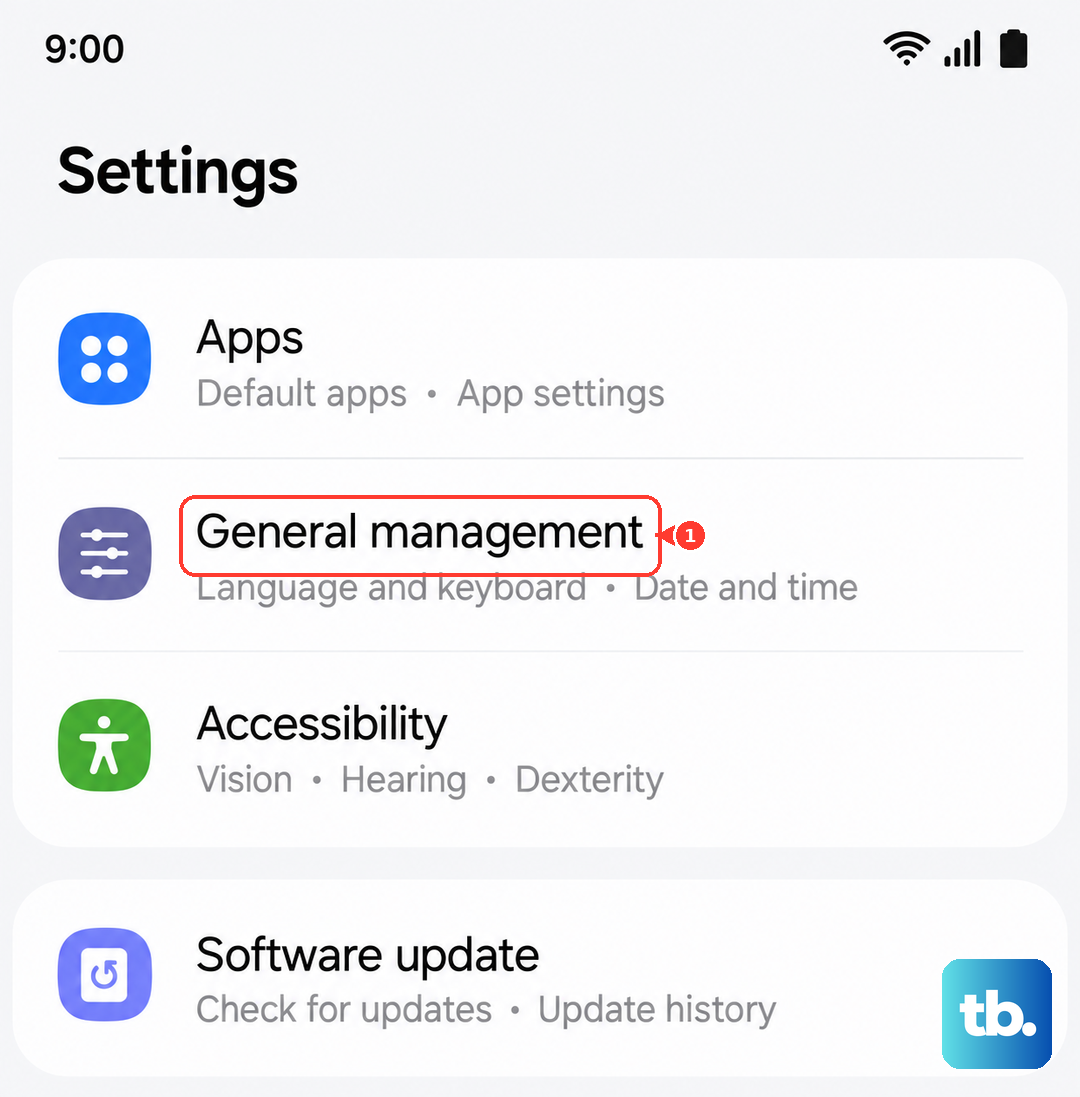
Go to Settings > General management > Reset > Reset all settings. Enter your PIN if prompted and confirm. After the phone resets, you'll need to reconfigure things like your wallpaper and connections, but it often resolves deeper software conflicts.
Consider a Factory Reset
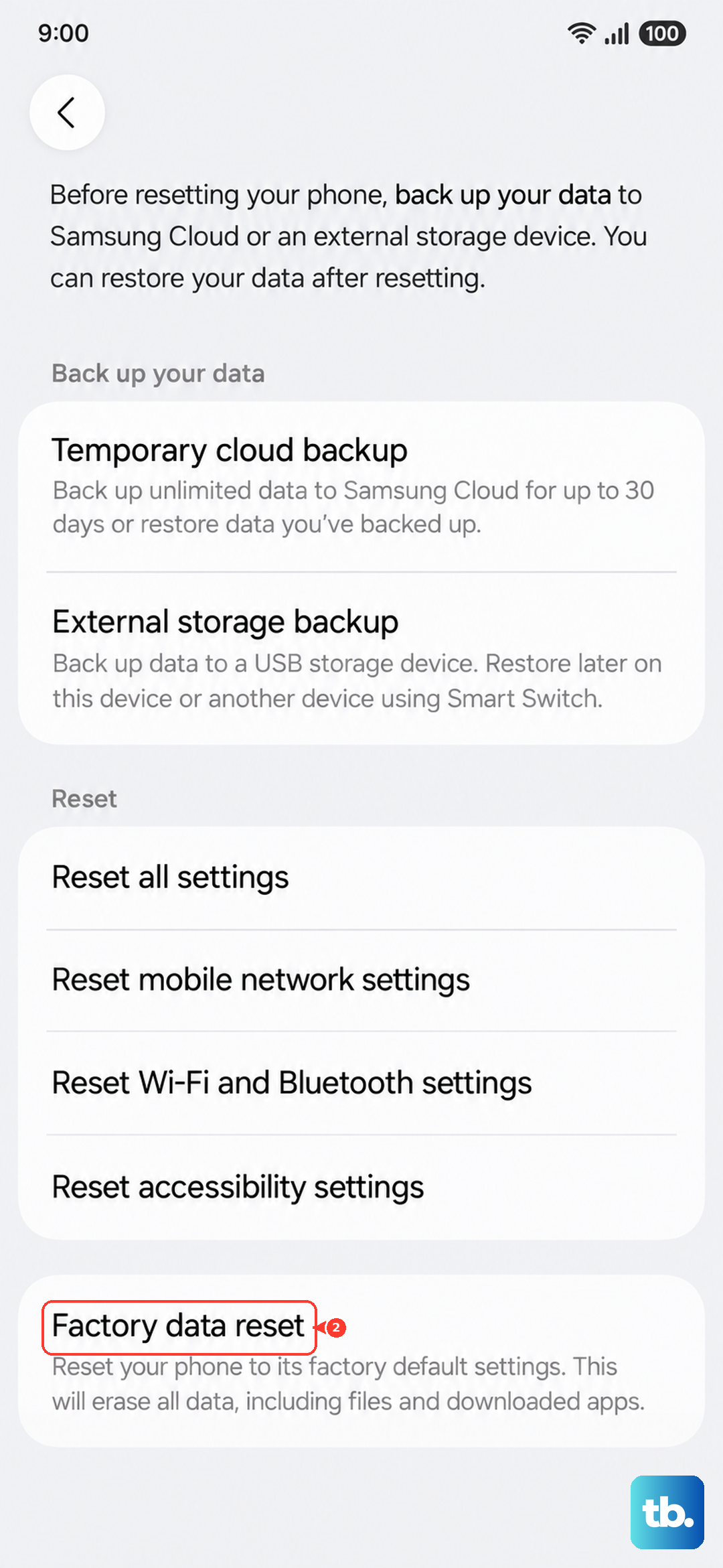
This is a last resort for persistent software issues. A factory reset will erase all data from your phone and return it to its original out-of-the-box state. Before you proceed, ensure you have a complete backup of your important files, photos, and contacts using Samsung Cloud or Google Drive.
To perform the reset, go to Settings > General management > Reset > Factory data reset. Read the information carefully, scroll down, and tap Reset. If the black screen was caused by a deep-seated software bug, this should clear it.