
When the predictive text on your Redmi Note 14 Pro stops working, it can really slow you down. You might find that word suggestions have vanished, autocorrect is making bizarre changes, or the keyboard just feels less helpful than it should. The good news is this is usually a software hiccup that you can fix yourself.
I'd start with a simple restart. Press and hold the power button for about 15 seconds until you see the phone reboot. This clears out any temporary glitches in the system and is often the quickest fix.
Check Your Keyboard Settings
First, let's make sure the feature is actually turned on. Open any app that uses the keyboard, like your messages, and tap to bring it up. Look for a settings icon (it often looks like a gear) on the keyboard toolbar itself and tap it.
From there, navigate to Text correction. You'll want to ensure that Show suggestion strip and Next-word suggestions are both toggled on. Sometimes an update or a stray tap can accidentally disable these.
Clear the Gboard App Cache and Data
Your Redmi Note 14 Pro likely uses Gboard as its default keyboard. Corrupted temporary files can cause predictive text to fail. Go to your phone's Settings and tap on Apps.
Find and select Gboard from the list. Tap on Storage & cache. First, tap Clear cache. This removes temporary data without affecting your personal dictionary. If that doesn't work, come back here and tap Clear storage or Clear data.
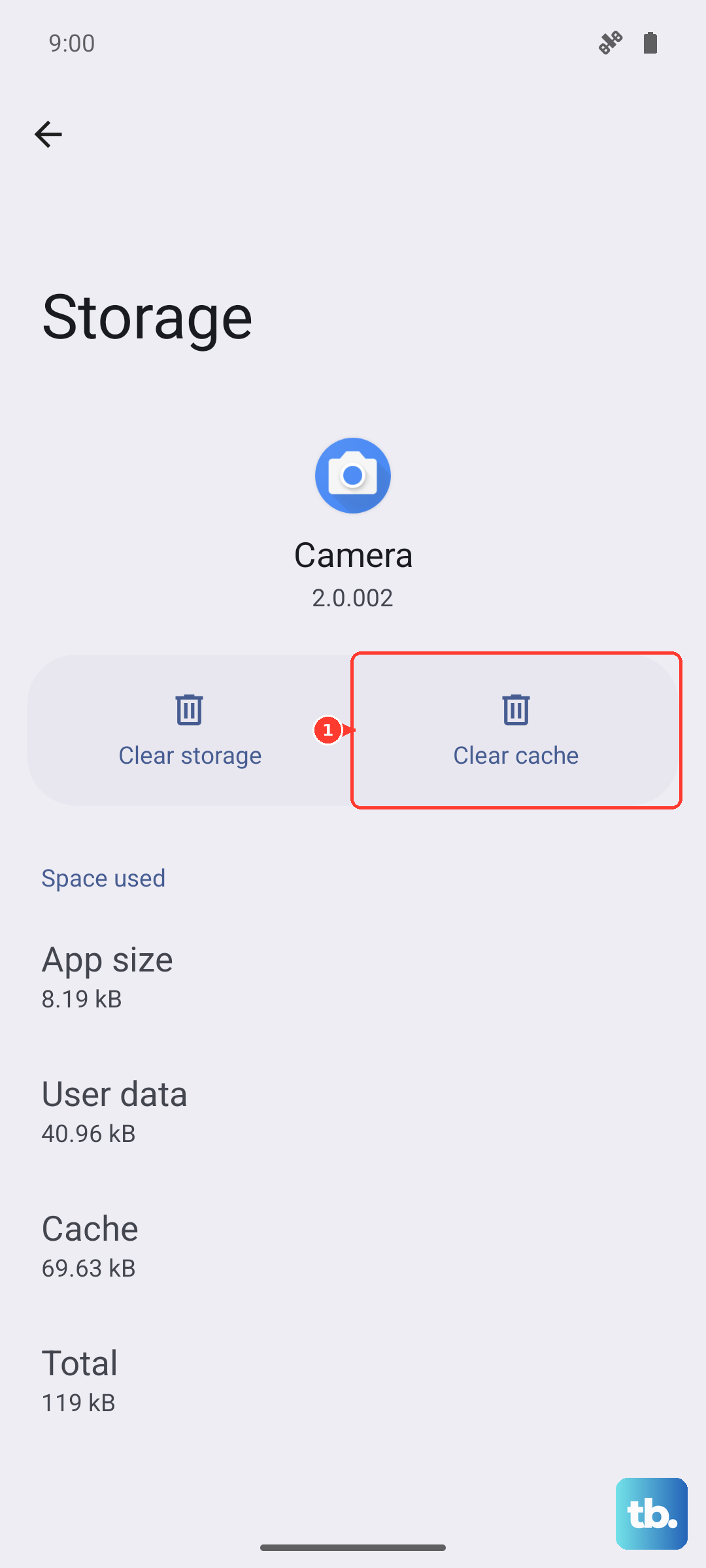
Be aware that clearing data will reset Gboard to its default state. You'll lose any saved custom words, themes, and preferences, so you'll need to set those up again.
Update Gboard and System Language Packs
An outdated keyboard app can have bugs that break features like prediction. Open the Google Play Store, search for "Gboard," and see if an update is available. Tap update if there is one.
Also, check that your language packs are current. In Gboard's settings under Languages, tap on the language you're using (e.g., English). If there's an update option, install it. The predictive text model improves with these updates.
Retrain the Predictive Model
Predictive text learns from how you type. If it's giving poor suggestions, you can give it a fresh start. In Gboard settings, go to Dictionary and then Personal dictionary.
You can review and delete any odd words that might have been saved by mistake. For a more thorough reset, go back to the main Gboard storage settings as described earlier and clear the app data. This completely wipes its learned habits, forcing it to relearn from scratch as you type.
Check for System Updates
Since your phone runs on HyperOS based on Android 14, a broader system bug could be the culprit. Xiaomi regularly releases updates that fix these kinds of issues.
Go to Settings > About phone > HyperOS version. Tap on Check for updates. If an update is available, install it. It's a good idea to be on a stable charger, like a 45W HyperCharge adapter, during the update process.
Try a Different Keyboard Temporarily
If the problem persists, it can help to figure out if it's Gboard-specific or a deeper system issue. Install another keyboard from the Play Store, like Microsoft SwiftKey, and set it as your default in Settings > Additional settings > Languages & input > Current keyboard.
Use it for a bit to see if predictive text works. If it does, the problem is isolated to Gboard, and a full reinstall might be needed. If the new keyboard also has issues, it points to a system-wide setting or conflict.