
If your new Moto G Stylus 5G is already feeling sluggish, don't worry. It's a powerful phone, but a few common Android habits can slow it down. The fixes are usually straightforward and don't take long.
I'd start with a simple restart. Just press and hold the power button for about 10 seconds until you see the Motorola logo appear and the phone reboots. This clears out any temporary glitches and is the quickest thing to try.
Free Up Storage Space
Android performance can really take a hit when your storage is nearly full. Head to Settings > Storage to see what's using space. The Moto G Stylus comes with a generous amount of storage, but photos, videos, and downloaded files can fill it fast.
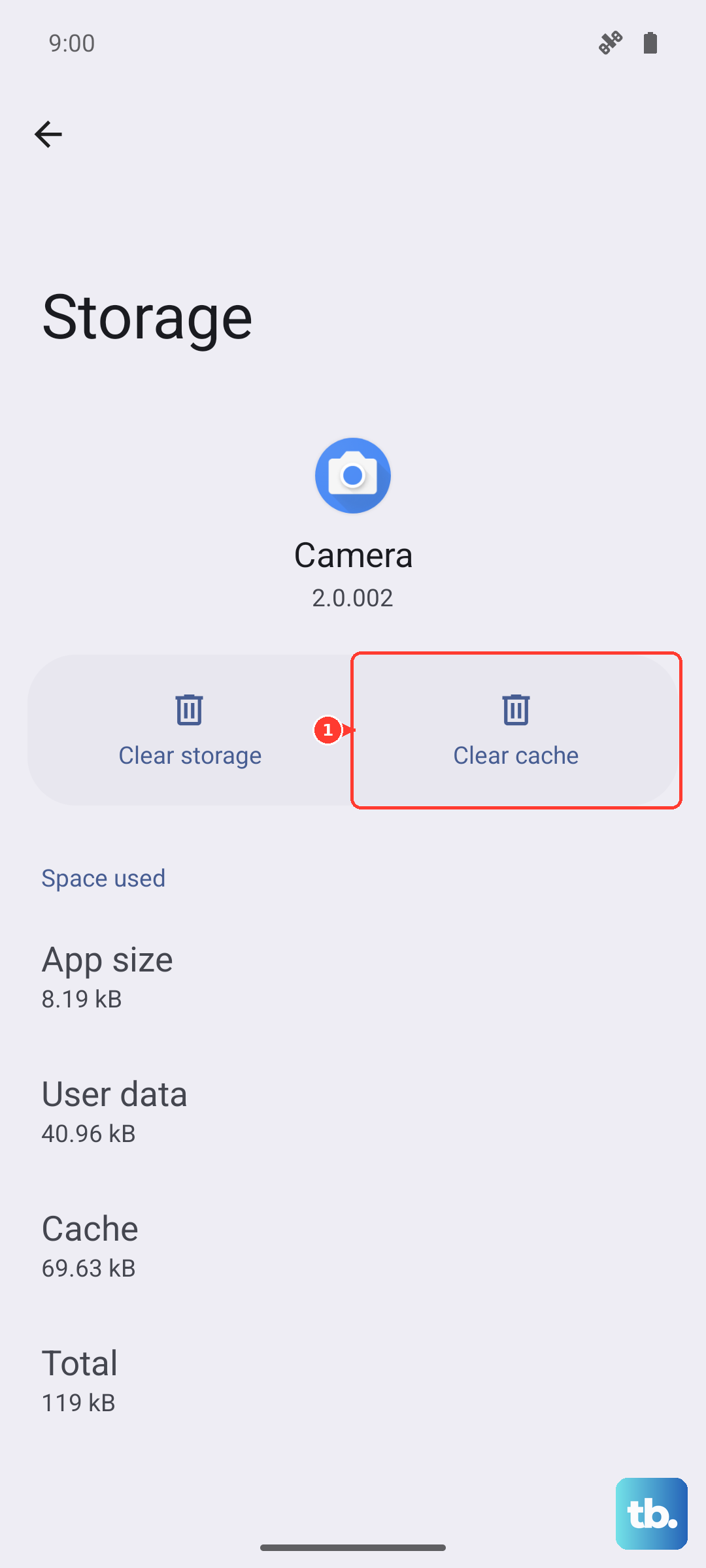
Consider using Google Photos to back up your pictures and free up space on the device. You can also clear app caches individually by going to Settings > Apps, selecting an app, and tapping Storage & cache > Clear cache.
Close Background Apps
Too many apps running in the background will eat up your RAM. To close them, swipe up from the bottom of the screen and hold to enter the recent apps view. You can swipe each app card up to close it individually, or tap the three-dot menu in the top-right corner to select "Close all."
Some apps are designed to run in the background, but closing ones you're not using can give your phone an immediate speed boost.
Update Everything
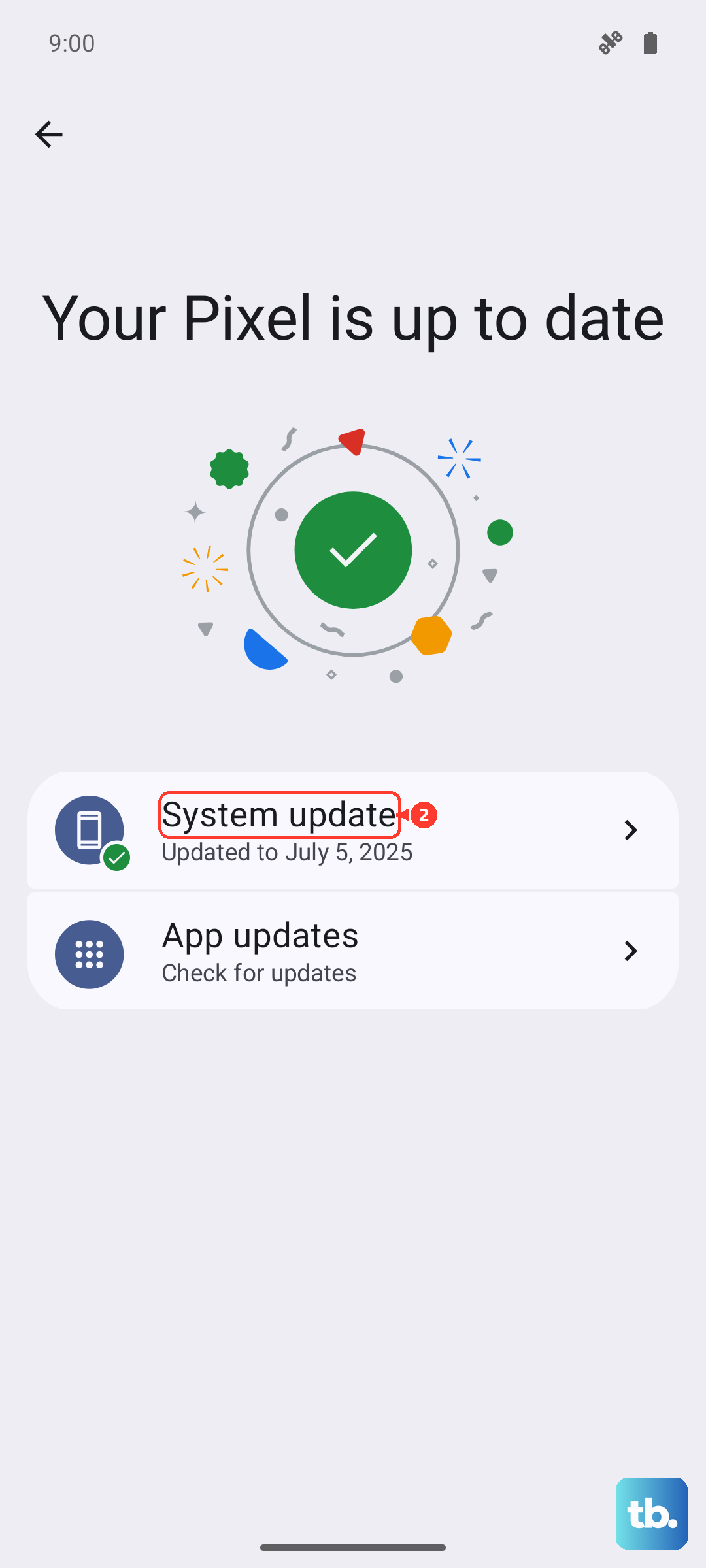
Running the latest software is crucial for performance and security. First, check for a system update by going to Settings > System > System updates. Your Moto G Stylus runs Android 15, so make sure you have the latest security patch.
Next, open the Google Play Store, tap your profile icon, and go to Manage apps & device. Under "Updates available," tap "Update all" to ensure your apps are running their most efficient versions.
Check for Rogue Apps
A single poorly-coded app can be the culprit. Go to Settings > Battery to see which apps are using the most power recently. An app draining a lot of battery in the background might also be slowing things down.
If you notice a specific app is problematic, try uninstalling it or checking for an update in the Play Store. You can also put apps to sleep by going to Settings > Apps, selecting the app, and tapping Battery > Restricted.
Manage Your Widgets and Live Wallpaper
Widgets that constantly update, like social media feeds or news tickers, and live wallpapers can use system resources. Try removing widgets you don't absolutely need by long-pressing them on your home screen and dragging them to "Remove."
Switching from a live wallpaper to a static image can also free up a bit of processing power for other tasks. It's a small change that can sometimes make a noticeable difference.
Reduce Animations
You can speed up the visual feel of navigating your phone by reducing animation scales. First, you need to enable Developer Options. Go to Settings > About phone and tap "Build number" seven times.
Then, go back to Settings and enter the new Developer options menu. Scroll down to "Drawing" and look for "Window animation scale," "Transition animation scale," and "Animator duration scale." Change each of these from 1x to 0.5x or off completely. This makes menus and apps open and close faster.
Clear the System Cache
Sometimes, cached data from the system itself can get corrupted. You can wipe the system cache partition without deleting any personal data. First, power off your phone completely.
Then, press and hold the Volume Down button and the Power button at the same time. When the Motorola logo appears, release the Power button but keep holding Volume Down until you see the Recovery Mode menu. Use the volume buttons to highlight "Wipe cache partition" and press the power button to select it. Confirm the action and then reboot the system.
Review Accessibility Services
Some apps that use accessibility features can, ironically, slow down your phone's responsiveness. Go to Settings > Accessibility and look at the list under "Downloaded apps."
If you have any services here that you don't actively need, try turning them off temporarily to see if performance improves. You can always turn them back on if needed.
Perform a Light Reset
If you're still having issues, you can reset all your phone's settings back to default without touching your personal data like photos and apps. Go to Settings > System > Reset options.
Tap "Reset all settings" and confirm. This will revert your Wi-Fi passwords, Bluetooth pairings, and home screen layout, but it often resolves deeper software conflicts that cause lag. You don't need to do anything special with your stylus first, as the Moto G Stylus 5G (2025) uses a passive pen with no Bluetooth connection to lose.