
When your OnePlus 12's voice assistant stops responding, it can feel like you've lost a helpful sidekick. Whether it's Google Assistant or the built-in voice features in OxygenOS, getting them working again is usually straightforward. Let's walk through the most effective fixes.
Verify Your Voice Assistant is Enabled
First, let's make sure the core feature is actually turned on. Head to your phone's settings and open the Google app. From there, tap on your profile picture in the top right corner, then go to Settings > Google Assistant.
Scroll down and tap on "Hey Google & Voice Match." Ensure that the "Hey Google" toggle is switched on. If it's off, turn it on and follow the prompts to retrain the voice model. This is the most common reason the assistant won't wake up to your voice.
Check for Microphone Access and Interference
Your phone needs to hear you clearly. If you're using a case, especially a rugged one, check that it isn't covering the microphone ports. The primary mic is usually at the bottom next to the USB-C port.
Also, make sure no other app is monopolizing the microphone. A recent app with microphone permissions could be causing a conflict. You can check this quickly by restarting your phone, which closes all apps and clears temporary glitches.
Restart Your OnePlus 12
This classic fix works wonders. A simple restart clears out temporary software bugs that might be preventing the microphone or assistant service from working correctly. Just press and hold the power button, then tap "Restart."
If the touchscreen is unresponsive, you can force a restart. Press and hold the power button for 10 to 15 seconds until you feel a vibration and see the OnePlus logo appear on screen. This doesn't erase any data.
Update the Google App and OxygenOS
Outdated software is a frequent culprit. The Google Assistant functionality lives within the Google app, so it needs to be current. Open the Play Store, search for the Google app, and see if an update is available.
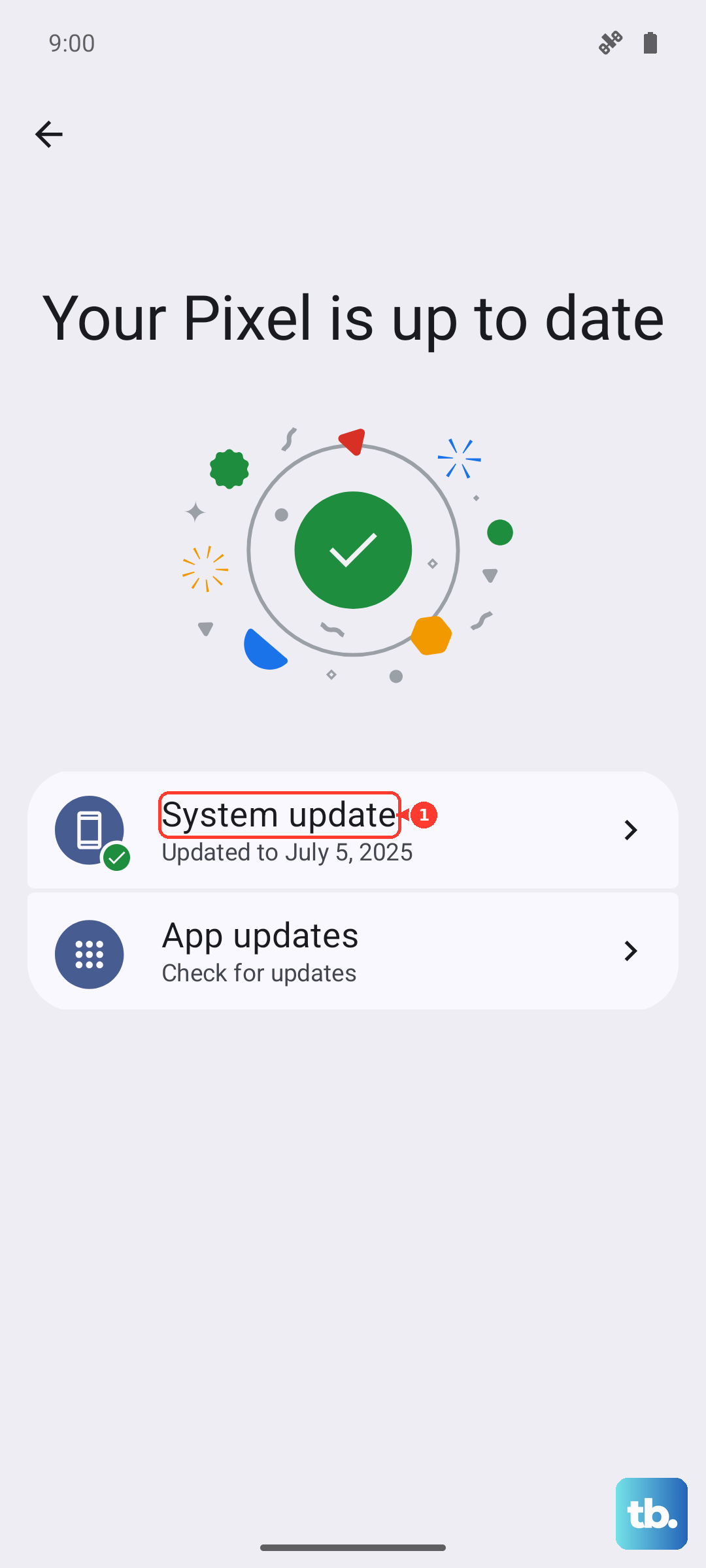
While you're at it, check for a system update. Go to Settings > About device > OxygenOS version. Installing the latest OxygenOS update can fix bugs related to audio processing and system permissions that affect the voice assistant.
Re-train Your Voice Model
Background noise changes, or even a slight cold, can affect how the system recognizes your "Hey Google" trigger. It's a good idea to retrain it every so often. Open the Google app, go to your profile > Settings > Google Assistant > Hey Google & Voice Match.
Tap on "Voice Model" and then select "Retrain voice model." Follow the on-screen instructions, speaking clearly in a quiet room. I've found this resolves recognition issues about half the time.
Review App Permissions
The Google app needs explicit permission to use your microphone. Go to Settings > Apps > Google. Tap on "Permissions" and ensure "Microphone" is set to "Allow."
While you're here, also check the permissions for the "Google Play services" app. It handles core communication for many Google features and also requires microphone access to be allowed.
Clear the Google App's Cache
Corrupted cache data can cause all sorts of strange behavior, including the assistant failing to activate. Clearing it is safe and won't delete your personal data or accounts.
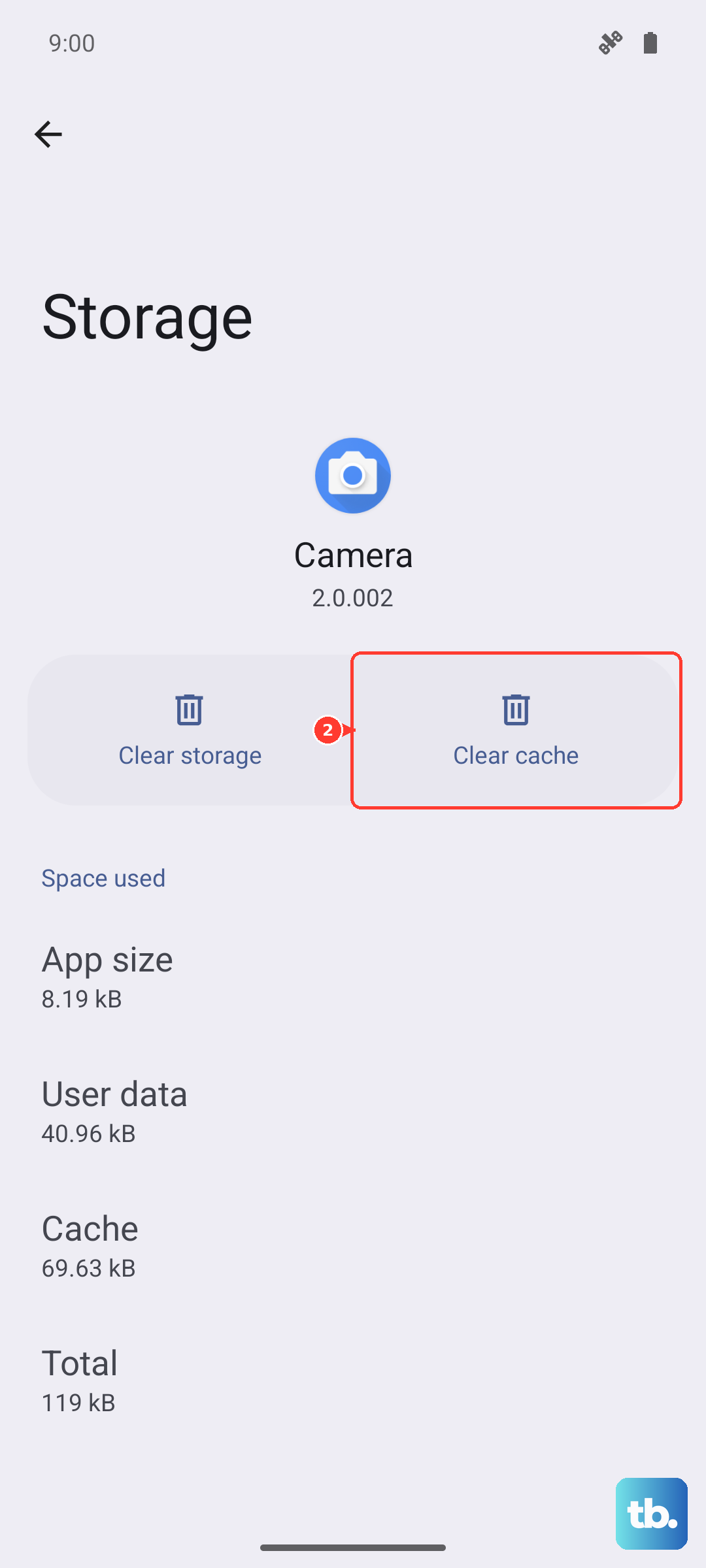
Navigate to Settings > Apps > Google. Tap on "Storage usage" and then select "Clear cache." After doing this, open the Google app again and try saying "Hey Google."
Disable Battery Optimization for the Google App
OxygenOS's aggressive battery optimization can sometimes put the Google app to sleep in the background, preventing it from listening for the wake phrase. You can exclude it from this feature.
Go to Settings > Battery > More battery settings. Tap on "App battery management" and find the Google app in the list. Set its optimization mode to "Don't optimize."
Check Your Default Digital Assistant App
If you've ever installed a third-party assistant app, it might have changed the system defaults. Go to Settings > Apps > Default apps. Look for the "Digital assistant app" option.
Make sure it's set to "Google." If another app is selected, tap on it and change it back to Google. This ensures your "Hey Google" command is routed to the correct service.
Reset App Preferences or Network Settings
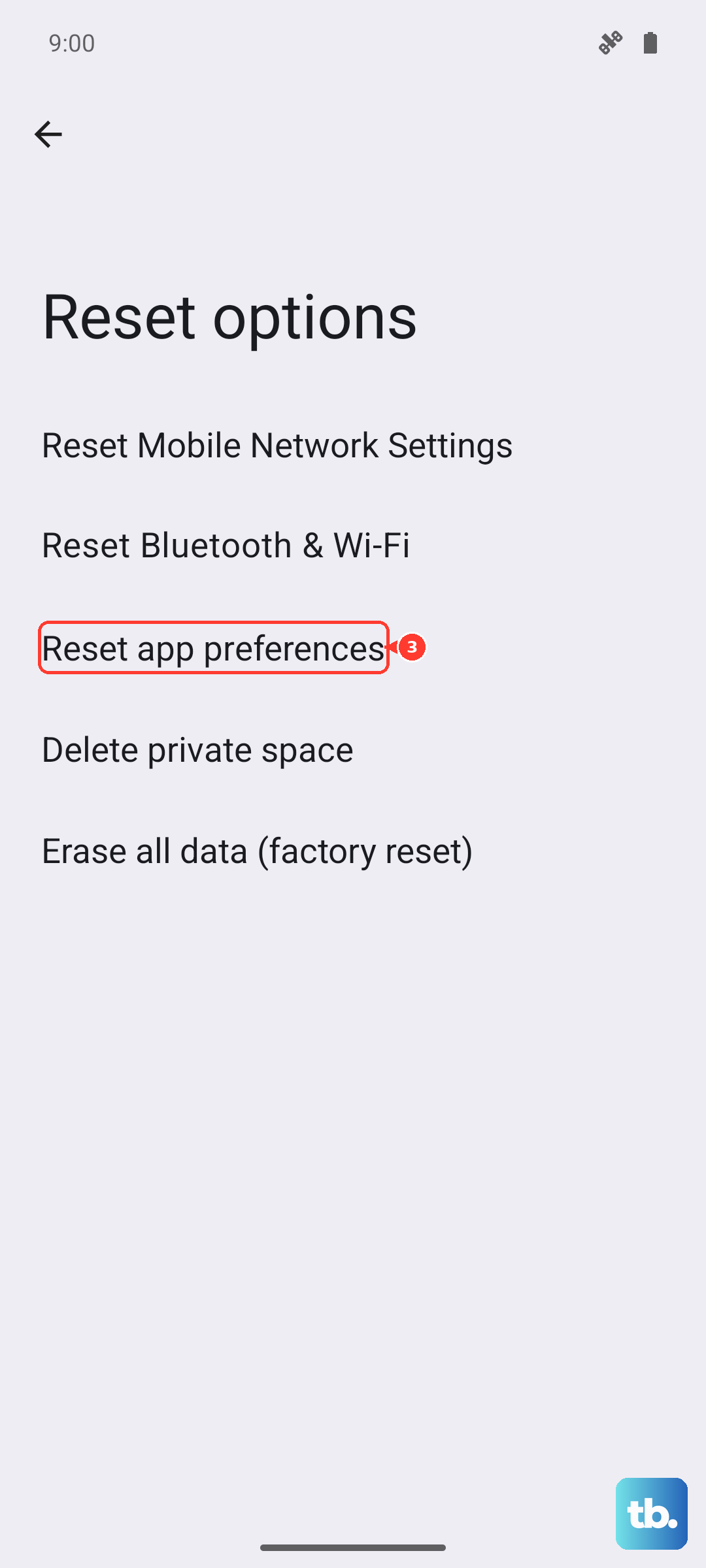
If you're still having trouble, a broader reset can help. Go to Settings > System > Reset options. Tap on "Reset app preferences." This resets all app permissions, notifications, and default apps without deleting any personal data.
Since many assistant queries need the internet, a network glitch could be the issue. From the same Reset menu, you can try "Reset Wi-Fi, mobile & Bluetooth." You'll need to rejoin your Wi-Fi networks afterward, but it can resolve persistent connectivity problems.











