
So your Motorola Razr Plus (2024) won't charge. You've plugged it in, maybe even tried a different cable, and that sleek cover screen is staying stubbornly dark. Don't worry, this is a common hiccup with foldables, and there's a good chance you can get it charging again right now.
Whether you're dealing with a USB-C port that feels loose, a phone that gets too hot, or a battery that seems completely dead, we'll walk through the fixes. Let's start with the quickest one.
Force Restart Your Razr Plus
This should always be your first move. A simple force restart can clear out a temporary software glitch that's preventing the phone from recognizing the charger. It takes about 15 seconds.
Just press and hold the Power button for 10 to 15 seconds. Keep holding it until you see the Motorola logo appear on the screen. Once it boots back up, plug it in and check for the charging indicator.
Clean the USB-C Charging Port
This is the single most common fix for any phone that won't charge. Lint and pocket debris love to pack into that USB-C port, and the Razr's folding design can make it a bit more of a trap. Over time, enough gunk builds up to block the cable from making a proper connection.
Grab a flashlight and take a close look inside the port. If you see any debris, turn the phone off first for safety. Then, use a wooden or plastic toothpick to gently scrape out the lint. Avoid metal tools, as they can damage the delicate gold contacts inside.
You can also try a quick blast of compressed air from a can, holding it a few inches away. After cleaning, plug your cable back in and see if it seats more firmly.
Check Your Cable and Power Source
You need to figure out if the problem is with your accessories. The best way is to test each component one by one. Start by trying a different USB-C cable, preferably one you know works with another device.
Next, try a different wall adapter. If you have a 45W TurboPower charger, use that (Motorola sells it separately, since the Razr Plus ships with only a USB-C cable). Also, test a different wall outlet entirely. Sometimes the issue is as simple as a faulty power strip.
Finally, remove your phone case. A thick or poorly aligned case can sometimes prevent the USB-C plug from inserting all the way, especially around the hinge area.
Keep the Phone Unfolded While Charging
Here's a tip specific to the Razr Plus. I've seen users report that closing the phone while a cable is plugged in can crimp or strain the cable right at the port. For the most reliable connection and to avoid potential damage, make a habit of charging your Razr while it's unfolded.
Try Wireless Charging
Your Razr Plus supports 15W Qi wireless charging. If your wired port isn't working, trying a wireless pad can tell you if the problem is the USB-C port or something else, like the battery itself.
Place the phone centered on a compatible wireless charger. Make sure you're using at least a 15W adapter for the wireless pad to get decent speeds. Remove any thick cases or accessories with metal, as they can block the charging coil.
If your phone charges wirelessly but not with a cable, that strongly points to an issue with the USB-C port or the cable.
Let a Dead Battery Sit on the Charger
If your Razr's battery is completely drained, it might not show any signs of life immediately when you plug it in. This is normal behavior for lithium-ion batteries.
Leave it connected to a wall charger (not a computer's slower USB port) for at least 30 minutes. Use your 45W TurboPower charger if you have it. After that time, try the force restart again while it's still plugged in. You should eventually see the battery icon or a charging indicator on the cover screen.
Close Cover Screen Apps and Manage Heat
The Razr Plus can run apps directly on its cover screen, which is awesome, but it can also lead to overheating if left running while charging. Excess heat is a major reason phones slow down or stop charging to protect the battery.
Before you plug in, swipe away any apps running on the cover screen. Also, avoid charging the phone on a soft surface like a bed or couch, which traps heat. A hard, cool surface like a nightstand is best.
If the phone feels unusually hot to the touch, unplug it and let it cool down for 15-20 minutes before trying to charge again.
Update Your Software
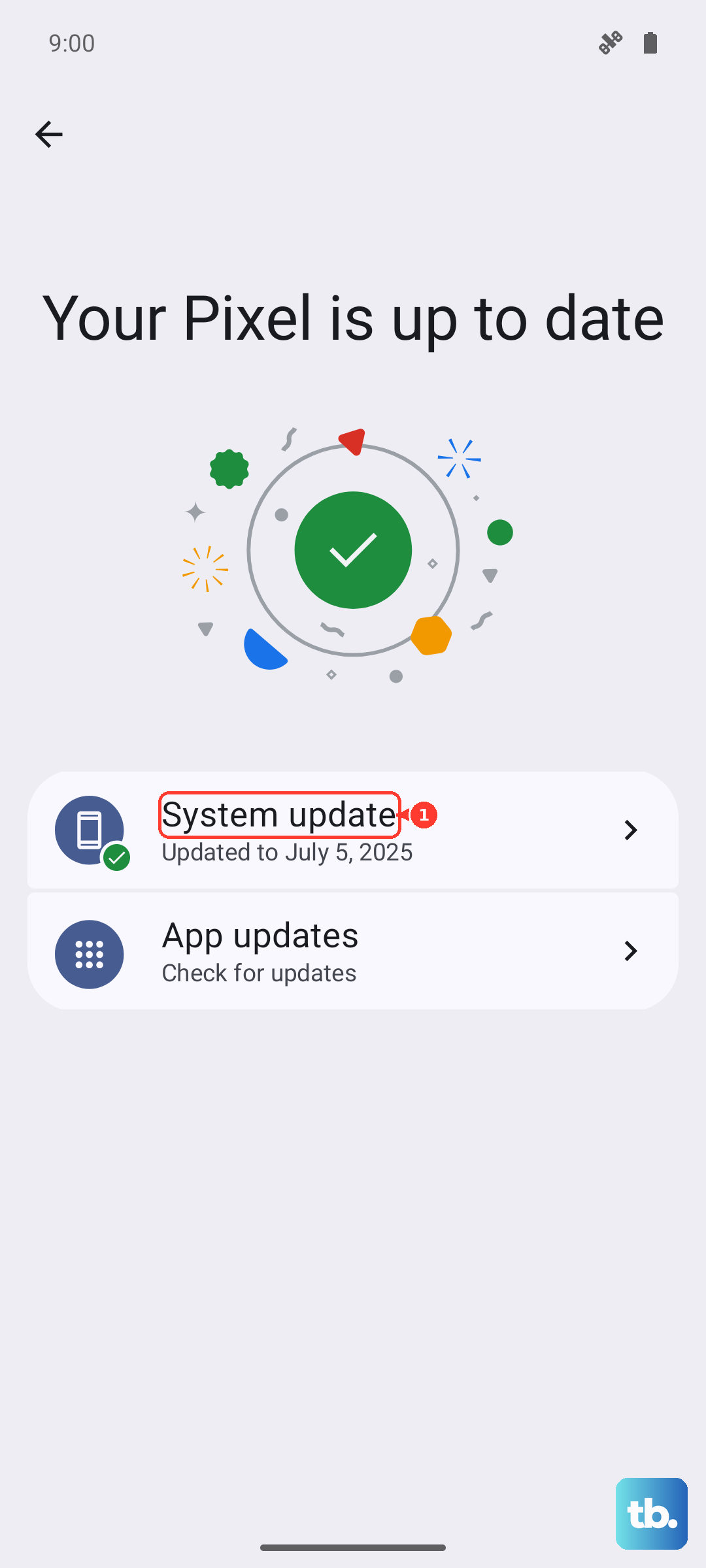
Motorola releases updates that can fix bugs, including ones related to power management and charging. It's worth checking if you're running the latest version of Android.
Go to Settings > System > System updates. Download and install any available update. If your phone won't turn on enough to check, you can sometimes update it by connecting it to a computer, though this is less common on Android than it is for iPhones.
Check for Charging Notifications and Battery Settings
Android has built-in protections that can affect charging. When you plug in, look for any notifications on the screen. Sometimes the phone will alert you if the charger isn't compatible or if the port has debris.
Also, dive into the battery settings. Go to Settings > Battery. Some devices have adaptive charging features that slow down charging overnight to preserve battery health. While useful, make sure these aren't misbehaving and stopping charge altogether.
Perform a Factory Reset (Last Resort)
If you've tried every physical fix and the phone still won't charge, a software issue might be the root cause. A factory reset will wipe your phone back to its original settings, so this is an absolute last resort. Make sure you've backed up any important data first if you can.
You can usually initiate a reset through the settings menu if the phone is on. If it's not, you might need to boot into Recovery Mode. The key combination can vary, but for many Motorola phones, you turn the device off, then press and hold the Volume Down and Power buttons together until the Recovery Mode menu appears.
Use the volume keys to navigate to "Wipe data/factory reset" and select it with the power button. After the reset is complete, set the phone up as new and immediately test the charging. If it still doesn't work, the issue is likely hardware-related.