
You're staring at your Motorola Edge 40, watching that Wi-Fi icon spin endlessly or just refuse to connect. It's a frustrating roadblock, especially on a phone that should just work. The good news is this is almost always a software or settings hiccup you can fix yourself in a few minutes.
Start With a Quick Reboot
Before you dive into settings, try the simplest fix. Press and hold the Volume Down button and the Power button together for about 10 seconds until you see the Motorola logo. This force restarts the phone, clearing out any temporary glitches that might be jamming the Wi-Fi radio.
If that doesn't do it, give your router a quick reboot too. Unplug it from power, wait a full minute, and plug it back in. If other devices in your home are also struggling to connect, the router is almost certainly the source of the problem.
Toggle Airplane Mode
This old trick is still one of the most effective. Swipe down from the top of your screen to open the Quick Settings panel and tap the Airplane Mode icon. Leave it on for about 15 seconds, then tap it again to turn it off.
This cycle forces all your phone's wireless radios, including Wi-Fi, to shut down and reconnect fresh. It's a clean slate for your network hardware and often resolves connection issues instantly.
Forget and Re-add Your Network
Your phone might be holding onto outdated or corrupted information for your Wi-Fi network. To clear it out, go to Settings > Network & internet > Wi-Fi. Tap on the name of your network and select Forget.
Now, go back to the list of available networks, tap on yours again, and re-enter the password. This is crucial if you've recently changed your Wi-Fi password or gotten a new router, as your Edge 40 will keep trying the old credentials.
Check for Android and App Updates
Running outdated software is a common culprit for connectivity bugs. Motorola and Google regularly release updates that fix these kinds of issues. Head to Settings > System > System updates and tap "Check for update."
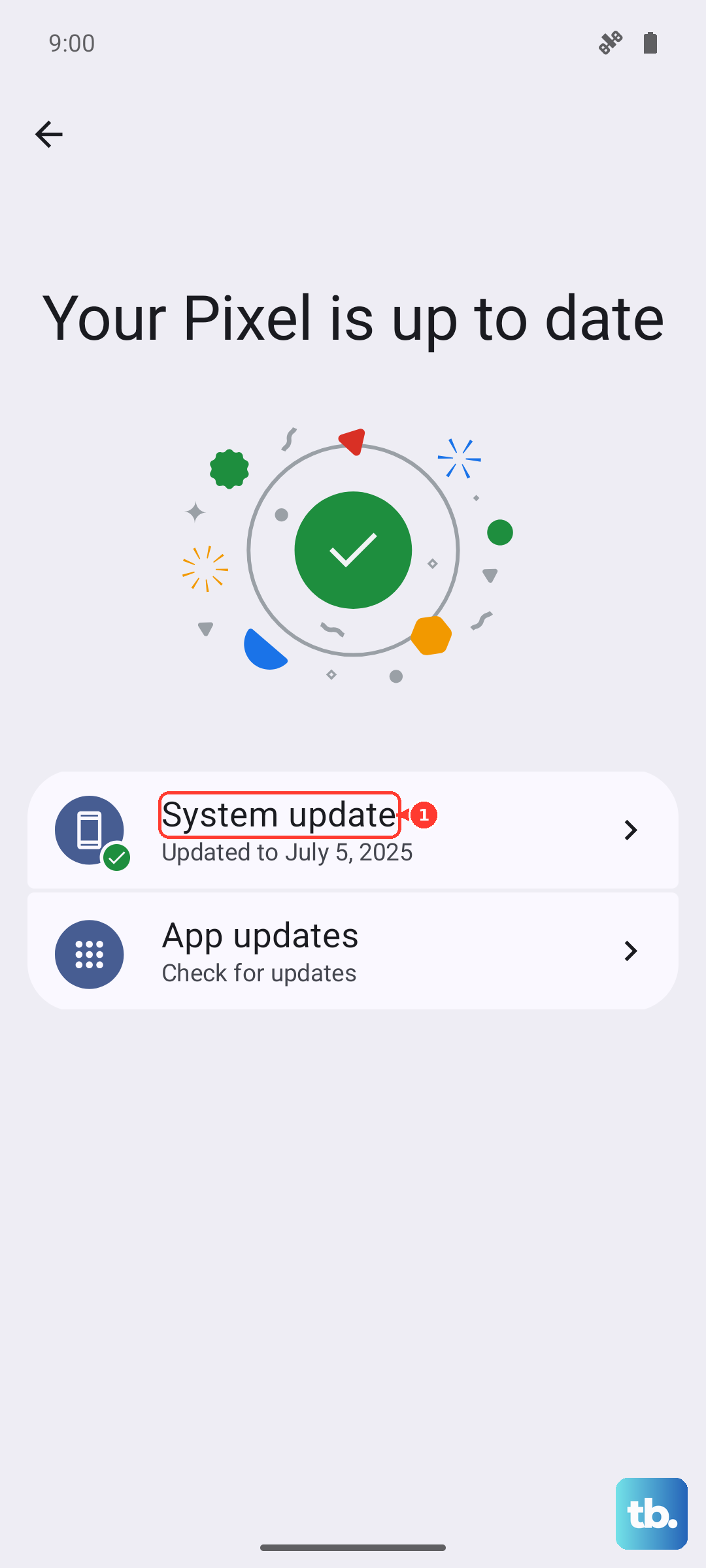
While you're there, check the Google Play Store for app updates, especially for any VPN, security, or network booster apps you might have installed. A buggy app update can sometimes interfere with core system functions like Wi-Fi.
Disable Adaptive Connectivity Features
Your Edge 40 has smart features designed to save battery, but they can sometimes get in the way. Go to Settings > Network & internet and look for an option called "Adaptive connectivity" or "Intelligent connectivity."
Tap into it and try turning off switches for "Adaptive Wi-Fi" or "Switch to mobile data." These features are meant to switch you to cellular when Wi-Fi is weak, but they can be overzealous and prevent a stable connection from ever establishing.
Review Your Power Settings
If you have Battery Saver enabled, it can aggressively limit background network activity, which includes Wi-Fi. Swipe down to your Quick Settings and make sure the Battery Saver icon isn't highlighted. You can also go to Settings > Battery > Battery Saver to turn it off.
Also, check for a hidden setting. Go to Settings > Network & internet > Wi-Fi, tap the gear icon next to your network, and see if there's a "Metered network" option. If it's marked as metered, your phone will restrict data usage on it.
Reset Your Network Settings
This is a more thorough step that resets all wireless connections back to factory defaults. You'll lose saved Wi-Fi networks, Bluetooth pairings, and cellular settings. Go to Settings > System > Reset options.
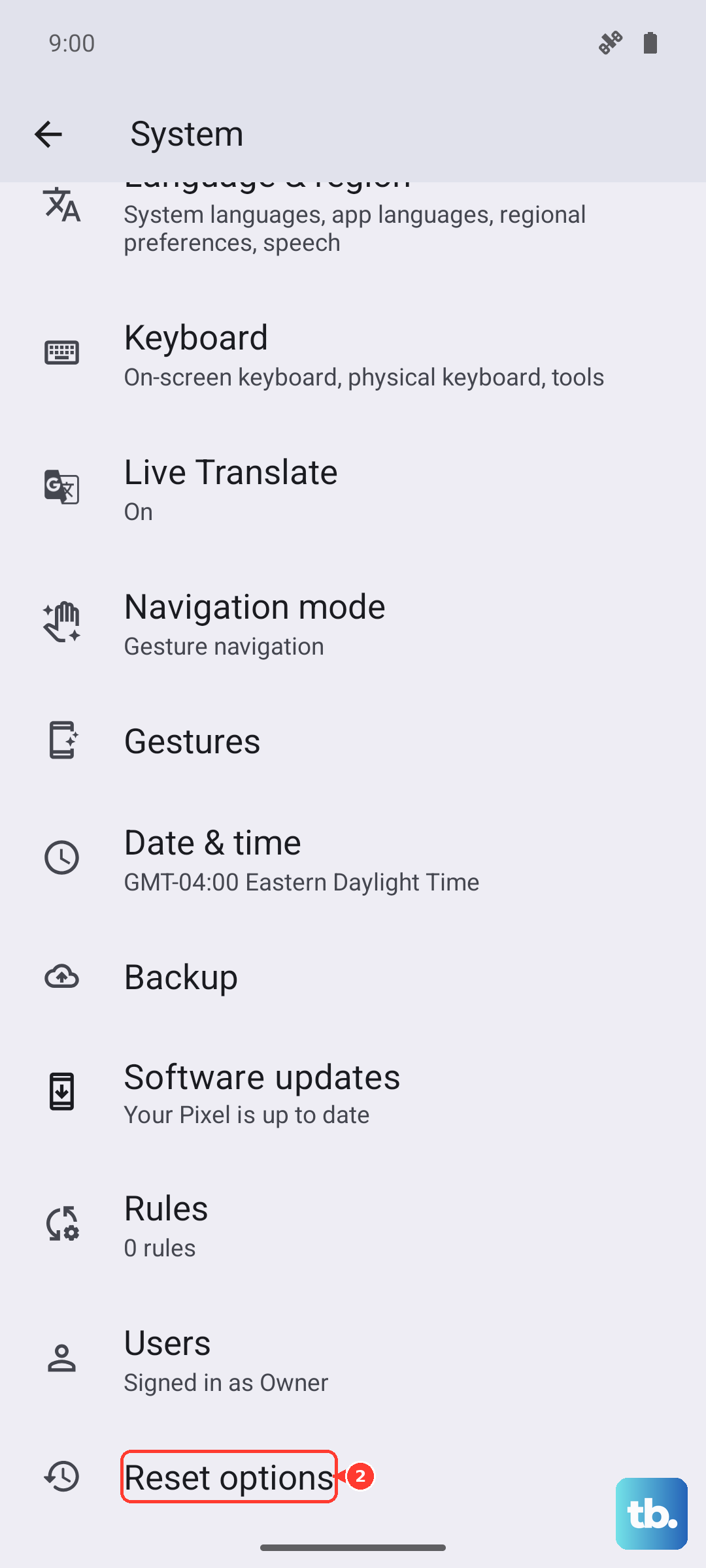
Tap on Reset Wi-Fi, mobile & Bluetooth and confirm. After your phone reboots, you'll need to reconnect to your Wi-Fi and re-pair any Bluetooth devices, but this often clears deep-seated configuration errors.
Boot Into Safe Mode
If the problem started after installing a new app, that app could be the cause. Booting into Safe Mode temporarily disables all third-party apps. Press and hold the Power button until the power menu appears.
Then, tap and hold the "Power off" option on your screen. You should see a prompt to reboot to Safe Mode. Tap "OK." If your Wi-Fi works perfectly in Safe Mode, you know a downloaded app is causing the conflict. You'll need to uninstall apps one by one to find the culprit.
Verify Date, Time, and Certificate Settings
An incorrect system time can break the security certificates used by Wi-Fi networks. Go to Settings > System > Date & time and ensure "Set time automatically" is turned on.
For enterprise or school networks, you might need to install a certificate. If you were provided with one, you can usually install it by opening the certificate file from your Files app or going to Settings > Security > Encryption & credentials > Install a certificate.
Consider a Factory Reset
This is your last resort before considering a hardware issue. A factory reset will erase all data on your phone, so you must back up everything important first. Go to Settings > System > Reset options > Erase all data (factory reset).
Follow the prompts to complete the reset. If your Wi-Fi still doesn't work on a completely fresh phone, there's a chance the Wi-Fi antenna or related hardware has a physical problem. I've found that's rare compared to software fixes, but it's a possibility if you've tried everything else.