So your Motorola Edge 40 won't charge. You've plugged it in, maybe even tried the wireless pad, and it's just sitting there. It's a frustrating spot to be in, but I've seen this issue pop up a lot, and it's almost always something you can fix yourself without a trip to a repair shop.
Whether the USB-C port feels loose, the Qi2 charger isn't connecting, or the phone shows zero signs of life, we'll walk through the fixes. We'll start with the quickest solutions and work our way through.
Perform a Force Restart
This should always be your first move. A simple force restart can clear out a temporary software glitch that's interfering with the charging circuit. It takes about 15 seconds and fixes the problem more often than you'd think.
For the Motorola Edge 40, press and hold the Volume Down button and the Power button at the same time. Keep holding them for 10 to 15 seconds until you see the Motorola logo appear on the screen. Once it boots back up, plug it in and check for the charging indicator or the TurboPower notification.
Inspect and Clean the USB-C Port
This is the single most common fix for any phone that stops charging. Over months of use, lint, dust, and pocket debris get packed into the USB-C port. Eventually, there's so much gunk that your cable's connector can't reach the contacts inside.
Grab a bright light and look closely into the port. If you see any dark material packed in the bottom, you'll need to clean it out. First, power the phone off completely. Then, use a wooden or plastic toothpick to gently scrape and lift the lint out. I'd avoid metal tools like a paperclip, as they can scratch or short the delicate pins.
You can also try a quick blast of compressed air from a can, holding it a few inches away. After cleaning, plug your cable back in. It should click in firmly without any wobble. If it still feels loose, the port itself might be damaged.
Test Your Charging Gear
You need to figure out if the problem is your cable, your wall adapter, or the phone itself. The best way is to swap each component one at a time. Start by trying a different USB-C cable, preferably the original one that came with the phone or another high-quality cable rated for high wattage.
Next, try a different power adapter. The Edge 40 supports up to 68W wired charging with a compatible Motorola TurboPower charger. If you're using a low-power adapter from an old device, it might charge extremely slowly or not at all. Also, try plugging the cable into a different wall outlet or a USB port on a computer to rule out a dead socket.
Finally, take your phone out of its case. Some thicker cases, or ones with metal rings or plates, can prevent the USB-C plug from seating fully or can interfere with wireless charging alignment.
Check for Software Updates
Motorola periodically releases software updates that include optimizations for battery management and charging. A bug in your current version of Android 15 could be causing the charging controller to malfunction.
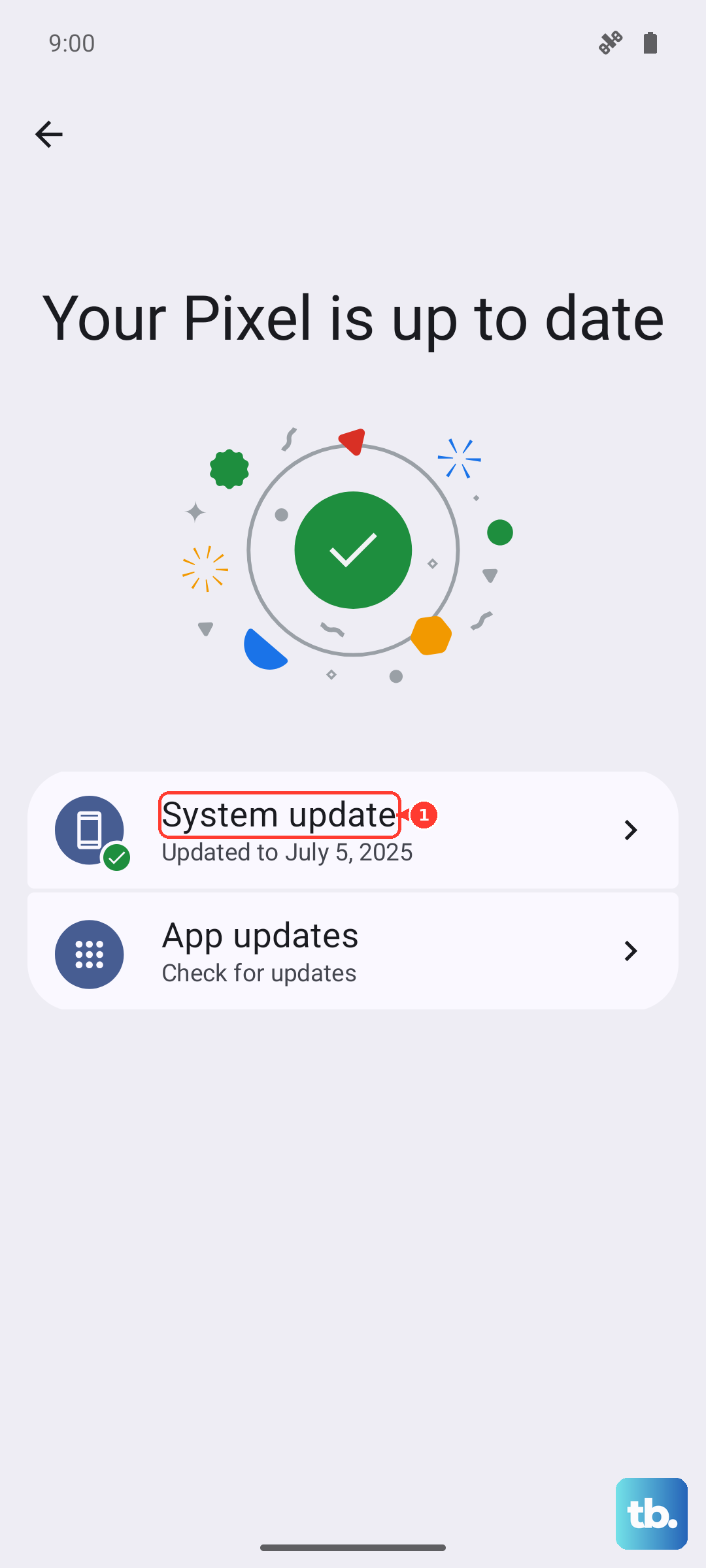
Go to Settings > System updates and tap "Check for updates." If an update is available, download and install it. Make sure your phone has at least 30% battery or is plugged in during the update process. After the update completes, try charging again.
Try Wireless (Qi2) Charging
If you have access to a Qi2 wireless charger, this is a great diagnostic step. If your Edge 40 charges wirelessly but not via the USB-C cable, you've isolated the problem to the port or your wired charging accessories.
Place the phone centrally on the charging pad. The Qi2 standard has magnets for alignment, so you should feel it snap into the optimal position. The phone supports up to 15W wireless charging. If it doesn't start charging, make sure the wireless charger itself is plugged in and powered, and try removing the phone case, as some materials can block the signal.
Wait for a Deeply Drained Battery
If you let the battery run down to absolute zero, the phone might not show any sign of life immediately when you plug it in. This is a safety feature. Leave it connected to the original 68W wall charger (not a computer or low-power source) for at least 30 minutes.
Don't keep unplugging and replugging it. Just let it sit. After a while, you should see the battery icon or a LED indicator if your model has one. If there's still nothing, try the force restart sequence while the phone remains plugged into the wall.
Check for Overheating
All modern phones have built-in temperature protection. If the Motorola Edge 40 gets too hot from direct sunlight, a demanding game, or even a fast charging session, it will automatically slow down or stop charging to protect the battery. If the phone feels very warm to the touch, move it to a cooler spot, out of direct sun, and let it cool down for 15-20 minutes before trying to charge again.
Using the phone heavily while it's fast charging can also generate excess heat. For the quickest charge, I'd let it sit idle on the TurboPower charger.
Examine Charging Settings and Battery Health
Android has settings that can affect charging behavior. Go to Settings > Battery. Look for any features like "Adaptive charging" or battery protection modes that might limit the maximum charge to 80% or 85% to prolong battery lifespan. You can typically toggle these off if you need a full 100% charge.
Also in the Battery menu, you might find a "Battery health" or diagnostics section. This can show you the estimated health of your battery. If it's significantly degraded, it may not hold a charge properly.
Boot into Safe Mode
A misbehaving third-party app could be causing system conflicts that disrupt charging. Booting into Safe Mode temporarily disables all downloaded apps. To enter Safe Mode on the Edge 40, press and hold the Power button until the power off menu appears.
Then, tap and hold the "Power off" option on your screen. You should get a prompt to reboot to Safe Mode. Tap "OK." If the phone charges normally in Safe Mode, you know a recently installed app is the culprit. You can then start uninstalling apps one by one to find the offender.
Consider a Factory Reset (Last Resort)
If all else fails, a software issue might be deeply rooted. A factory reset will wipe your phone back to its original settings, so this is an absolute last resort. Make sure you have a recent backup of your data before proceeding.
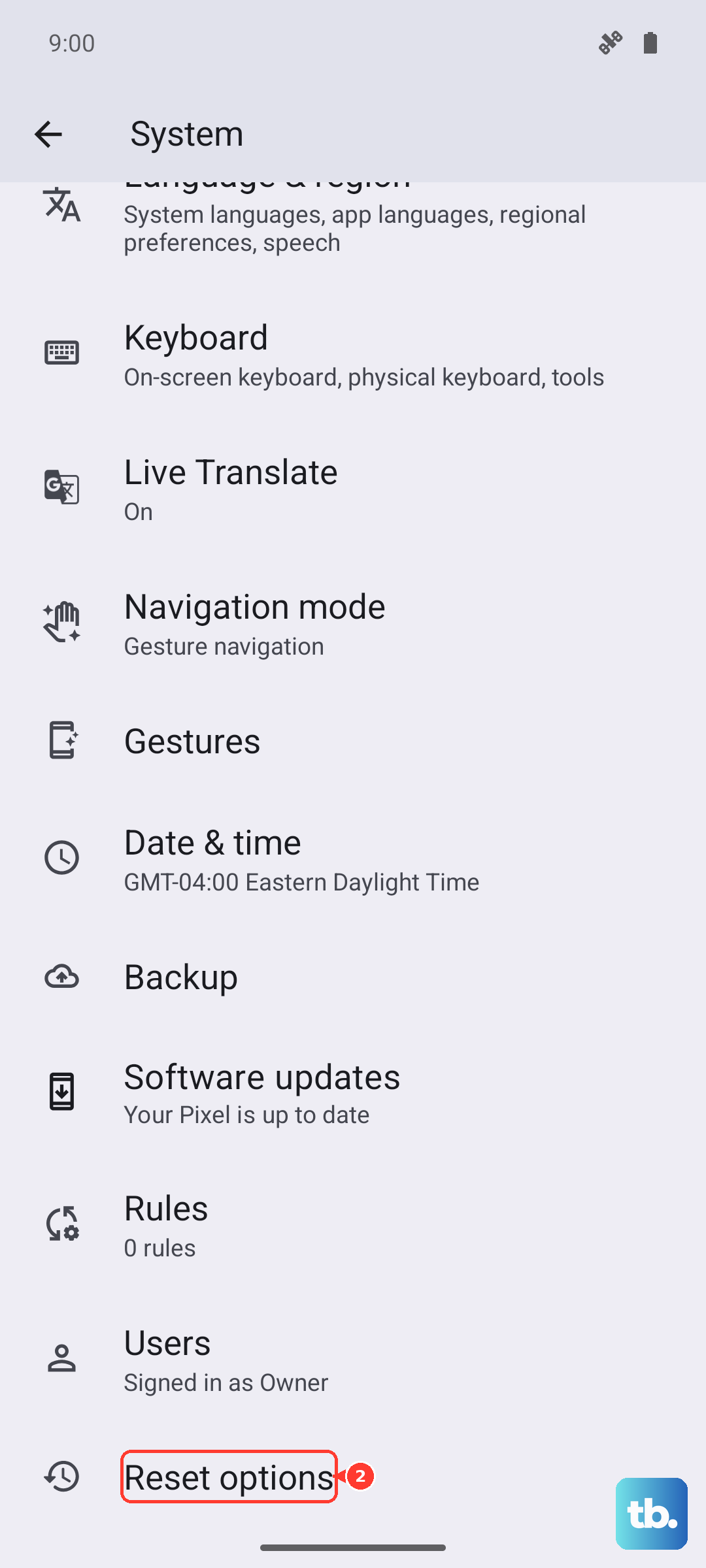
You can initiate a reset through the settings. Go to Settings > System > Reset options > Erase all data (factory reset). After the reset is complete, set the phone up minimally and test charging immediately. If it still doesn't work with known-good cables and chargers, the issue is likely hardware-related.