
If your Motorola Edge 40 is having trouble connecting to your headphones, car, or speaker, it can be incredibly frustrating. Bluetooth issues on Android 15 are usually software glitches that you can fix yourself. I'd start with the quick fixes at the top of this list, as they resolve most connection problems in just a few minutes.
Toggle Bluetooth and Restart Your Phone
First, pull down the notification shade from the top of your screen and tap the Bluetooth icon to turn it off. Wait about ten seconds, then tap it again to turn it back on. This simple refresh can clear up a temporary communication hiccup.
If that doesn't work, give your Edge 40 a full restart. Press and hold the Power button, then tap "Restart." While you're at it, power cycle the Bluetooth device you're trying to connect to as well. Once both devices are back on, try pairing them again.
Check These Basic Pairing Requirements
Before moving to more involved steps, run through this quick checklist. Make sure both your phone and the accessory have enough battery, ideally above 20%. Keep them within a few feet of each other without obstructions.
Verify the other device is actually in pairing mode, this often involves holding a specific button until a light flashes. Finally, double-check that Bluetooth is enabled on your phone by looking for the icon in your quick settings panel.
Remove and Re-Pair the Problem Device
Sometimes a pairing gets corrupted. To start fresh, go to Settings > Connected devices > Previously connected devices. Tap the gear icon next to the troublesome device and select Forget or Unpair.
After you've forgotten the device, put your accessory back into pairing mode. On your Edge 40, go to Settings > Connected devices > Pair new device and select it from the list. This creates a brand new connection profile, which often solves persistent issues.
Clear the Bluetooth System Cache
Android stores temporary data to help apps run faster, but this cache can become corrupted. Clearing it is safe and won't delete your paired devices. Go to Settings > Apps > See all apps.
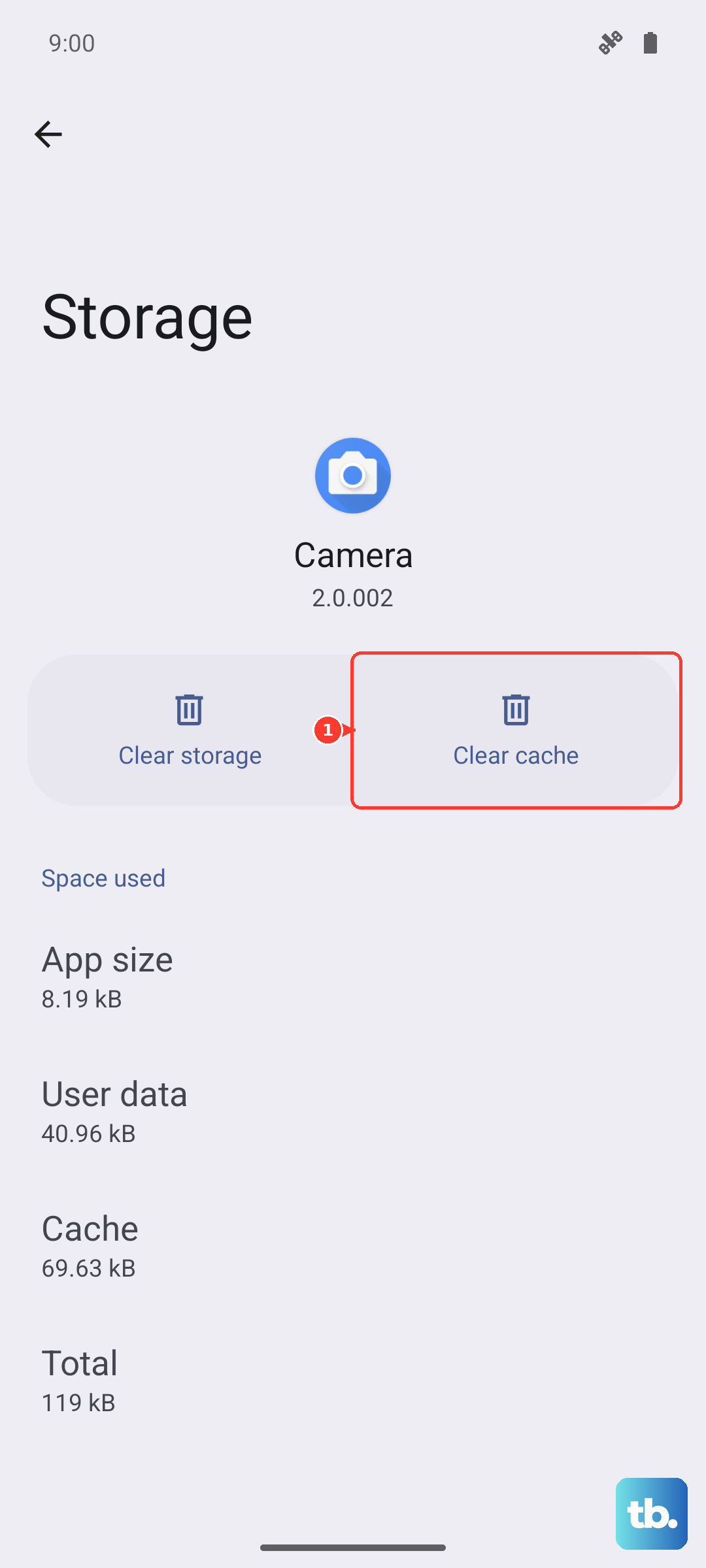
Tap the three-dot menu in the top right and select Show system. Scroll down and find "Bluetooth," then tap it. Select Storage & cache and tap Clear cache. Restart your phone and test your Bluetooth connection again.
Check for a Software Update
Motorola frequently releases updates that fix bugs and improve device compatibility, including for Bluetooth. An outdated version of Android 15 could be the root of your problem.
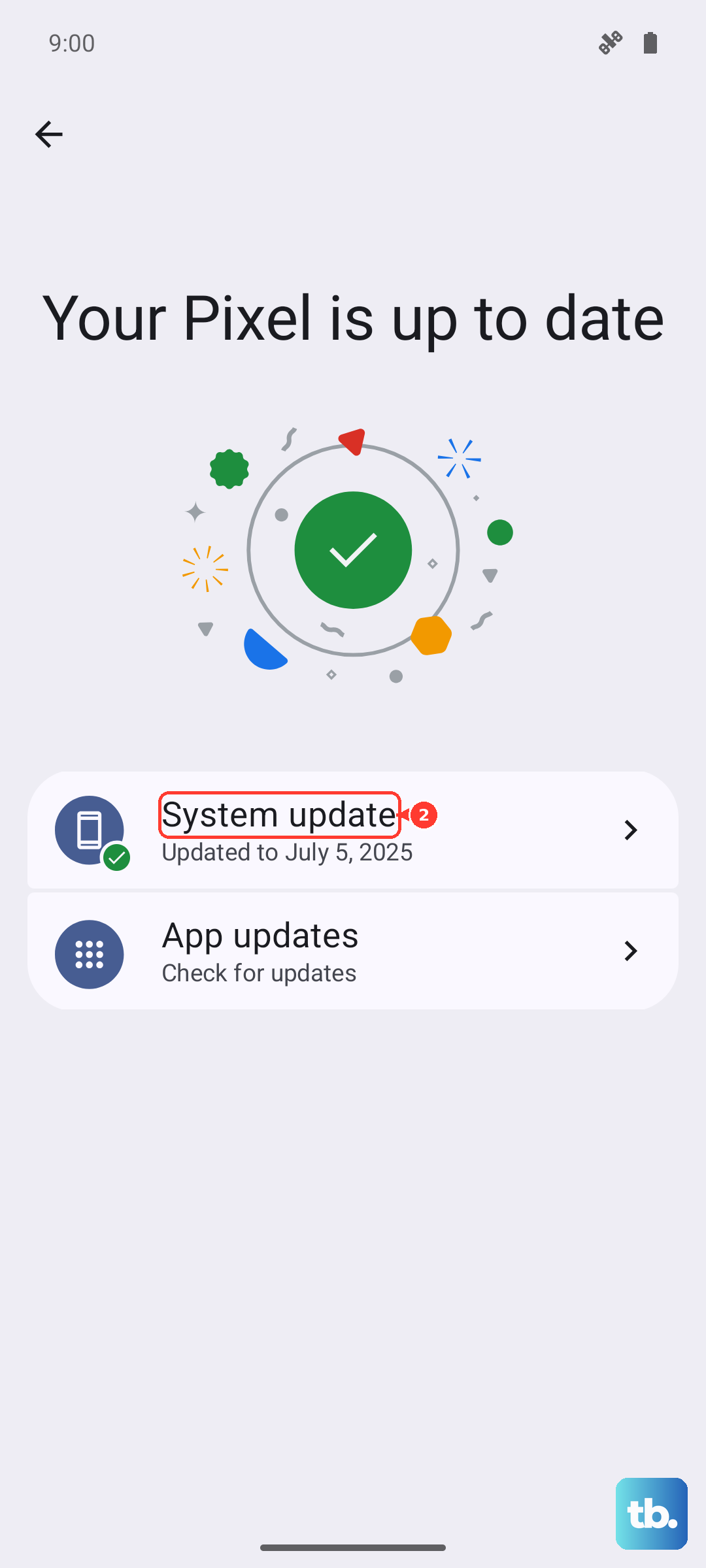
Go to Settings > System > System updates and tap "Check for update." If an update is available, install it. It's also a good idea to check if your Bluetooth accessory has a firmware update available through its own companion app.
Boot Into Safe Mode
If a recently downloaded app is causing a conflict, Safe Mode will tell you. To enter Safe Mode on the Edge 40, press and hold the Power button until the power menu appears. Then, tap and hold the "Power off" option on your screen.
You'll see a prompt to reboot to Safe Mode, tap "OK." Your phone will restart with all third-party apps disabled. Try using Bluetooth now. If it works, a downloaded app is the culprit. Restart normally and uninstall recent apps one by one to find the bad one.
Reset Your Network Settings
This will reset all Wi-Fi, mobile data, and Bluetooth connections back to their default state. You'll need to re-pair all your Bluetooth devices and re-join Wi-Fi networks afterward, so have those passwords handy.
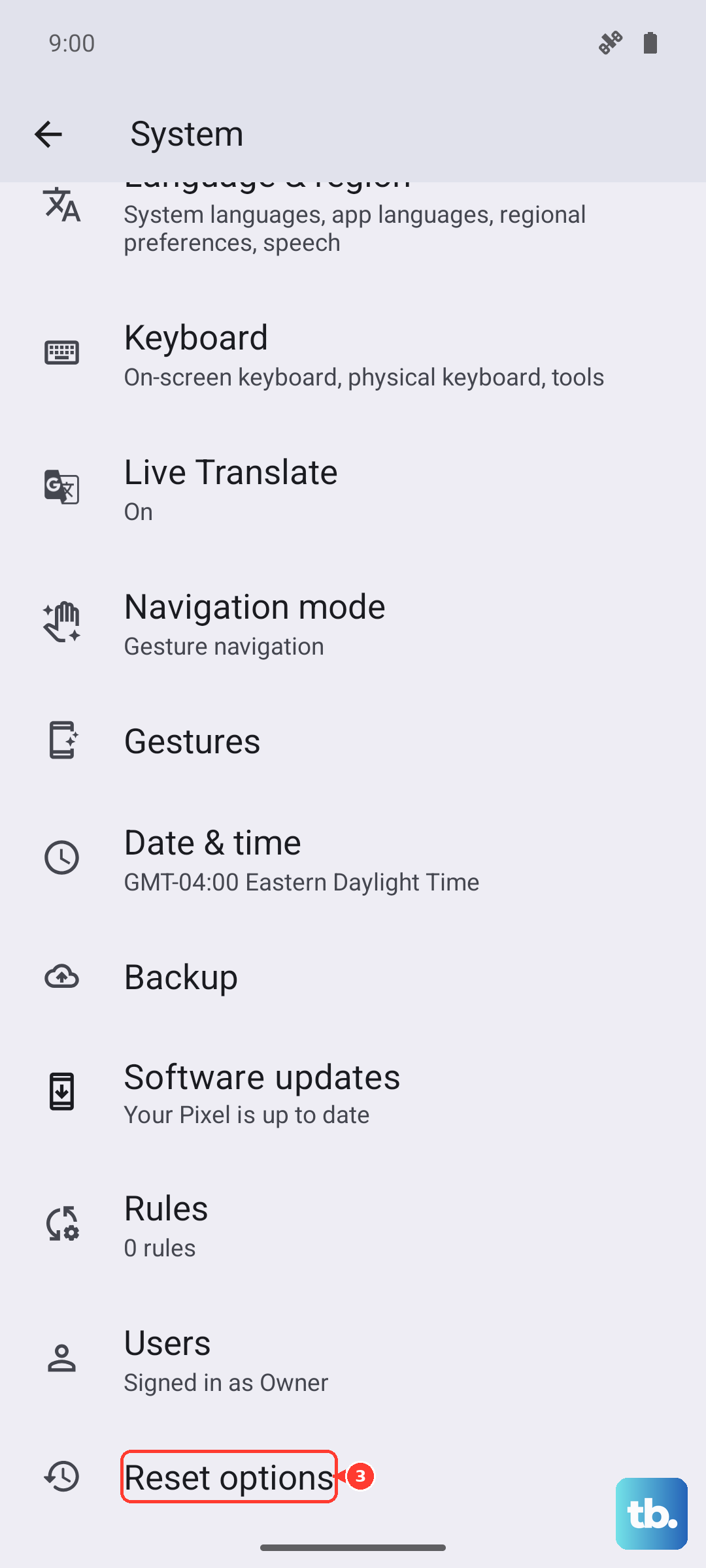
On your Motorola Edge 40, navigate to Settings > System > Reset options. Tap Reset Wi-Fi, mobile & Bluetooth and confirm your choice. After the phone resets, attempt to pair your device again from scratch.
Clear Bluetooth App Data
This is a more thorough step than clearing the cache, as it will wipe all Bluetooth pairing information from your phone. You will lose every saved device. Go back to Settings > Apps > See all apps, show system apps, and select "Bluetooth."
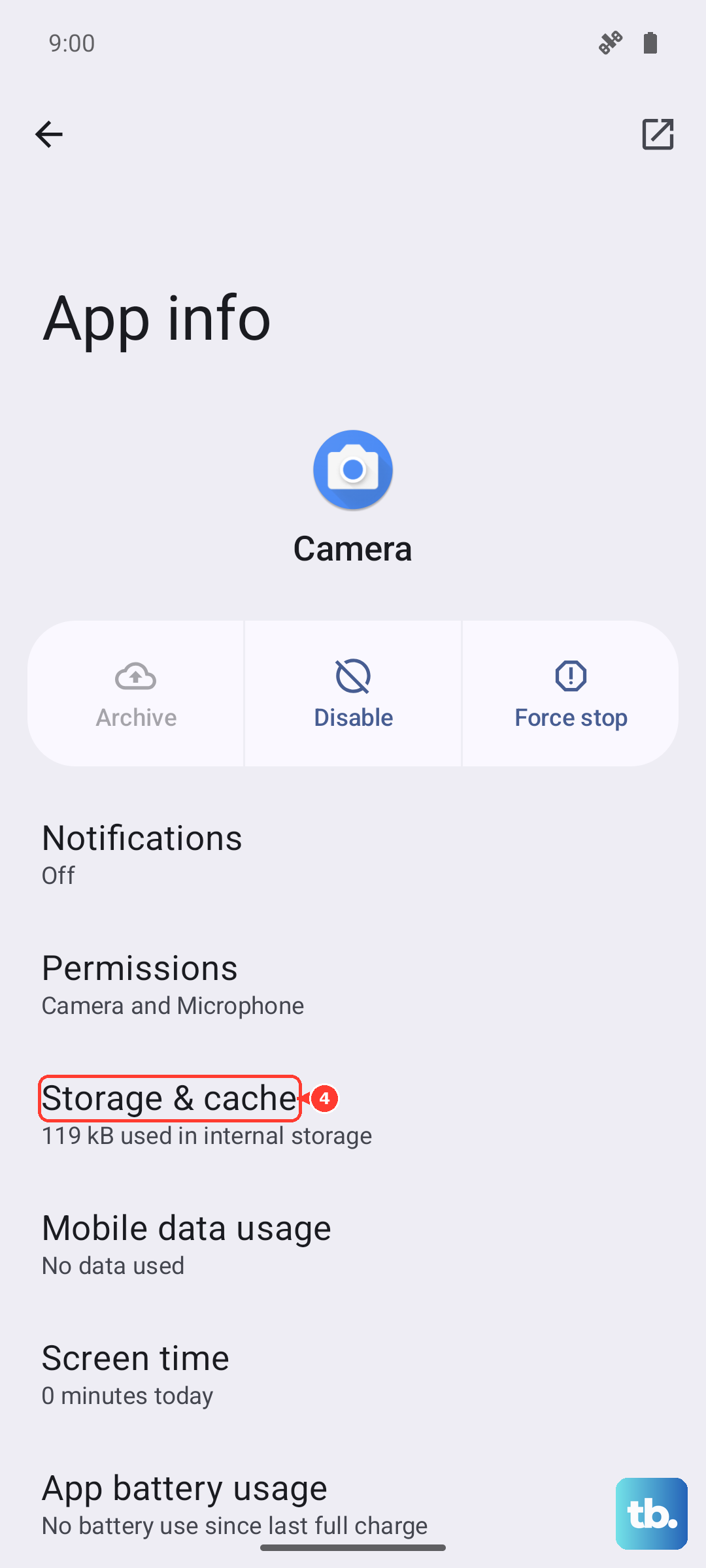
Tap Storage & cache and this time, select Clear storage or Clear data. Confirm the action. Your phone will behave as if Bluetooth has never been used before. Restart and try pairing your key devices again.
Address Car Bluetooth Problems
Car systems can be particularly finicky. Start by deleting your phone from your car's infotainment system memory, and delete the car from your Edge 40's Bluetooth list. With both devices forgotten, restart your phone and the car's system.
Initiate the pairing process from your car's menu first, then look for it on your phone. Some older car systems struggle with newer Bluetooth protocols, so you might need to consult your vehicle's manual for specific pairing instructions.
Consider a Factory Reset
If you've tried everything else and Bluetooth is completely non-functional, a factory reset is the last software step. This will erase all data on your phone, so you must back up everything important first.
Once backed up, go to Settings > System > Reset options > Erase all data (factory reset). Follow the prompts to complete the reset. After setup, test Bluetooth before restoring your apps, as a clean install can isolate if the issue was software-related.