
If your iPhone SE 4 won't connect to your AirPods, car, or other Bluetooth accessories, it's a frustrating roadblock. The good news is that Bluetooth issues on iOS are usually software glitches you can fix yourself. I'd start with the quick toggle and restart, as those resolve the majority of temporary connection problems.
Toggle Bluetooth and Restart Your iPhone
First, pull down from the top-right corner to open Control Center. Tap the Bluetooth icon so it's no longer highlighted in blue, wait about ten seconds, then tap it again to turn it back on. This simple reset of the Bluetooth radio can clear up a stuck connection instantly.
If that doesn't work, the next step is to force restart your iPhone SE 4. This is different from a normal restart and can clear deeper system caches. Press and quickly release the Volume Up button, then press and quickly release the Volume Down button. Finally, press and hold the Side button until you see the Apple logo appear on the screen.
Don't forget to restart the Bluetooth device you're trying to connect to as well. Power it off completely, wait a moment, and turn it back on. After both devices are back up, try pairing them again from scratch.
Forget and Re-Pair the Problem Device
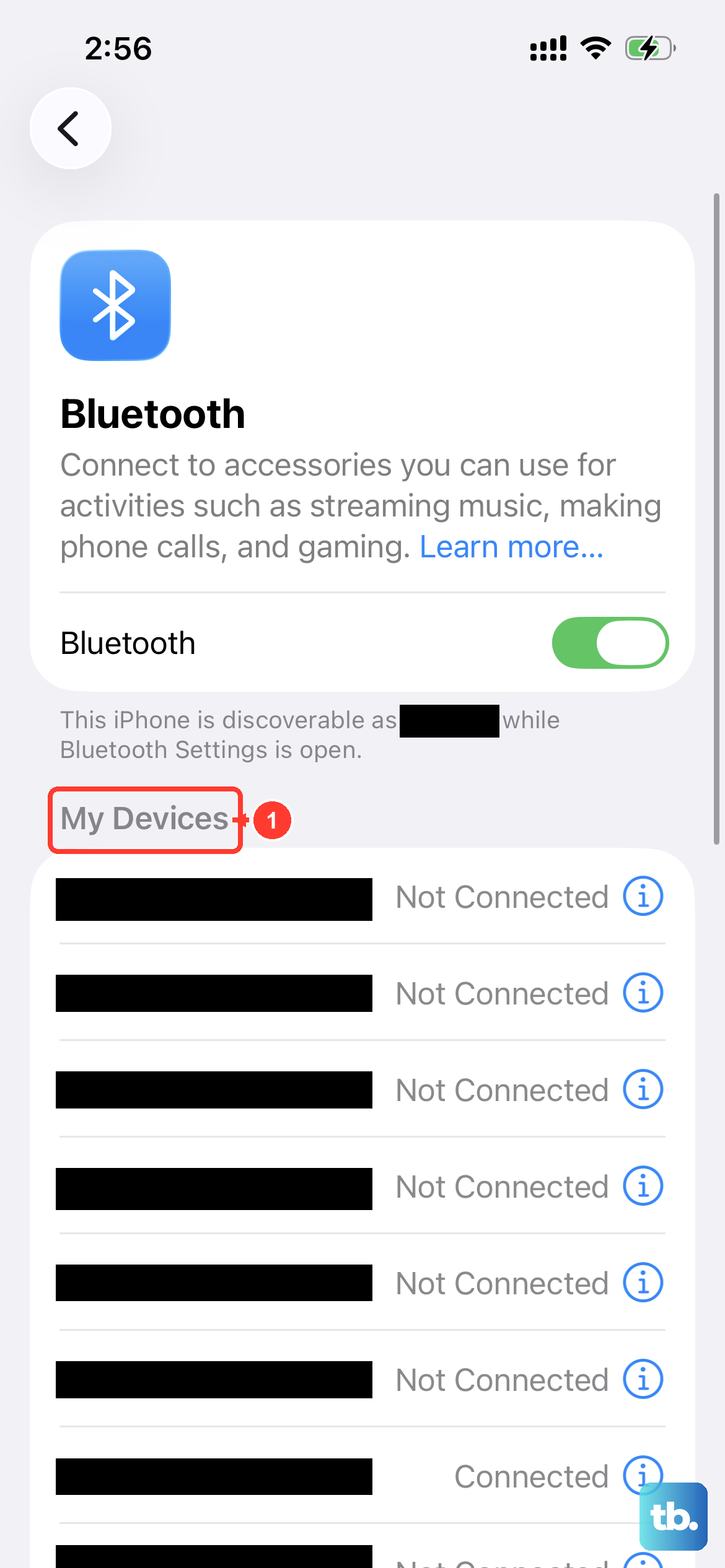
Sometimes a pairing gets corrupted. The fix is to remove the device from your iPhone's memory and start fresh. Open the Settings app and go to Bluetooth. Find the troublesome device in your list and tap the blue info icon (i) next to it.
On the next screen, tap Forget This Device and confirm. This completely severs the connection. Now, put your Bluetooth accessory back into pairing mode, this often involves holding a specific button until a light flashes. With your iPhone's Bluetooth still on, it should appear in the "Other Devices" list. Tap its name to initiate a new, clean pairing.
Check for Software Updates
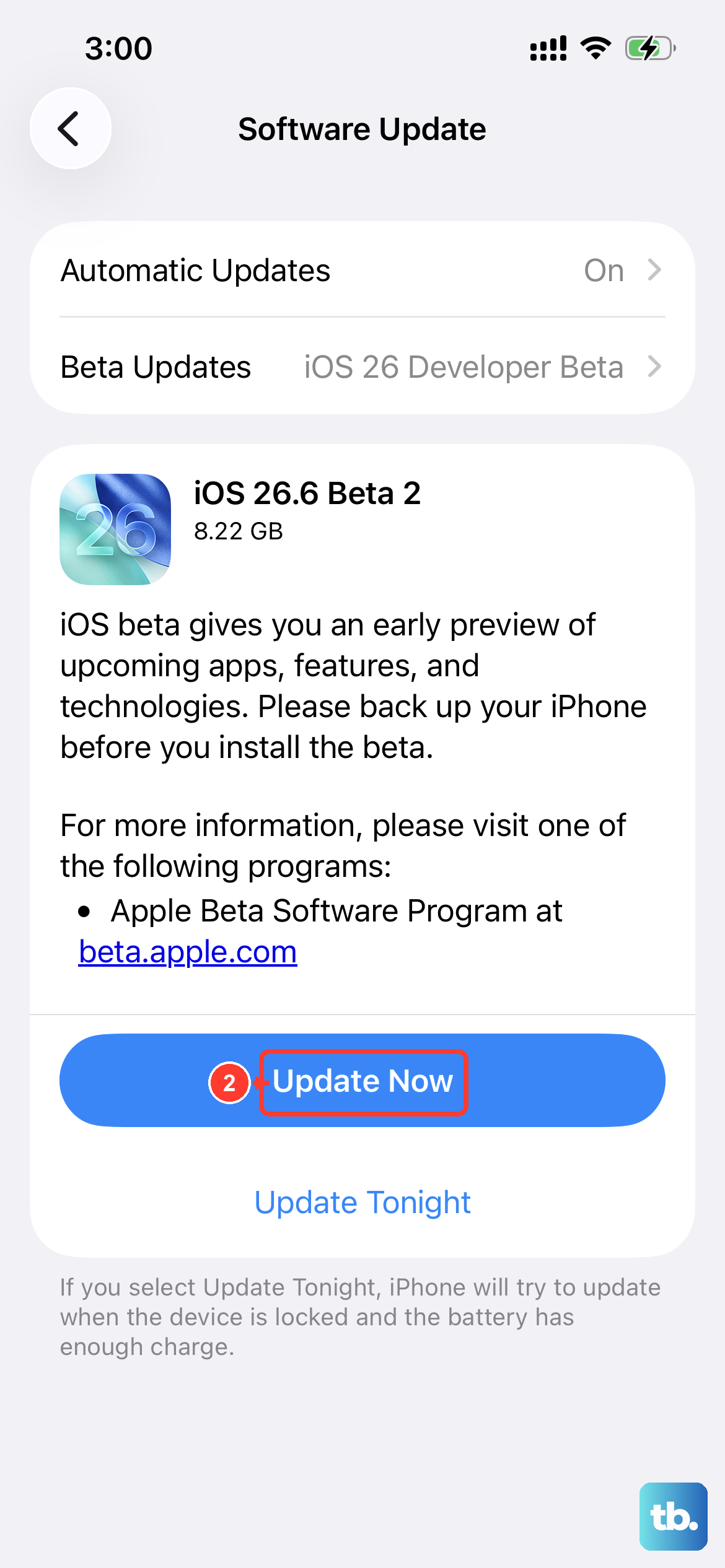
Running an outdated version of iOS 18 can lead to compatibility issues with newer Bluetooth devices or contain bugs that break connectivity. Apple frequently releases updates that include fixes for wireless performance.
Go to Settings > General > Software Update. If an update is available, tap Download and Install. It's best to do this while connected to Wi-Fi and with your iPhone SE 4 plugged into a charger. Also, check if the Bluetooth device itself has a companion app (like for headphones or a speaker) that might offer a firmware update.
Reset All Network Settings
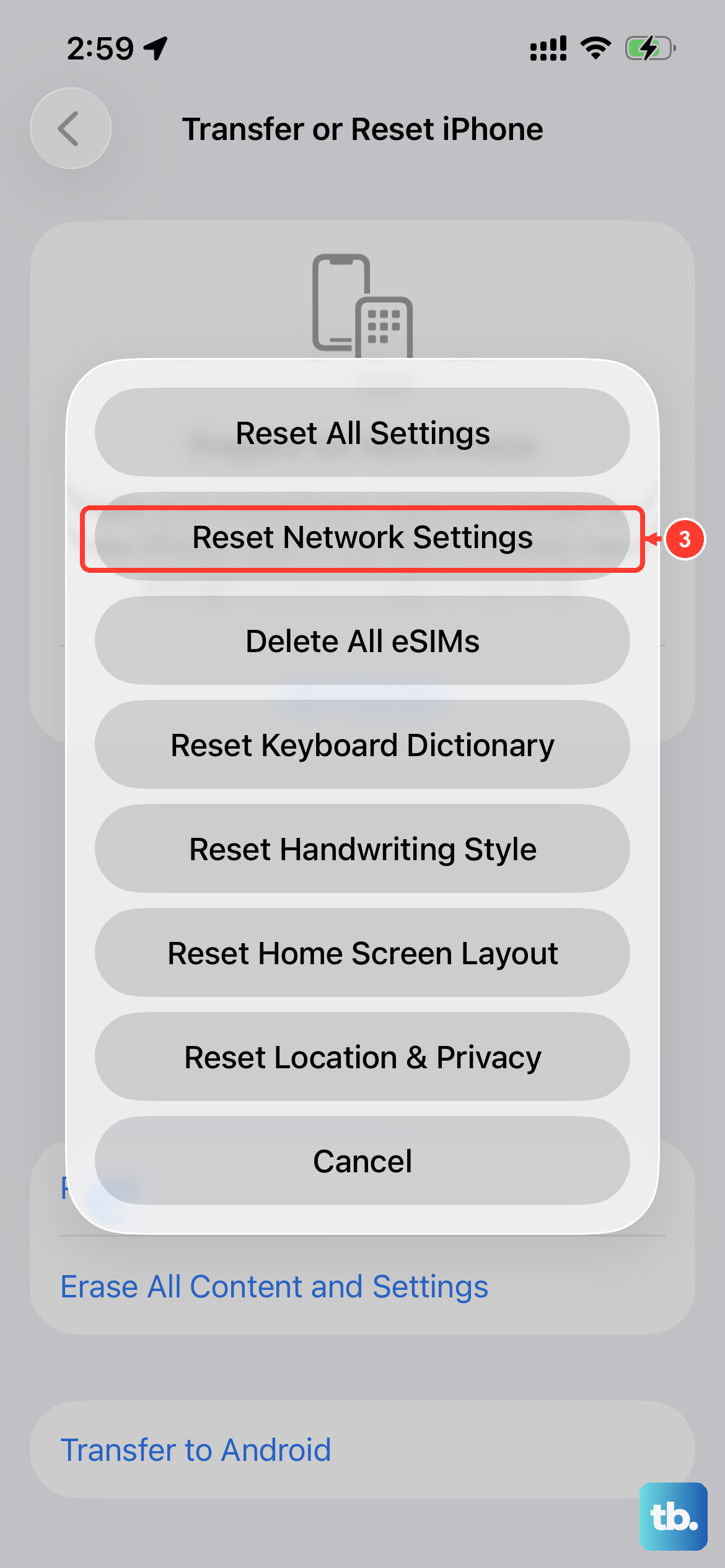
This is a more comprehensive step that resets Wi-Fi networks and passwords, cellular settings, VPN configurations, and, crucially, all Bluetooth pairings. It won't delete your personal data like photos or apps, but you will need to re-enter Wi-Fi passwords and re-pair all Bluetooth devices.
To do this, navigate to Settings > General > Transfer or Reset iPhone. Tap Reset and then select Reset Network Settings. Enter your passcode if prompted and confirm. Your iPhone will restart. After it boots up, try pairing your Bluetooth device again as if it were brand new.
Check for Physical and Interference Issues
While less common on a new device like the iPhone SE 4, it's worth considering the physical environment. Make sure there isn't a thick case, especially a MagSafe case with a metal ring, that could be interfering with the antennas. Try removing the case temporarily to see if the connection improves.
Bluetooth uses the 2.4GHz radio band, which can get crowded. Other devices like Wi-Fi routers, microwaves, baby monitors, or even USB 3.0 cables can cause interference. Try moving to a different room or turning off other nearby wireless devices to see if the connection stabilizes.
Troubleshoot Specific Connection Scenarios
If you're having trouble with your car, many systems require you to delete the phone from the car's head unit and delete the car from your iPhone's Bluetooth list. Start the pairing process from your car's menu, not your phone. For AirPods or Beats headphones, placing them in the case, closing the lid for 15 seconds, and then trying again often helps.
In my experience, if a Bluetooth device connects but the audio is choppy or keeps dropping, it's often an interference issue or a sign that the Bluetooth accessory itself is low on battery. Make sure both your iPhone SE 4 and the accessory have plenty of charge.
If you've tried all these steps and your iPhone SE 4 still won't connect to any Bluetooth devices, there could be a deeper software issue. As a last resort, you could back up your phone and restore it via a computer. If the problem persists even after a full restore, it may indicate a hardware problem with the Bluetooth module, in which case contacting Apple Support would be the next step.