
Missing notifications on a brand new iPhone 17e can be a real headache. You might be missing important messages, alerts, or updates without even knowing it. A software issue can also be behind it, so it's worth checking for updates.
Start with the simplest fix first, which often does the trick. Give your iPhone 17e a quick restart. Press and release the Volume Up button, then press and release the Volume Down button, and finally press and hold the Side button until you see the Apple logo appear. This can clear out any temporary glitches in the notification system.
Check Your Focus Modes
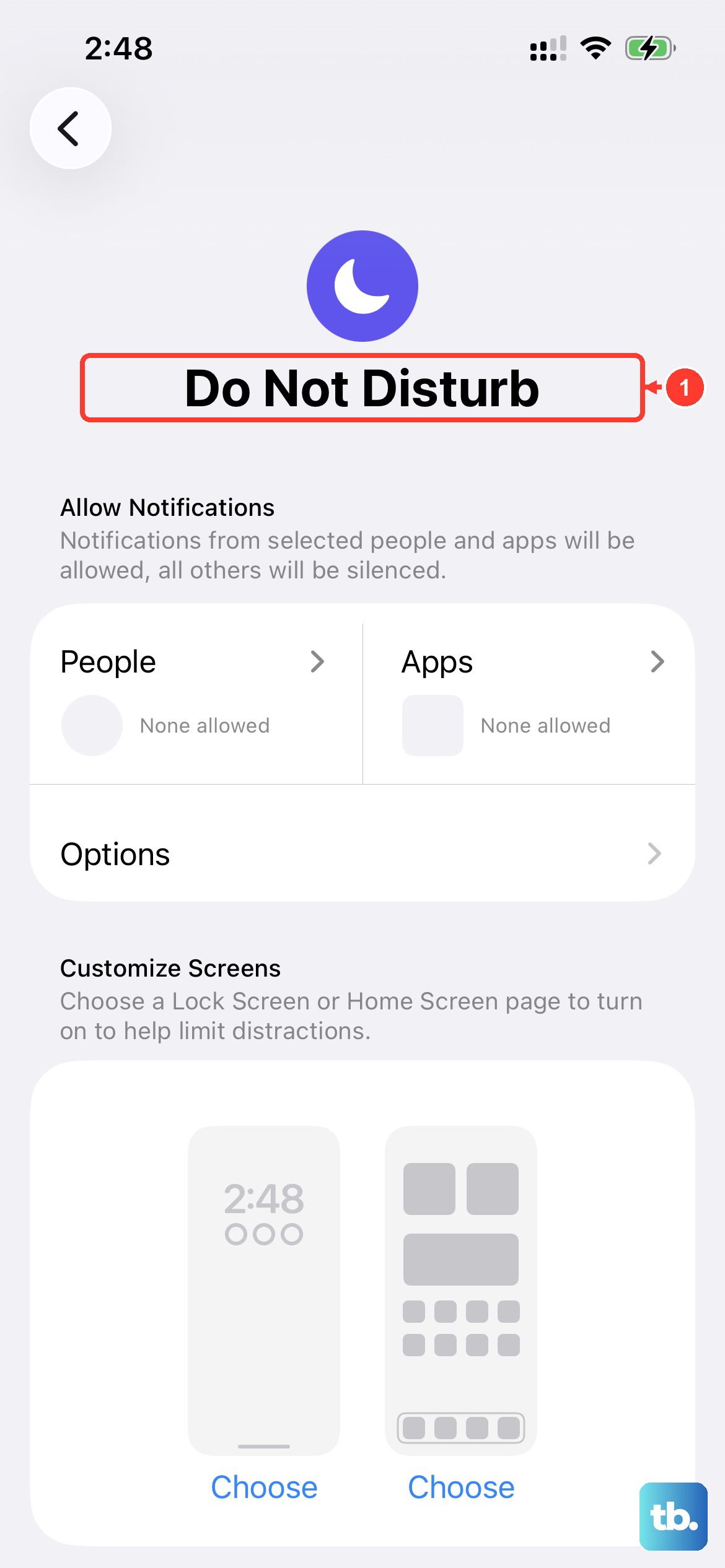
Focus modes are powerful and can sometimes be too aggressive. Swipe down from the top-right corner to open Control Center and look at the Focus icon. If any Focus mode (like Work, Sleep, or Personal) is active, it might be silencing notifications from specific apps.
You can also go into Settings > Focus to review each mode. Tap on a Focus and check the "Allowed Notifications" section to make sure your critical apps aren't being blocked. Make sure the Focus isn't set to silence the people or apps you need to hear from.
Review Notification Settings for Each App
iOS allows incredibly granular control per app. If you're not getting alerts from Messages or Mail, you need to check their individual settings. Head to Settings > Notifications.
Find the app that's giving you trouble in the list and tap on it. Make sure "Allow Notifications" is toggled on at the very top. Then, under Alerts, check that notifications are set to appear on the Lock Screen, in Notification Center, or as banners. Also, verify that sounds and badges are enabled if you want them.
Disable Scheduled Notification Summary
The Notification Summary is a feature that bundles less urgent alerts for delivery at set times. If it's misconfigured, it can look like notifications are missing. Go to Settings > Notifications > Scheduled Summary.
See if the feature is turned on. If it is, review the list of apps included in the summary. Any app in that list will have its notifications delayed and batched. You can either turn off the Scheduled Summary entirely or remove the specific app you need immediate alerts from.
Update iOS to the Latest Version
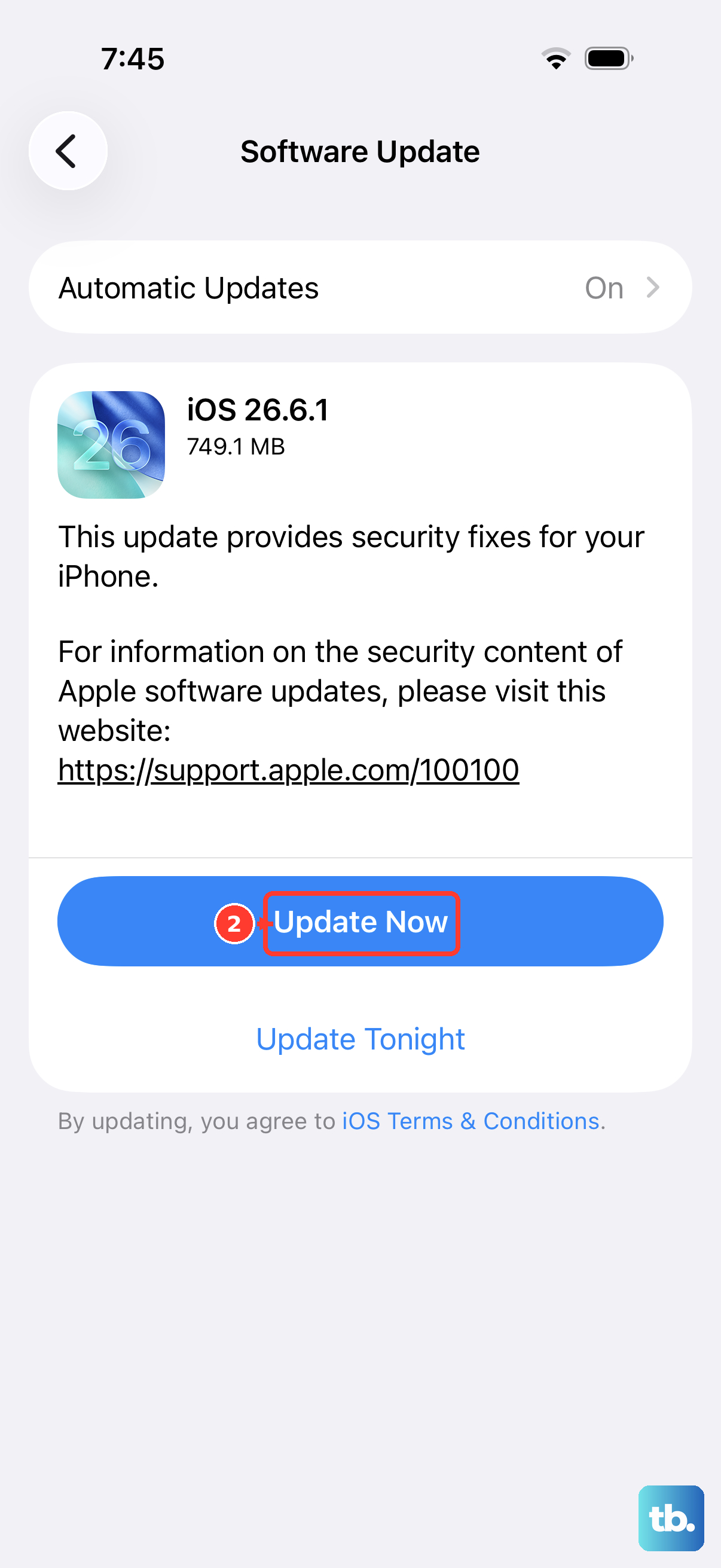
Apple releases software updates that fix bugs, which can include notification problems. Always make sure you're on the latest version of iOS.
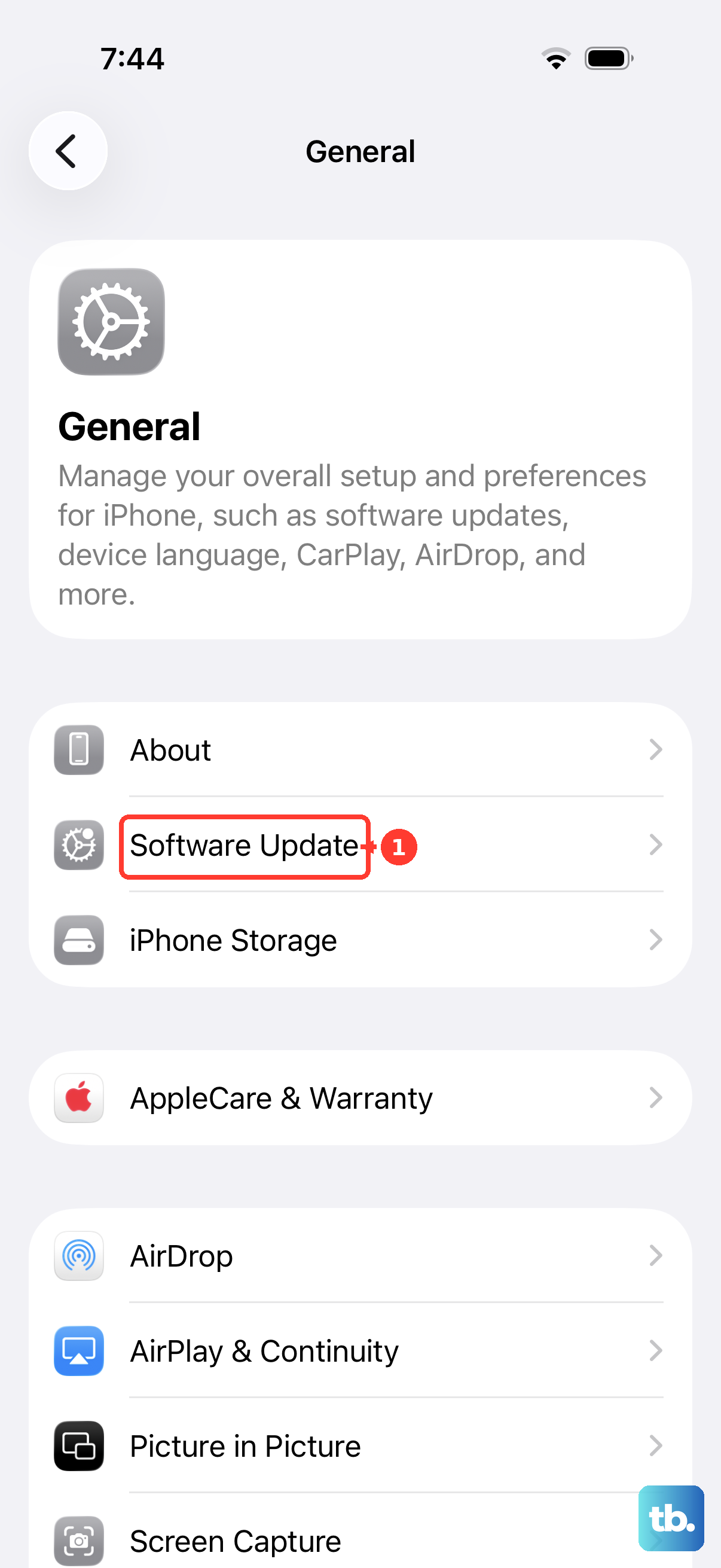
Go to Settings > General > Software Update. If an update is available, tap Download and Install. Apple recommends backing up first and keeping your phone connected to power and Wi-Fi during the update.
Reset All Settings
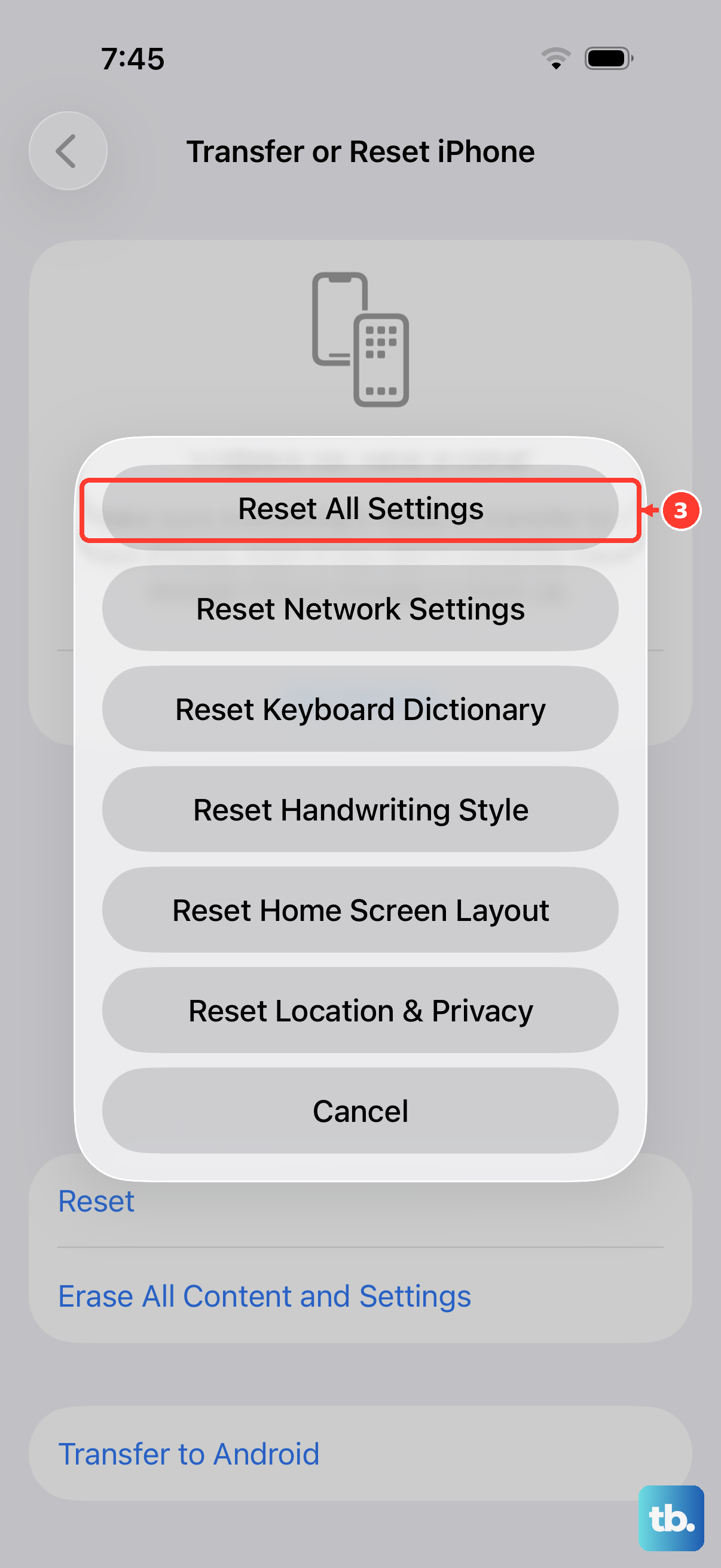
This is a more comprehensive step, but it won't delete your personal data like photos or messages. It will reset all your system settings, Wi-Fi passwords, wallpaper, privacy permissions, and notification preferences, back to their defaults.
To do this, navigate to Settings > General > Transfer or Reset iPhone > Reset. Then, choose "Reset All Settings." Your iPhone 17e will restart. Afterward, you'll need to re-enable notifications for your apps, but this often clears out any deep-seated configuration errors.
Check for App-Specific Issues
Sometimes the problem isn't with iOS, but with the app itself. If you're only missing notifications from one app, like Gmail or WhatsApp, check the app's own in-app notification settings. These are separate from the iOS system settings.
Also, try force-closing the app and reopening it. Swipe up from the bottom of the screen and pause in the middle to enter the app switcher. Find the app's preview and swipe it up off the top of the screen to close it. Then, relaunch it from your Home Screen. A fresh start can sometimes re-establish the connection for alerts.
Ensure Your iPhone Isn't in Low Power Mode
Low Power Mode can reduce background activity, which includes fetching new data for notifications. While it's great for battery life, it can delay alerts. You can check if it's on by looking for a yellow battery icon in your status bar.
To turn it off, go to Settings > Battery > Power Mode and toggle off Low Power Mode. Alternatively, you can ask Siri or use the Control Center toggle if you've added it there.
Review Do Not Disturb and Bedtime Mode
Do Not Disturb and the related Bedtime mode in the Sleep Focus are designed to silence all notifications. If you have a schedule set or accidentally turned it on, you won't see or hear alerts.
Open Control Center and make sure the crescent moon icon isn't highlighted. For a deeper check, go to Settings > Focus > Do Not Disturb. Look under the "Set a Schedule" section to see if any automatic turn-on times are configured that you've forgotten about.
Sign Out and Back Into Your Apple Account
Some system-level services, like iMessage and FaceTime, are tied to your Apple Account. A glitch in this connection can affect notifications. Signing out and back in can refresh it.
Go to Settings > tap your name at the top > scroll down and tap "Sign Out." You'll need your Apple Account password. After signing out, restart your iPhone 17e using the force restart method, then go back to Settings to sign in again. This can resolve syncing issues that impact alerts.
Check Network Connections
Notifications for apps like Mail and Messages need a stable internet connection to push through. If you're only on Wi-Fi, try disabling it temporarily to force cellular use, or vice versa.
The Wi-Fi button in Control Center only disconnects you from the current network, so use Settings > Wi-Fi to turn Wi-Fi fully off. Also, try turning on Airplane Mode for a few seconds and then turning it off, which can help if a network issue is preventing push notifications.