
Seeing "No SIM" or "SIM Not Supported" on your new iPhone 17e is a real headache, especially on a brand new phone. The good news is it's almost always something simple you can fix yourself in a few minutes.
I'd start with the quick restart and SIM tray check. Since the 17e is so new, a software hiccup with the C1X cellular modem is a common early bug.
Restart Your iPhone 17e
This is the universal first step for a reason. A quick restart clears out any temporary glitches in iOS 26 that might be confusing the phone's new C1X modem. Just press and hold the side button and either volume button, then slide to power off.
Wait about 30 seconds, then press the side button again to turn it back on. If the problem is a minor software hang, this often clears it right up.
Check and Reinsert the SIM Card
Grab the SIM ejector tool that came in the box. Push it into the small hole on the left side of your iPhone 17e to pop out the SIM tray.
Take out the SIM card and give the gold contacts a close look. If you see any dust, lint, or tiny scratches, gently wipe them with a clean, dry microfiber cloth. Blow any dust out of the SIM tray slot itself.
Carefully place the SIM back in the tray, making sure it's seated flush and the notch is aligned. Slide the tray back in until it clicks. A poorly seated card is one of the top causes of this error.
Toggle Airplane Mode
Swipe down from the top-right corner to open Control Center. Tap the airplane icon to turn Airplane Mode on. You'll see the icon turn orange.
Wait for about ten seconds, then tap it again to turn Airplane Mode off. This forces your phone's cellular radio to disconnect and reconnect to the network, which can kick-start a stuck connection.
Update iOS
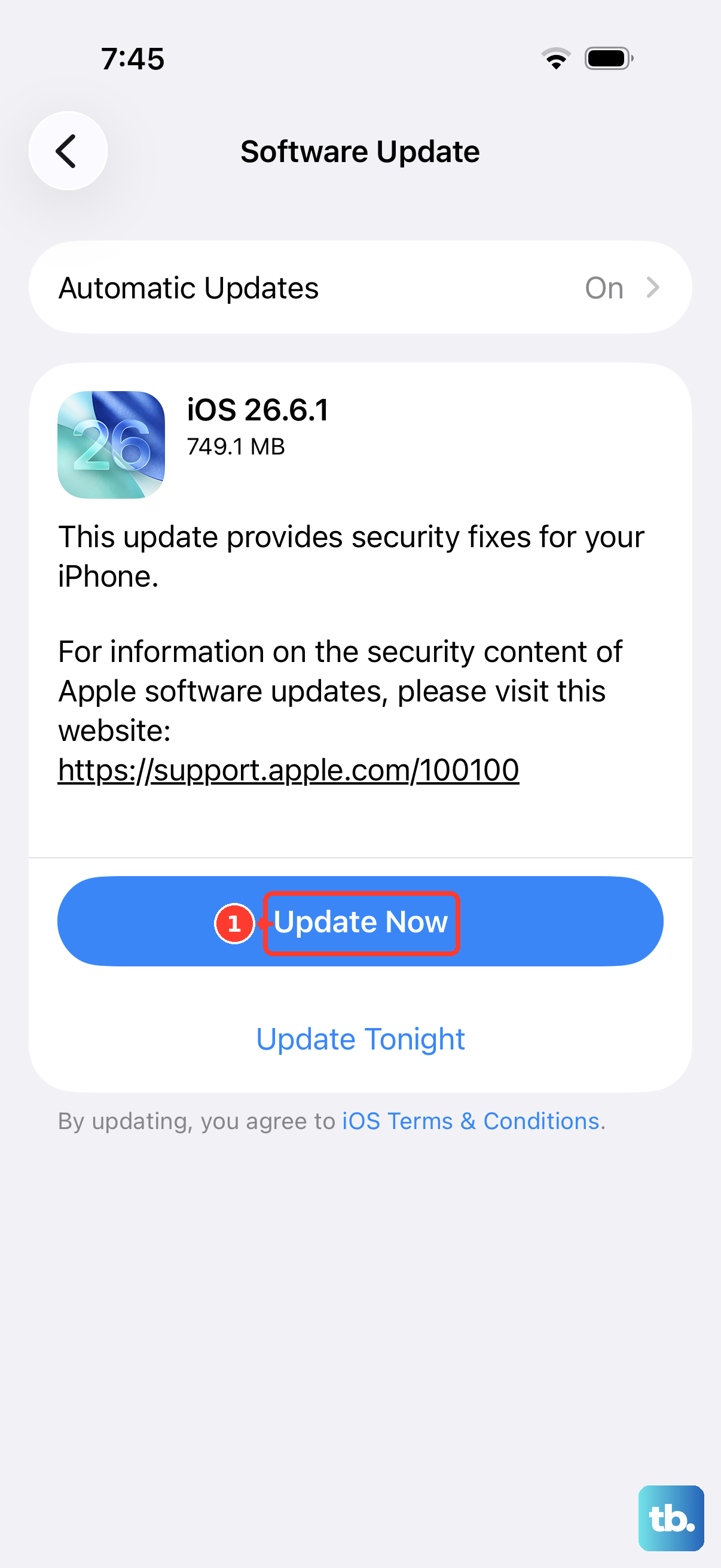
Since the iPhone 17e launched in March 2026, Apple is likely still releasing early software updates to iron out bugs. An update could include a fix specifically for the cellular modem.
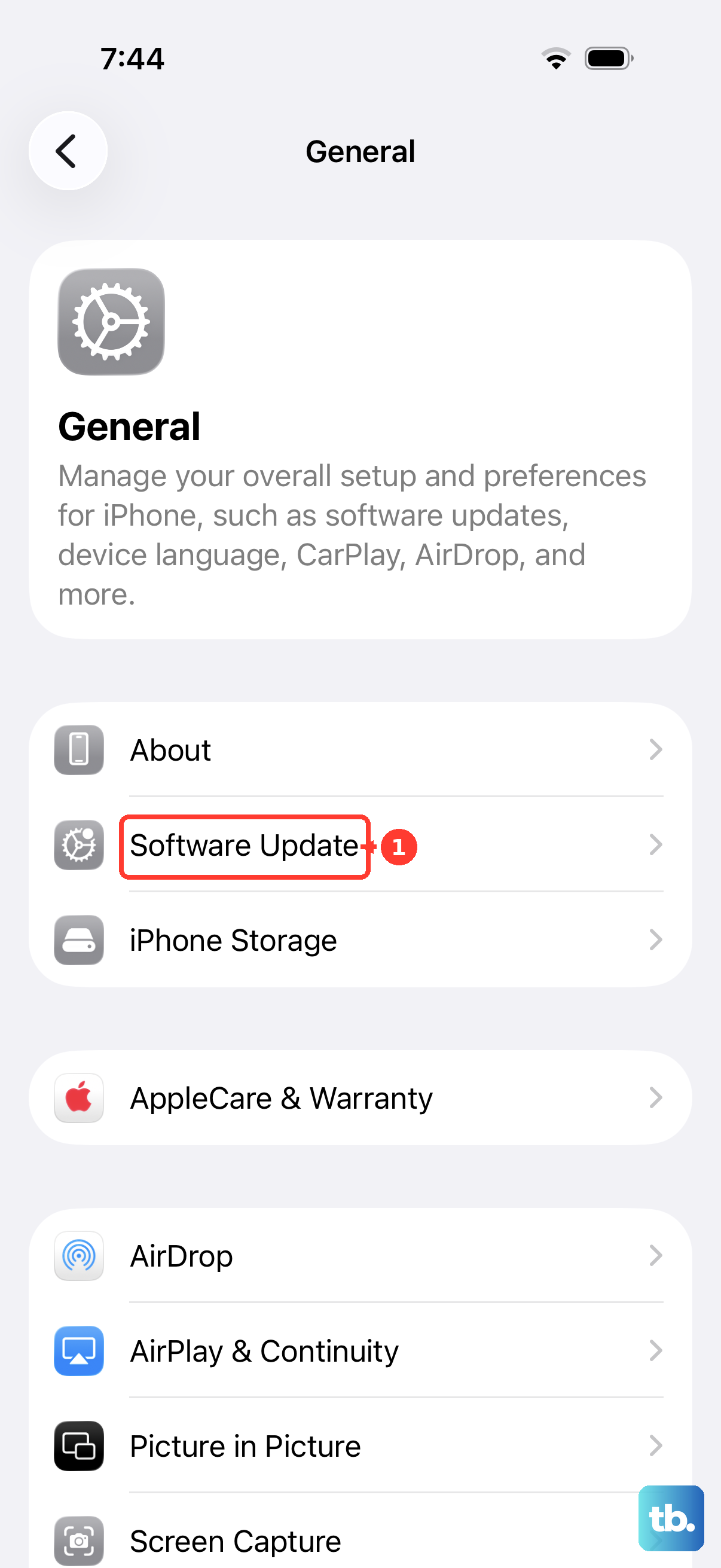
Go to Settings > General > Software Update. If an update is available, tap "Download and Install." Make sure your phone is connected to Wi-Fi and has enough battery, or plug it into a 20W USB-C charger.
Check for a Carrier Settings Update
This is different from an iOS update. Carrier settings are small files that tell your phone how to work with your specific network. Sometimes they need a refresh.
With your SIM card inserted, go to Settings > General > About. If a carrier settings update is available, a pop-up notification will appear on this screen. Just tap "Update" if it shows up.
Reset Network Settings
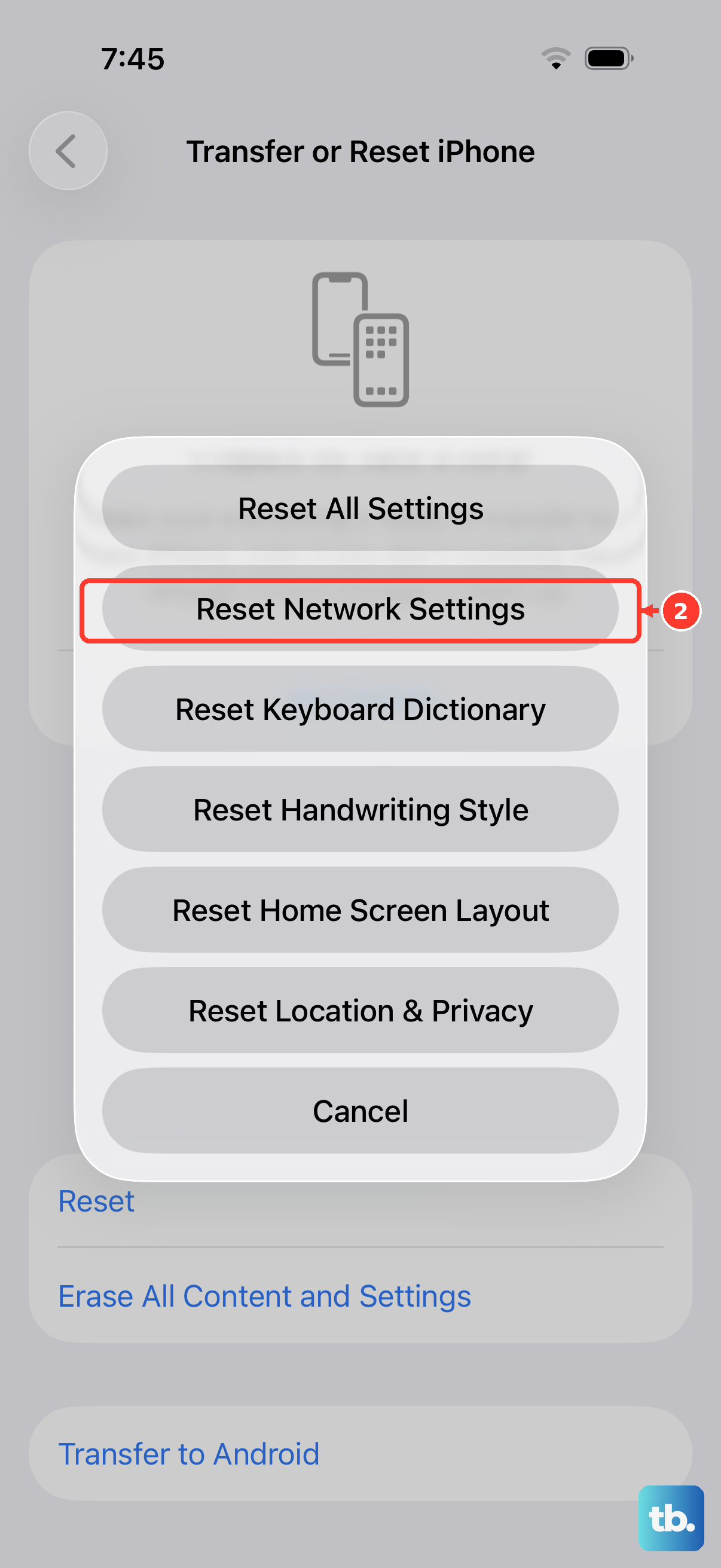
This will erase all your saved Wi-Fi passwords, Bluetooth pairings, and cellular network preferences, but it's a powerful fix for persistent connection issues. It won't touch your personal data like photos or messages.
To do this, open Settings, then go to General > Transfer or Reset iPhone. Tap Reset, and then choose Reset Network Settings. You'll need to enter your passcode to confirm.
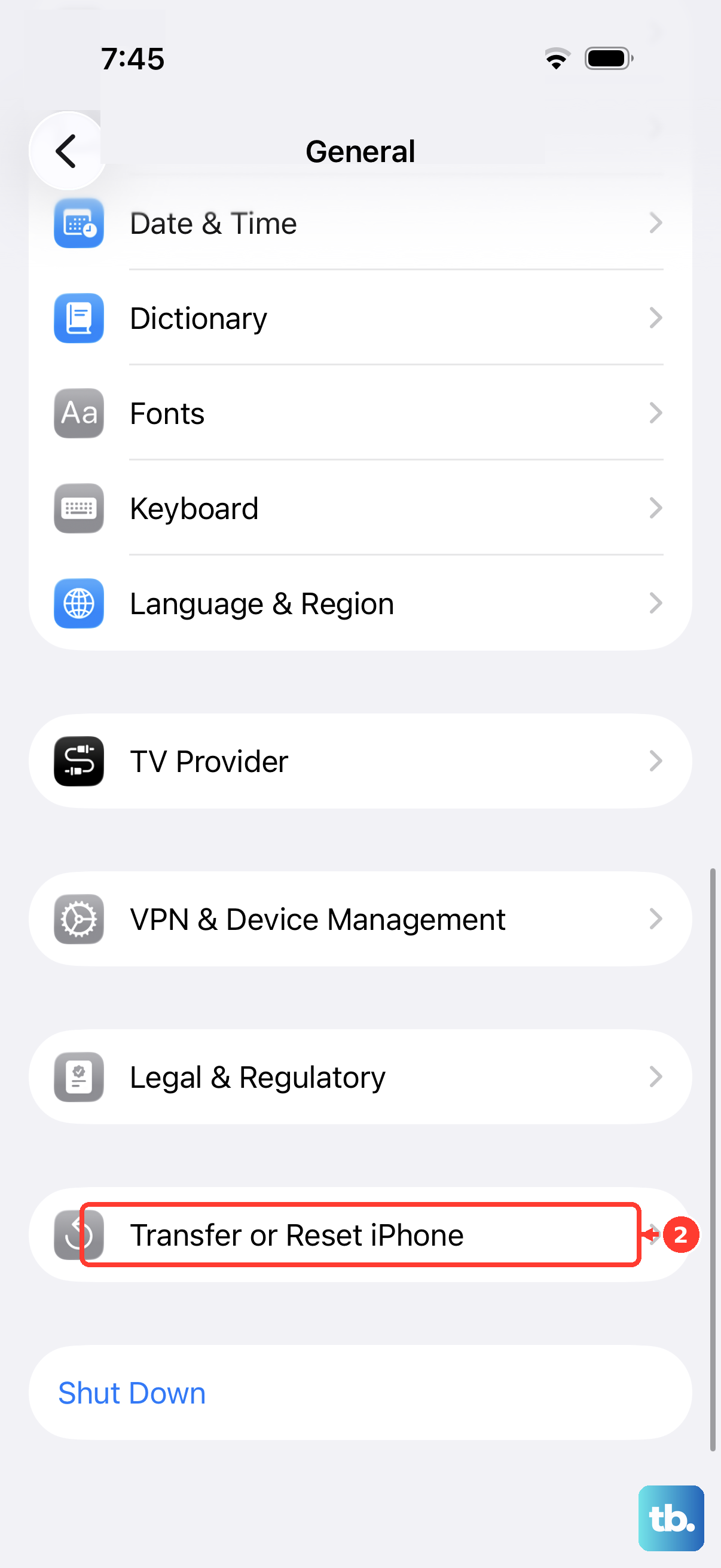
Your phone will restart. Afterward, you'll need to reconnect to Wi-Fi and re-pair Bluetooth devices, but it often resolves stubborn SIM errors.
Try Your SIM in Another Phone
This is the best way to figure out if the problem is with your SIM card or with the iPhone itself. If you have access to another unlocked phone, power it off and insert your iPhone 17e's SIM card.
Turn that phone on. If it also shows "No SIM" or fails to get service, the issue is almost certainly with the SIM card itself. If the other phone reads the SIM perfectly, then the issue is with your iPhone 17e.
Contact Your Carrier
If testing points to a bad SIM card, your carrier can issue a replacement, usually for free. They can also check from their end to make sure your line is properly activated and hasn't been suspended.
This is also the step where you can ask about switching to an eSIM. The iPhone 17e supports eSIM, and moving to a digital SIM can completely bypass any physical tray or card reader problems.
Force Restart Your iPhone 17e
A force restart is a step harder than a normal restart and can clear deeper glitches. The process for the iPhone 17e is the same as recent models.
Quickly press and release the Volume Up button. Quickly press and release the Volume Down button. Then, press and hold the Side button. Keep holding it even when you see the power off slider, until you see the Apple logo appear, then let go.
Check for Physical Damage
Inspect the SIM tray closely. Is it bent or cracked? Look inside the SIM slot on the phone. Do you see any debris, or are the tiny contact pins damaged or misaligned?
If you suspect physical damage to the tray or the phone's internal SIM reader, this would require a repair. Since the 17e is so new, it should still be under Apple's one-year limited warranty for hardware issues.