
If your iPhone 17 screen is completely frozen, the fastest thing to try is a force restart. Press and quickly release the Volume Up button, then quickly press and release the Volume Down button. Immediately after, press and hold the Side button. Keep holding it until you see the Apple logo appear, then let go. This can clear a temporary software glitch that's locking up the touchscreen.
The Apple logo might take longer than 10 seconds to appear, so keep holding the Side button until it appears. If your iPhone doesn't turn on, charge it for one hour and then try the force restart again.
Clean the Screen and Your Hands
It sounds simple, but moisture, lotion, or grease on the screen can seriously interfere with the capacitive touch sensors. Use a soft, lint-free cloth to thoroughly wipe the screen clean. Make sure your fingers are completely dry, too.
If you've recently applied a new screen protector, remove it and test the screen again. Remove the case, too, to check whether touch response improves without it. If the screen responds normally afterward, leave the accessory off while you troubleshoot.
Check for a Software Update
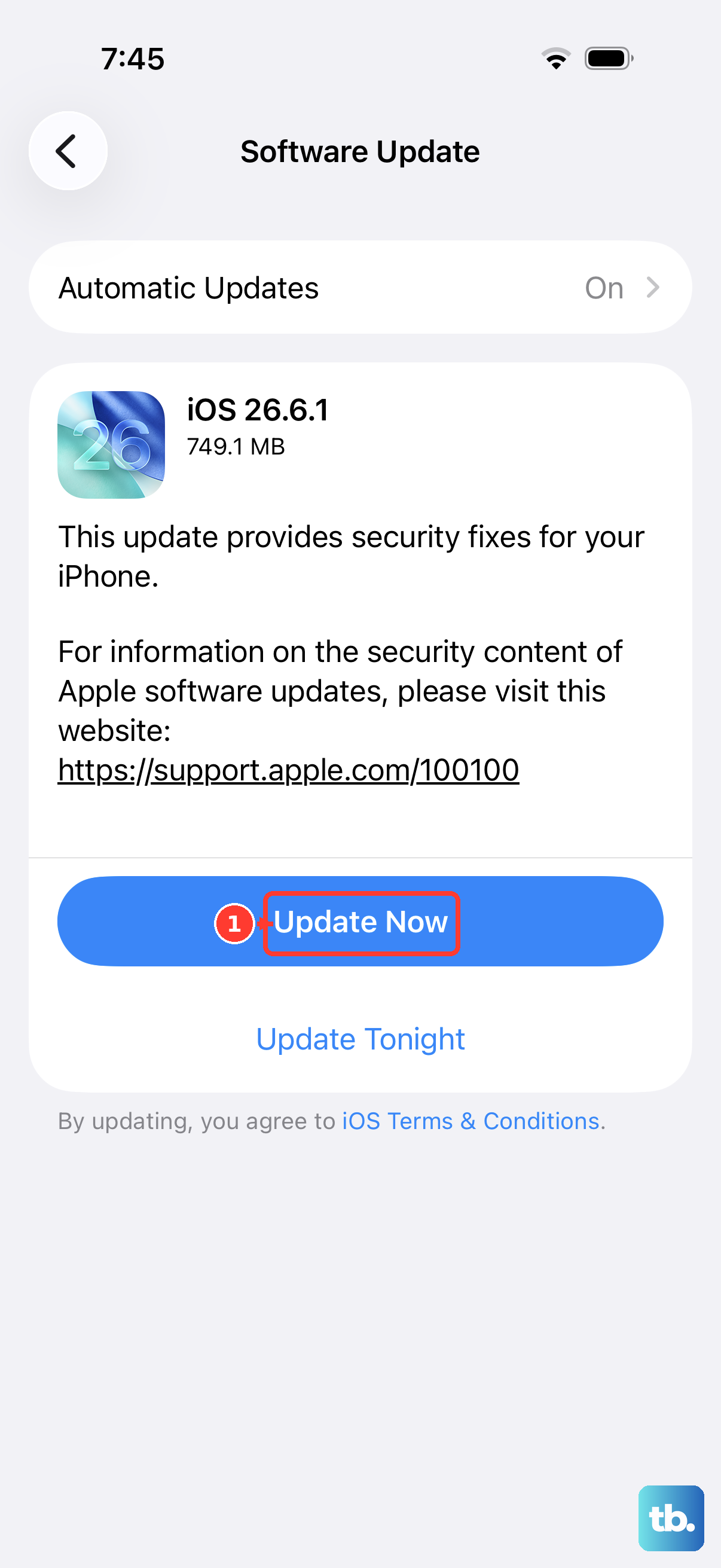
A software bug could be the culprit. Go to Settings > General > Software Update. If an update is available, install it. It's best to do this while connected to Wi-Fi and a power source.
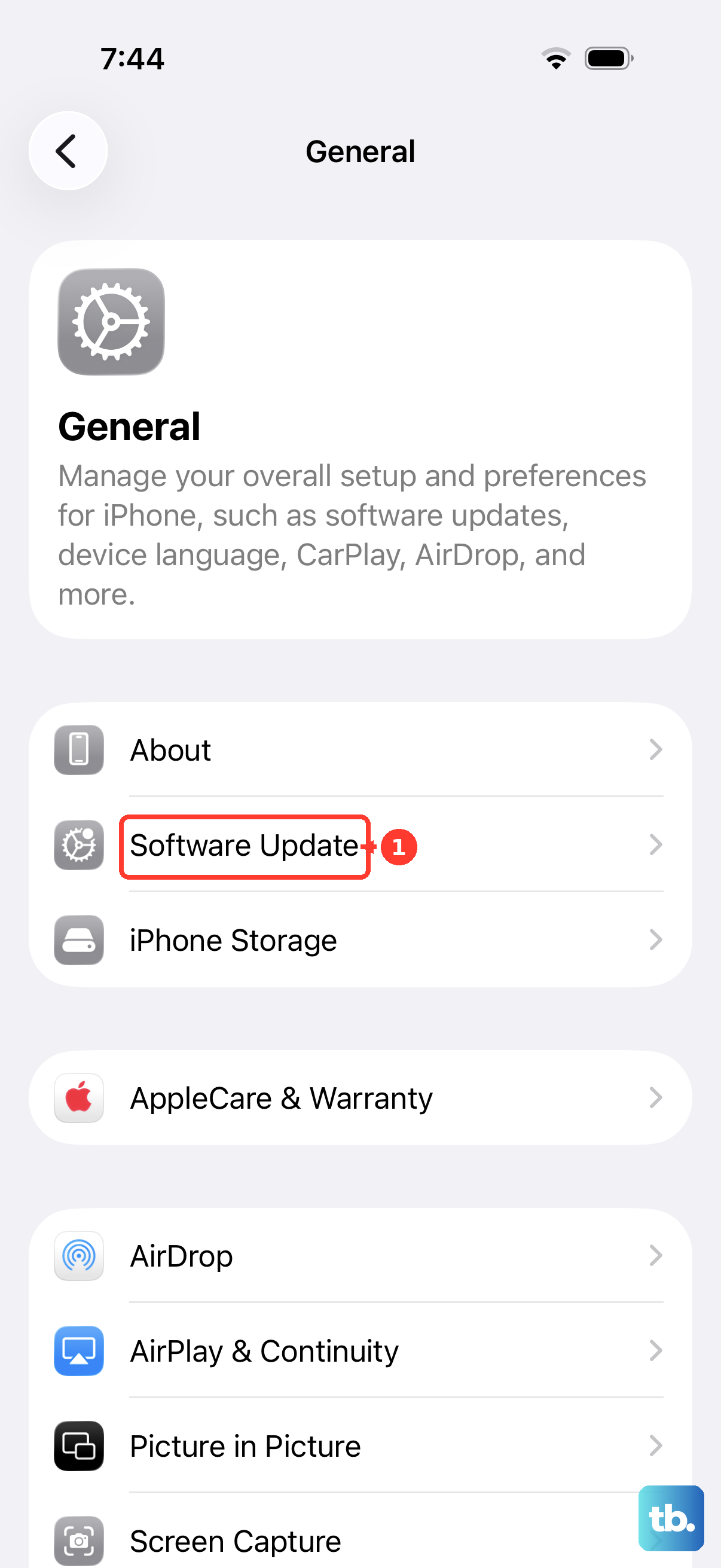
Software updates can include fixes for touchscreen issues. If your screen is partially working, you might be able to navigate using a connected Bluetooth mouse under Settings > Accessibility > Touch > AssistiveTouch to initiate the update.
Test Touch Response Without USB-C Accessories
Disconnect any USB-C accessories from your iPhone 17, including its charging cable, then test the touchscreen again. If touch starts working after you disconnect an accessory, try a different outlet, cable, or charger before using that accessory again.
Check whether the screen responds consistently with the accessories disconnected. If it still isn't working after a restart, cleaning the screen, and removing cases or screen protectors, contact Apple Support to arrange service. A screen that remains unresponsive may need repair.
Close All Apps and Restart Your iPhone
Sometimes, a single misbehaving app can hog system resources and freeze the interface. If you can, swipe up from the bottom of the screen and hold to enter the app switcher. Swipe up on all app previews to close them.
If the interface remains frozen, force restart your iPhone. Quickly press and release the Volume Up button, then quickly press and release the Volume Down button. Press and hold the Side button until the Apple logo appears, then release it. This might take longer than 10 seconds.
Check Accessibility and Guided Access Settings
Accidentally enabled settings can lock the screen. Go to Settings > Accessibility. Look at features like Touch > AssistiveTouch or Voice Control to see if they're on and potentially interfering.
Also, check if Guided Access is active. Quickly press the Side button three times. If it is, you'll be prompted for a passcode. Enter it to turn Guided Access off. This mode locks the phone to a single app and can disable certain parts of the screen.
Reset All Settings
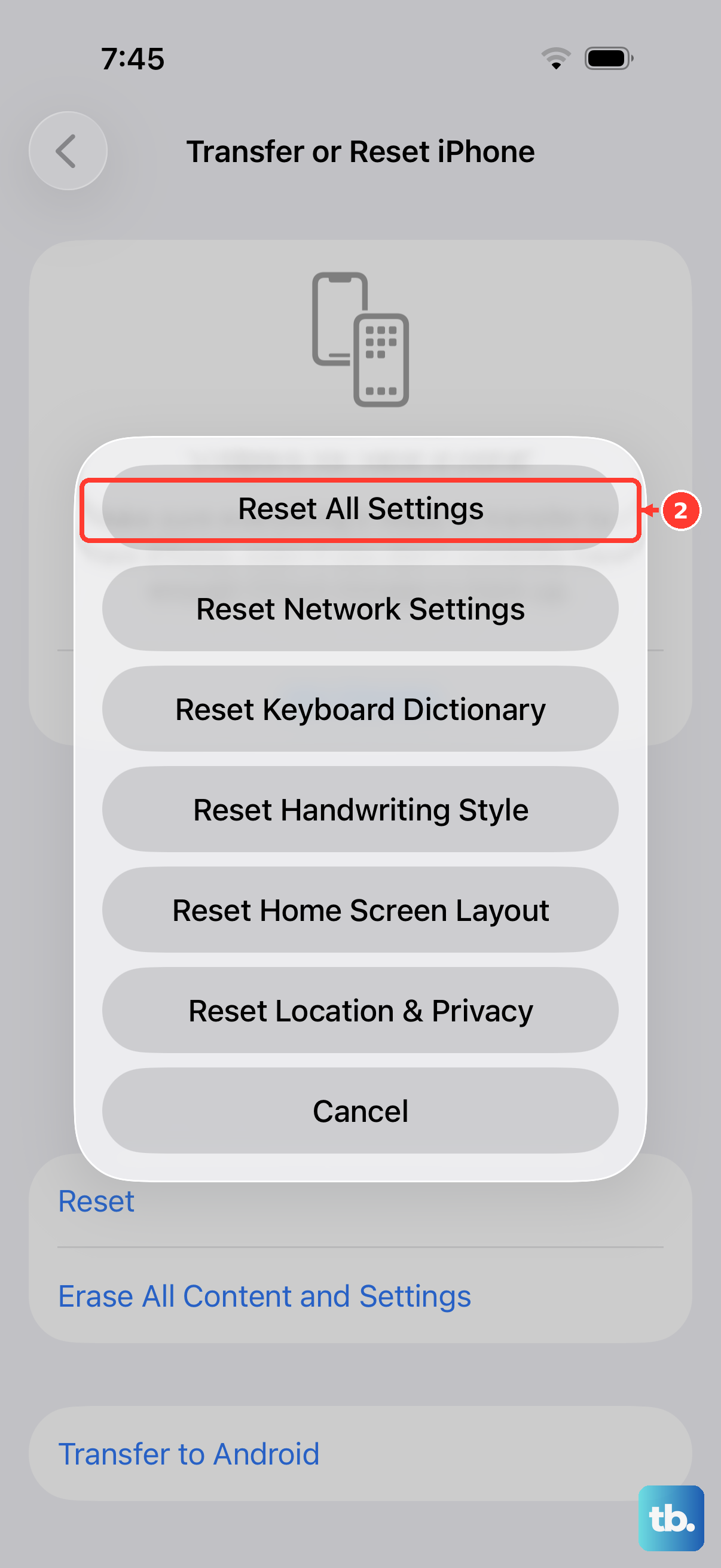
This won't erase your photos, messages, or apps, but it will reset system settings and remove Apple Pay cards and device pairings. Go to Settings > General > Transfer or Reset iPhone > Reset. Then, choose Reset All Settings.
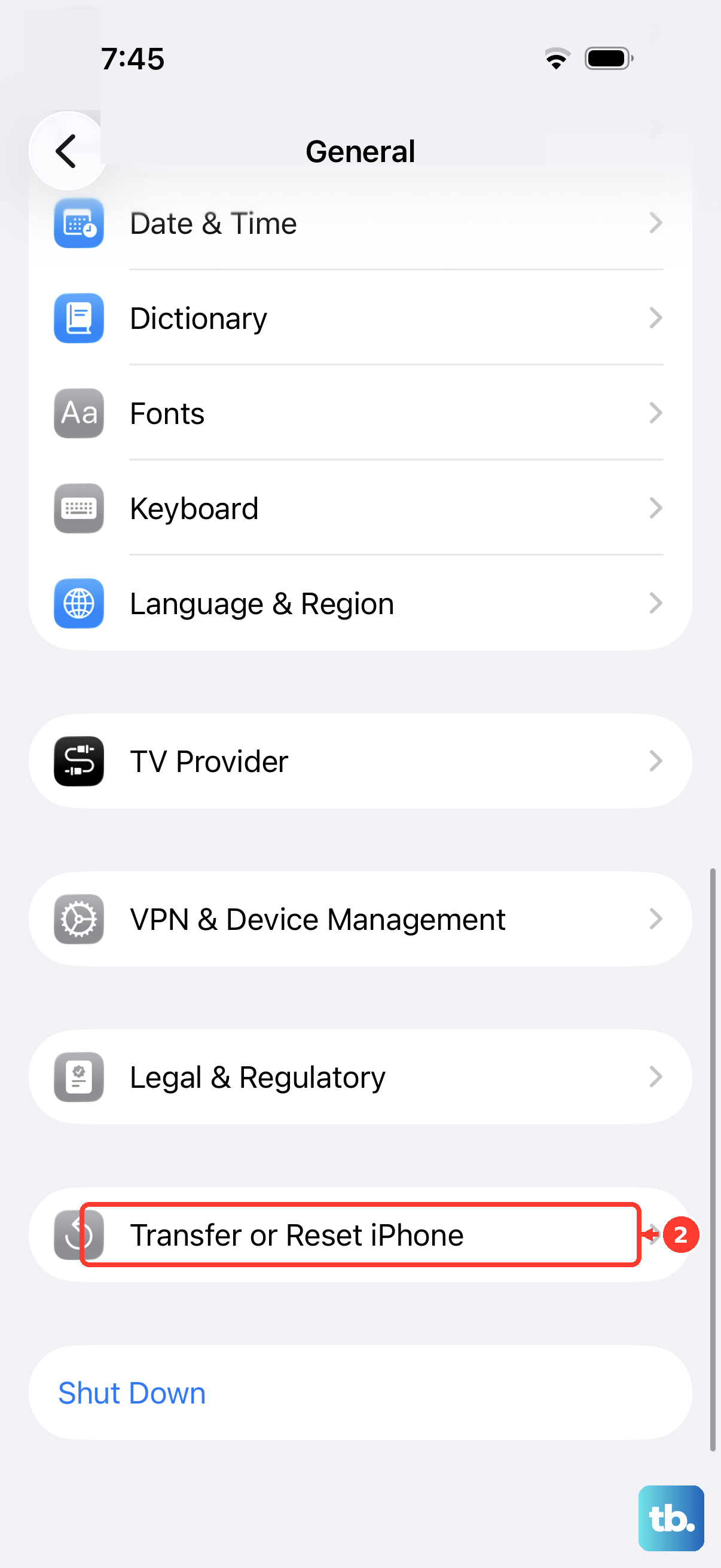
You'll need to re-enter Wi-Fi passwords and reconfigure things like wallpaper and notifications. Resetting settings may help if a changed setting is affecting touch response.
Restore Your iPhone via Computer
This is the most comprehensive software fix. Connect your iPhone 17 to a Mac or PC with a USB-C cable. Open Finder on a Mac with macOS Catalina or later, or the Apple Devices app or iTunes on a Windows PC, then put the phone into Recovery Mode. First, do the force restart steps, but keep holding the Side button even after the Apple logo appears until you see the recovery mode screen.
On the computer, choose to "Restore" your iPhone. This erases your iPhone and reinstalls iOS, so make sure you have a backup before proceeding. You can then restore your data from a recent iCloud or computer backup. Reinstalling iOS may help with persistent software problems.