So your iPhone 17 Pro Max won't charge. You've plugged it in, maybe swapped to a MagSafe puck, and the screen stays stubbornly dark. Start with the cable, power source, and charging port.
Whether you're dealing with a USB-C port that won't cooperate, a MagSafe charger that stopped working, or a phone that shows zero signs of life, work through the checks below. Stop as soon as your iPhone starts charging.
Read more - iPhone Won't Turn On? Here's What to Do
Why Your iPhone 17 Pro Max Isn't Charging
Before jumping into the fixes, it helps to know what you're up against. The table below pairs charging symptoms with possible causes and checks to try.
| Symptom | Possible cause | Check to try |
|---|---|---|
| Nothing happens when plugged in | Dirty USB-C port or damaged cable | Clean the port, swap the cable |
| Cable feels loose or wobbly | Debris or damage in the port | Check the USB-C port for debris or damage |
| "Accessory not supported" warning | Dirty or damaged port, or unsuitable accessory | Connect directly to the charger and try another cable or charger |
| "Liquid detected" alert | Moisture in the connector | Unplug the cable and let the connector dry |
| Stops at 80 percent overnight | Optimized Battery Charging, a charge limit, or heat | Check Battery settings and temperature |
| Charging slows or pauses | Phone is too hot or too cold | Move it to a place with a moderate temperature |
| Dead battery, no response | Battery is deeply discharged | Charge for half an hour, force restart, then charge for another half hour |
| Nothing works after every step | Device may need service | Contact Apple Support |
Force Restart Your iPhone 17 Pro Max
If the phone won't power on, connect it to a working charger and let it charge for half an hour first. If it still won't turn on or only shows a battery icon, try a force restart.
Press and quickly release the Volume Up button, then press and quickly release the Volume Down button. Finally, press and hold the Side button until you see the Apple logo appear on the screen, then let go.
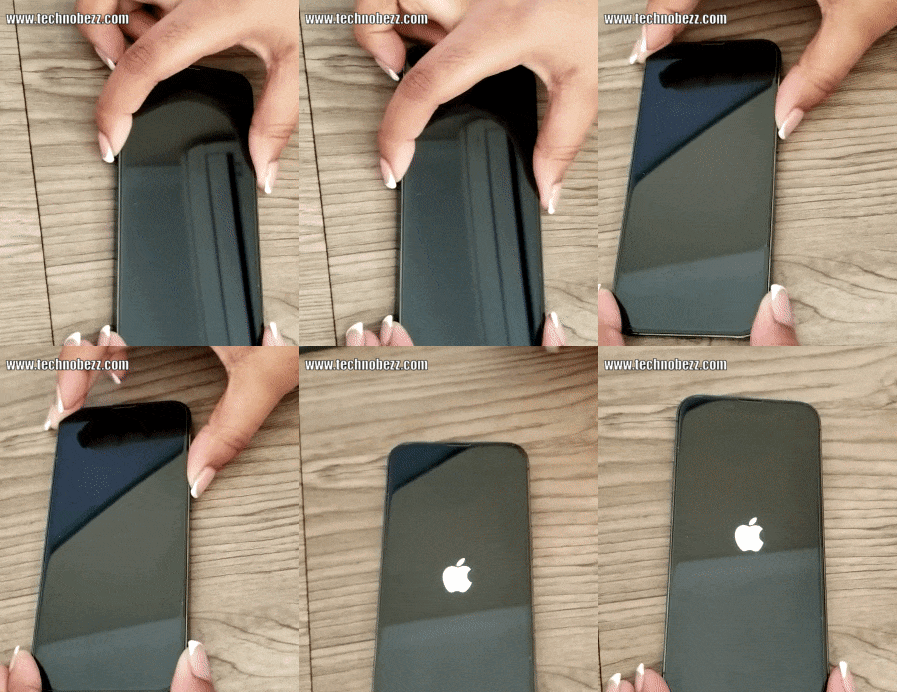
After the force restart, leave it connected to the charger for another half hour and watch for the charging indicator. If it still won't power on or charge, arrange service.
Read more - Why Is My iPhone Overheating and How to Fix It
Clean the USB-C Charging Port
Lint and dust can collect in the USB-C port when the phone sits in a pocket. If debris builds up, the cable may no longer make a solid connection.
Grab a flashlight and look inside. If you see debris, power the phone off first, then gently remove loose lint with a soft, dry brush. Avoid scraping the contacts with tools, and don't use compressed air. Keep moisture out of the opening, then firmly reconnect the charging cable.
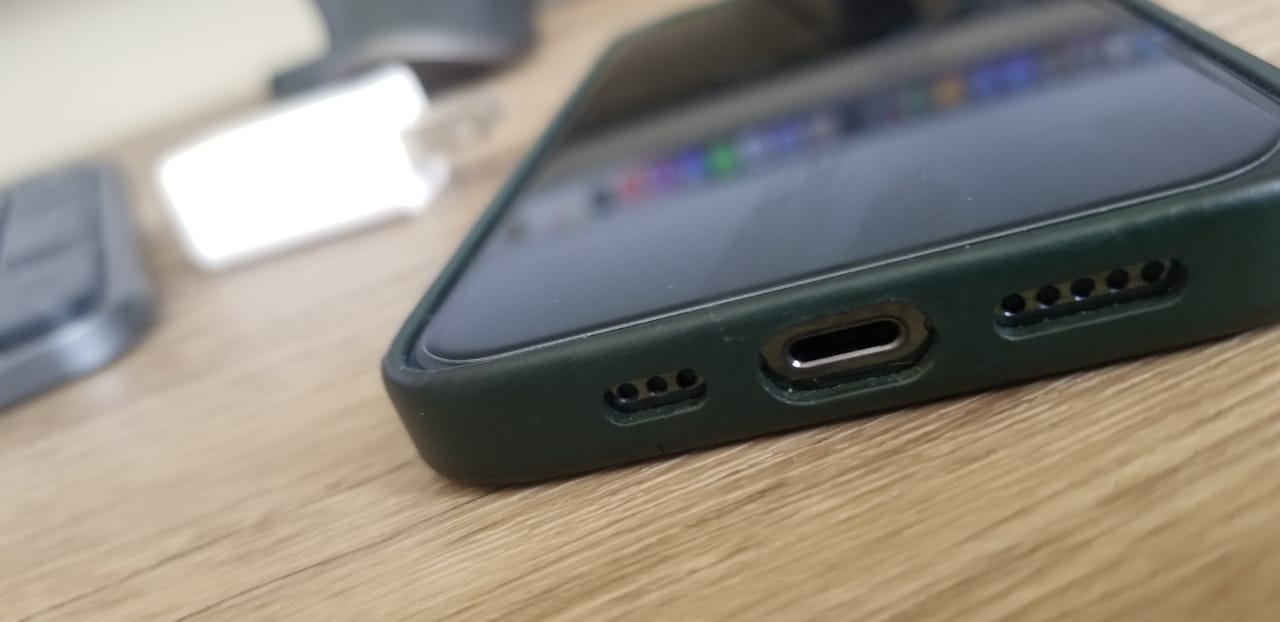
If the port looks damaged or the cable still feels loose after a thorough cleaning, have a technician take a look. A bent or corroded connector usually needs professional repair rather than another round of cleaning.
Swap the Cable, Adapter, and Outlet
To isolate whether the fault is the cable, the adapter, or the outlet, change one variable at a time. Start with a different charging cable that complies with the USB-C standard. Don't use accessories with damaged cables or bent prongs.
Next, test a different wall adapter, or plug into a computer's USB-C port. Then try a completely different wall outlet. Remove your case too, especially thick or magnetic ones that can hold the connector slightly out of alignment. If the iPhone charges with any of these swaps, you've found your culprit.
For the fastest wired top-up, the iPhone 17 Pro Max can reach up to 50 percent charge in 20 minutes with a 40W adapter or higher and a USB-C charging cable. A wired charger providing 7.5W or less can take longer to charge it.
Use a Certified Cable to Clear Accessory Warnings
If you see an "Accessory Not Supported" or similar message, the charging port may be dirty or damaged, or the cable or charger may be unsuitable or damaged. Connect the phone directly to the charger without adapters or other equipment in between.
Try a different USB-C charging cable or compatible charger. Check the port for debris, restart the phone, and make sure it has the latest version of iOS. Stop using any damaged cable, even if it once worked fine.
Dry the Port If You See a Liquid Alert
The iPhone 17 Pro Max blocks wired charging if it detects moisture in the USB-C connector, showing a "Liquid Detected" warning to protect the pins from corrosion. Forcing a charge through a wet port can cause permanent damage.
Unplug the cable from both ends and tap the phone gently against your hand with the connector facing down to clear excess liquid. Leave it in a dry spot with some airflow for at least 30 minutes, then try again. You can keep using wireless charging in the meantime, and an emergency override appears if you truly must charge wired right away.
Check Your Battery Charging Settings
The iPhone 17 Pro Max has Optimized Battery Charging, which can delay charging past 80 percent until you need to use the phone, to extend battery lifespan. If the phone sits at 80 percent overnight, this feature, a charge limit, or a warm battery may be the cause.
To check, go to Settings > Battery > Charging. You can set the charge limit from 80 to 100 percent in 5 percent steps. Optimized Battery Charging is available only when the limit is 100 percent. You can turn it off in this menu, though it's worth keeping on for long-term battery health.
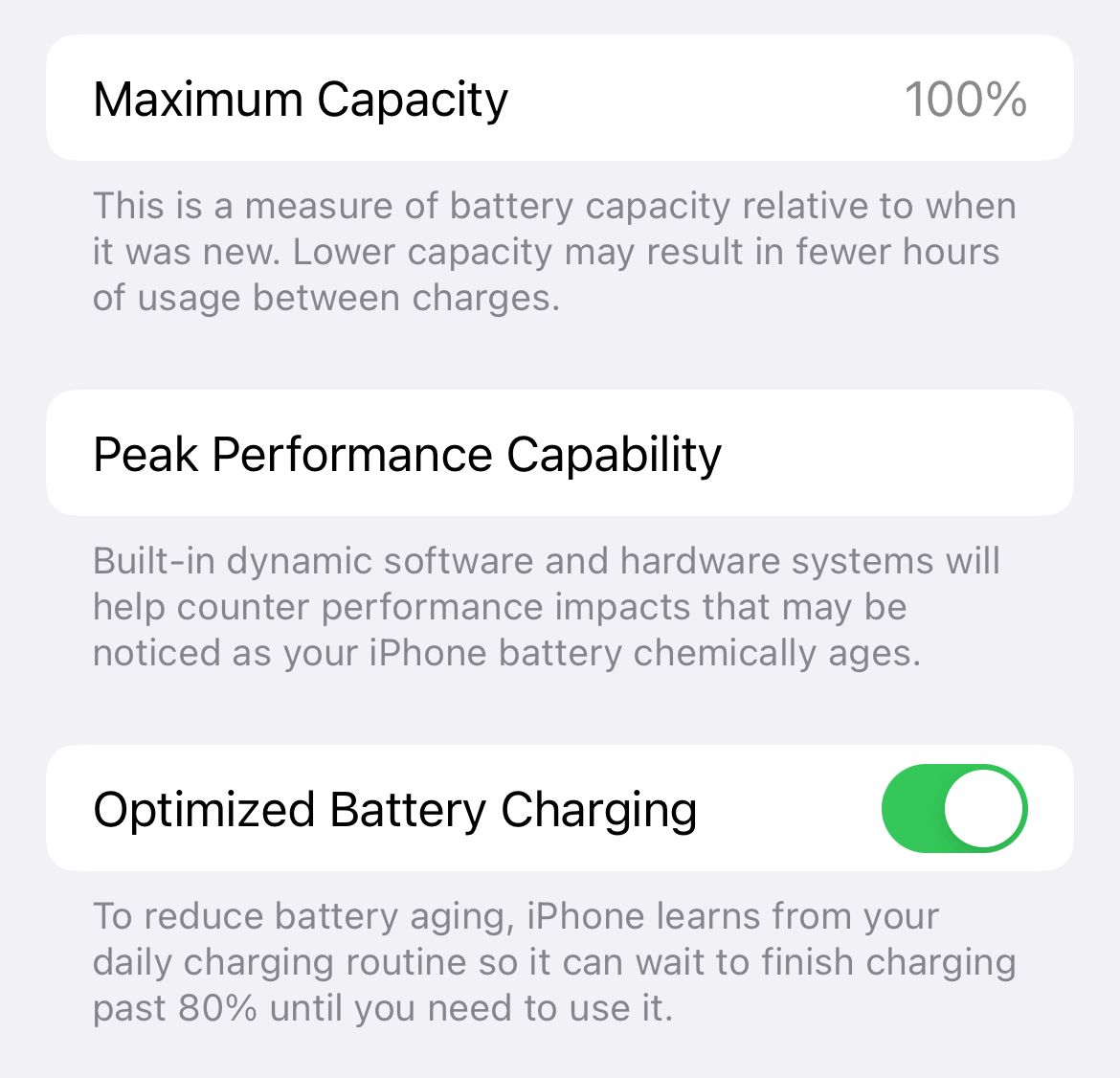
If an 80 percent charge gets you through your day and you rarely run low, leaving the limit in place can reduce battery wear. Raise the limit if you need more charge before unplugging.
Wait If the Battery Is Completely Dead
If the battery is deeply discharged, the phone may not react the instant you plug it in. Connect it to a wall charger, check that the cable and adapter are firmly connected, and leave it charging for half an hour.
If it still won't power on or only displays a battery icon after half an hour, force restart it while connected. Let it charge for another half hour. If it still won't power on or charge, arrange service.
Try MagSafe or Qi2 Wireless Charging
If wired charging fails, wireless charging helps you pinpoint whether the issue is the USB-C port or something deeper. The iPhone 17 Pro Max supports MagSafe and Qi2 wireless charging up to 25W.
Center the phone on the charger, using magnetic alignment if available. Remove thick cases or anything with metal plates that can block the charging coil. For up to 25W charging, use a MagSafe or Qi2-certified charger that supports 25W with a 30W power adapter or higher; lower-powered wireless chargers can charge more slowly.
If the phone gets too warm it may slow or pause, which is the temperature protection working as designed. If wireless charging works but wired doesn't, check the USB-C port, cable, and adapter.
Let the Phone Cool Down
Heat can slow or stop charging. The iPhone 17 Pro Max can limit or pause charging when it gets too hot, such as during heavy gaming or when the phone sits in direct sun or a hot car. Charging can also pause if the phone is too cold.
If it's too hot, move it somewhere cooler and out of direct sunlight, and remove the case so heat can escape. If it's too cold, move it somewhere warmer. Lock the screen while you wait; charging resumes when the battery returns to its normal temperature range.
Update to the Latest iOS Version
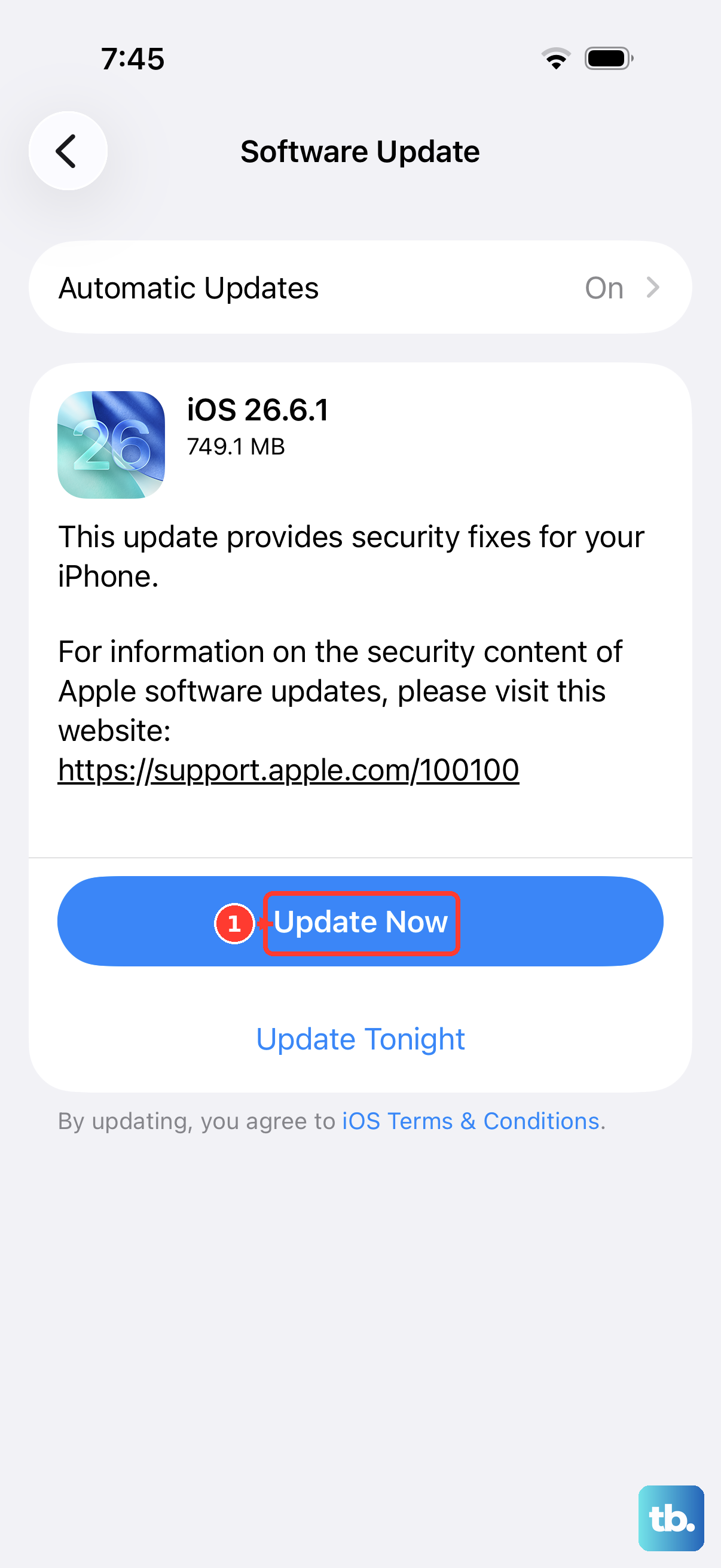
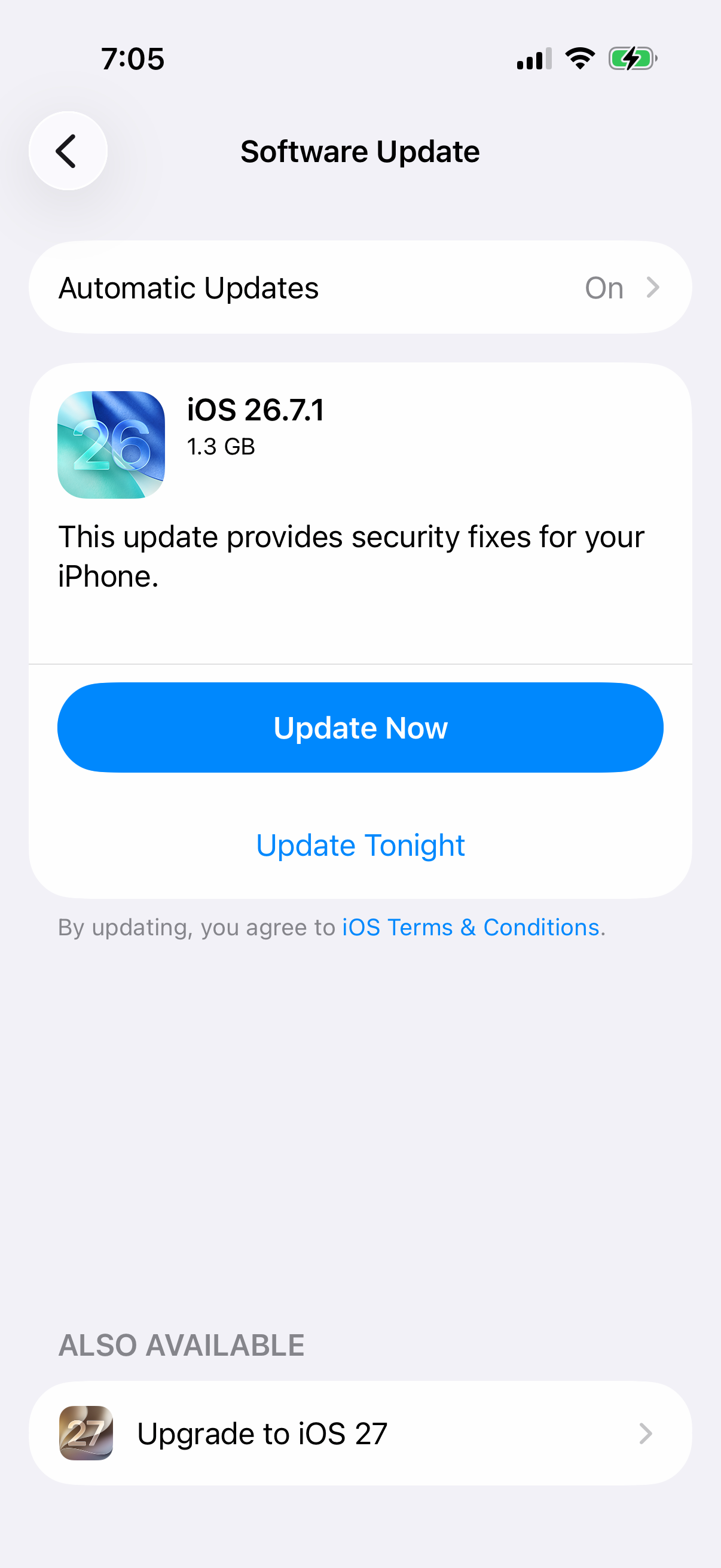
Make sure you have the latest version of iOS, especially if a charging accessory warning appears. Back up the phone first, then connect to power and Wi-Fi. Go to Settings > General > Software Update and install any available update.
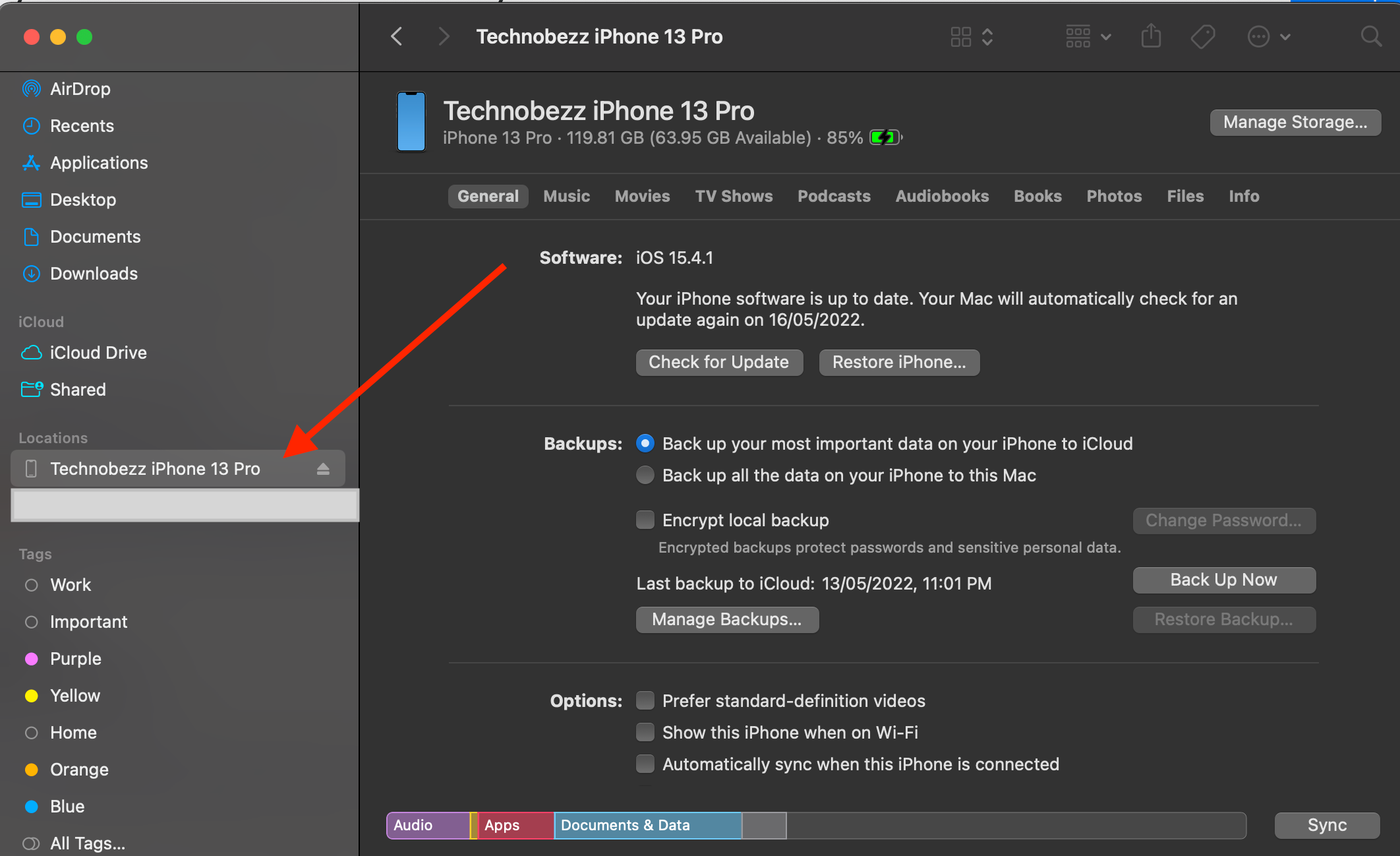
If the phone powers on but the update won't install wirelessly, try a computer. On a Mac with macOS Catalina or later, open Finder; on Windows, open the Apple Devices app or iTunes. Connect and select the device, then choose Check for Update.
Charge with the Phone Idle
Heavy app use can reduce charging speed. While the iPhone 17 Pro Max is charging, pause graphics-intensive games, camera use, and high-quality video streaming, especially with the display at full brightness. Leave the phone idle while you check whether charging improves.
For faster wireless charging, disconnect wired accessories such as USB-C headphones. Connected accessories limit wireless charging to 7.5W, so removing them can help the phone charge faster.
Restore Your iPhone in Recovery Mode
If charging checks fail, the phone may need service. If it connects to a computer and you choose to troubleshoot iOS with recovery mode, try Update before Restore. Back up your data first if possible, because a restore erases the phone.
Connect the iPhone to your computer with a USB-C cable. Press and quickly release Volume Up, press and quickly release Volume Down, then press and hold the Side button. Keep holding past the Apple logo until the "Connect to computer" screen appears, then choose Update or Restore in Finder or the Apple Devices app.
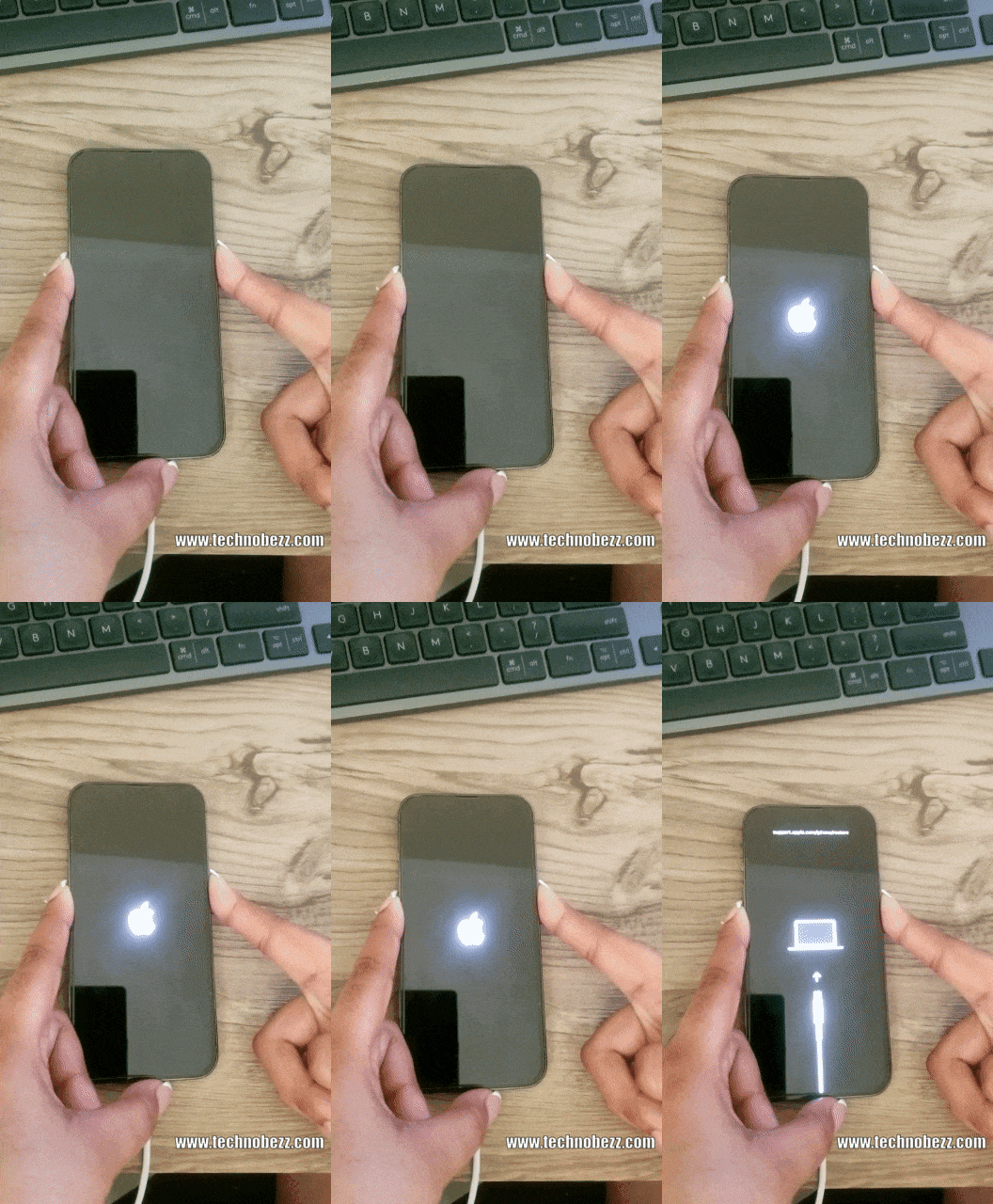
Update tries to reinstall iOS without erasing your data, so try that first; choose Restore only if Update doesn't resolve it. If the phone still won't charge, arrange service.
Contact Apple Support or Visit a Genius Bar
When the phone refuses to charge wired and wireless after every step, the connector, the charging coil, or the battery itself may have failed. At that point it's a job for Apple.
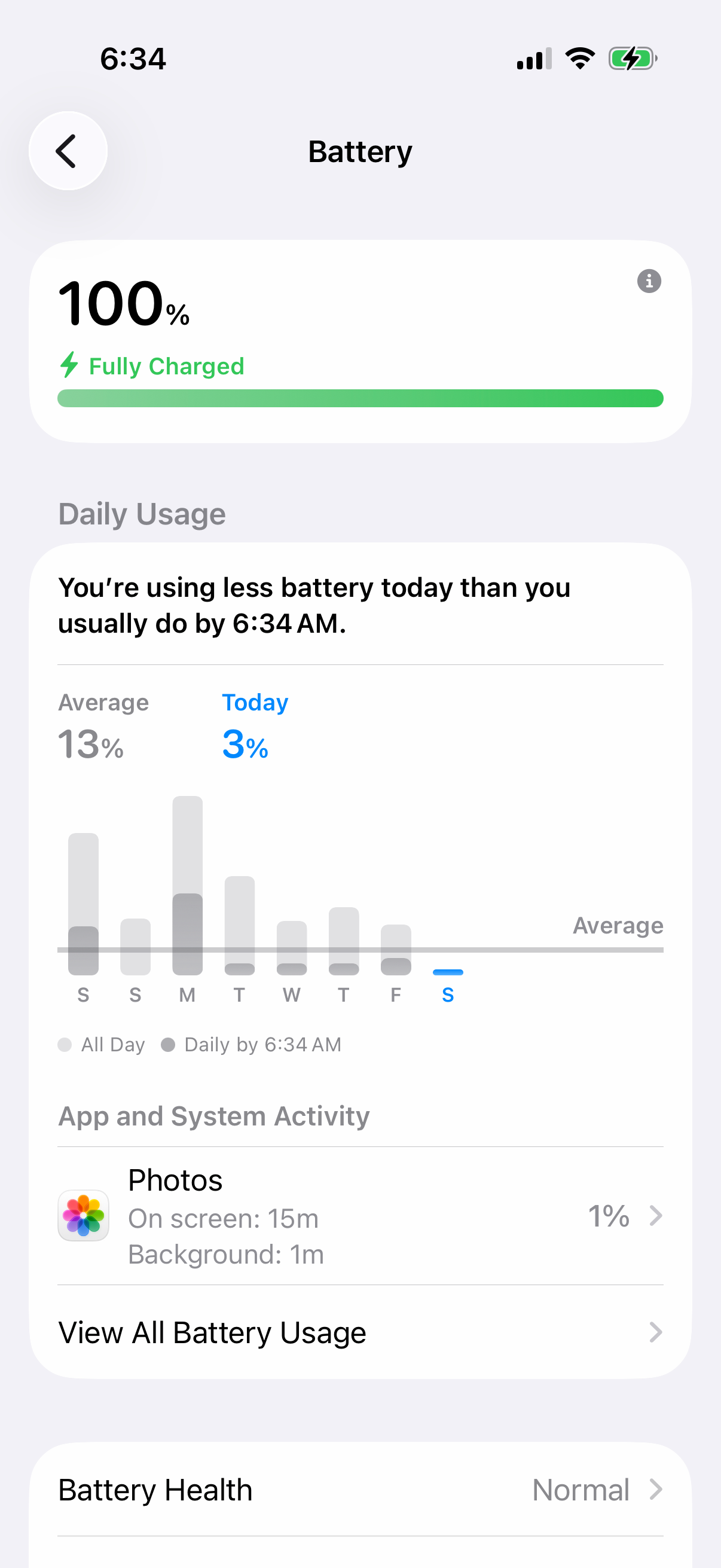
Book a Genius Bar appointment or start a service request through the Apple Support app to discuss repair options and coverage. Check coverage under Settings > General > AppleCare & Warranty, then tap your device. You can check your battery's condition under Settings > Battery > Battery Health.
Frequently Asked Questions
Why does my iPhone 17 Pro Max say it's plugged in but not charging?
Possible causes include debris or damage in the USB-C port, a damaged cable or unsuitable charger, or the phone being too hot or cold. Check the port, try another compliant USB-C cable and compatible adapter, and let the phone return to a moderate temperature before trying again.
How can I tell if it's the cable or the phone?
Swap one piece at a time. Try a different cable, then a different adapter, then a different outlet. If a different setup charges fine, the original accessory was the problem. If wireless charging works but wired never does, check the USB-C port, cable, and adapter.
How do I safely clean the USB-C port?
Power the phone off, then gently remove loose lint with a soft, dry brush. Avoid scraping the contacts with tools, and don't use compressed air. Keep moisture out of the opening. If debris remains or the port looks damaged, have a technician inspect it.
Why does my iPhone stop charging at 80 percent overnight?
Optimized Battery Charging may delay charging past 80 percent until you need the phone. A charge limit or a warm battery can also stop charging at 80 percent. Check Settings > Battery > Charging; Optimized Battery Charging is available only when the limit is 100 percent.
What charger does the iPhone 17 Pro Max need for fast charging?
For the fastest wired charging, use a 40W adapter or higher and a USB-C charging cable for up to 50 percent charge in 20 minutes. For up to 25W MagSafe or Qi2 charging, use a charger that supports 25W and a 30W or higher adapter.
When should I replace the battery?
Check maximum capacity under Settings > Battery > Battery Health. If you're seeing short runtime, unexpected shutdowns, or a Service message, arrange a battery assessment to find out whether replacement is needed.