
When your iPhone 17 doesn't appear on your Windows PC or Mac, it stops you from transferring photos, syncing music, or doing a local backup. It's a common hiccup, and checking the cable, trust settings, and software can help you fix it.
The quickest fix is often just the cable. Grab a different USB-C cable that supports both data and charging and try a different port on your computer. If that doesn't work, a force restart of your iPhone 17 can clear out a temporary software glitch. Press and quickly release the Volume Up button, then quickly press and release the Volume Down button. Finally, press and hold the Side button until you see the Apple logo appear.
Check the Cable and Port
Start with the physical connection. The USB-C port on your iPhone 17, while robust, can collect pocket lint over time. Shine a light into the port and look for any debris. You can gently use a dry, soft-bristled brush to clear it out. Avoid using anything metal.
Next, check the cable itself. Not all USB-C cables are created equal, especially for data transfer. Some cheaper cables only handle power. Try the cable that came with your iPhone 17 or another USB-C cable that supports both data and charging to rule this out. Try plugging it into a different USB port on your computer, preferably one directly on the motherboard rather than a hub.
Trust This Computer on Your iPhone
This is a classic iOS step that's easy to miss. When you connect your iPhone 17 to a computer for the first time, you need to explicitly grant permission. Unlock your iPhone and look for a prompt that says "Trust This Computer?" Tap Trust and enter your passcode if asked.
If the prompt doesn't appear, try disconnecting and reconnecting the cable while your phone is unlocked. Select your iPhone in the Finder or Apple Devices app and click Trust, or click Continue in iTunes. Then tap Trust on your iPhone. On a Mac, click Allow if you see the "Allow accessory to connect?" alert. Without granting trust, the computer cannot access your iPhone's content. If the alert still doesn't appear, reset location and privacy settings as described below.
Update Your Computer Software
Outdated drivers on Windows or an old version of macOS can cause recognition issues. On a Windows PC, you might need Apple's device drivers, which are installed automatically with the Apple Devices app or iTunes from the Microsoft Store.
Go to the Microsoft Store and search for "Apple Devices" to make sure you have the latest version. On a Mac, check for system updates by going to System Settings > General > Software Update. Keeping your computer's OS current can help it communicate with your iPhone 17. On Windows 11, check for updates in Settings > Windows Update. On Windows 10, it's Settings > Update & Security > Windows Update.
Restart Both Your iPhone and Computer
A simple restart remains one of the most effective troubleshooting steps. First, restart your iPhone 17 normally or use the force restart method mentioned earlier.
Then, restart your Windows PC or Mac. After both devices are back up, unlock your iPhone and try connecting it again with your known-good cable. This often resolves transient software conflicts that prevent the device from showing up.
Check for iPhone Software Updates
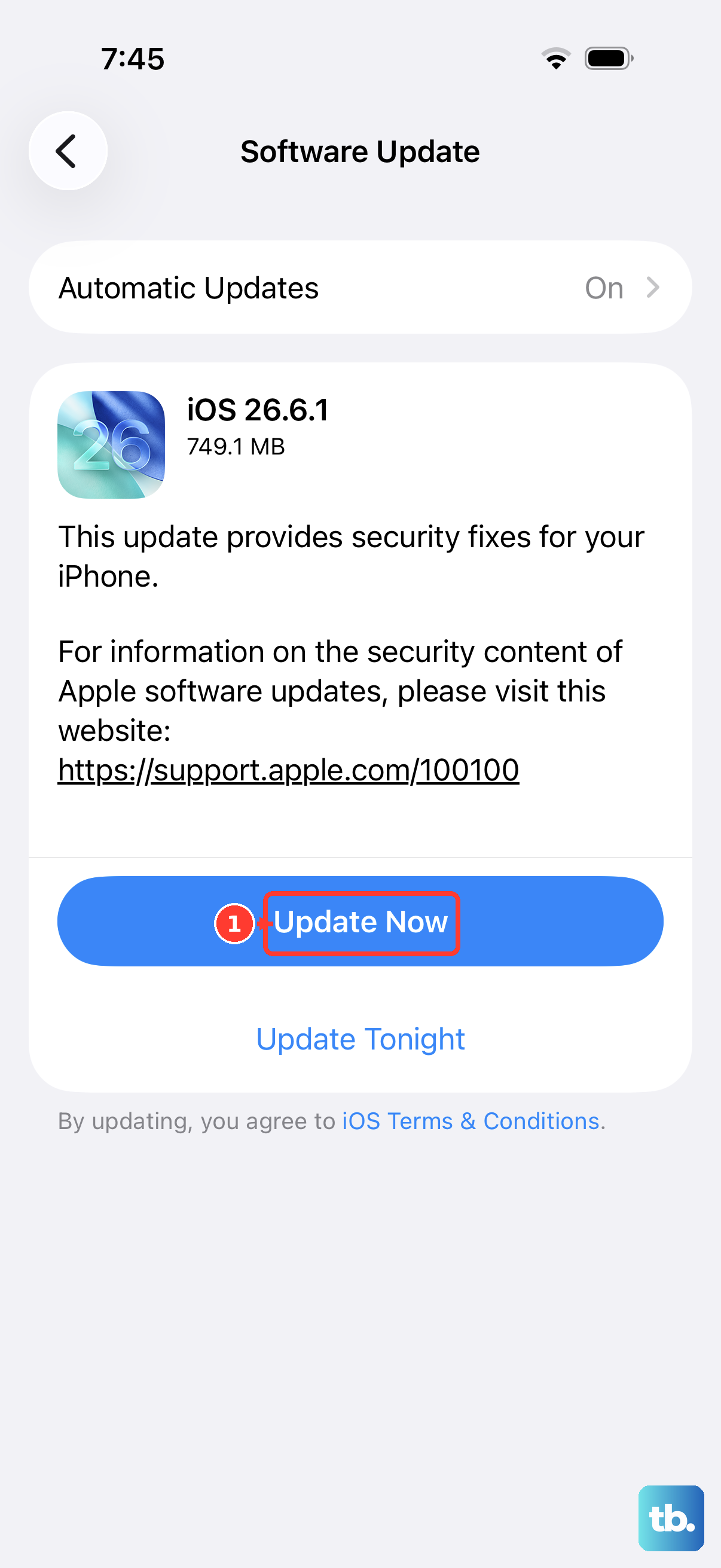
Sometimes, the issue can be on the iPhone's side. A software issue could be interfering with the connection. Go to Settings > General > Software Update on your iPhone 17 to see if any updates are available.
Install any available update to keep iOS current. Back up your iPhone, connect it to power, and use Wi-Fi before starting an update. This is a good step to try if the problem started after a recent iOS update.
Reset Location & Privacy Settings
This resets the "Trust This Computer" relationship for all previously connected computers without erasing your personal data. It's a useful step if the trust prompt doesn't appear or you accidentally tapped Don't Trust. On your iPhone 17, go to Settings > General > Transfer or Reset iPhone.
Tap Reset, then choose Reset Location & Privacy. You'll need to enter your passcode. After the reset, reconnect your iPhone to your computer. You should see the "Trust This Computer" alert again. Tap Trust to re-establish the connection.
Try a Different Computer or User Account
To isolate the problem, try connecting your iPhone 17 to a different computer. If it works on another machine, you know the issue is with your primary computer's software or configuration. If it doesn't work on any computer, the problem is likely with the iPhone, its cable, or its port.
On your own computer, try logging into a different user account (or creating a new temporary one) and see if the iPhone is detected there. This can tell you if the problem is with your specific user profile, which might have corrupted drivers or permissions.
Check Security Software on Windows
Third-party antivirus or firewall suites on Windows can sometimes block the connection between your PC and iPhone. Try temporarily disabling your security software to see if it's the culprit. You can usually do this by right-clicking the software's icon in the system tray.
Remember to re-enable it immediately after testing. If this works, check your security software's help for how to allow Apple Mobile Device Service and the Apple Devices app or iTunes to connect without leaving protection disabled.
Use the Apple Devices App or iTunes
On Windows, ensure you have the necessary Apple software. The modern method is to use the "Apple Devices" app from the Microsoft Store. If the Apple Devices app isn't installed, use iTunes and make sure it's updated to the latest version.
Open the Apple Devices app or iTunes before connecting your iPhone. In the Apple Devices app, look for your iPhone in the sidebar. Unlock your iPhone and tap Trust if prompted so the computer can access your data.
Look in Device Manager on Windows
If your iPhone 17 is still not showing up, check Windows Device Manager. Connect your iPhone, then press the Windows key + X and select Device Manager. Look under "Portable Devices" or "Universal Serial Bus controllers" for any entries with a yellow exclamation mark.
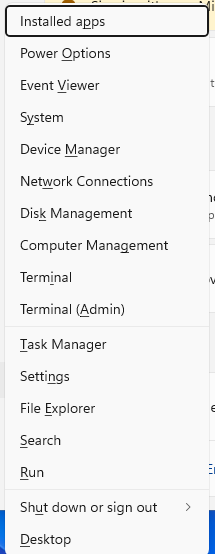
If you see "Apple iPhone" or "Unknown Device" with an error, right-click it and select "Update driver." Choose "Search automatically for drivers." Windows may find and install the correct Apple driver. If that fails, you can right-click the device, select "Uninstall device," then disconnect and reconnect your iPhone to trigger a fresh driver installation.