
When your iPhone 17 microphone stops picking up your voice, it can turn simple tasks into a real headache. You might notice people can't hear you on calls, Siri stops responding, or your voice memos come out silent. The good news is, it's often a quick software or settings issue you can fix yourself.
Start by confirming the basics with a free online mic test. It shows a live level meter and lets you hear a short playback, so you know in seconds whether any signal is coming through.
Let's start by figuring out exactly which microphone is acting up. Your iPhone 17 has several, and testing them individually can point you toward the right fix.
Test Each Microphone on Your iPhone 17
Open the Voice Memos app and start a new recording. First, speak normally with the phone in your hand. Then, hold the phone up to your ear like you're on a call, as this uses a different microphone.
Finally, try recording a video with the rear camera while you talk. If the audio is clear in one test but not another, it helps narrow down if the issue is with a specific mic.
You can also ask Siri a question by holding the Side button. If she doesn't understand you, it confirms there's a general microphone problem.
Check for Physical Blockages and Case Issues
Take a close look at the microphone grilles. On the iPhone 17, you'll find the primary microphone next to the USB-C port, another at the top near the front-facing camera, and others around the camera module.
These tiny openings can easily get clogged with pocket lint or dust. Use a soft, dry brush to gently clean them out. I've seen this solve more microphone problems than you'd think.
Also, remove your case. Some thicker cases, especially rugged ones, can partially cover the microphone holes or muffle sound. Test your microphone without the case to rule this out.
Disconnect Bluetooth and Audio Accessories
If you have AirPods or any other Bluetooth headphones paired, your iPhone might be trying to use their microphone instead. Go to Settings > Bluetooth and tap the info icon (i) next to any connected audio device, then choose "Disconnect."
You can also temporarily turn off Bluetooth from the Control Center to see if your phone's built-in mics spring back to life. This is a very common fix for calls where the other person hears nothing.
Restart and Force Restart Your iPhone 17
A standard restart clears out temporary glitches. Press and hold the Side button and either Volume button, then slide the power off slider. Wait a moment, then press the Side button again to turn it back on.
If the problem is more stubborn, try a force restart. This doesn't erase any data. Quickly press and release the Volume Up button, then quickly press and release the Volume Down button. Finally, press and hold the Side button until you see the Apple logo appear.
Review App Permissions in iOS 26
If the microphone only fails in certain apps like Zoom, WhatsApp, or Instagram, the app might have lost permission. Head to Settings > Privacy & Security > Microphone.
You'll see a list of all apps that have requested microphone access. Make sure the toggle is switched on (green) for the app giving you trouble. Sometimes an iOS update can reset these permissions.
Update to the Latest iOS Version
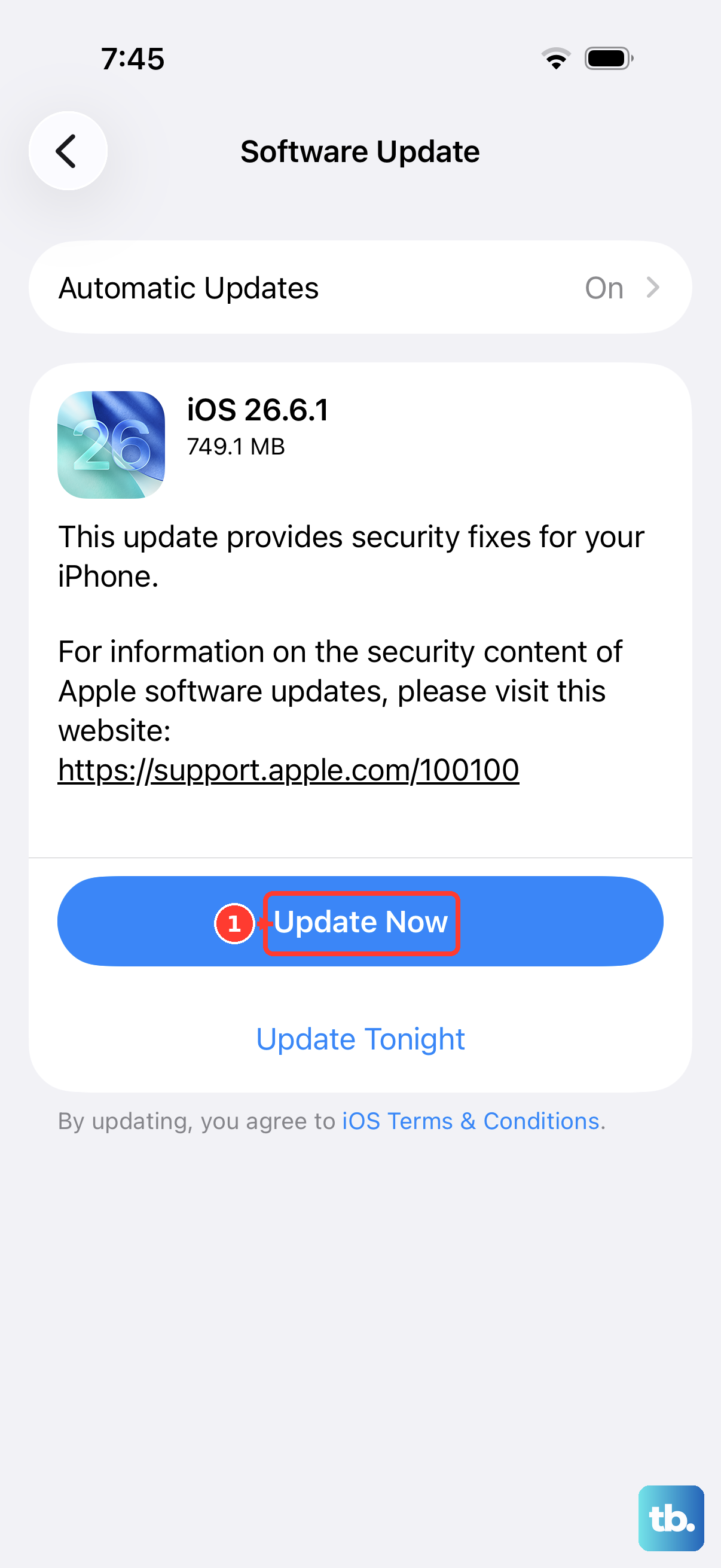
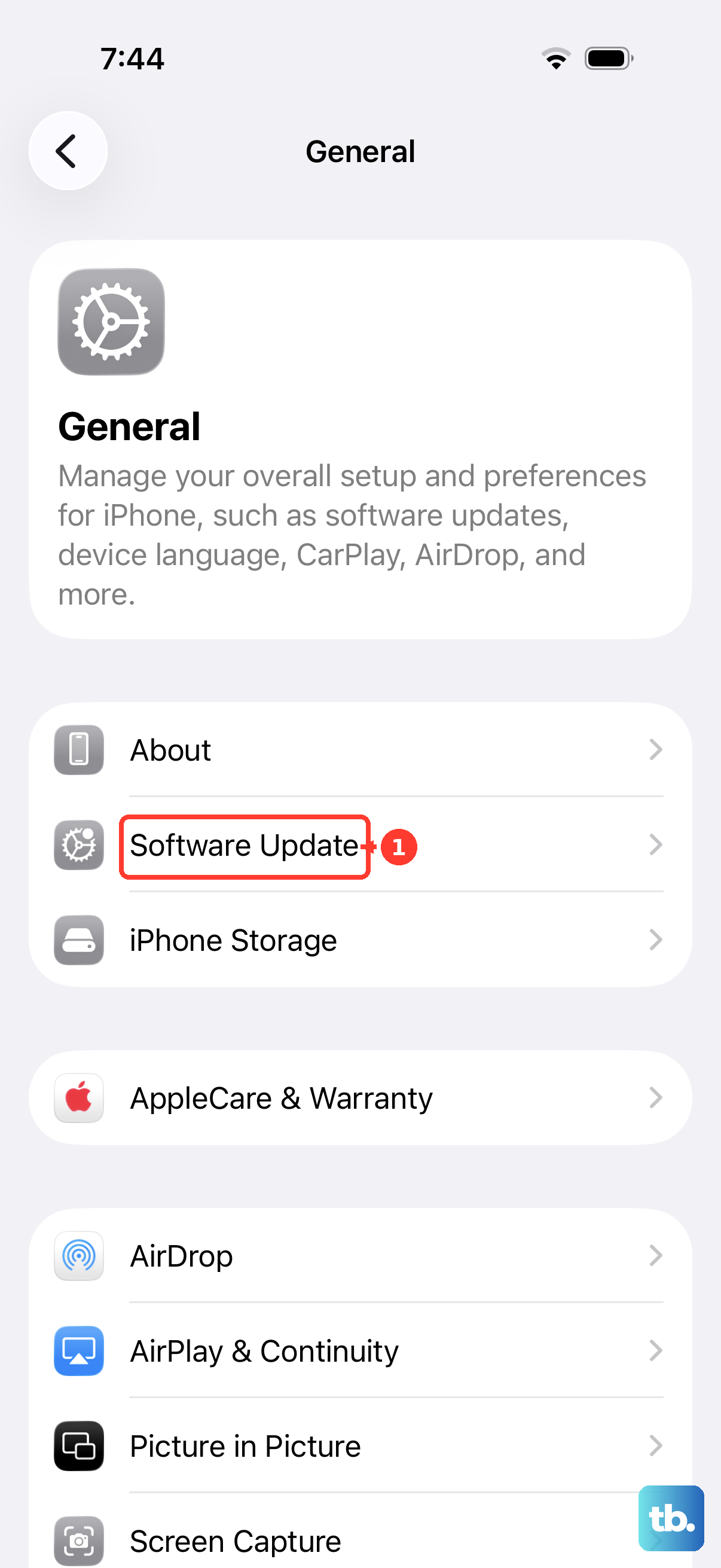
Apple frequently releases updates that patch bugs, including audio and microphone issues. With iOS 26, go to Settings > General > Software Update.
If an update is available, I'd recommend installing it. It's a good practice to plug your phone into power and connect to Wi-Fi first. These updates can include specific fixes for microphone performance.
Check for Call Audio Routing Settings
iOS has settings that control where your call audio goes. During a call, tap the Audio button (it looks like a speaker) on the call screen. Make sure "iPhone" is selected and not a Bluetooth device or speakerphone, unless you intend to use those.
You can also check the general settings. Go to Settings > Accessibility > Touch > Call Audio Routing. Make sure it's set to "Automatic" unless you have a specific reason to change it.
Reset All Settings on Your Device
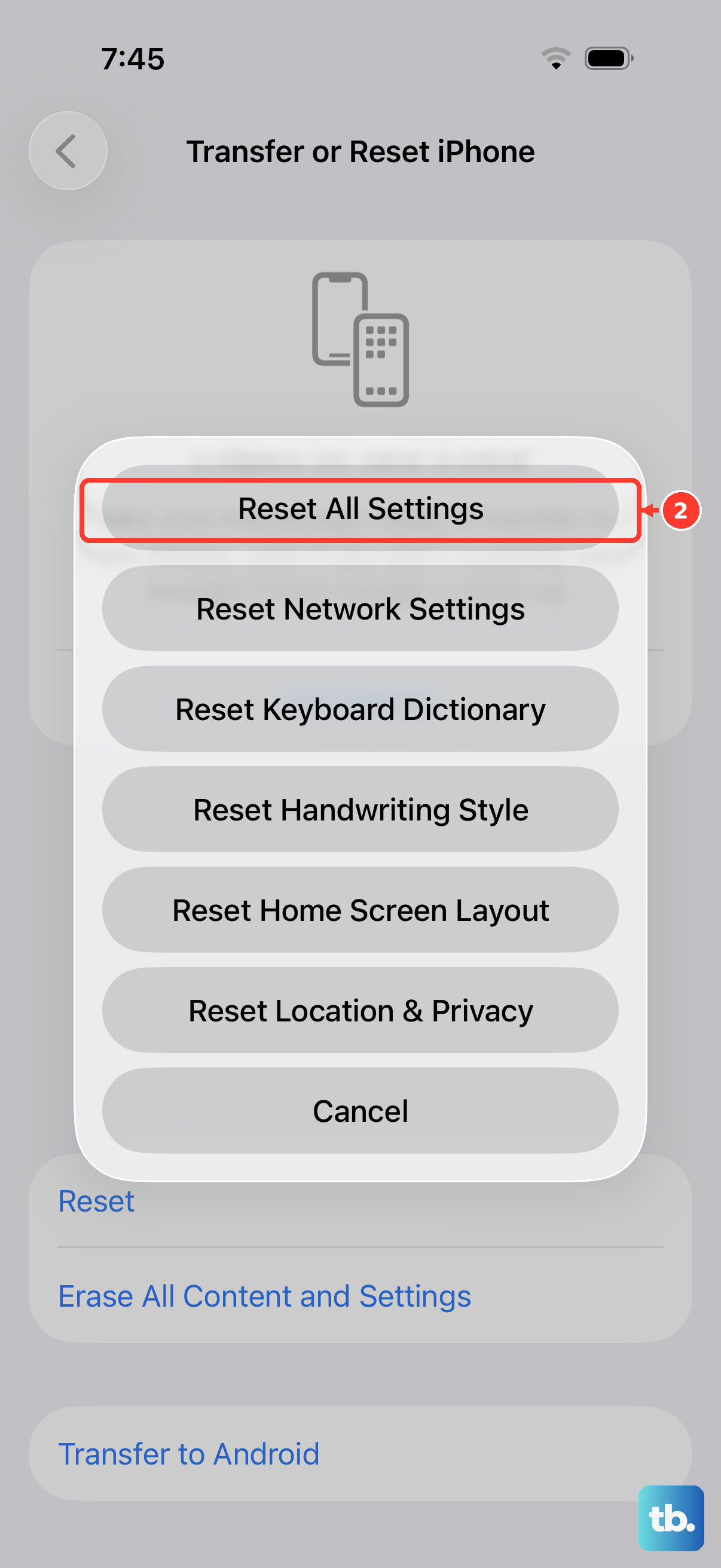
This is a more thorough step that resets all your preferences, like Wi-Fi passwords, wallpaper, and privacy permissions, back to default without deleting your photos, apps, or messages.
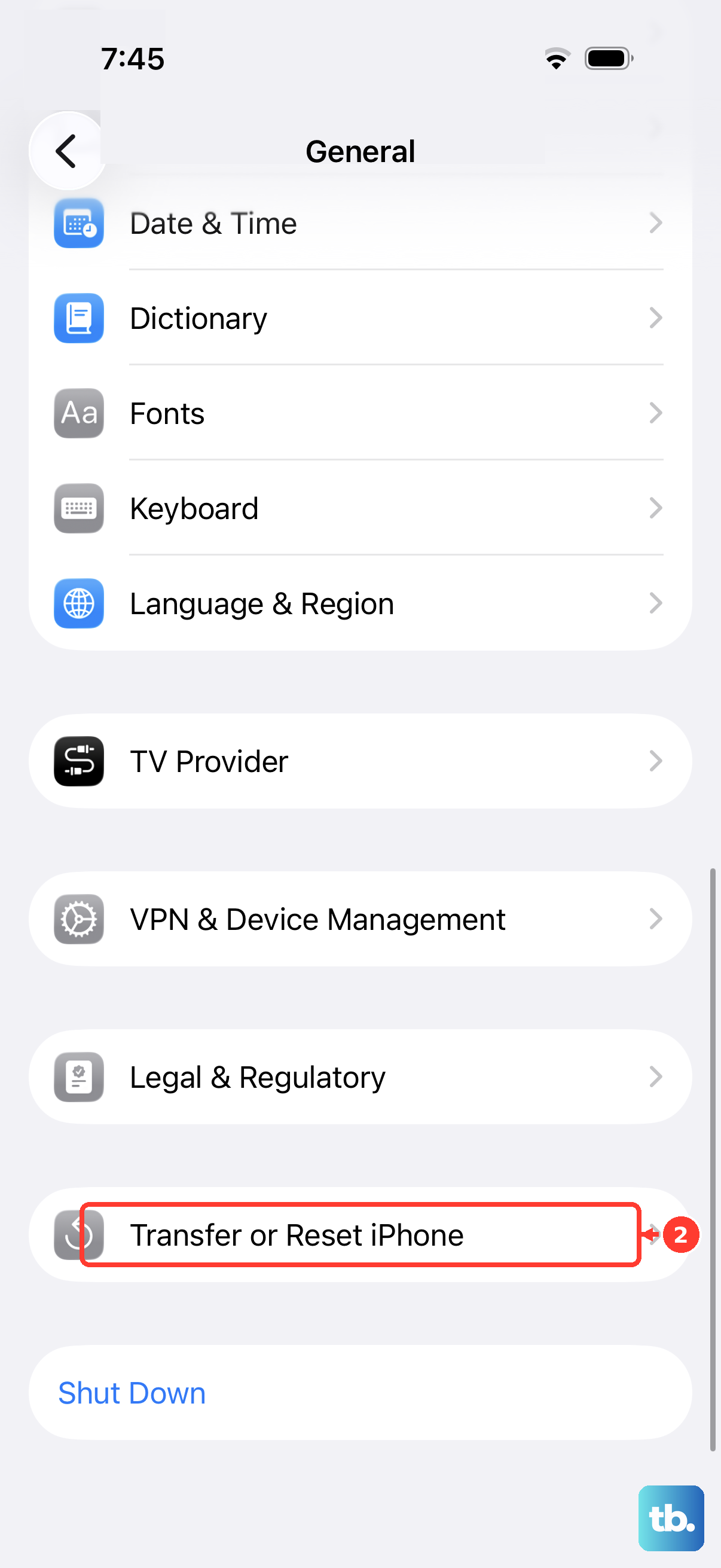
To do this, go to Settings > General > Transfer or Reset iPhone > Reset. Then, tap "Reset All Settings." You'll need to enter your passcode. After the phone reboots, test your microphone immediately.
Restore Your iPhone 17 Using a Computer
If software is deeply corrupted, a restore via a computer can help. First, make a complete backup using iCloud or Finder on a Mac (or iTunes on a PC).
Then, connect your iPhone 17 to the computer with a USB-C cable. In Finder or iTunes, select your device and choose the option to "Restore iPhone." This will install a clean, fresh copy of iOS 26.
After the restore is complete, you can set up the phone as new to test the microphone, or restore from your backup. Setting up as new is the best way to isolate a software problem.