
Nothing kills the vibe of a new iPhone Air faster than that dreaded "Storage Full" notification. You're trying to shoot a 48MP photo or download the latest iOS 26 update and your phone just says no. The fix is usually simpler than you think. Let's walk through what actually works.
See What's Taking Up Space
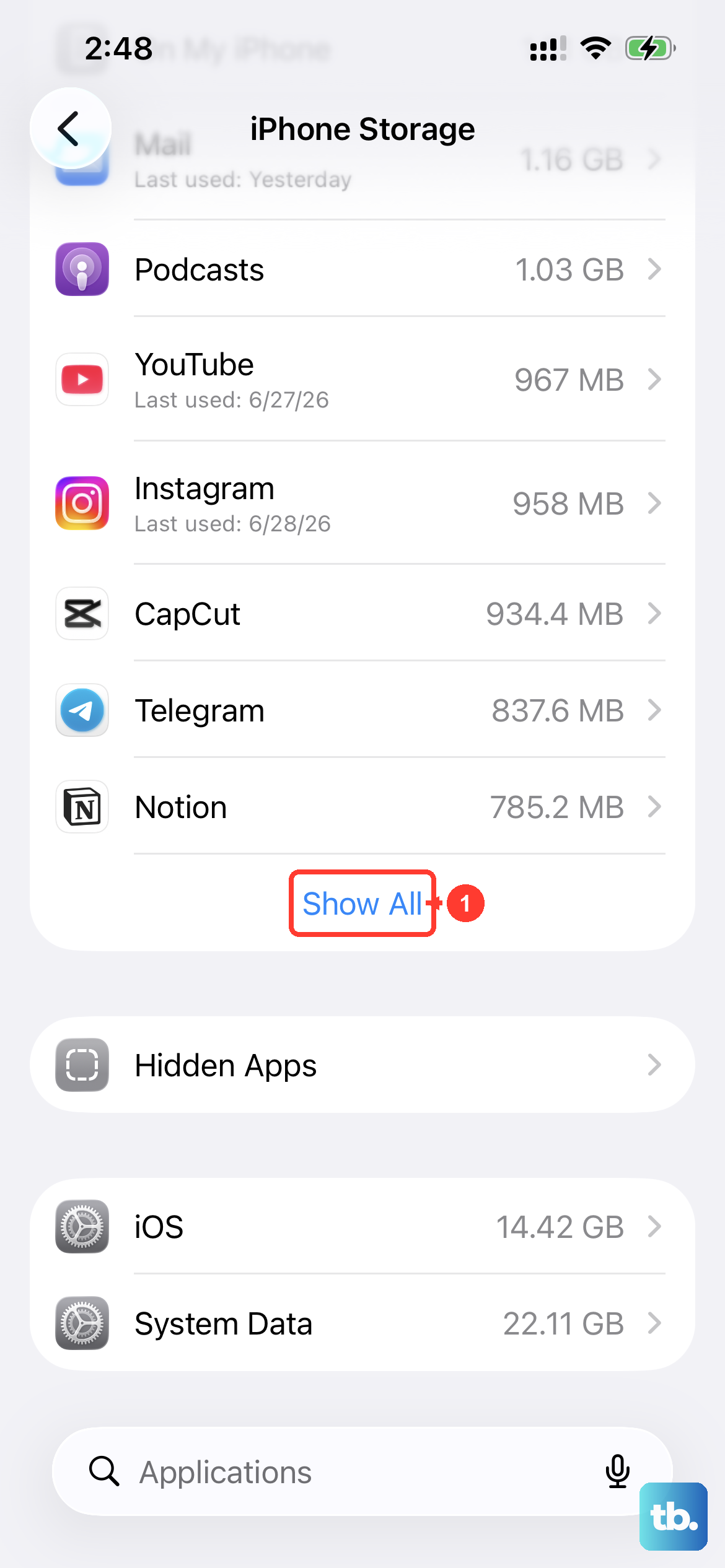
Head to Settings > General > iPhone Storage. Give it a few seconds to load and you'll see a color-coded bar showing exactly what's chewing through your storage. Photos and Messages are almost always at the top of the list. The screen even shows recommendations tailored to your phone, like offloading unused apps or reviewing large attachments.
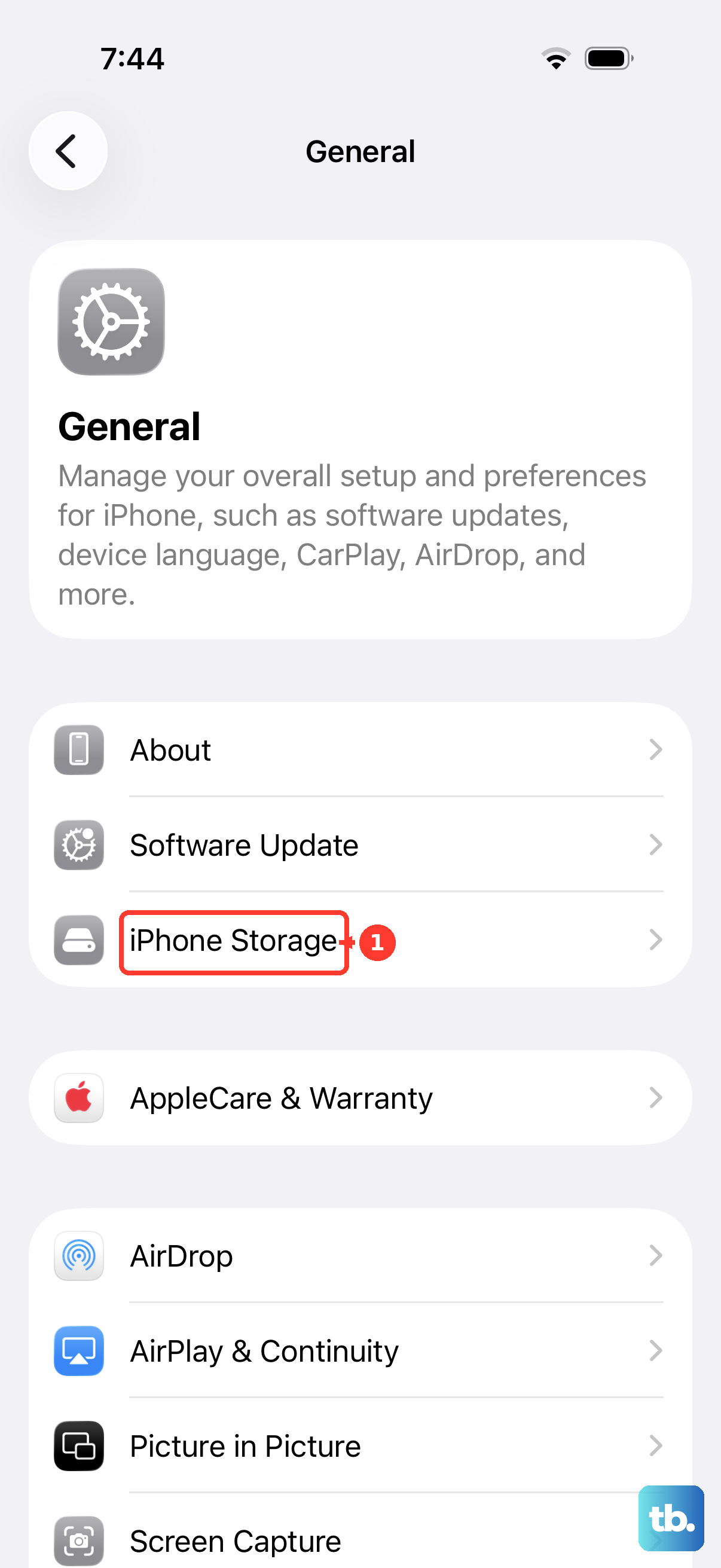
Turn On Optimized Photo Storage
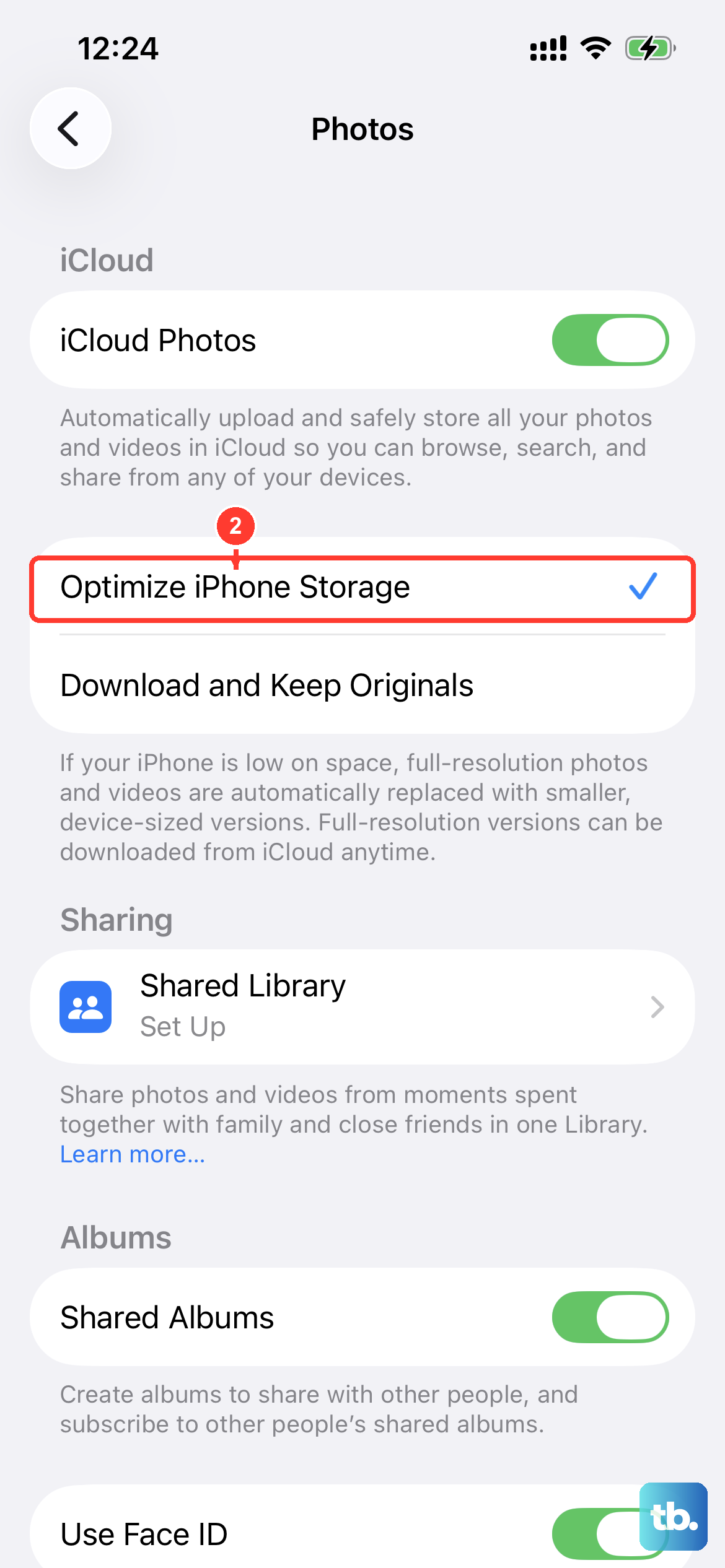
For most people, photos and videos are the biggest culprit. The iPhone Air's camera can shoot high-resolution media that fills up space fast. Go to Settings > Apps > Photos and toggle on Optimize iPhone Storage. This keeps smaller, device-sized versions on your phone while the full-resolution originals live in iCloud. You can still view everything, and originals download when you need them.
You can also manually clean out screenshots, duplicate selfies, and old videos in the Photos app. Just don't forget to empty the Recently Deleted album afterward, or that space stays locked up.
Clear Out Old Messages
Messages quietly hoard gigabytes of photos, videos, and GIFs you probably forgot about. Go to Settings > General > iPhone Storage > Messages. You'll see separate categories for Photos, Videos, GIFs, and Stickers, each with its own size. Tap into each and delete what you don't need.
To keep messages from piling up again, set them to auto-delete after a year or 30 days: Settings > Apps > Messages > Keep Messages > 30 Days. That's an easy way to put storage on autopilot.
Offload Apps You Don't Use
Still on the iPhone Storage screen, look for the Offload Unused Apps option. Turn it on and your phone will automatically remove apps you haven't opened in a while, while keeping their documents and data. Tap the app icon later and it re-downloads instantly with everything intact.
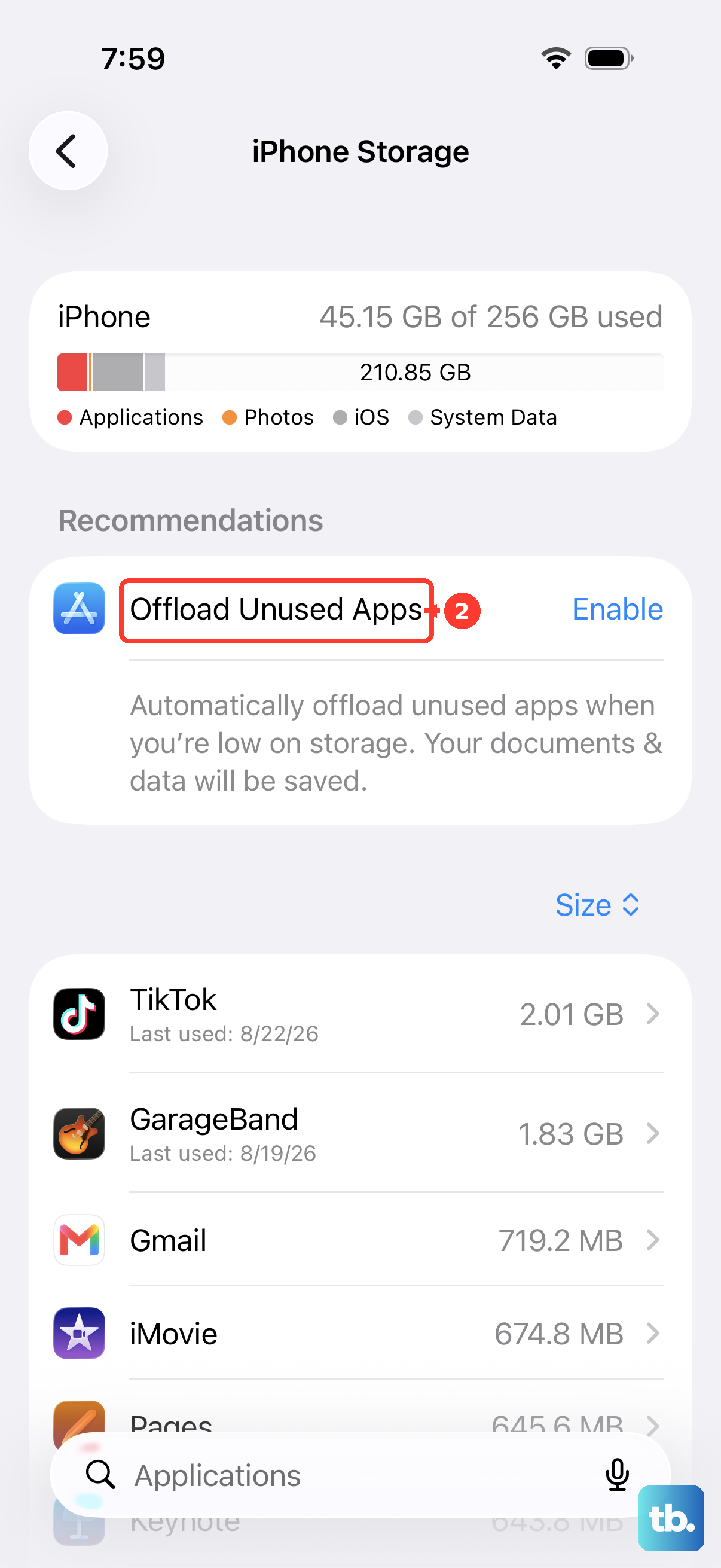
You can also do this manually. Tap any app in the storage list and hit Offload App. It's a clean way to free up space without losing your progress or settings.
Delete and Reinstall Cache-Heavy Apps
Some apps build up massive caches over time. Instagram, TikTok, X, and even Safari can eat multiple gigabytes without you realizing it. If you see a big gap between the app size and its Documents & Data in the storage list, delete the app entirely and reinstall it from the App Store. The cache gets wiped, but your account stays when you log back in.
This is especially useful after major iOS 26 updates, which sometimes cause apps to balloon in size temporarily.
Check Your Streaming App Downloads
Spotify, Netflix, Apple Music, and other streaming apps store offline content that you probably forgot about. Open each one and check the download section. In Spotify, go to Settings > Storage and remove completed playlists. In Netflix, go to My Downloads and delete shows you've already watched. Even a few albums or episodes can add up fast.
Clear Safari and System Junk
Go to Settings > Apps > Safari > Clear History and Website Data. This removes cached pages, cookies, and browsing history. If Safari is showing more than 500MB in the storage breakdown, this alone can free up a noticeable chunk of space.
After updating to iOS 26, some iPhone Air users have seen the System Data category in storage settings swell unexpectedly. If it's over 15GB, a simple restart often does the trick. Wait about 24 hours for the system to reindex and recalculate. If it stays bloated, a full backup and restore from a computer usually fixes it.
Use iCloud to Free Up Local Storage
If you keep running into the storage wall, upgrading your iCloud plan is a solid long-term fix. With iCloud+, your photos, messages, and device backups sync to the cloud automatically, keeping less data stored physically on your phone. Go to Settings > Your Name > iCloud > Manage Account Storage to see your usage and choose a plan that fits.
This doesn't fix the immediate problem, but it prevents it from happening as often.
If Your Phone Freezes During Cleanup
Freeing up a large amount of storage can sometimes make the iPhone Air feel sluggish or even unresponsive for a minute or two. That's normal as the system reindexes files. If your phone does lock up completely, quickly press and release the Volume Up button, then quickly press and release the Volume Down button, then press and hold the Side button until the Apple logo appears. That's the force restart for this model, and it clears out temporary glitches without erasing anything.
If the battery dies mid-cleanup and your phone won't wake up when you plug it in, try attaching a magnetic battery pack to the back first. That often brings it back to life so you can then charge it normally with a USB-C cable. Just make sure you're using an Apple-certified cable and adapter to avoid the known charging hiccups some iPhone Air units have experienced on iOS 26.