
If your iPhone 14 videos are stuttering or freezing during playback, it can be incredibly annoying. The good news is that this is usually a software hiccup you can fix yourself. I'd start with a simple restart, as that clears out temporary glitches that can cause frame drops.
Before assuming the panel is at fault, run a quick Hz test in your browser. It measures the refresh rate your screen is actually running at, which often is not what the spec sheet promises.
Free Up Storage Space on Your iPhone 14
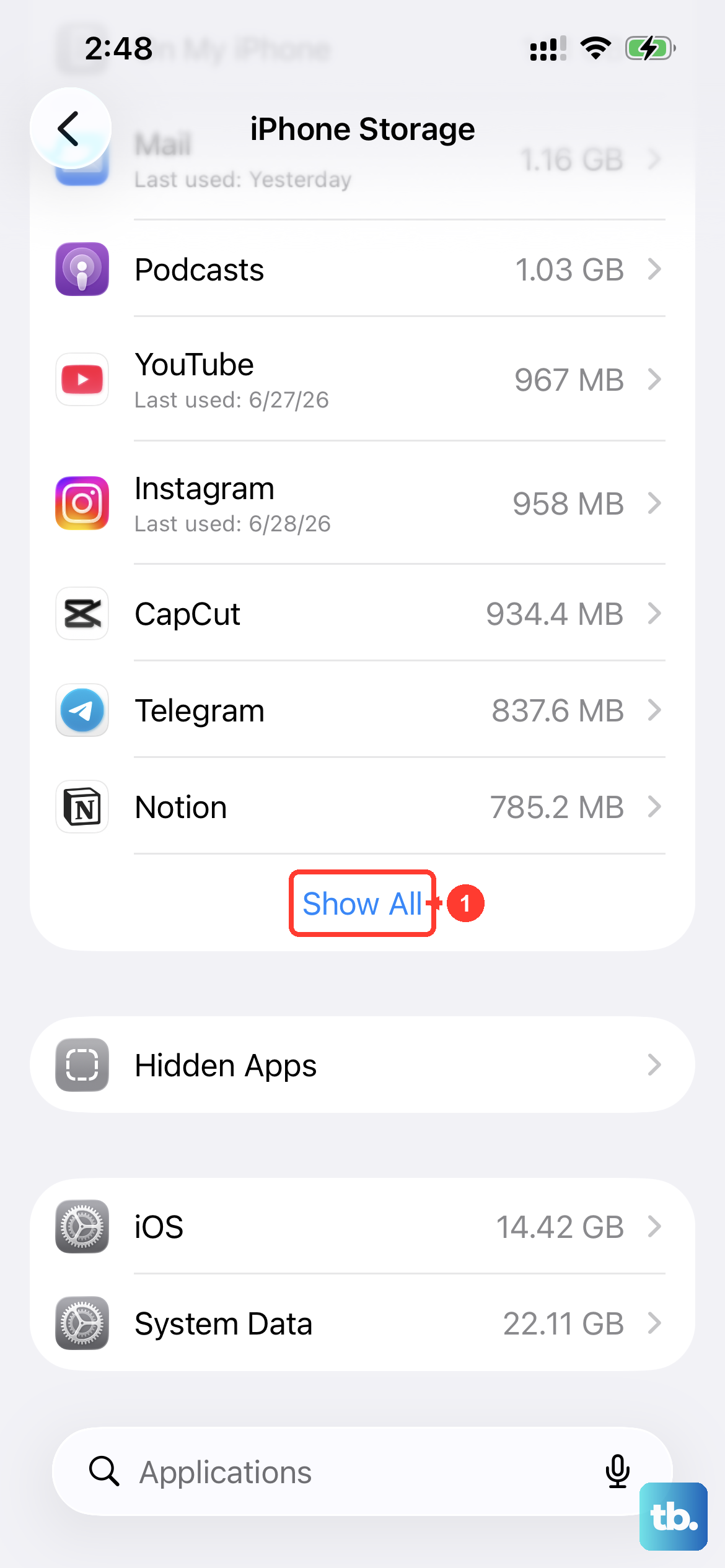
When your phone's storage is nearly full, the system struggles to cache video data properly. This leads directly to choppy playback and dropped frames. Head to Settings > General > iPhone Storage to see how much space you have left.
If you're below a few gigabytes, it's time for a cleanup. You can offload unused apps, delete old message threads with lots of media, or move photos and videos to iCloud. The iPhone 14 will also suggest optimizations here, like reviewing large attachments.
Check Your Internet Connection for Streaming
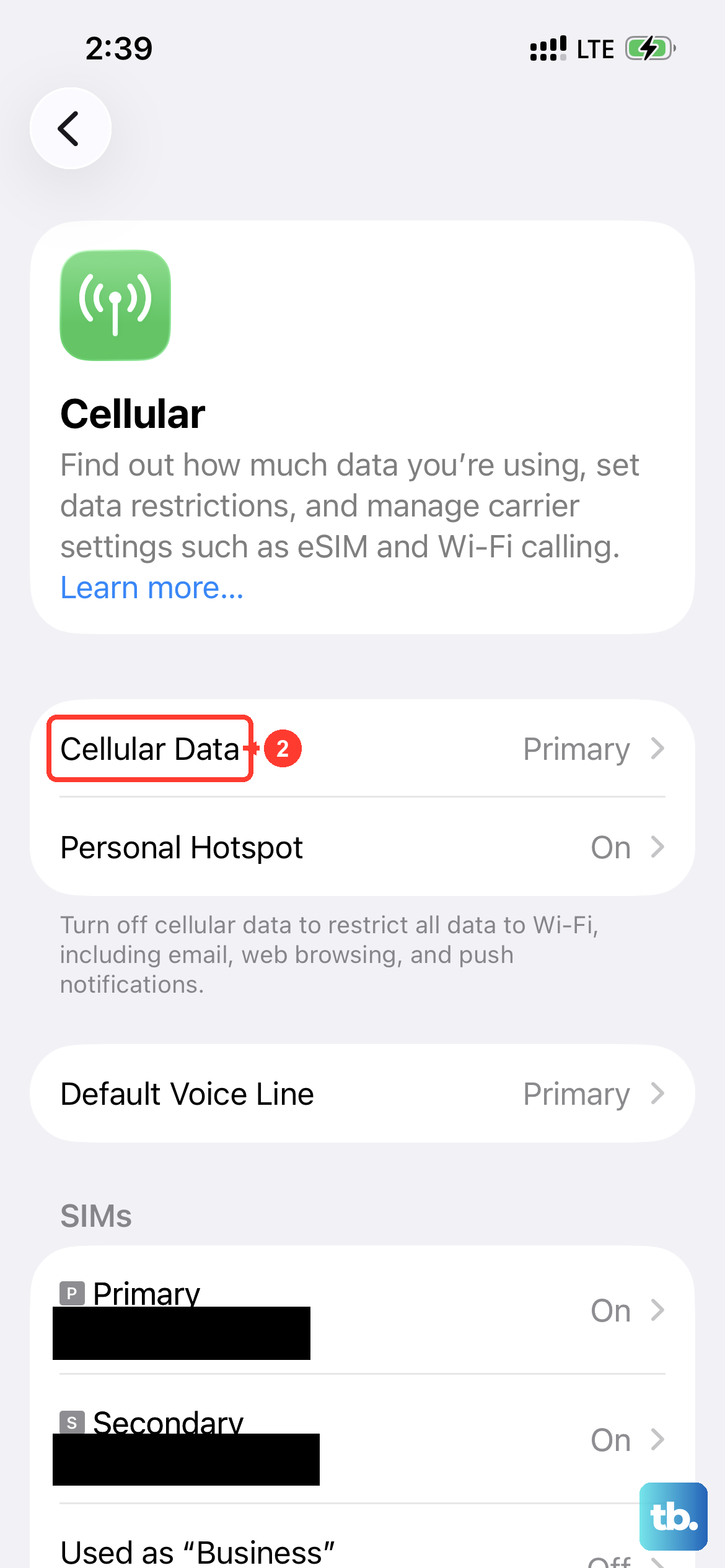
For videos on YouTube, Netflix, or other streaming apps, a weak connection is the most common culprit. The video might buffer, stutter, or drop to a lower quality. Try switching between Wi-Fi and your 5G cellular data to see if the problem follows you.
If you're on Wi-Fi, try moving closer to your router or restarting the router itself. Sometimes, simply toggling Airplane Mode on and off can force a fresh, stronger connection to your cellular network.
Update iOS and Your Apps
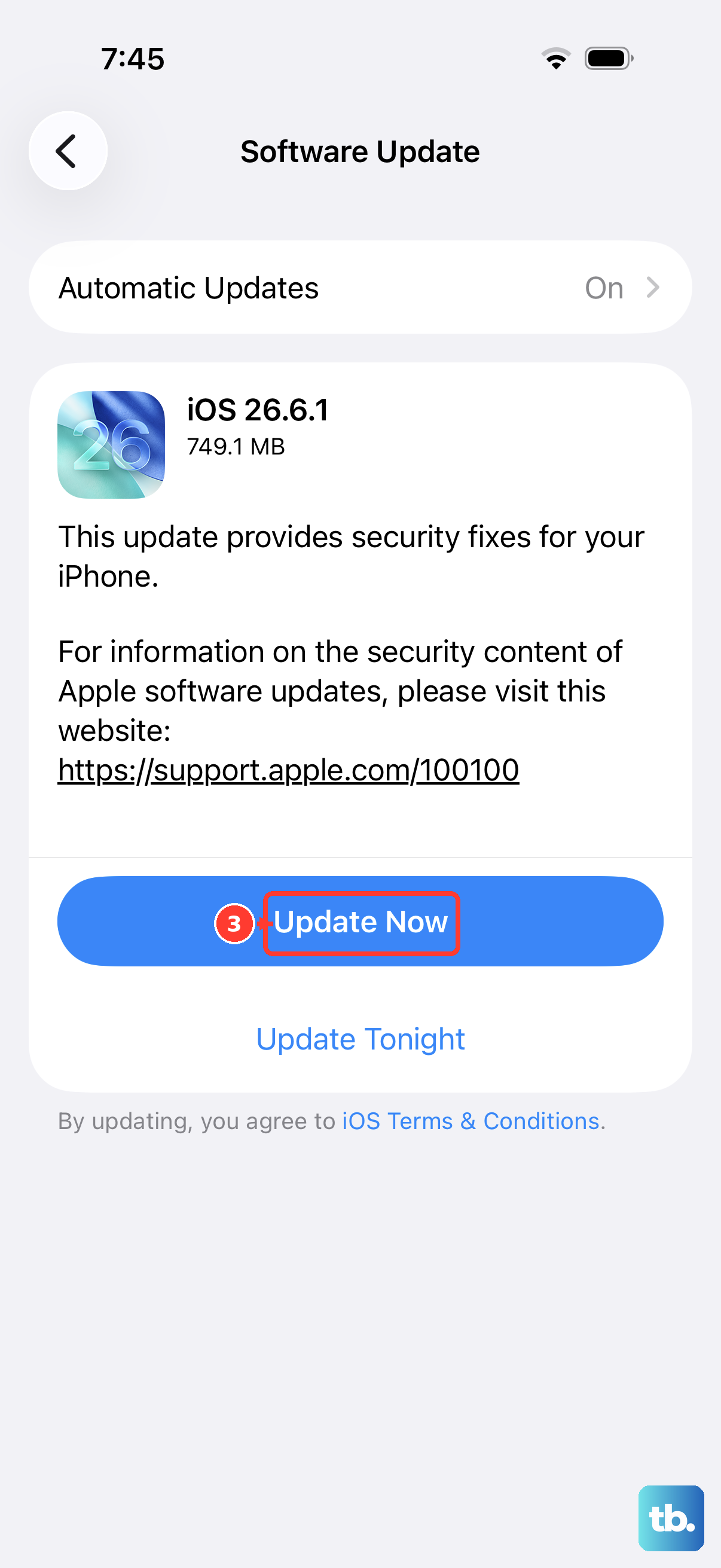
Running an outdated version of iOS can lead to compatibility issues with video codecs and apps. Apple frequently releases updates that include performance fixes. Go to Settings > General > Software Update to check for and install any available updates.
Don't forget the apps themselves. Open the App Store, tap your profile icon, and update all your apps, especially the ones you use for video playback. Developers push out bug fixes for playback issues all the time.
Force Close and Reopen the Problem App
Sometimes the issue is isolated to a single app that's gotten stuck. Swipe up from the bottom of the screen and pause in the middle to enter the app switcher. Find the video app that's giving you trouble and swipe it up and off the top of the screen to close it completely.
Wait a few seconds, then tap the app icon to relaunch it. This gives the app a fresh start and can clear out any corrupted temporary data that was causing the stutter.
Perform a Force Restart
If a normal restart didn't help, a force restart is a more thorough option. This can clear deeper system caches without deleting any of your data. On the iPhone 14, you quickly press and release the Volume Up button, then quickly press and release the Volume Down button.
Finally, press and hold the Side button. Keep holding it even when you see the power off slider. Continue holding until you see the Apple logo appear, then you can let go. Your phone will reboot, and you can test your video again.
Check for Overheating
The iPhone 14 will throttle its performance to protect its components if it gets too hot. If you've been using it in direct sunlight, charging while watching videos, or running several intensive apps, it might be overheating. This can cause system-wide lag, including in video playback.
Let the phone cool down by moving it to a cooler spot, removing its case, and stopping any charging. Once it returns to a normal temperature, performance should snap back, and videos should play smoothly again.
Reset All Settings
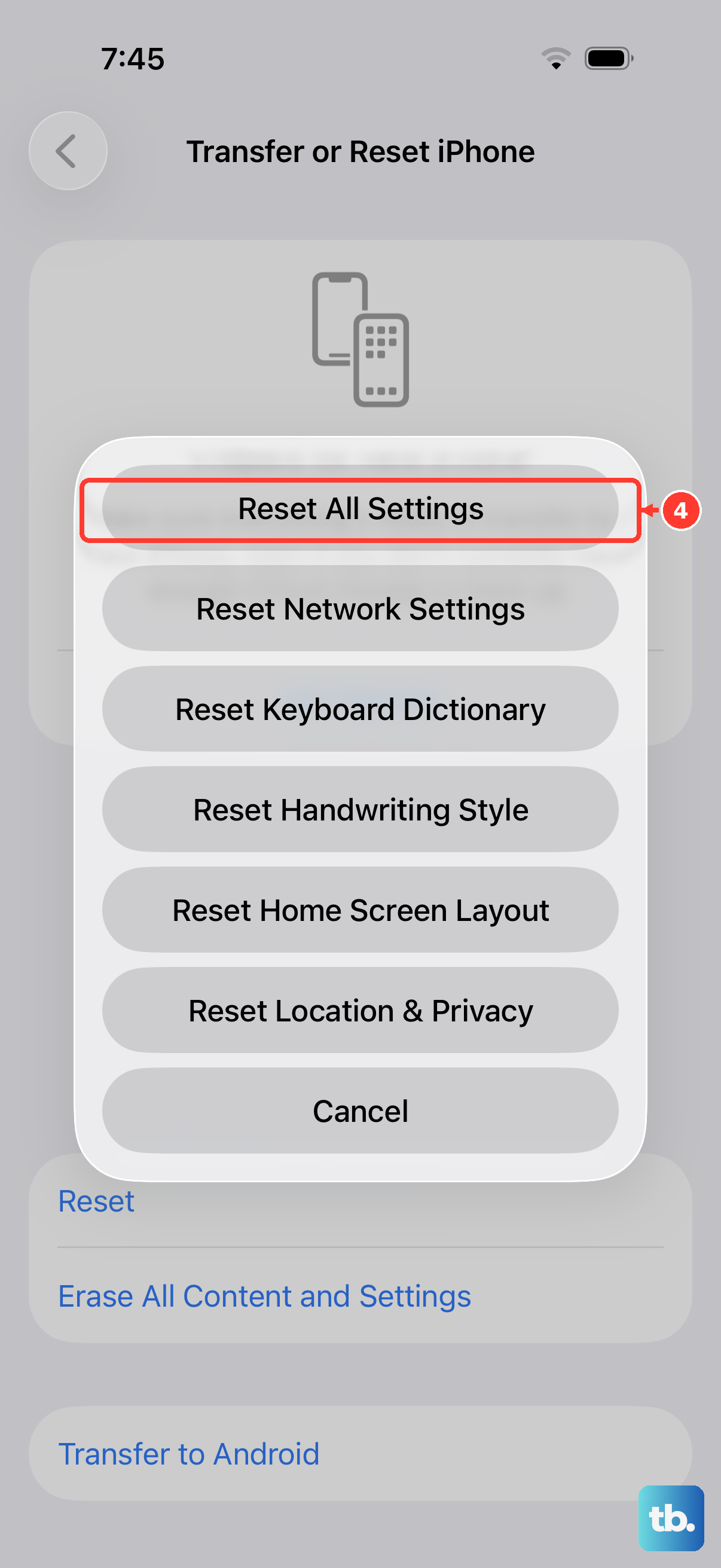
This is a more significant step, but it won't delete your photos, messages, or apps. It will, however, reset all your preferences back to default. Things like your Wi-Fi passwords, wallpaper, and privacy settings will need to be set up again.
It can fix obscure software conflicts that cause playback issues. To do this, go to Settings > General > Transfer or Reset iPhone. Tap Reset and then choose Reset All Settings. Enter your passcode to confirm.
Try a Different Video or Source
It's worth checking if the problem is with one specific video file or streaming source. Try playing a different video from a different app or website. If that new video plays perfectly, the issue is likely with the original file itself, it might be corrupted or encoded in a way your phone is struggling with.
If you're streaming, see if the service allows you to manually change the playback quality. Sometimes forcing it to a lower resolution like 720p instead of 1080p or 4K can bypass a stuttering issue caused by a weak connection or server problem.
Disable Background App Refresh
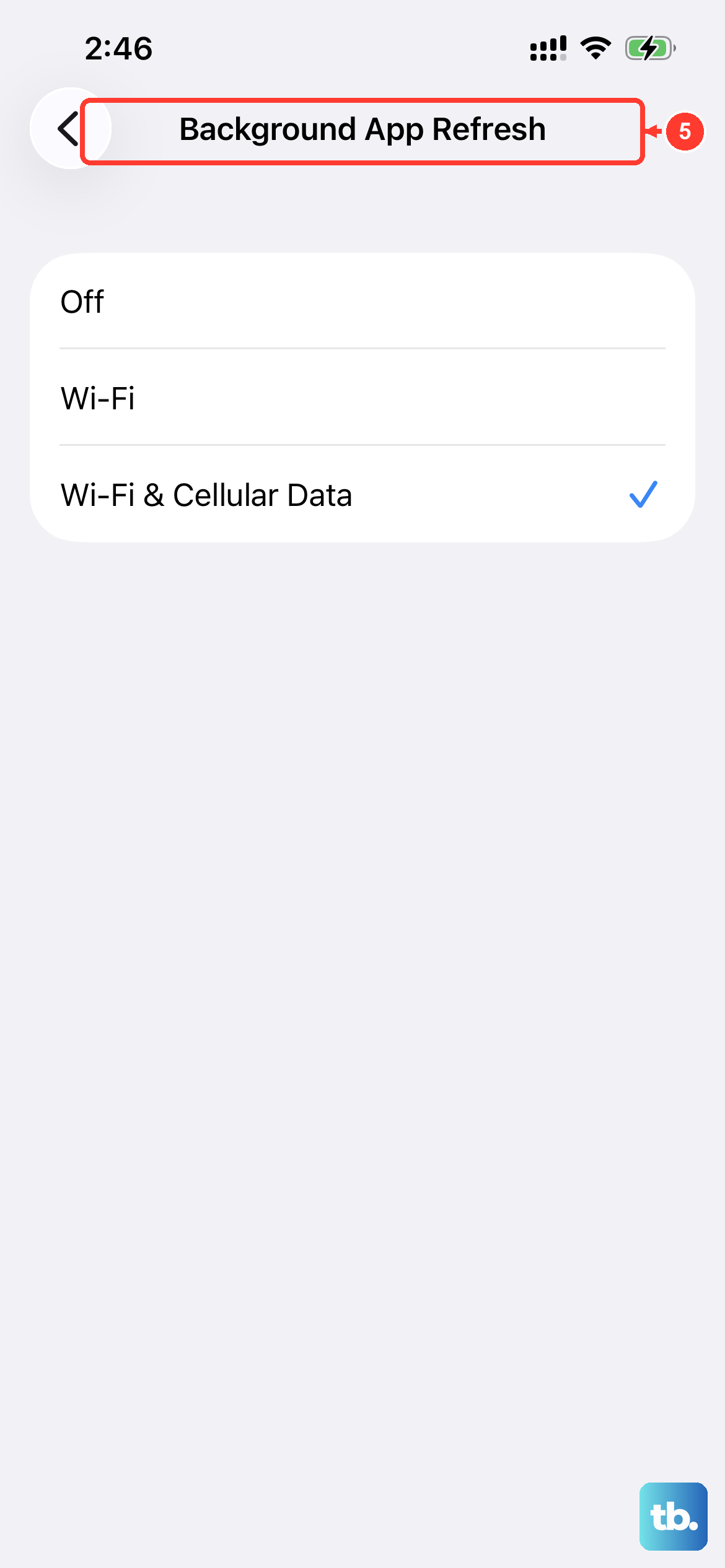
Having many apps refreshing content in the background can consume system resources and network bandwidth, which might interfere with smooth video playback. You can turn this off globally or just for non-essential apps.
Go to Settings > General > Background App Refresh. You can toggle it off entirely or select "Wi-Fi" only. Alternatively, scroll through the list and turn it off for apps you don't need updating in the background.
Check for a Hardware Issue
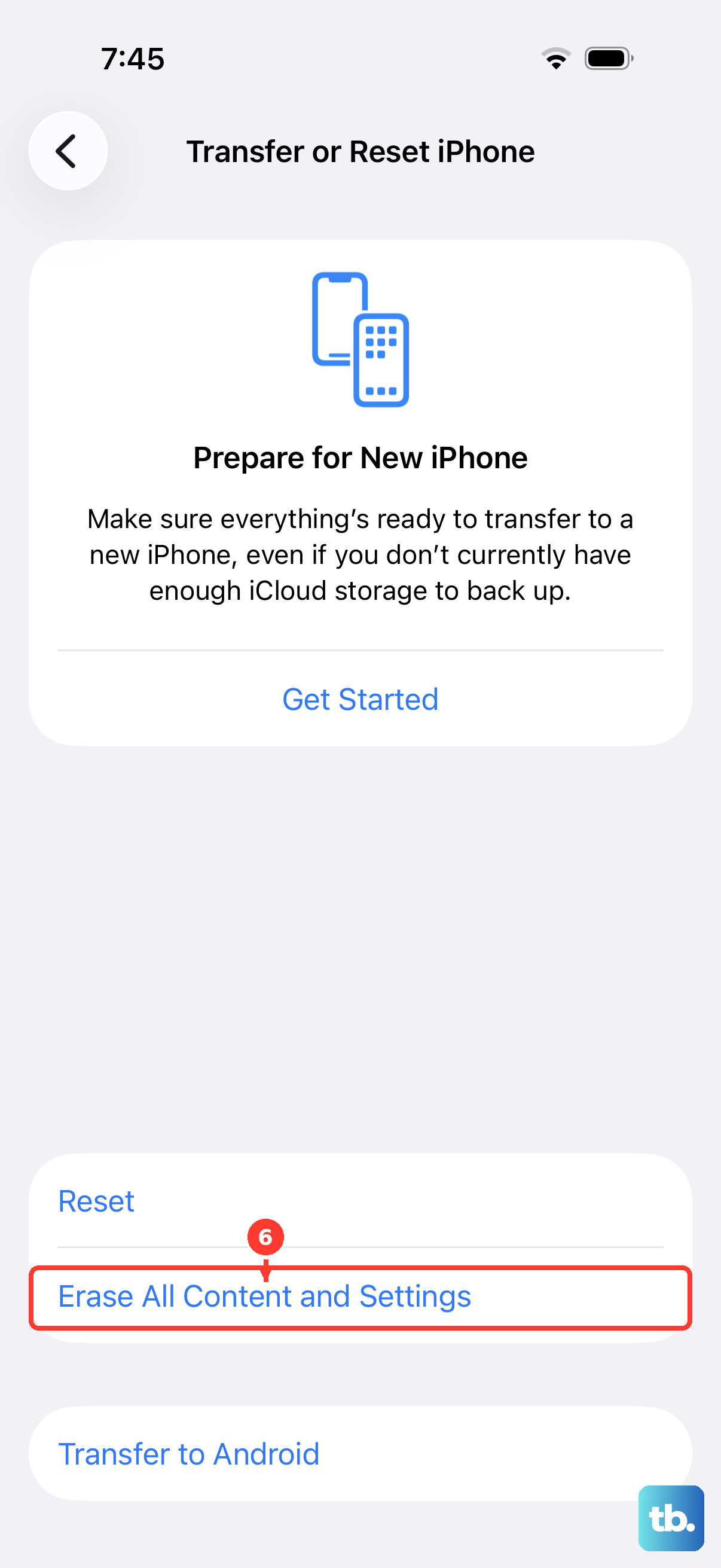
If the stuttering happens consistently across every app and every video, even after a factory reset (with a backup restored), it could point to a hardware problem. This is rare, but issues with the logic board or memory can cause persistent performance problems.
Before considering this, make sure you've exhausted all the software fixes. If the phone is still under warranty or covered by AppleCare+, you can contact Apple Support for diagnostics to rule out a physical defect with your iPhone 14.