If your iPhone 14 is getting uncomfortably warm, it can happen for a bunch of reasons, from a simple software bug to a case that's trapping heat. The good news is you can usually cool it down pretty quickly with a few basic steps.
Start by taking it out of its case and giving it a break from charging. If a temperature warning appears, turn the phone off, move it somewhere cooler and away from direct sunlight, and let it cool down.
Take Off the Case and Stop Charging
Your iPhone 14's case might be insulating it like a blanket. Take the phone out of any case, bumper, or skin you're using. This lets heat dissipate directly from the aluminum frame.
If it's plugged in, unplug it. Your phone can get warm while charging, including with MagSafe. Let the battery cool down on its own for a while. If you see Charging On Hold, move the phone somewhere cooler and away from direct sunlight. Lock the screen if you're using it.
Force Restart Your iPhone 14
A software glitch may be the cause if your phone stays warm after you stop using demanding apps. A force restart may help if the phone is unresponsive, without deleting your data. If a temperature warning appears, turn it off and let it cool down first.
Quickly press and release the Volume Up button. Then quickly press and release the Volume Down button. Finally, press and hold the Side button. Keep holding it until you see the Apple logo appear, then let go.
Close Background Apps and Reduce Screen Brightness
Navigation, high-quality video streaming, and demanding games can make your phone warm while you're using them. Take a break from those activities to let it cool down. If an app is unresponsive, swipe up from the bottom of the screen and pause in the middle, then swipe up on that app's preview to close it.
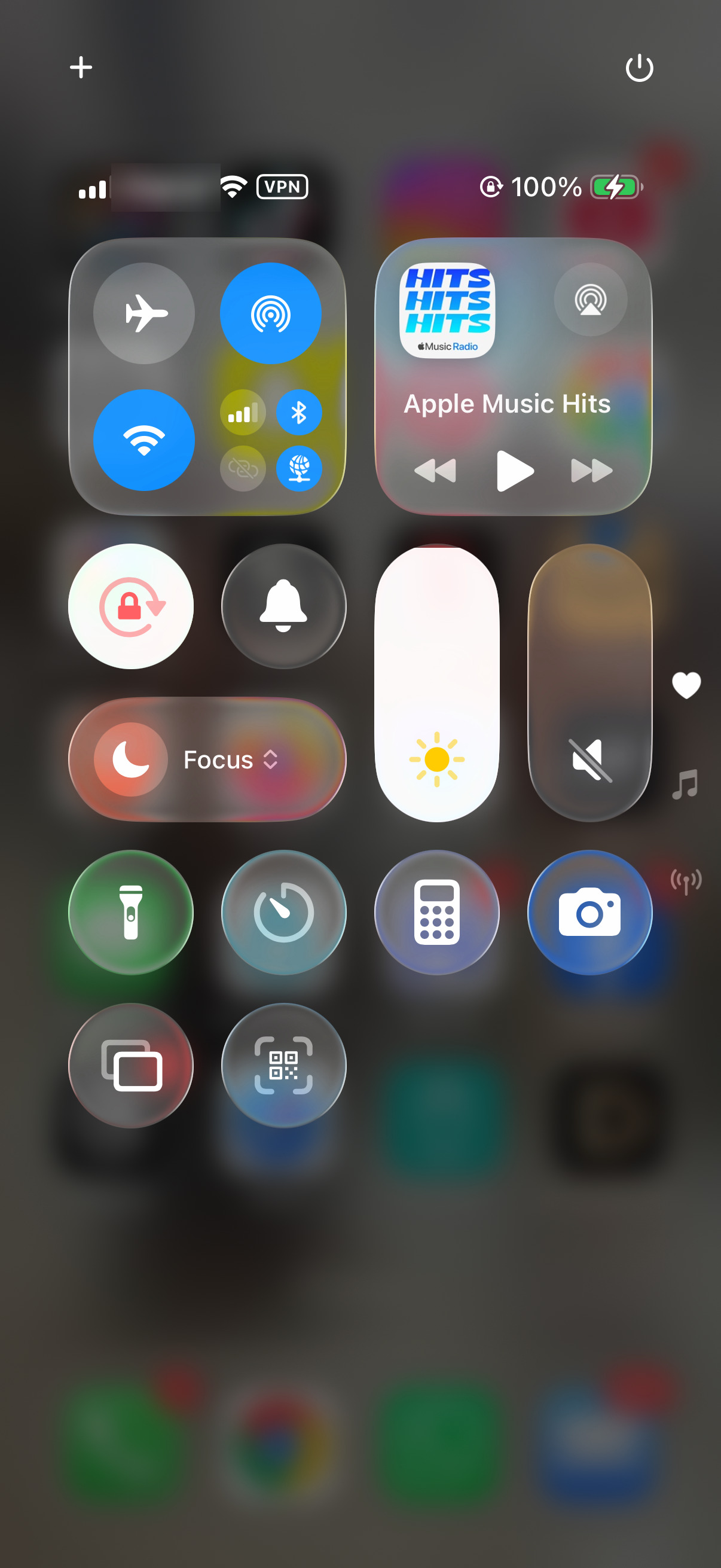
Also, turn down your screen brightness. The display is one of the biggest power draws on the phone. Swipe down from the top-right corner to open Control Center and drag the brightness slider down.
Update iOS and Your Apps
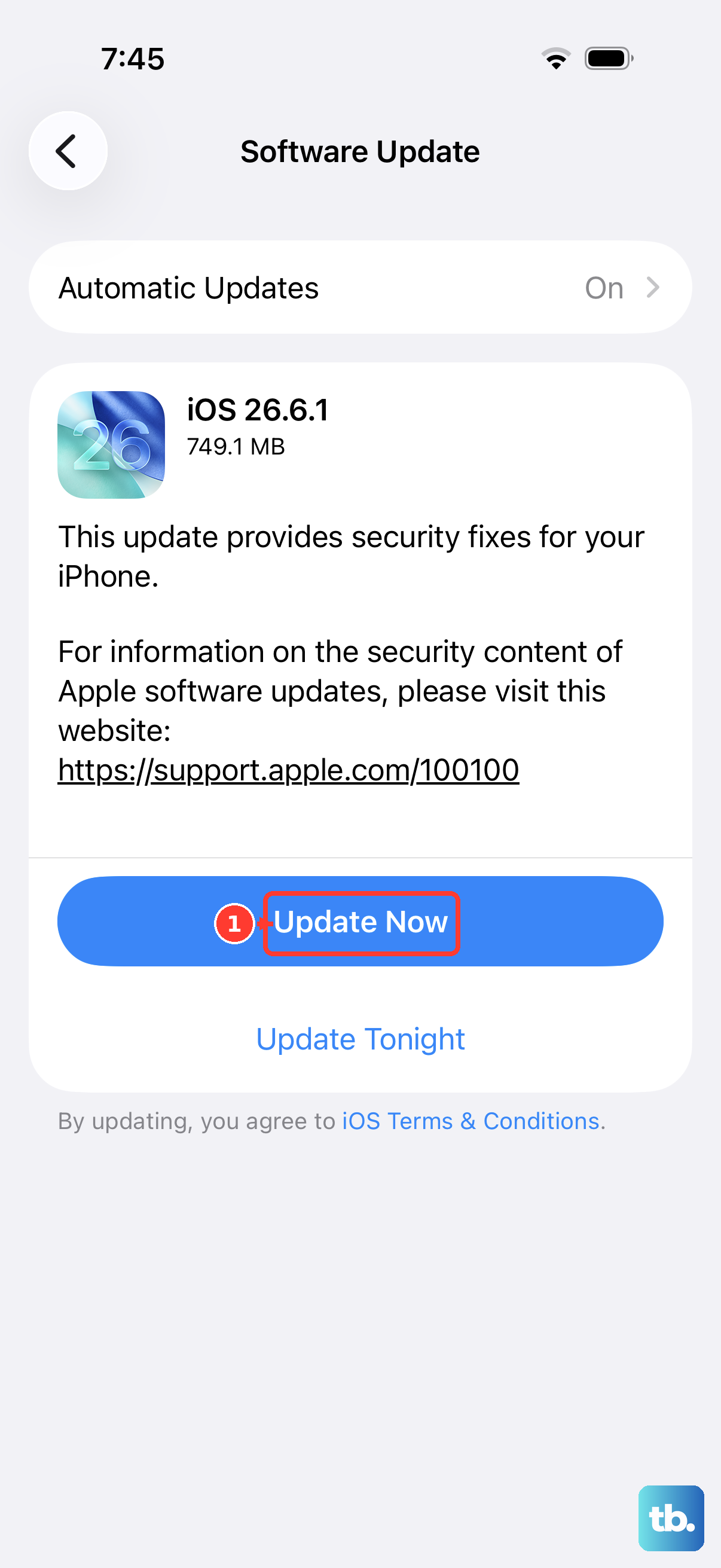
iOS updates include bug fixes and other improvements. Go to Settings > General > Software Update to check for and install any available updates.
Outdated apps can also misbehave and cause overheating. Open the App Store, tap the My Account button (your photo) at the top, then tap App Updates. Tap Update All to update them all.
Check for Problematic Apps
Sometimes one specific app is the culprit. If your iPhone 14 gets hot mainly when using a particular app, that's a big clue. Check the App Store for an update for that app first.
If it's still causing issues, you might need to delete and reinstall it. This may help if the app isn't working properly. Just make sure your data for that app is backed up to iCloud or the app's own account before you delete it.
Disable Intensive Features Temporarily
Several features can make your iPhone 14 work harder. Turning them off for a bit can help it cool down. Go to Settings > Privacy & Security > Location Services and toggle it off, or set specific apps to "While Using."
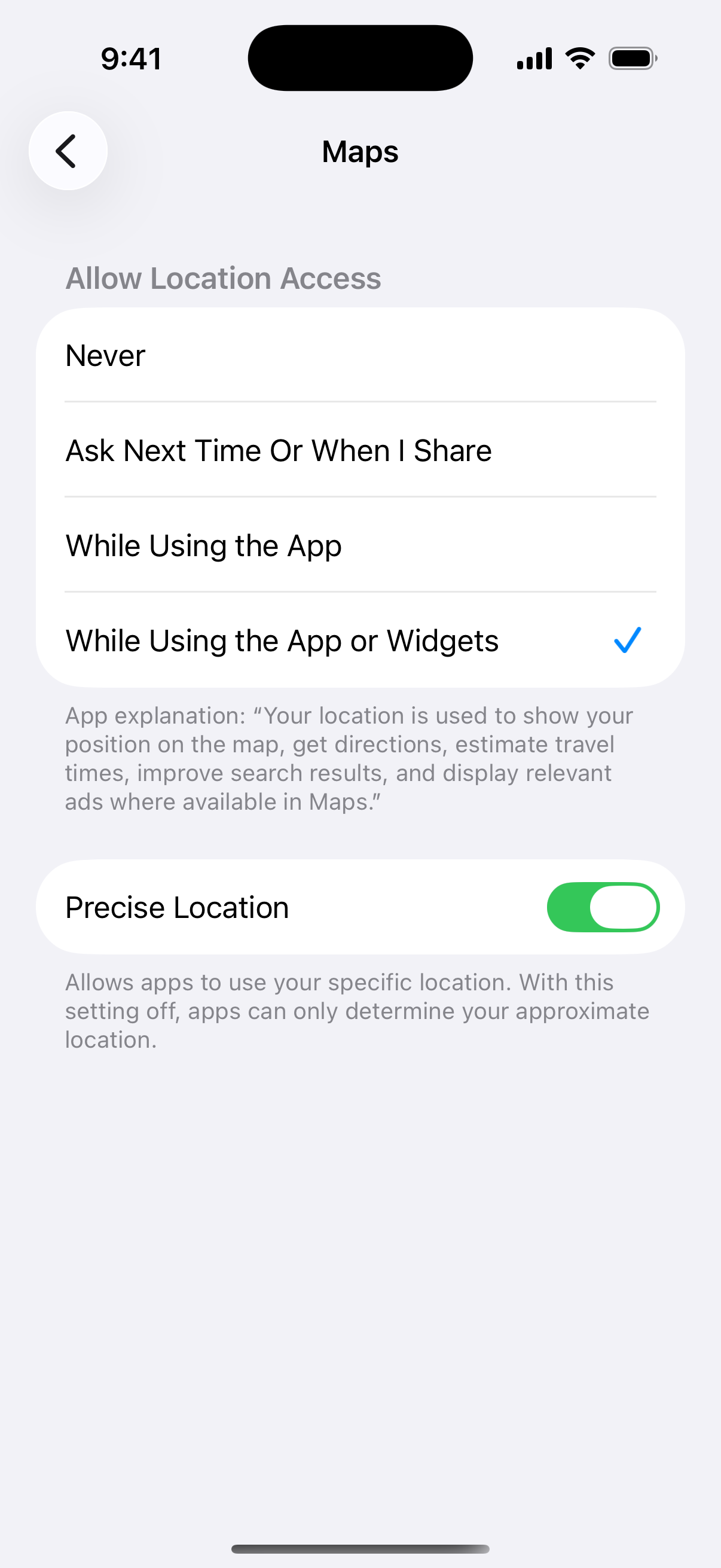
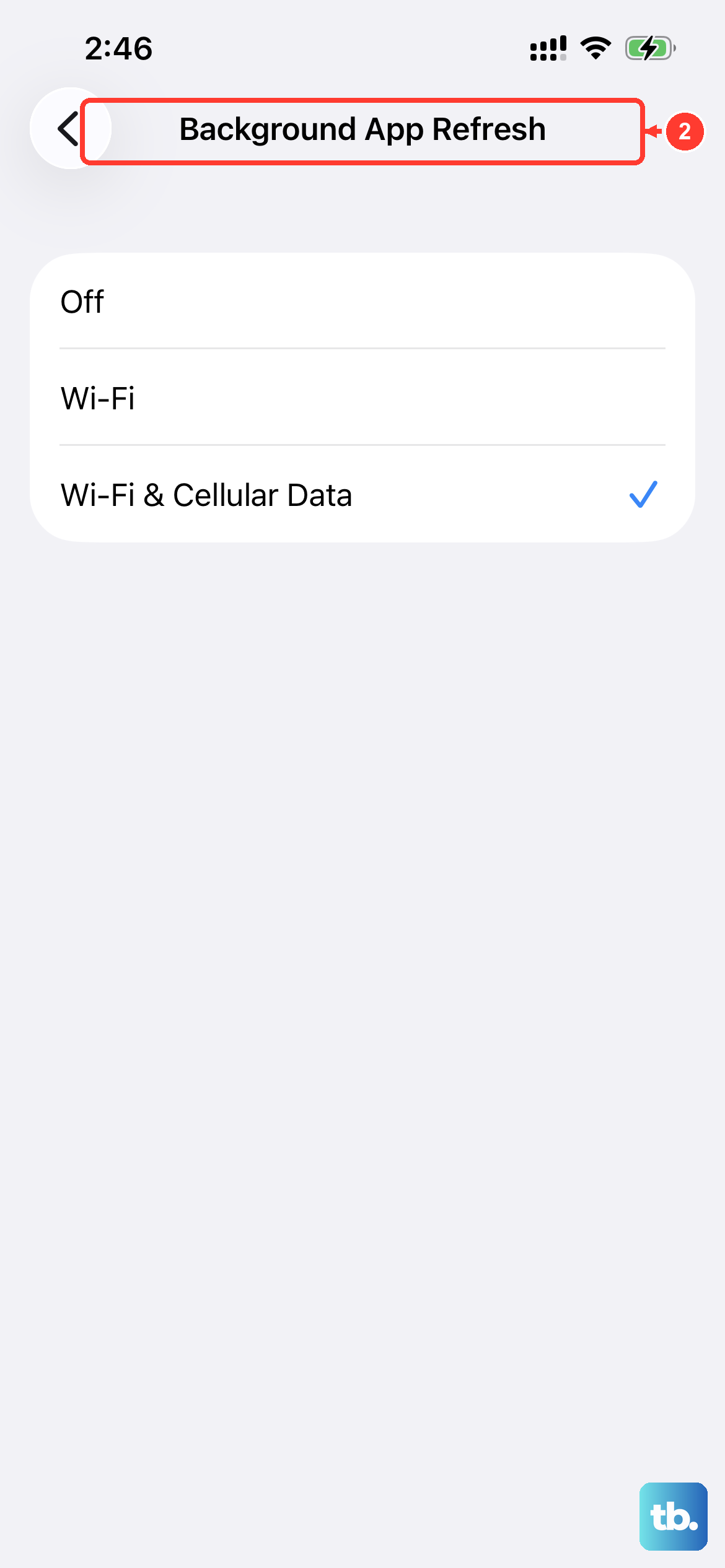
Also consider turning off Background App Refresh. Go to Settings > General > Background App Refresh, tap Background App Refresh again, and choose "Off" to disable it or "Wi-Fi" to limit it to Wi-Fi. Reducing motion effects can help too. Go to Settings > Accessibility > Motion and turn on "Reduce Motion."
Clean the Lightning Port
The iPhone 14 uses a Lightning port, which can collect pocket lint and debris over time. Debris can interfere with the charging connection, so check the port if charging is unreliable.
Shine a light into the port. If you see lint, gently use a soft, dry brush to remove it. Avoid getting moisture in the opening, and don't use compressed air or scrape the contacts with a toothpick or metal object.
Be Mindful of Your Environment and MagSafe
Using your phone in direct sunlight or a hot car can make it too warm. Move to a cooler, shaded place and allow it to cool down. If a temperature warning appears, turn it off. Also, avoid using demanding apps or games while it's fast charging or on a MagSafe charger.
Speaking of MagSafe, make sure you're not using a thick case or one with a metal ring that could interfere with the charger. Misalignment can cause inefficient charging and excess heat. Try charging without a case to see if that helps.
Reset All Settings
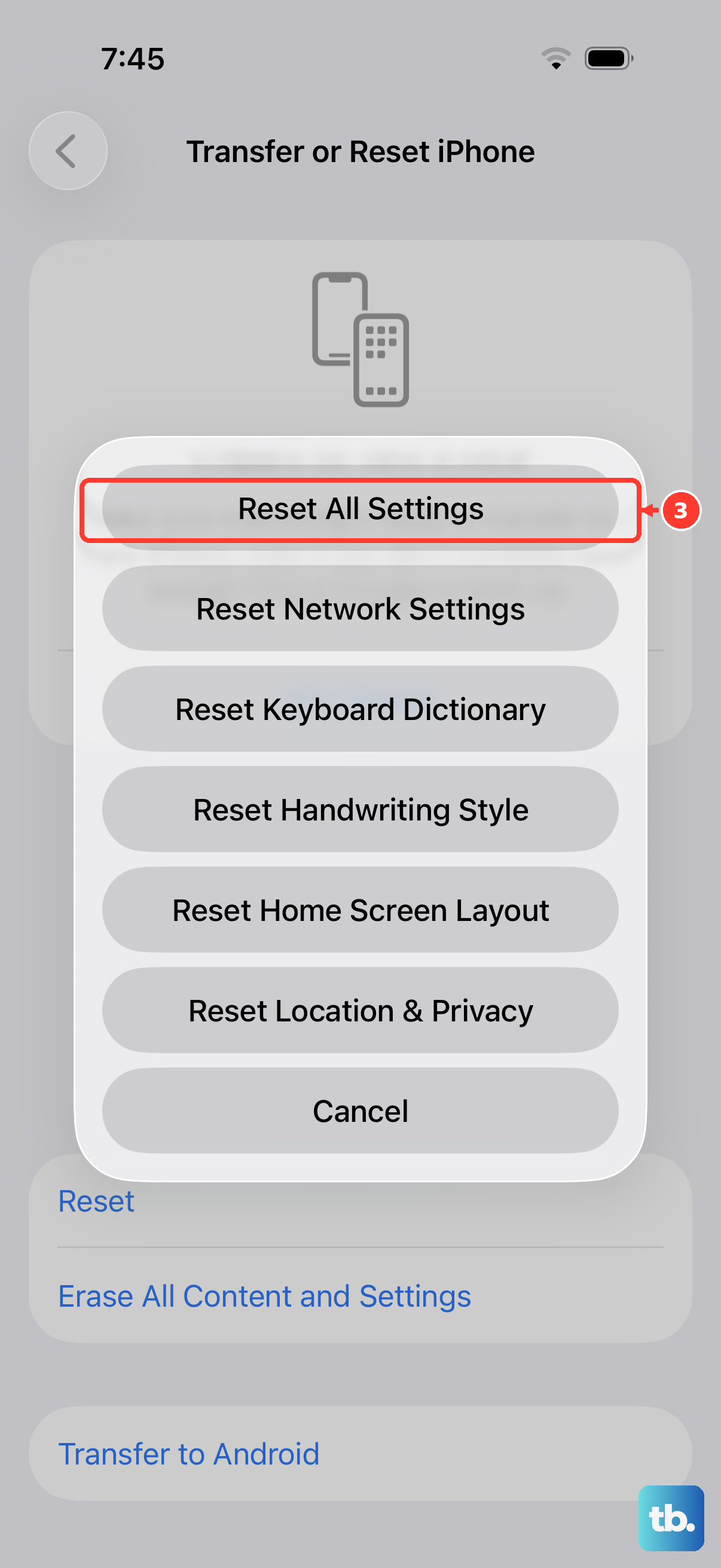
If the phone keeps getting unusually warm after cooling down and trying the earlier steps, you can try resetting its settings. This won't erase your photos or data, but it will reset all your preferences like Wi-Fi passwords, wallpaper, and privacy settings back to default.
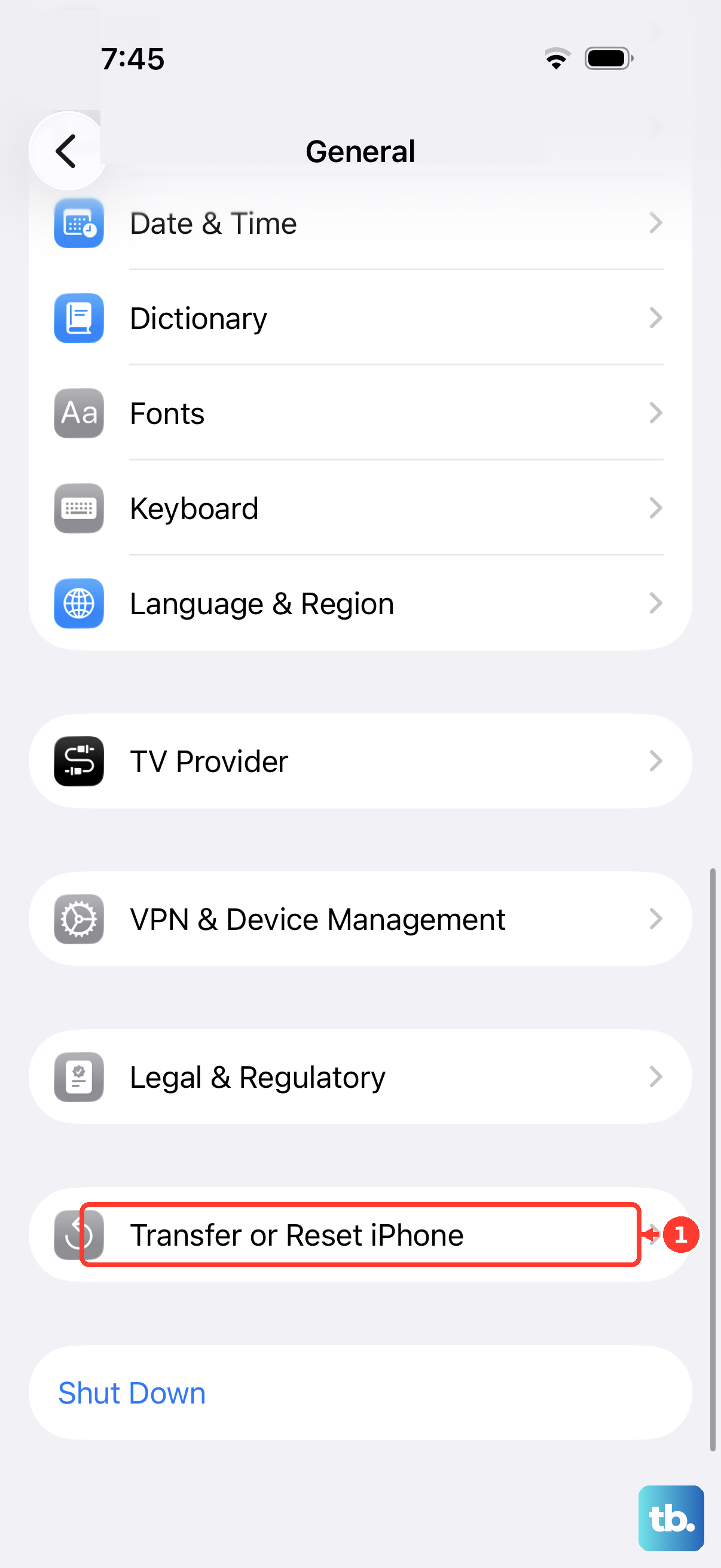
Go to Settings > General > Transfer or Reset iPhone > Reset. Then tap "Reset All Settings." You'll need to enter your passcode. After the phone restarts, you'll have to set up Face ID, rejoin Wi-Fi networks, and pair Bluetooth devices and your Apple Watch again.