
So your iPhone 17 won't charge. You plug it in and nothing happens, or maybe it just sits stubbornly at 80%. It's a frustrating spot to be in, but I've found this is almost always something you can fix yourself without a trip to the store.
Whether you're dealing with a silent USB-C port, a finicky MagSafe charger, or a phone that's completely unresponsive, we'll walk through the solutions. Let's start with the quickest fix and work our way through.
Force Restart Your iPhone 17
This should always be your first move. A simple force restart clears out minor software glitches that can interfere with the charging system. It takes about 30 seconds and solves the problem more often than you'd think.
For the iPhone 17, the process is quick. Press and quickly release the Volume Up button. Then, press and quickly release the Volume Down button. Finally, press and hold the Side button until you see the Apple logo appear on the screen.
Once it boots back up, plug it in. If you see the charging indicator, you're all set. If not, we'll move on to the next step.
Inspect and Clean the USB-C Port
This is the single most common culprit for charging issues on any modern iPhone, and the iPhone 17 is no exception. That USB-C port is a magnet for lint, dust, and pocket debris. Over time, it packs in so tightly that your cable can't make a proper connection.
Grab a bright light and take a close look inside the port. If you see any fuzz or compacted dirt, you'll need to clean it out. First, power off your iPhone for safety. Then, use a wooden or plastic toothpick to gently scrape around the edges and dislodge the debris.
Avoid using anything metal, as it can damage the delicate gold contacts inside. A quick blast of compressed air can help, but hold the can upright and don't shake it. Finally, give the phone a gentle tap with the port facing down to knock anything loose.
Check Your Cable, Adapter, and Outlet
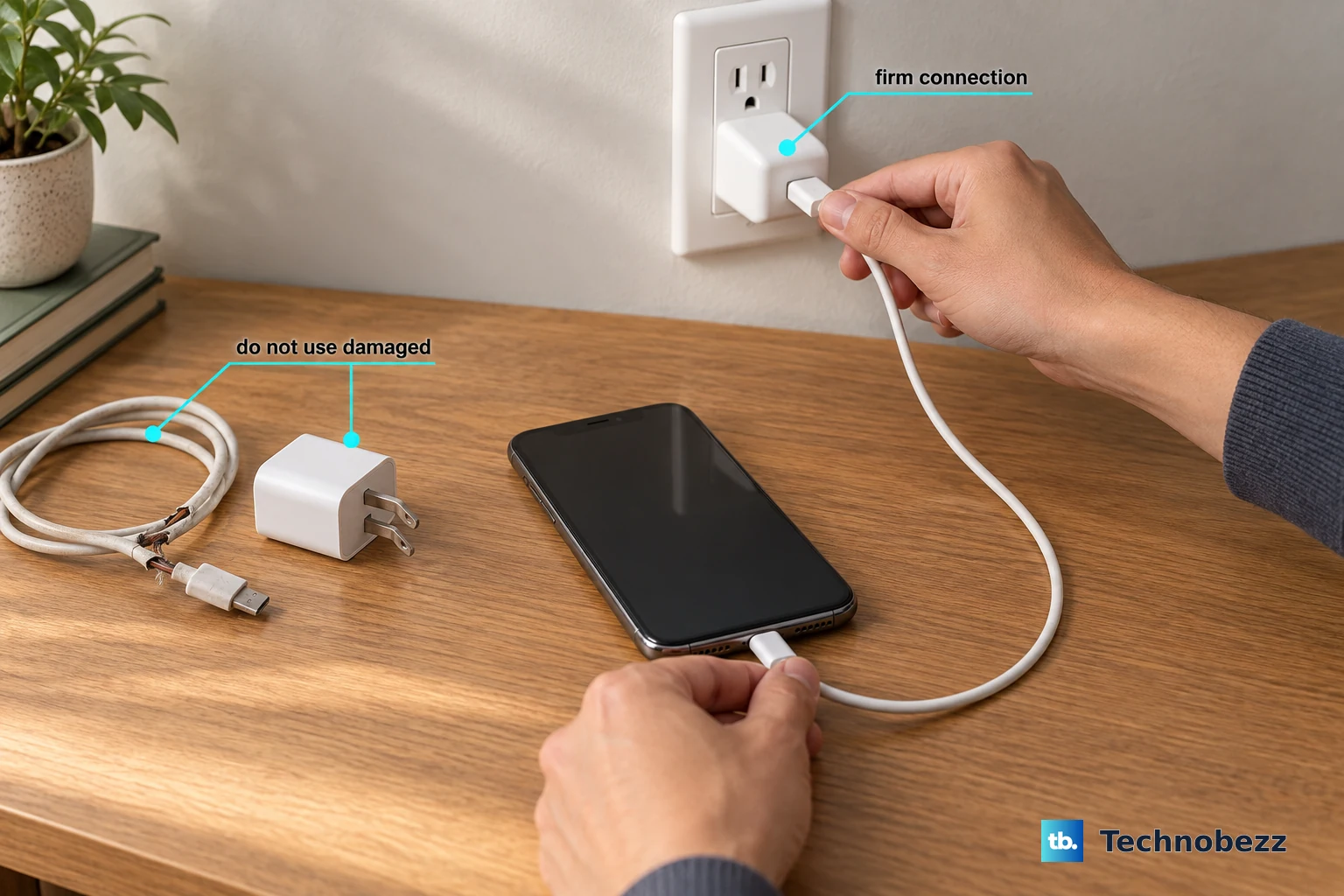
You need to isolate the problem. Is it the phone, or is it something in your charging setup? The best way to figure this out is to swap each component one by one.
Start with a different USB-C cable, preferably an Apple-certified one. Some third-party cables just aren't recognized by the iPhone 17's stricter power management. Next, try a different wall adapter. If you have a 40W adapter or higher, use it to ensure you're getting the full charging speed.
Don't forget to test a different wall outlet, too. Sometimes a faulty power strip or a tripped GFCI outlet is the real issue. Also, take off your phone case, especially if it's very thick or has a metal ring, as it can prevent a solid connection.
Review Your Battery Charging Settings
If your iPhone 17 is charging but seems to stop at 80%, this is almost certainly by design. Apple's battery health features are more advanced than ever in iOS 26. You might have a charge limit enabled.
Go to Settings > Battery > Charging. Here, you'll see options for a charge limit, which can be set to 80%, 85%, 90%, or 95% to maximize long-term battery health. If you need a full charge today, just tap to set it to 100%.
You'll also see Optimized Battery Charging. This feature learns your routine and will pause charging at 80% overnight, only finishing to 100% right before you typically wake up. It's a good feature to leave on, but it can be confusing if you plug in at an unusual time.
Let a Fully Drained Battery Sit
If your iPhone 17's battery has hit absolute zero, it won't wake up immediately when you plug it in. This is a safety feature. You need to give it a little time to absorb some power first.
Connect it to a reliable wall charger, not a computer's slower USB port. Then, leave it alone for at least 15 to 30 minutes. You should eventually see the low-battery icon or the charging indicator on the screen.
If after half an hour there's still no sign of life, try the force restart sequence again while the phone remains plugged in. Sometimes this jolts it awake.
Test with MagSafe or Qi2 Wireless Charging
This is a great diagnostic step. If your iPhone 17 charges wirelessly but not via the USB-C port, you've narrowed the problem down to the port itself. The iPhone 17 supports both MagSafe and the newer Qi2 standard.
When using MagSafe, listen for the magnetic snap to ensure it's aligned correctly. Thick cases, especially those with built-in magnets or metal plates, can block the connection, so try charging without the case. For the fastest 25W MagSafe speeds, make sure you're using a 30W power adapter or higher.
Be aware that wireless charging generates more heat. If your phone feels warm, it may slow down or pause charging temporarily to protect the battery. This is normal.
Update to the Latest Version of iOS 26
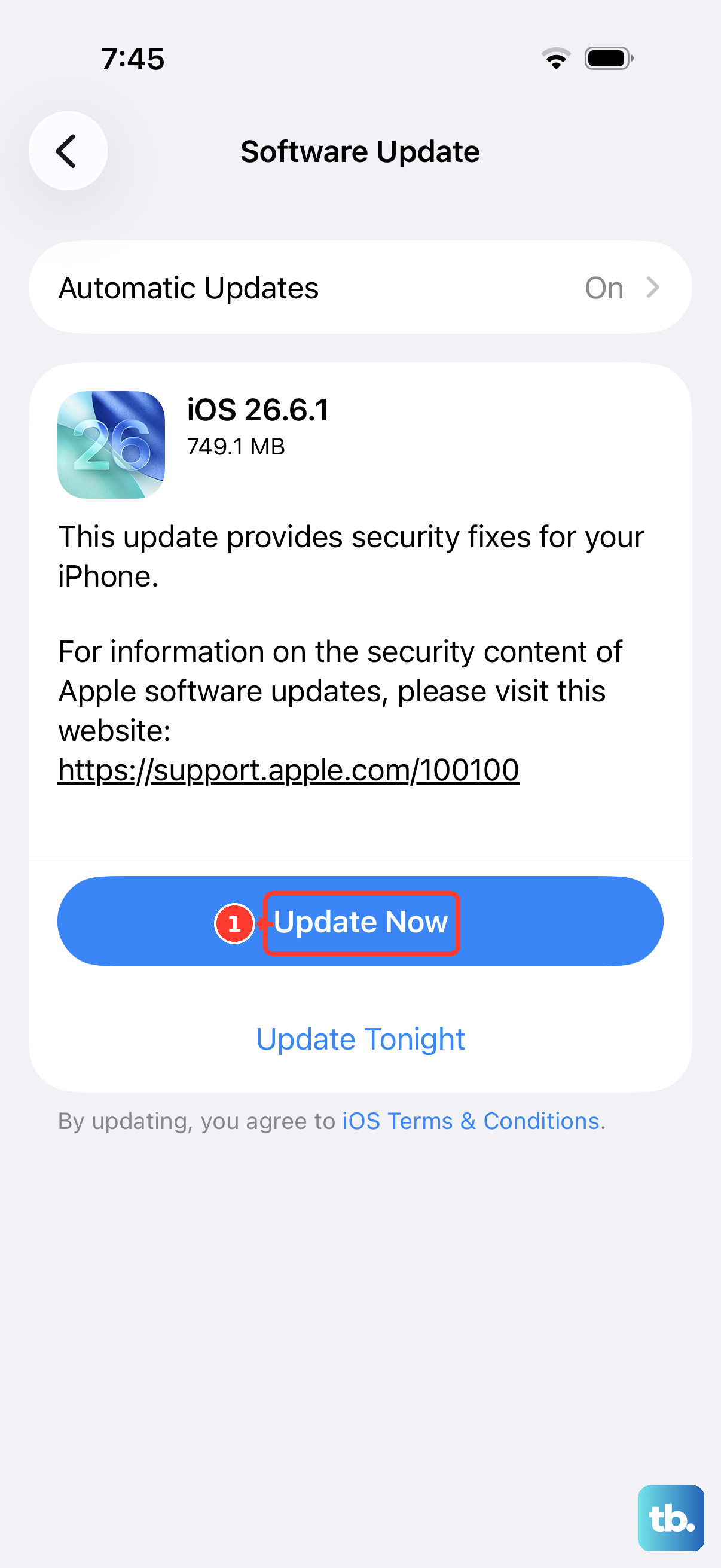
Software bugs can occasionally mess with charging protocols. Apple is usually quick to patch these in point updates. If your charging problems started after a recent update, or if you're behind on updates, installing the latest iOS version can help.
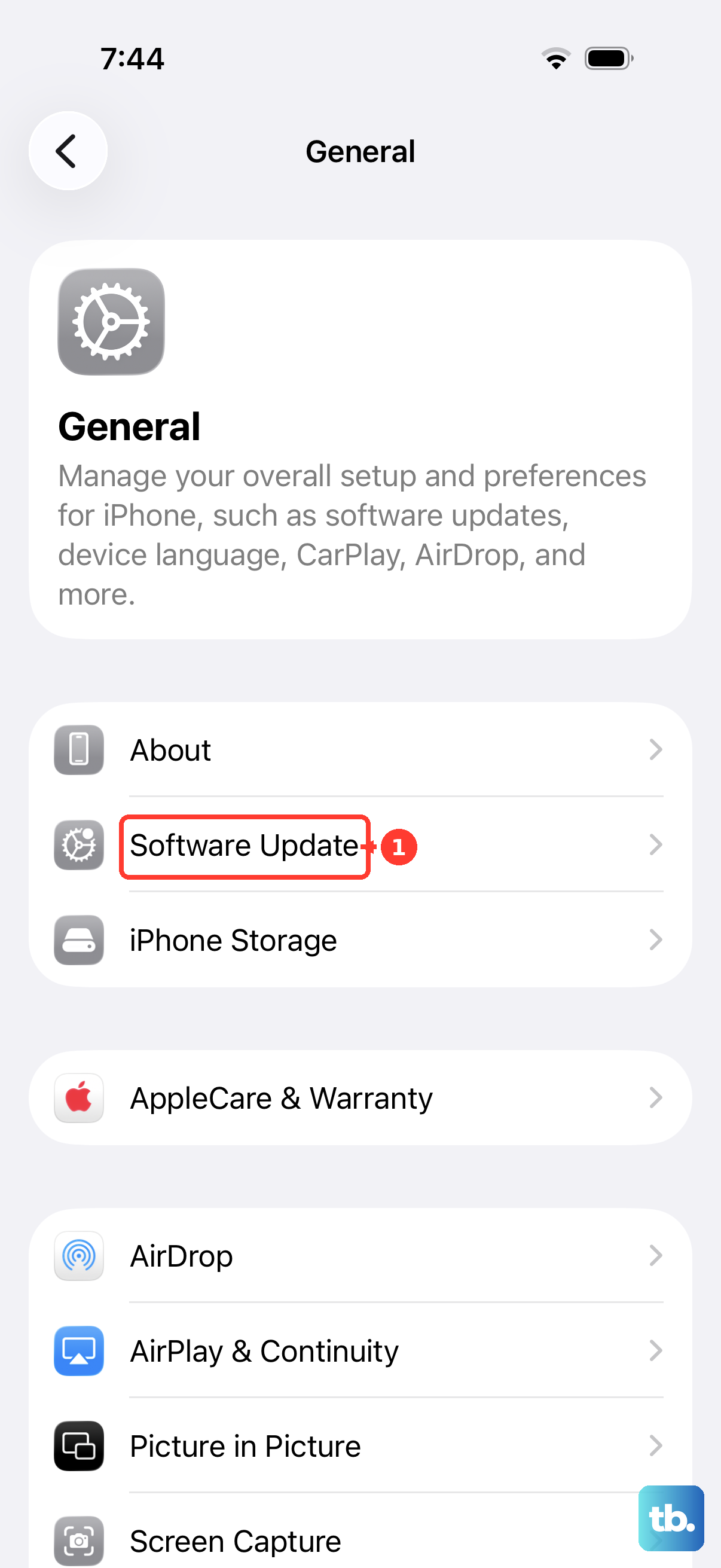
Go to Settings > General > Software Update. If an update is available, download and install it. Make sure your phone has at least 50% battery or is plugged in during the process.
If your iPhone won't turn on to check for an update, you can update it via a computer. Connect it to a Mac or PC with a USB-C cable, open Finder (on Mac) or the Apple Devices app (on PC), and follow the prompts to update or restore.
Charge with the Phone Powered Off
Sometimes a background app or process is causing enough system activity to interfere with normal charging. Turning the phone off completely eliminates that possibility.
Hold the Side button and either volume button, then slide to power off. Once the screen is black, plug in your charger. If it starts charging normally, you know the issue is software-related. This is also the fastest way to charge your iPhone 17 if you're in a hurry, as no power is going to the screen or apps.
Restore Your iPhone Using a Computer
If you've tried every other step and the problem persists, a deeper software corruption might be to blame. A full restore via a computer can wipe this out. Remember, this will erase all data on your iPhone, so ensure you have a recent backup in iCloud or on your computer.
To enter Recovery Mode on an iPhone 17, turn it off. Connect it to your computer with a USB-C cable. Press and quickly release the Volume Up button, then press and quickly release the Volume Down button, then press and hold the Side button until you see the recovery mode screen (a cable pointing to a computer). In Finder (Mac) or the Apple Devices app (PC), you'll see an option to Restore.
This process will install a fresh copy of iOS 26. Once it's done, set up your phone and test the charging immediately. If it still doesn't work, the issue is likely hardware-based, such as a damaged port or a failing battery.











