
You're staring at your brand new iPhone 17e, and that Wi-Fi icon just won't turn blue. It's a frustrating start for a 2026 device, but these early bugs are often just software hiccups. Since the iPhone 17e is so new, running iOS 26, a lot of these fixes are about getting the software to play nice with your network.
Toggle Wi-Fi and Restart Your Phone
Start with the simplest fix. Swipe down from the top right to open Control Center and tap the Wi-Fi button to temporarily disconnect from Wi-Fi. Wait a few seconds, then tap it again to reconnect. If you want to fully turn Wi-Fi off, use Settings > Wi-Fi instead.
If that doesn't work, restart your iPhone 17e the normal way: press and hold either volume button and the Side button until the power-off slider appears, drag the slider, wait 30 seconds for the phone to turn off, then hold the Side button until the Apple logo appears. Use the Volume Up, Volume Down, Side button sequence only if the iPhone is frozen or unresponsive and you need to force restart it.
Use Airplane Mode to Reset Radios
This trick works because it resets all your wireless hardware at once. Open Control Center and tap the airplane icon to enable Airplane Mode. Leave it on for about 15 to 20 seconds, then tap it again to turn it off.
Your iPhone 17e will then reconnect its wireless services. This can force a fresh signal check if the connection state was temporarily stuck.
Forget Your Wi-Fi Network
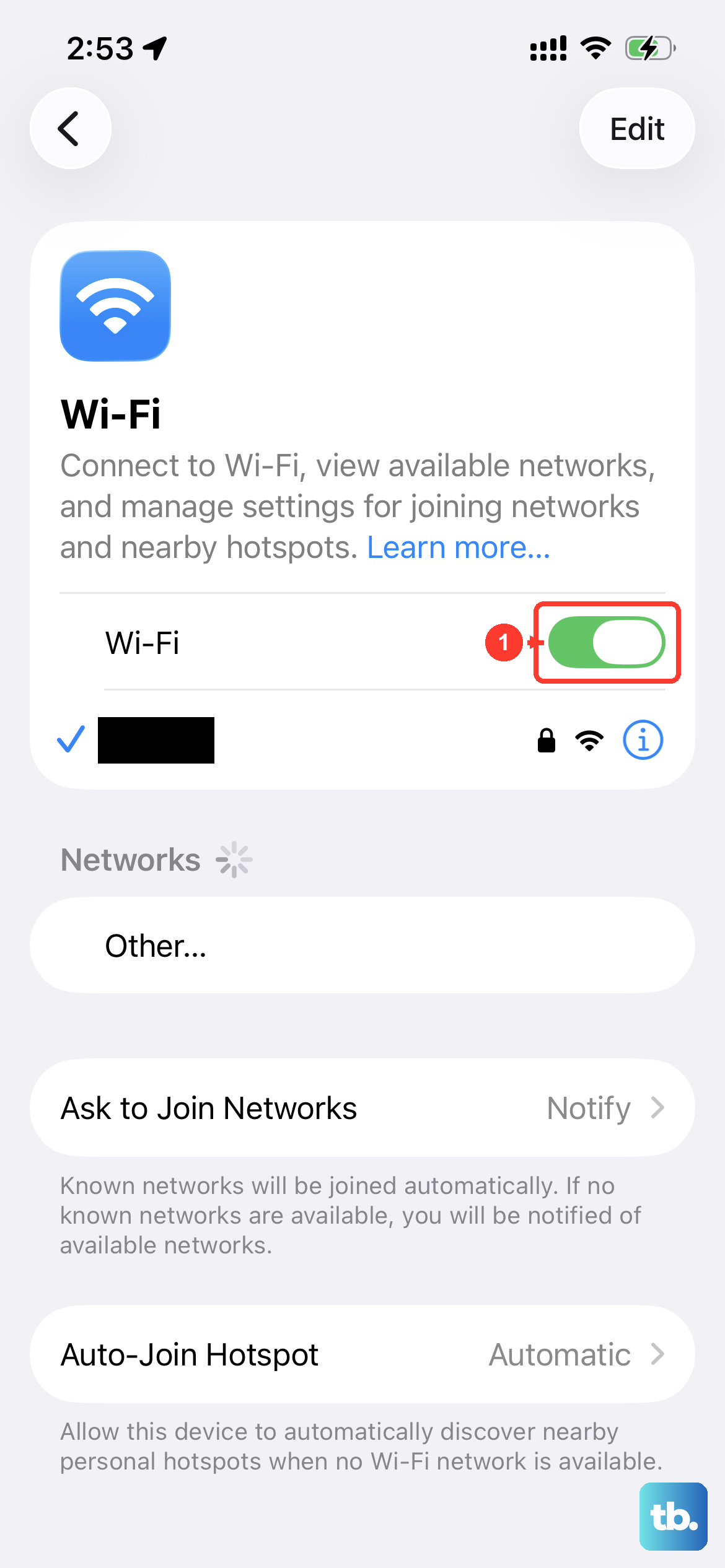
Your phone might be holding onto corrupted login information for your network. To clear it, go to Settings > Wi-Fi. Tap the info icon (the "i" in a circle) next to your network name, then tap Forget This Network.
Confirm you want to forget it. Now, go back to the list of available networks, tap your network name again, and re-enter the password. This is crucial if you've recently changed your Wi-Fi password or gotten a new router.
Check for a Software Update
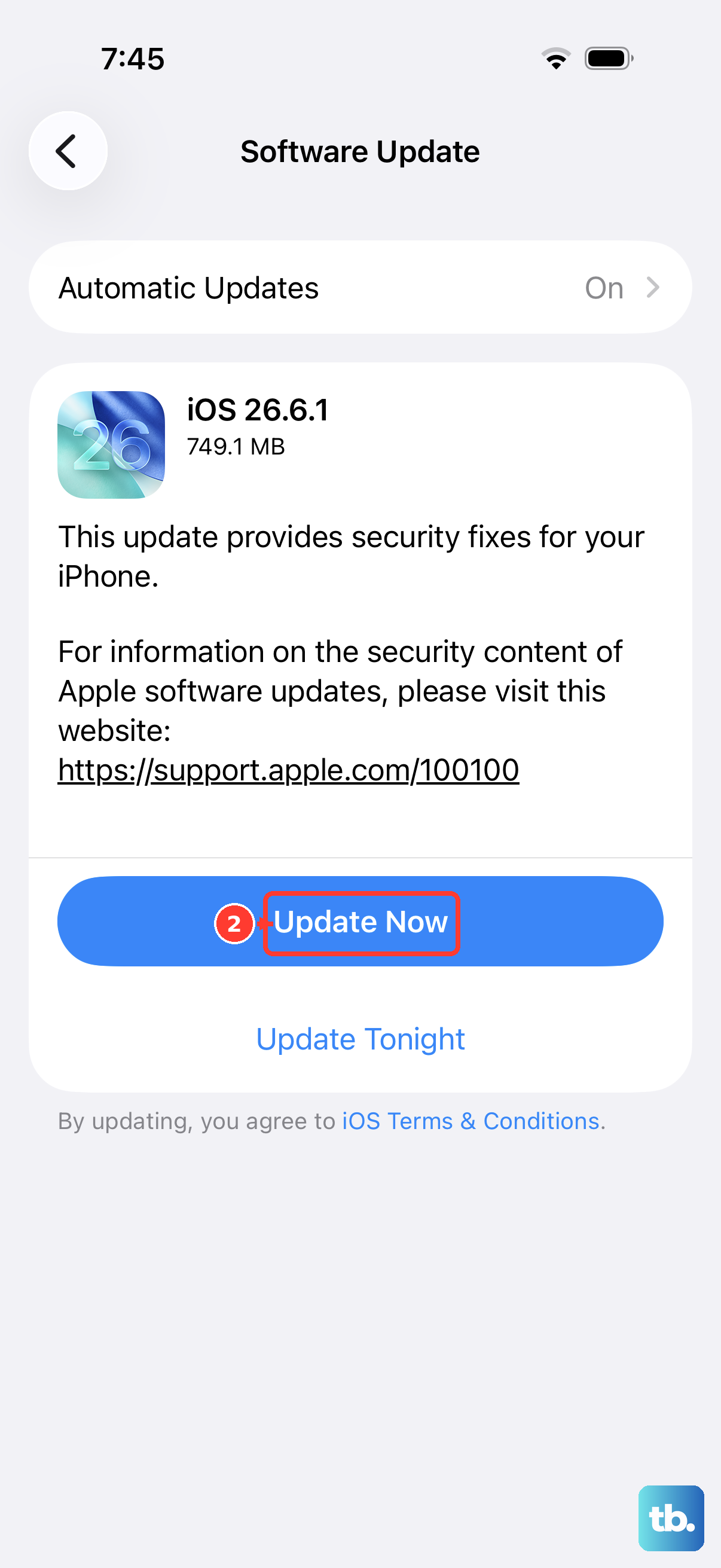
Go to Settings > General > Software Update. If an update is available, install it. Updating iOS can fix some iPhone issues and also brings current security updates.
These updates often contain patches for connectivity and stability. It's a good first step for any new device experiencing odd behavior, as manufacturers are quick to address widespread issues reported in the first few weeks.
Disable Wi-Fi Assist
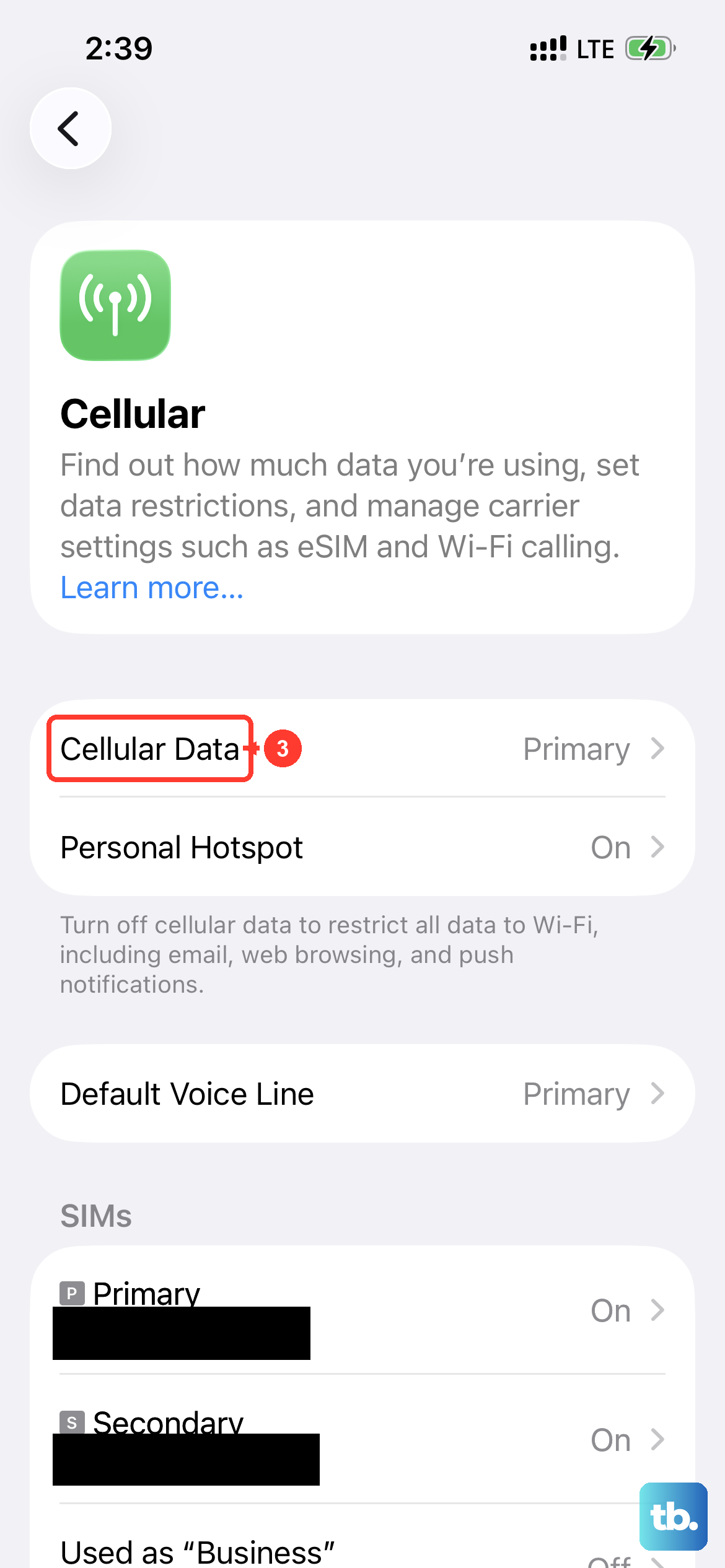
Wi-Fi Assist is an iOS feature that automatically switches to cellular data when your Wi-Fi connection is poor. Sometimes, it can be a little too aggressive and prevent a stable connection from forming. You can turn it off to test.
Navigate to Settings > Cellular (or Mobile Data). Scroll all the way to the bottom and toggle off Wi-Fi Assist. Now try reconnecting to your Wi-Fi network to see if it holds.
Reset Your Network Settings
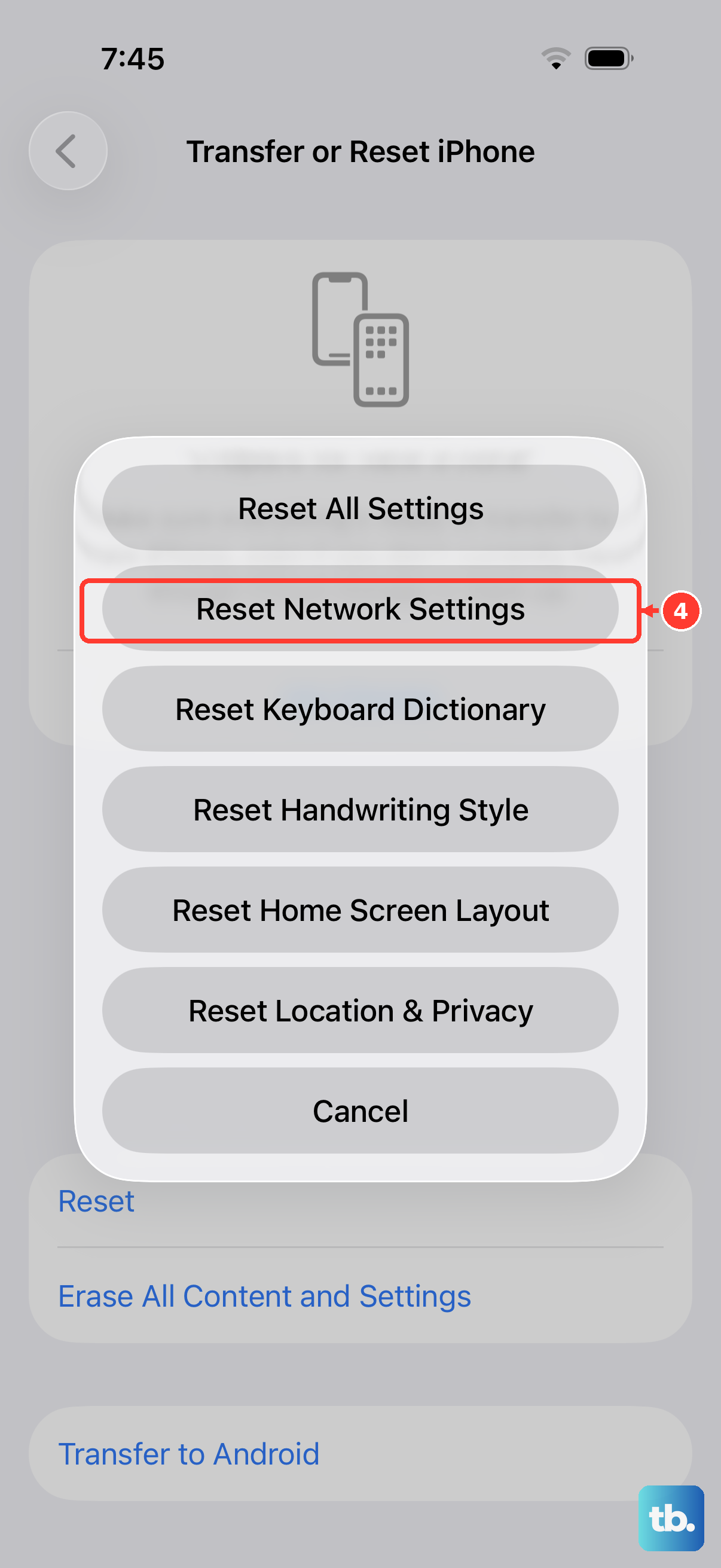
This is a more thorough step that removes network settings, including saved Wi-Fi networks and passwords, cellular settings, and VPN and APN settings. Apple recommends using it only after other Wi-Fi fixes fail, and managed school or work devices may need IT help first.
To do this, go to Settings > General > Transfer or Reset iPhone. Tap Reset, then choose Reset Network Settings. Enter your passcode if prompted and confirm, then reconnect to your Wi-Fi network afterward.
Restart Your Router and Modem
The problem might not be your iPhone 17e at all. Unplug your router and modem from power. Wait a full 60 seconds to let them fully discharge. Plug the modem back in first and wait for all its lights to stabilize.
Then, plug your router back in. Give it another minute or two to boot up completely. Finally, try connecting your iPhone to the Wi-Fi network again. If other devices in your home were also having trouble, this likely fixes it.
Check Your Router's Band and Security
Newer phones sometimes have issues with older router settings. If possible, try connecting your iPhone 17e to the 5GHz band instead of the 2.4GHz band, or vice versa, to see if one is more stable.
Also, check your router's security protocol. Apple recommends WPA3 Personal for better security, or WPA2/WPA3 Transitional for compatibility with older devices. If those modes are not available, WPA2 Personal (AES) is the documented fallback; avoid WEP, WPA, TKIP, and open networks.
Try a Different Network
To rule out a problem with your specific home network, try connecting to a different Wi-Fi source. This could be a public hotspot, a friend's network, or even a personal hotspot from another phone.
If your iPhone 17e connects without issue to other networks, then the problem is almost certainly with your home router's settings or its compatibility with iOS 26. If it fails to connect to any network, the issue is localized to your phone.
Contact Apple Support
If you've tried every step here and your iPhone 17e still won't connect to any Wi-Fi network, it's time to get official help. Apple recommends contacting Apple when an iPhone or iPad cannot connect to any Wi-Fi network.
Since it's a 2026 model, it should be under Apple's standard one-year warranty. You can contact support through the Apple Support app on another device or their website to schedule a diagnostic or repair.