
If your iPhone 14 camera is acting up, try a force restart. Press and quickly release the Volume Up button, press and quickly release the Volume Down button, then press and hold the Side button until you see the Apple logo. Restarting can help with temporary software problems that cause a black viewfinder or a frozen camera app.
Key Points
- Fix a Black or Frozen Camera: Force close the Camera app and restart your iPhone.
- Resolve Blurry or Out-of-Focus Photos: Clean the camera lenses thoroughly with a microfiber cloth.
- Fix Camera App Crashes: Update to the latest version of iOS, then test the camera again.
- Address Portrait Mode or Night Mode Issues: Make sure you're using the correct camera lens and have enough light.
- Clear Storage to Fix Recording Problems: Free up space if you get an error saying storage is full.
- Reset All Settings for Persistent Glitches: Reset your preferences without erasing your data.
Give your phone a moment to reboot completely, then try opening the Camera app again. Take a photo to check whether the camera is working.
Software problems can affect the camera. Open Settings > General > Software Update to check for any available iOS updates. Back up your iPhone first, connect it to power and Wi-Fi, then tap Download and Install if an update is available.
After updating, test the camera again by taking a photo. Tap the rotate button to switch between the front and rear cameras, and check whether the problem affects one or both. If the camera still isn't working properly, you might need service.
Fix a Black or Frozen Camera Screen
When you open the Camera app and just see a black screen or a frozen image, the app itself might have crashed in the background. Swipe up from the bottom of the screen and pause in the middle to enter the app switcher. Find the Camera app preview and swipe it up and off the top of the screen to force close it.
Now, try launching the Camera app again from your Home Screen. If it's still black and you haven't restarted yet, try the force restart described earlier. Remove any case, film, or accessory that might block the camera or place a magnet near it, then test again.
Check the flash too: swipe down from the top-right corner of the screen to open Control Center, then tap the Flashlight button. If the flash works only sometimes, open the Camera app and tap the flash button to choose a different setting. If the camera or flash still isn't working properly, you might need service.
Resolve Blurry or Out-of-Focus Photos
First, give those camera lenses a good clean. The iPhone 14 has multiple lenses, and a smudge on any of them can ruin your shot. Use a soft, lint-free microfiber cloth and gently wipe each lens in a circular motion.
Avoid using harsh chemicals or window cleaner, as they can damage the special lens coating. If your photos are consistently soft or blurry, tap on the screen where you want the camera to focus. You should see a yellow square confirm the focus point.
Make sure your subject isn't too close. If the camera won't focus, try moving farther from your subject. Note that the standard iPhone 14 doesn't support Macro mode. That feature is exclusive to the iPhone 14 Pro and Pro Max, whose Ultra Wide lens has autofocus, so you won't find a Macro Control option in Settings > Camera.
Fix Camera App Crashes on Launch
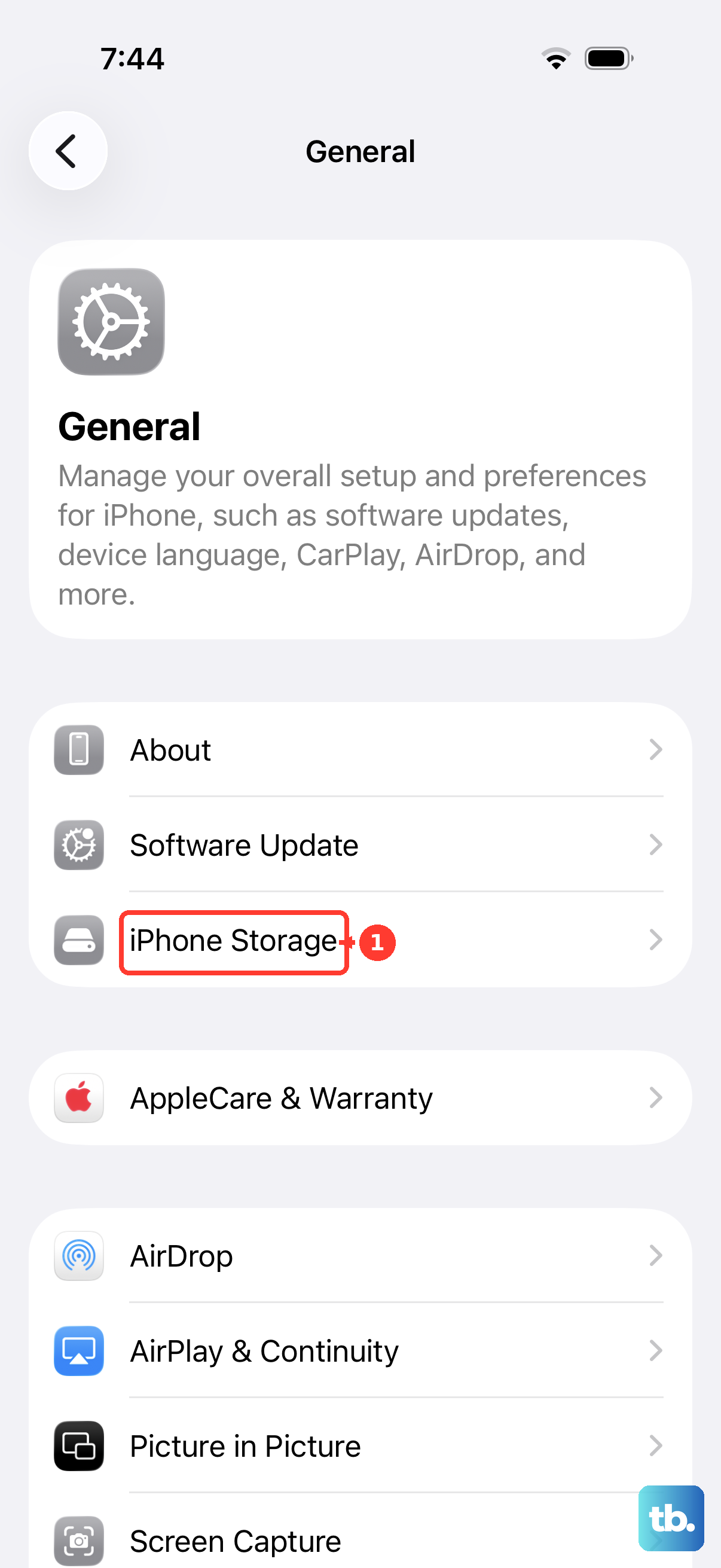
If the Camera app closes immediately after you open it, a software problem may be the cause. Before doing anything drastic, ensure your iPhone has enough free storage. Go to Settings > General > iPhone Storage to check.
If you're running low, free up space for new photos and videos. Try transferring some photos or videos to a computer, then remove copies you no longer need on your phone. Next, update to the latest version of iOS and test the camera again by taking a photo.
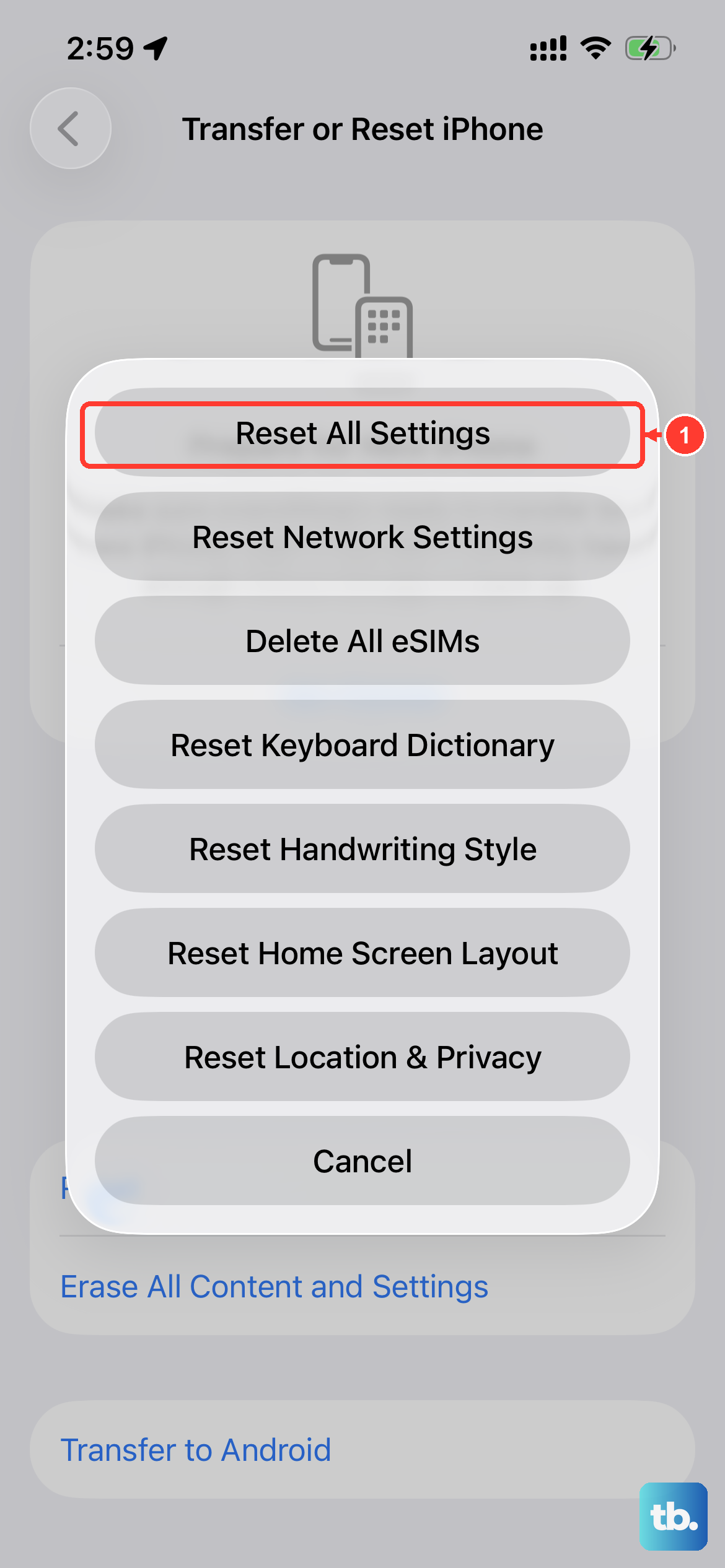
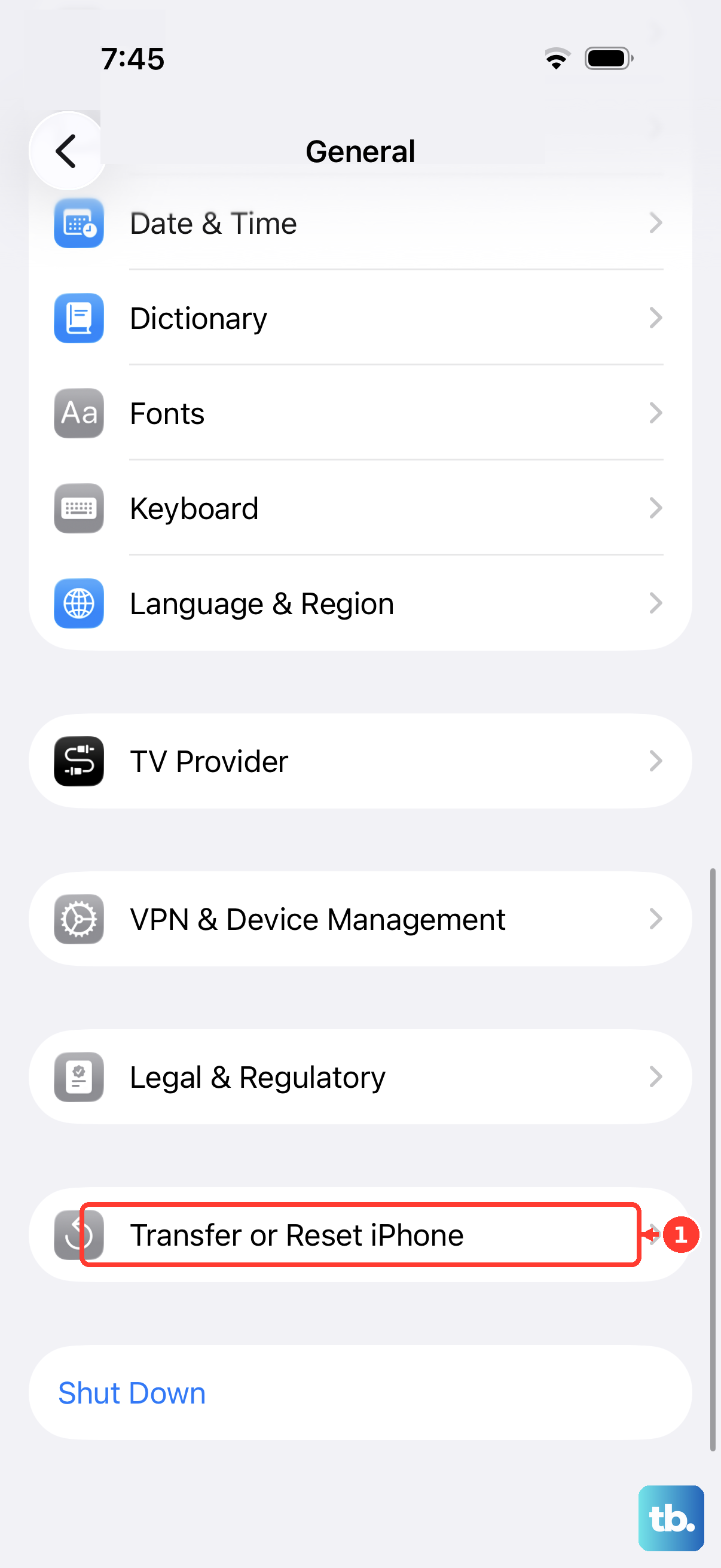
You can also try resetting your iPhone's settings. Go to Settings > General > Transfer or Reset iPhone > Reset and tap Reset All Settings. This keeps your photos and apps, but resets many preferences, removes Apple Pay cards, and requires you to rejoin Wi-Fi, re-pair Bluetooth devices and Apple Watch, and set up Face ID again.
Address Portrait Mode or Night Mode Issues
Portrait Mode not working? Make sure you're not too close or too far from your subject. The iPhone 14 needs to detect a person, pet, or object clearly before it can blur the background.
If the depth effect looks wrong after taking the shot, you can adjust it in the Photos app. Open the portrait photo, tap Edit, and use the slider at the bottom to change the blur intensity. For Night Mode, the camera needs to be held very still.
In low light, Night Mode turns on automatically and your iPhone sets the exposure time. Use a wall or a steady surface to brace the phone during longer exposures. If Night Mode isn't activating at all, you might be in a mode that doesn't support it, like Video.
Clear Storage to Fix Video Recording Problems
Running out of space will stop video recording in its tracks. You'll typically get an error message saying storage is full. Before you start an important recording, it's a good habit to check your available space.
If you get a "Cannot Record Video" message mid-clip, immediately stop and free up some gigabytes. You can quickly delete unused apps or a batch of old screenshots. For the iPhone 14, recording high-resolution 4K Dolby Vision video consumes storage very quickly.
Consider changing your video format to 1080p HD if you're just capturing memories and don't need the highest quality. You can change this in Settings > Camera > Record Video.
Reset All Settings for Deeper Software Glitches
When basic troubleshooting doesn't work and the camera is still malfunctioning, you can try a settings reset. This returns system settings, including Wi-Fi passwords, wallpaper, and privacy permissions, back to defaults, but it leaves all your personal data and media intact.
Go to Settings > General > Transfer or Reset iPhone. Tap Reset, then choose Reset All Settings. You'll need to enter your passcode to confirm. The phone will restart, and you'll have to reconfigure things like Face ID and notifications, rejoin Wi-Fi, and re-pair Bluetooth devices and Apple Watch.
After the reset, open the Camera app before changing many settings. Take a photo, then tap the rotate button and test the other camera too. If the camera or flash still isn't working properly, you might need service.