
If your iPhone 14 won't connect to your AirPods, car, or other Bluetooth accessories, a few troubleshooting steps can help. The issue may involve the accessory's power, pairing mode, or connection to another device. Start by checking that the accessory is on and fully charged or connected to power.
Turn Bluetooth off and back on. Open Settings > Bluetooth, turn Bluetooth off, and then turn it back on. The Bluetooth button in Control Center only disconnects accessories; it doesn't turn Bluetooth off. Try reconnecting to your device after turning Bluetooth back on in Settings.
Forget and Re-Pair the Device
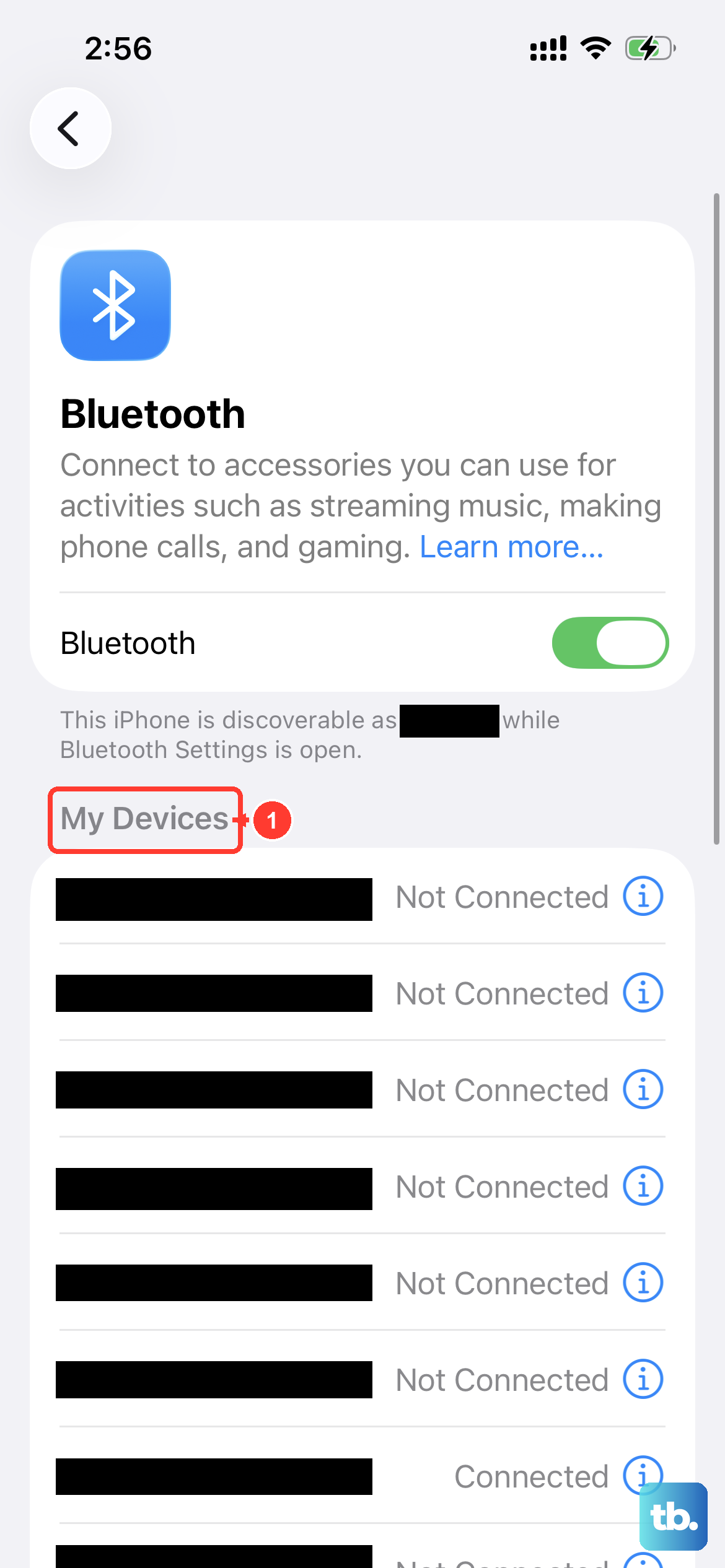
If toggling Bluetooth didn't work, the next step is to remove the device from your iPhone's memory and start fresh. Go to Settings > Bluetooth. Find the problematic device in your list and tap the info (i) icon next to it. Tap Forget This Device and confirm.
Now, put the accessory back into pairing mode. The process varies, but you usually hold a button until a light flashes. With the accessory ready, go back to your Bluetooth settings and tap its name when it appears under "Other Devices" to pair again.
Restart Your iPhone 14 and the Accessory
A simple restart can clear out temporary bugs affecting the Bluetooth radio. To force restart your iPhone 14, quickly press and release the Volume Up button, then quickly press and release the Volume Down button. Finally, press and hold the Side button until you see the Apple logo appear.
Don't forget to restart the Bluetooth device you're trying to connect to as well. Turn it off completely, wait a moment, and turn it back on. Once both devices are back on, attempt the pairing process one more time.
Check for Software Updates
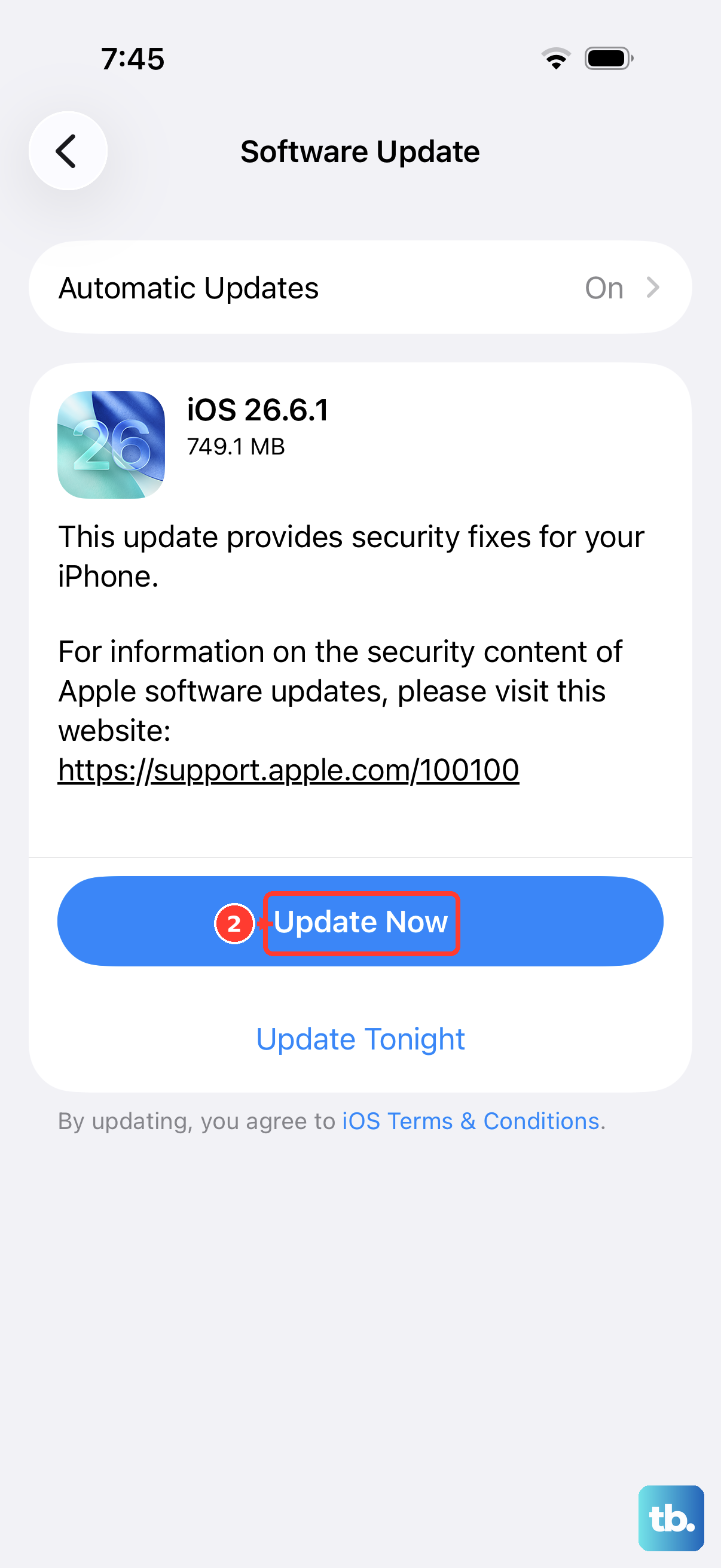
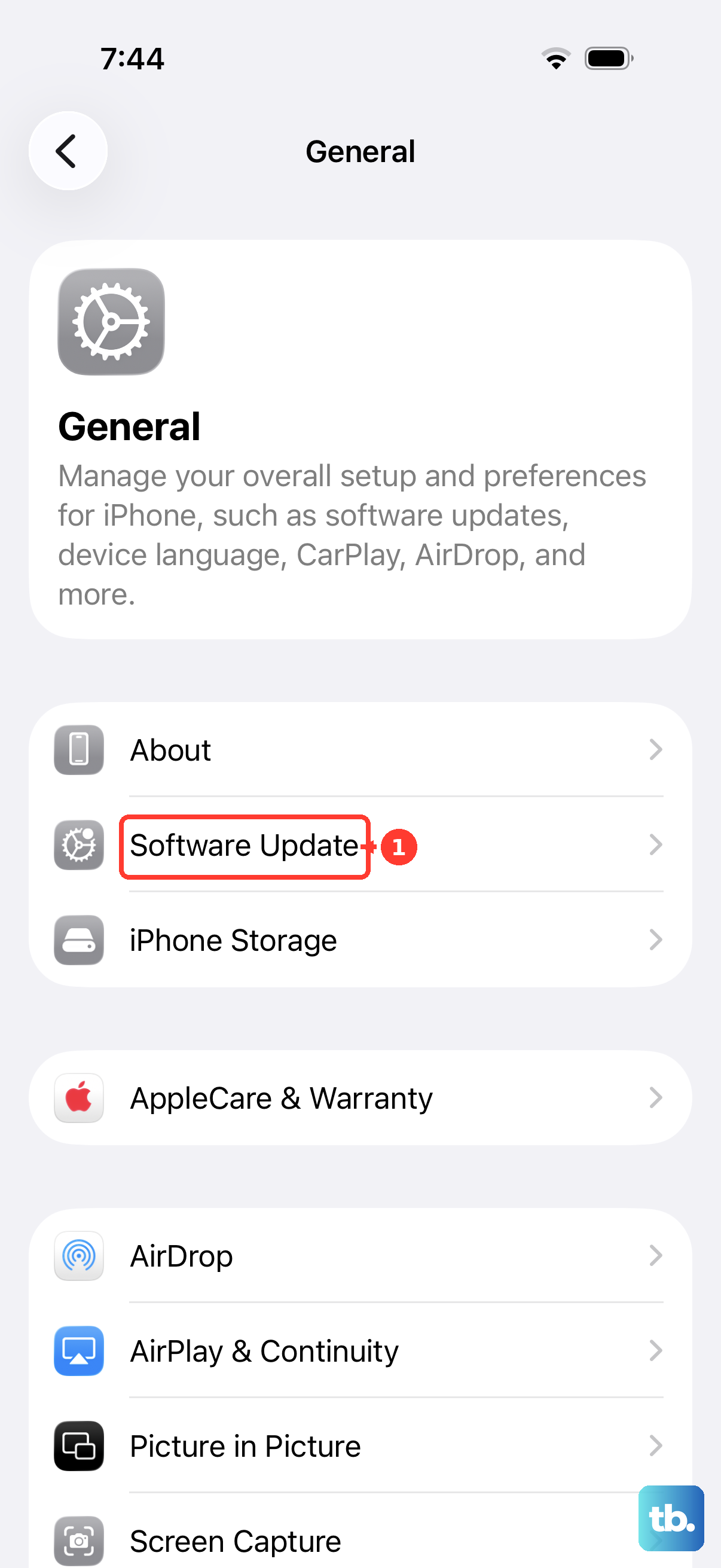
Keeping your software up to date can help with troubleshooting Bluetooth problems. Software updates can include bug fixes. To check, go to Settings > General > Software Update.
If an update is available, back up your phone, then tap Download and Install while your phone is connected to Wi-Fi and plugged into power. Also, check if your Bluetooth accessory has a companion app that might have a firmware update available.
Reset All Network Settings
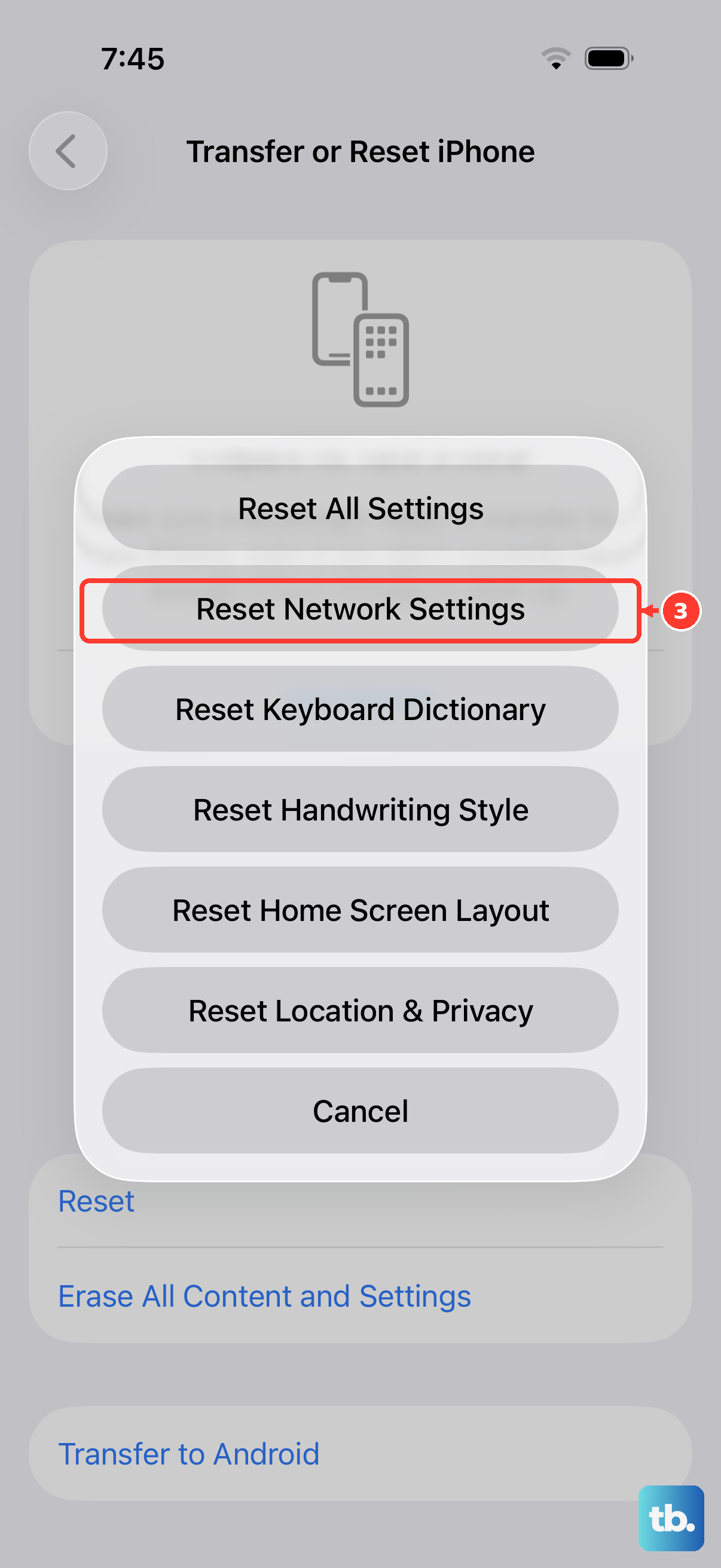
Use this step only if other fixes fail. It removes saved Wi-Fi networks and passwords, cellular settings, and VPN and APN settings, including work and school network configurations. You'll need to rejoin Wi-Fi networks afterward. Go to Settings > General > Transfer or Reset iPhone.
Tap Reset and then choose Reset Network Settings. Enter your passcode if prompted and confirm. Your iPhone will restart, and you can try setting up your Bluetooth connection from scratch.
Check for Interference and Device Limits
Bluetooth can be finicky around other wireless signals. Move away from crowded Wi-Fi routers, microwaves, or dense USB hubs. Also, keep your iPhone 14 and the accessory close to each other without major obstructions.
Your iPhone can pair with multiple Bluetooth accessories. If your accessory pairs with another phone, tablet, or computer but won't pair with your iPhone, unpair the accessory from those other devices. Then put it back in discovery mode and try pairing it with your iPhone again.
If Bluetooth Won't Turn On At All
If you can't turn on Bluetooth in Settings > Bluetooth, or the setting is grayed out, contact Apple Support. Also contact support if you can't connect any Bluetooth accessories, or if the accessory manufacturer has confirmed that your accessory is working correctly and it still won't connect.
If Bluetooth is on but an accessory's app can't connect, check its permission separately. Go to Settings > Privacy & Security > Bluetooth and make sure Bluetooth access is turned on for the app you use with the accessory.
Troubleshoot Specific Accessories
For AirPods, make sure they're charged and in their case with the lid open near your iPhone. Check the charging case's status light. For a car system, delete your iPhone from the car's infotainment memory and delete the car from your iPhone's Bluetooth list, then try pairing again as if it's a brand new device.
Some older car systems or speakers might use an outdated Bluetooth profile that has compatibility issues. If you see the device pair but then fail to play audio, try going to Settings > Bluetooth, tapping the info (i) icon for the device, and checking that the device type is set correctly, like "Car Stereo" for a vehicle.