
Running out of space on your iPhone 13 can bring everything to a halt, stopping you from taking that perfect photo or updating an app. The 128GB base model fills up faster than you'd think, especially with high-quality photos and videos. I'd start by checking what's actually using all that space, as it's often a few specific things you can clear out without much hassle.
Check Your iPhone 13 Storage Breakdown
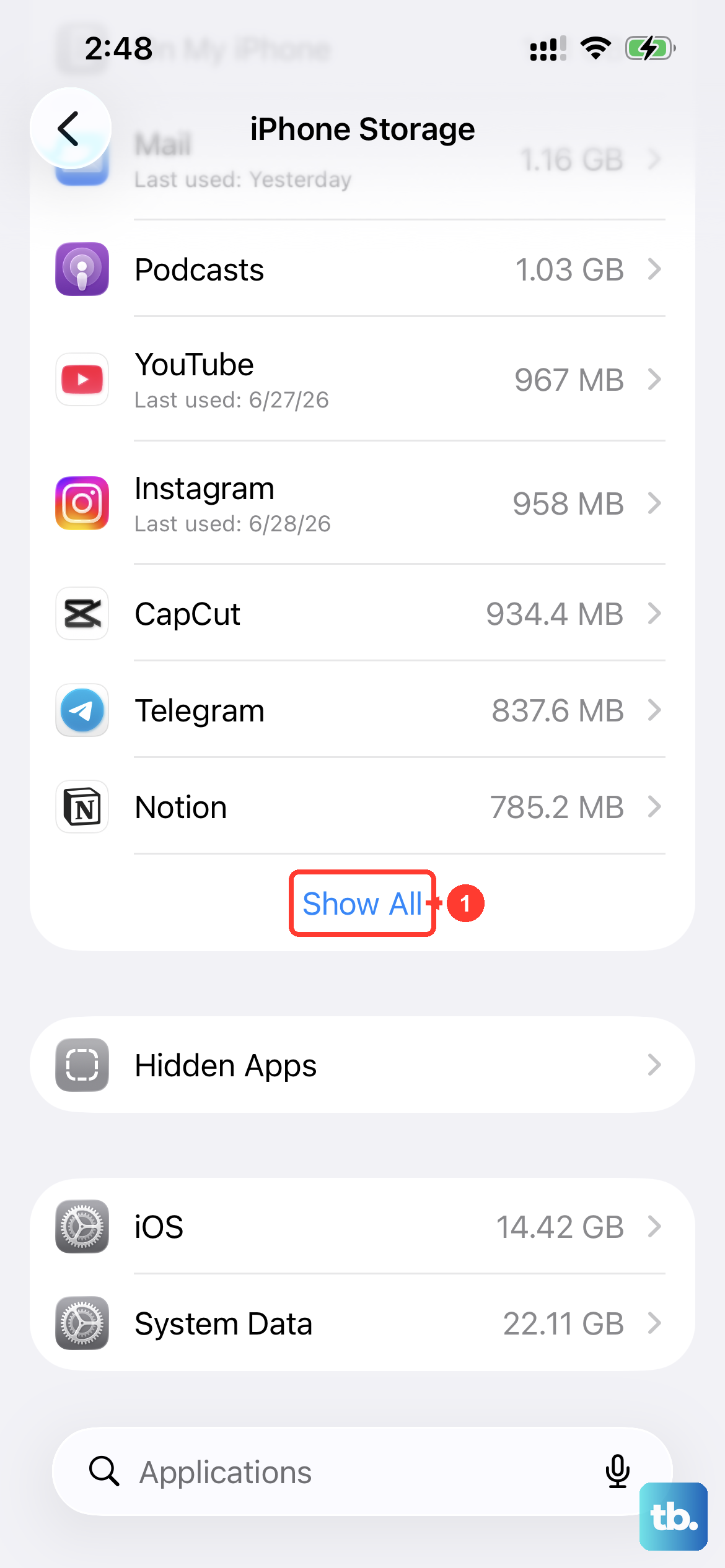
Head straight to Settings > General > iPhone Storage. Your iPhone 13 will take a moment to analyze everything, then show you a color-coded bar and a list of apps sorted by size. This is your roadmap. Look for the apps using the most space, whether that's Photos, Messages, or social media apps.
Enable Offload Unused Apps
Right at the top of that iPhone Storage screen, you might see a recommendation for Offload Unused Apps. Turn this on. It's a fantastic feature that automatically removes apps you haven't touched in a while but keeps all their documents and data on your phone. The app icon stays on your home screen with a little cloud next to it, and tapping it lets you download the app again while keeping its saved documents and data.
Clear Out Your Messages Cache
Text message threads, especially group chats, are storage killers on the iPhone 13. They're packed with photos, videos, and animated GIFs you probably forgot about. Go to Settings > General > iPhone Storage, tap on Messages, and you'll see a breakdown by attachment type. You can review and delete large items here. To automatically remove older messages, go to Settings > Apps > Messages > Keep Messages and select 30 Days or 1 Year. Save any messages or attachments you want to keep before shortening this setting.
Delete and Reinstall Large Apps
Apps like Instagram, TikTok, Facebook, and Spotify store massive amounts of cached data over time. In your storage list, if you see an app where the "Documents & Data" size is huge compared to the "App" size, that's your cue.
Deleting the app entirely (tap it in the storage list and choose Delete App) removes the app and its related data. Before reinstalling it from the App Store, make sure anything you want to keep is backed up or synced to your account, since locally stored content may be lost.
Optimize Your Photo Library
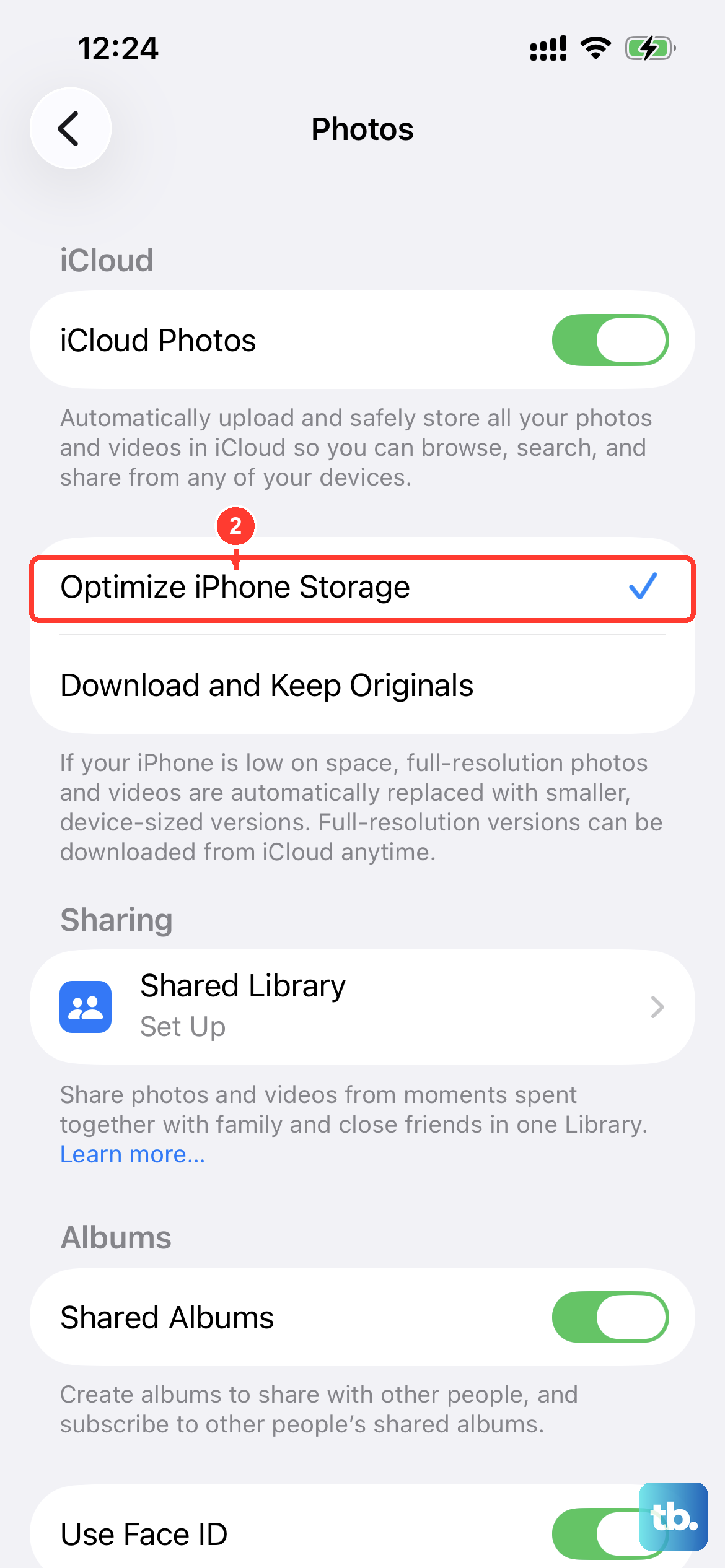
This can make a big difference if photos and videos take up much of your storage. Go to Settings > [your name] > iCloud > Photos and turn on Sync this iPhone. Tap iPhone Storage and make sure Optimize iPhone Storage is enabled.
This stores full-resolution photos and videos in iCloud and keeps smaller copies on your iPhone 13 when needed, as long as you have enough iCloud storage. Also, take five minutes to go through your Photos app and delete blurry shots, old screenshots, and duplicate pictures. Remember to then go into the Recently Deleted album and empty it to finally free up that space.
Clear Safari Website Data
Safari's website data, history, and cookies can take up storage over time. Clearing it is quick and painless. Just go to Settings > Apps > Safari > Clear History and Website Data, choose a timeframe, then tap Clear History. You may need to log back into websites afterward, and the space freed depends on how much website data was stored.
Manage Downloaded Media
Streaming apps are sneaky. That podcast series you finished, the album you downloaded on Apple Music, or the movies you saved for a trip in Netflix are all sitting on your phone. Open apps like Spotify, Apple Podcasts, Netflix, and Apple TV and look for your downloads or offline content sections. Deleting what you've already consumed is an easy win.
Review System Data and Temporary Files
Back in Settings > General > iPhone Storage, look at the category labeled "System Data," which includes caches, logs, and other system files. Your iPhone frees up space by removing temporary files and downloadable cached content when needed, so focus on the storage recommendations rather than trying to clear this category with a force restart.
Tap Show All, read each recommendation, then tap Enable or review the content you can delete. If you need to remove media synced from a computer, deselect it in the Finder on a Mac or the Apple Devices app or iTunes on a PC, then click Sync.
Consider Your iCloud Storage Plan
If you're constantly playing this storage management game, it might be time to upgrade your iCloud+ plan. You get 5 GB of iCloud storage free, and iCloud+ offers more space for your photos, messages, and backups. A larger plan can help you use iCloud Photos with Optimize iPhone Storage, but it doesn't increase your iPhone 13's built-in capacity or remove all local copies. You can check your current plan and upgrade by going to Settings > [Your Name] > iCloud.