
If your iPhone 13's Settings app won't open, it's usually a temporary software hiccup. The app might freeze on a black screen, crash immediately, or just refuse to launch. I'd start with a simple restart, as that clears out most glitches.
Force Restart Your iPhone 13
This is different from a normal restart and often fixes unresponsive apps. It doesn't erase any of your data. Press and quickly release the Volume Up button, then press and quickly release the Volume Down button. Finally, press and hold the Side button until you see the Apple logo appear on the screen.
Once your phone boots back up, try opening Settings again. If it's still stuck, the issue might be a bit deeper.
Check for an iOS Update
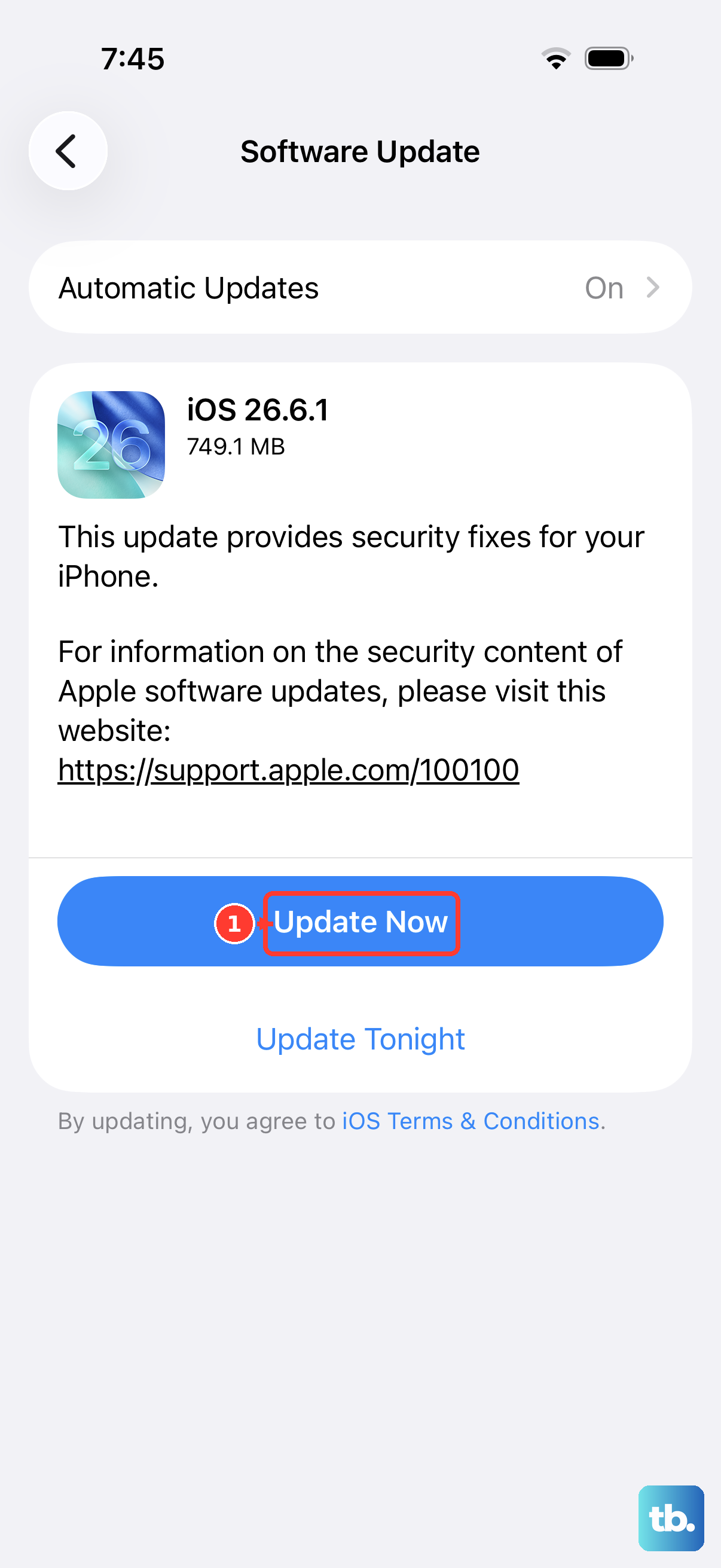
Outdated software can cause conflicts with system apps. Since your iPhone 13 can run iOS 26, it's good to make sure you're on the latest version. You'll need to use a different method since Settings isn't working.
Connect your iPhone to a computer with a Finder (Mac) or iTunes (Windows PC). Use an original Apple or MFi-certified Lightning cable for a reliable connection. Unlock your phone and trust the computer if prompted. The software update option should appear, allowing you to install any available updates.
Reset All Settings
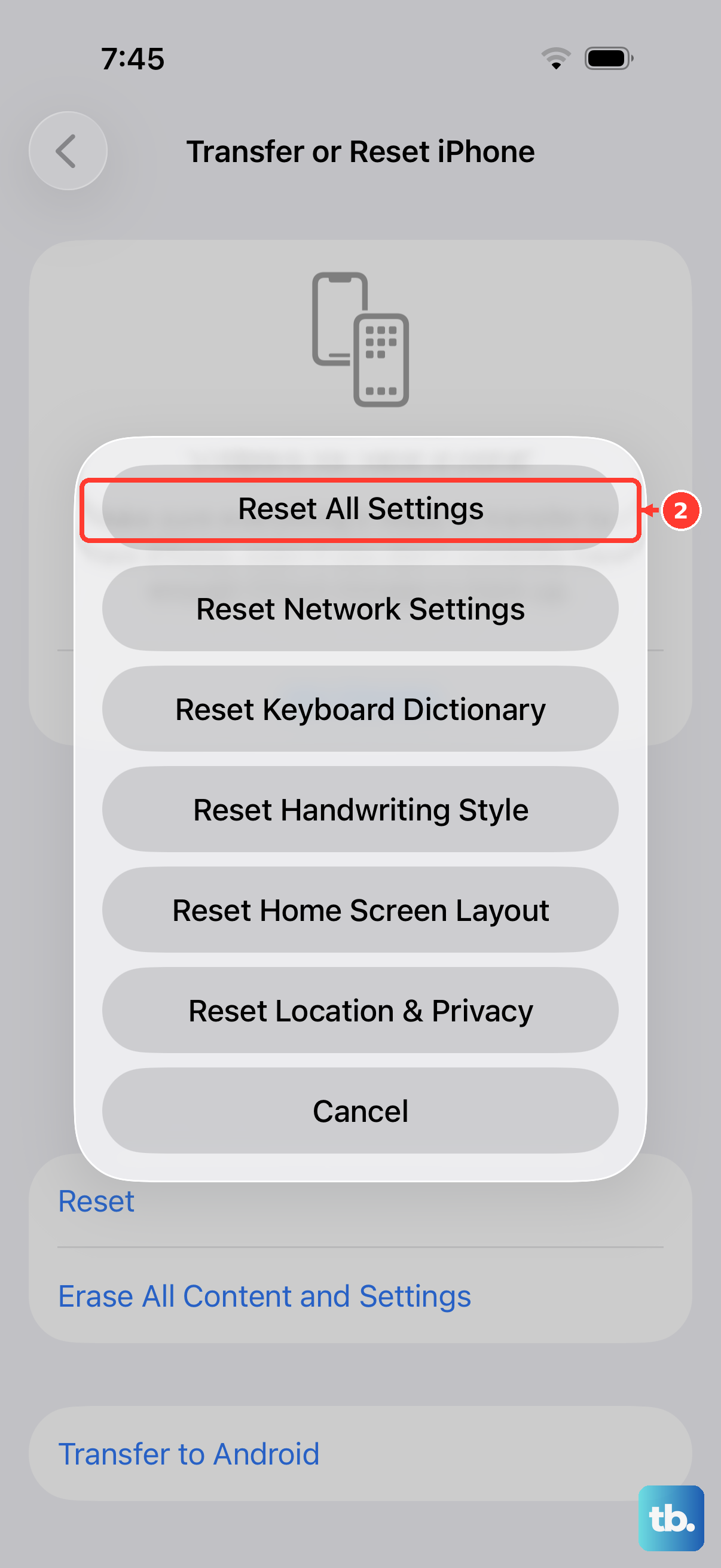
This is a more thorough step if the app is still broken. It will reset your network settings, wallpaper, and privacy permissions back to default, but it won't touch your photos, messages, or apps. It can clear out corrupted preferences that are stopping Settings from launching.
Since you can't get into Settings the normal way, you'll need to use the device's reset menu. Press and hold both the Volume Down and Side buttons until the power-off slider appears. Don't slide it. Instead, continue holding until the screen goes black and the Apple logo appears, then release. This enters recovery mode.
From here, you can choose to "Update" via your computer first (which tries to reinstall iOS without data loss). If that doesn't work, the "Restore" option will do a full factory reset. Remember, "Restore" will erase everything, so it's a true last resort.
Consider Storage or Battery Health
While less common, a completely full storage drive or a severely degraded battery can cause system-wide instability. If you've had your iPhone 13 since its 2021 release and used it heavily, the battery health might be below 80%.
These issues are harder to diagnose without access to Settings, but if you've recently gotten a "Storage Almost Full" warning or noticed your phone shutting down unexpectedly, they could be contributing factors. A forced restart or software update might get Settings working long enough for you to check under Settings > Battery > Battery Health.
If you can get in temporarily, enabling Low Power Mode can sometimes help stabilize a phone with a weak battery. For a permanent fix, a battery replacement might be necessary.