
Seeing a black screen on your iPhone 13 can be a real scare, but a force restart or charging may get it working again. The phone might be running just fine behind that dark display, or a software crash could have frozen everything. Try these steps to get your screen back on.
Force Restart Your iPhone 13
Start with a force restart. The process for the iPhone 13 is specific. Quickly press and release the Volume Up button, then quickly press and release the Volume Down button. Immediately after, press and hold the Side button.
Keep holding the Side button until the Apple logo appears, even if it takes longer than 10 seconds. A force restart can work when the touchscreen is completely unresponsive. If the phone still won't turn on, move on to the charging checks below.
Charge It with the Right Cable
A completely drained battery can leave the screen black. Grab your Lightning cable and a power adapter. Check the cable and adapter for damage, and don't use damaged accessories. Try the original cable or an MFi-certified alternative if you can.
Plug it into a wall outlet and check that the cable and adapter connections are firm. Let it charge for 30 minutes, then try a force restart if it still won't turn on or shows a battery icon. Leave it charging for another 30 minutes. If it still won't charge, try a different outlet, cable, or adapter.
Check Your Screen Brightness
It sounds simple, but sometimes the screen brightness gets turned all the way down. You can ask Siri to "turn up the brightness" even if you can't see the screen.
Alternatively, try swiping down from the top-right corner where the battery icon is to open Control Center, then feel for the brightness slider and drag it upward.
Look for Signs of Physical Damage
Take a close look at your iPhone 13's display under good light. Look for any new cracks, dark spots, or discoloration that wasn't there before. Pay attention to whether the phone is still working.
Does it vibrate for notifications? Can you hear it ring? If you say "Hey Siri," does it respond? If the phone is making sounds or responding to voice commands, the device is on, but the display may need service if it stays black after these checks.
Connect to a Computer for a Restore
If a force restart and charging didn't work, try connecting to a computer. Use your Lightning cable to connect your iPhone 13 to a Mac or PC. On a Mac with macOS Catalina or later, open Finder. On a Windows PC, open the Apple Devices app or iTunes. On an older Mac, open iTunes.
If the computer recognizes your phone, select it and check for a software update. Back up your data first if you can. If the computer doesn't recognize it, follow the Recovery Mode steps below. In Recovery Mode, try Update first; Restore reinstalls iOS and erases all your data.
Put Your iPhone 13 into Recovery Mode
Sometimes the computer won't see the phone in a normal state. Try Recovery Mode if that happens. First, update your Mac or the Apple Devices app on your PC. Connect your iPhone to the computer with your Lightning cable, then open Finder on the Mac or the Apple Devices app on the PC. Quickly press and release Volume Up, quickly press and release Volume Down, then press and hold the Side button.
Don't let go when you see the Apple logo. Keep holding until the 'Connect to computer' screen appears. Choose Update first if you haven't tried it; Restore erases your data. If the download takes more than 15 minutes and the phone leaves this screen, let the download finish, then repeat the button steps.
Consider Battery Health
For an iPhone 13 from 2021, battery degradation is a common factor after a few years of use. A severely degraded battery can cause unexpected shutdowns and power issues that might mimic a black screen.
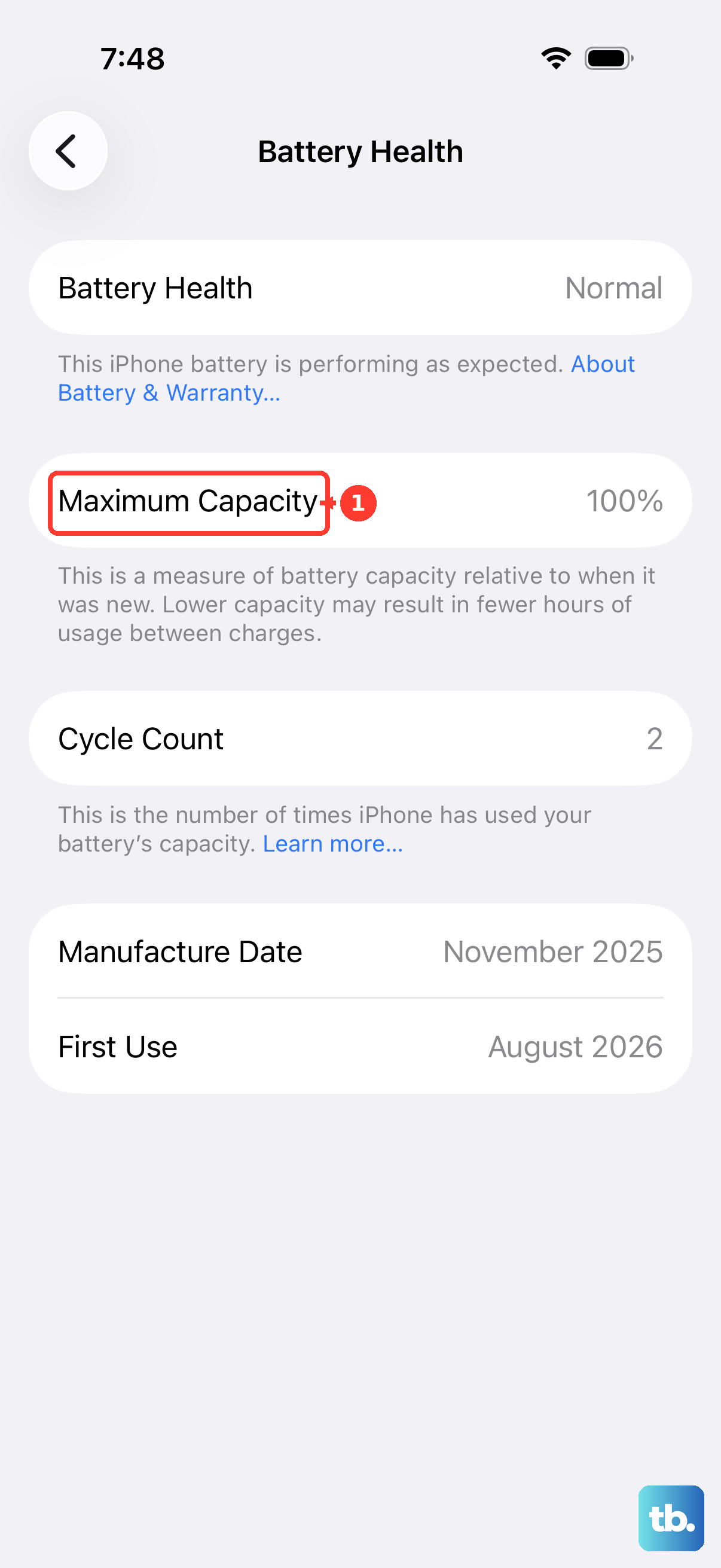
If you can get the phone to turn on, go to Settings > Battery > Battery Health & Charging. Check Maximum Capacity and the message under Peak Performance Capability. The normal message reads 'Your battery is currently supporting normal peak performance.' If power problems continue after charging and a force restart, the phone may need service.
Assess for Liquid Exposure
While the iPhone 13 is water-resistant, it's not waterproof. If it was recently exposed to moisture, power it off if you can and leave it in a dry area with airflow. If a liquid-detection alert appears while a cable is connected, unplug it and gently tap the phone against your hand with the connector facing down. Wait at least 30 minutes before trying to charge again.
Avoid the old rice trick, as the dust can get into the ports. Also, don't use compressed air or a hair dryer. If the screen stays black after it's thoroughly dry, the phone may need professional service.