
Getting a "No SIM Card" error on your iPad Pro M5 can stop you from using cellular data, making calls, or sending messages. This usually breaks down to a simple software glitch or an eSIM activation issue. Let's walk through the fixes that work for both the 11-inch and 13-inch models running iPadOS 18.
Force Restart Your iPad Pro M5 First
Start with this before digging into settings. Press and quickly release the Volume Up button, then press and quickly release the Volume Down button, then press and hold the Top button until the Apple logo appears. This takes about 10 seconds and clears out most temporary software hiccups that cause SIM detection problems. It won't erase any data, so it's safe to try immediately.
Check Your eSIM Status
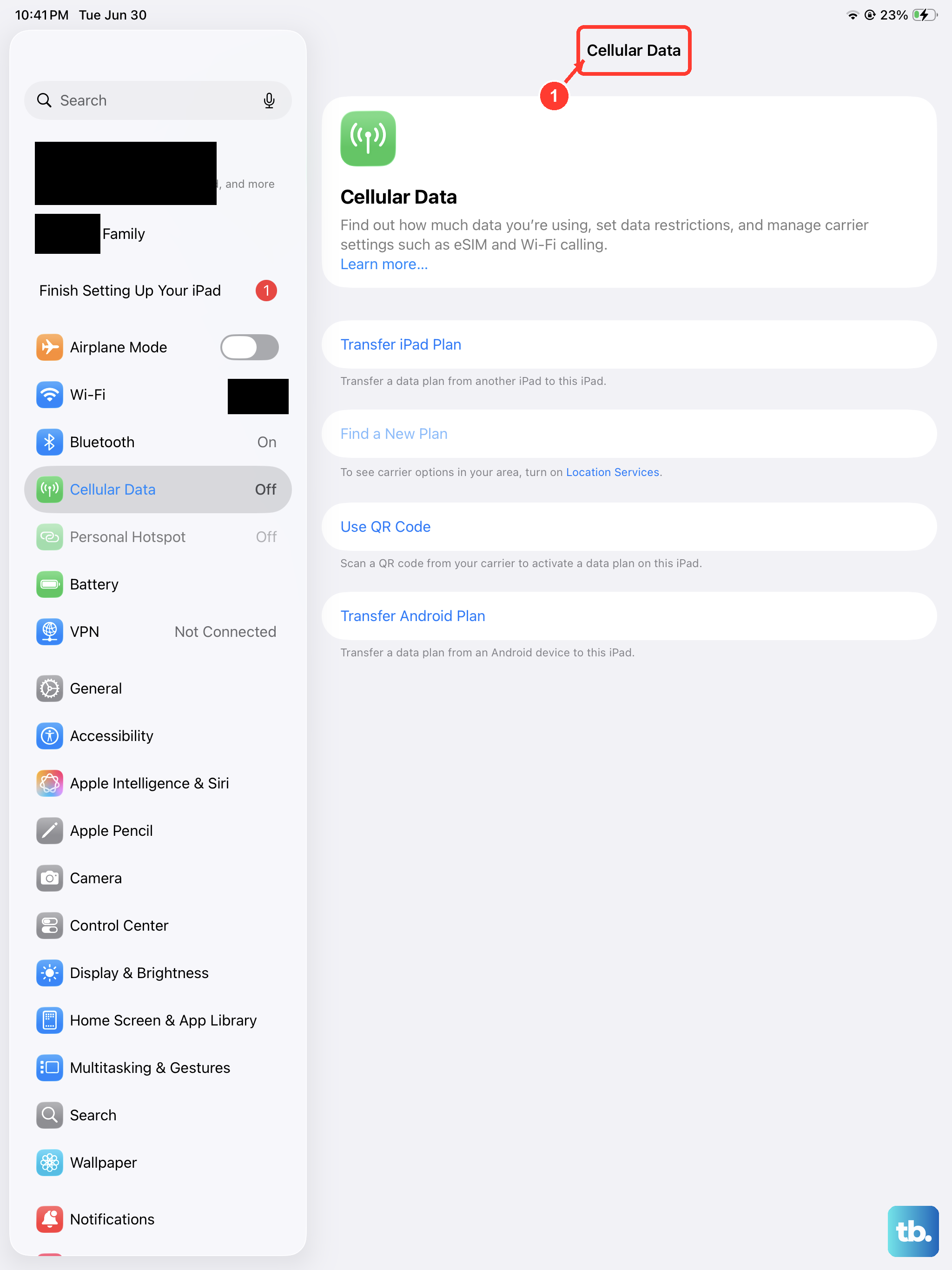
The iPad Pro M5 relies on an eSIM for cellular connectivity. Open Settings > Cellular Data. You should see your cellular plan listed under "Cellular Plans." If it's grayed out or missing, tap Add eSIM and follow the prompts to set it up again. Sometimes the plan just needs to be re-downloaded from your carrier.
Turn Cellular Data Off and On
Go to Settings > Cellular Data and toggle the switch off. Wait 10 seconds, then turn it back on. This refreshes the connection between your iPad and your carrier's network. If you have an eSIM, this often re-establishes the link after a temporary drop.
Update Carrier Settings
iPadOS 18 downloads carrier updates automatically in the background. But you can force a check by going to Settings > General > About. If an update is available, you'll see a prompt to install it. Your iPad will restart briefly afterward. I've seen this fix "No SIM" errors on multiple M-series iPads.
Reset Network Settings
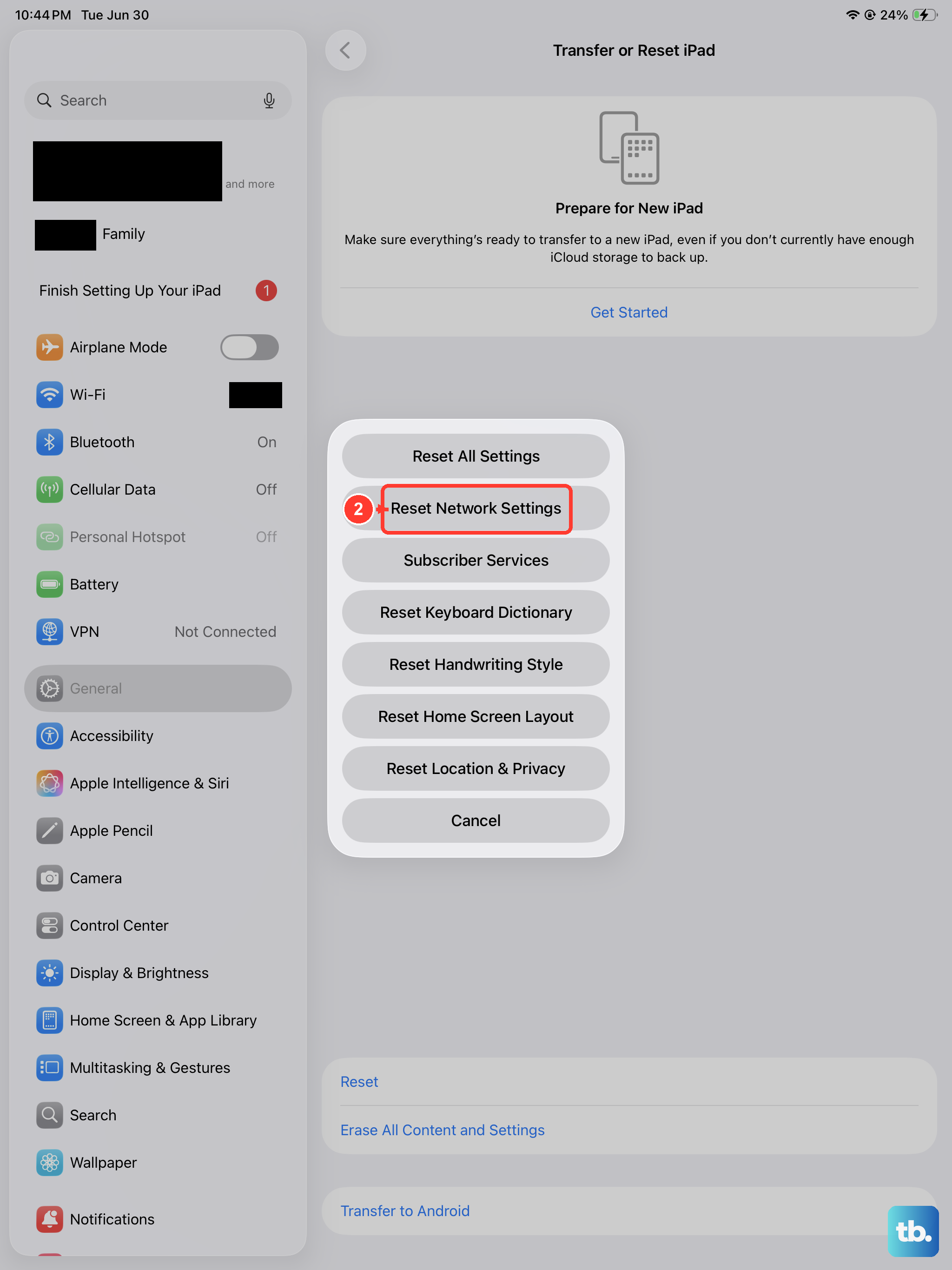
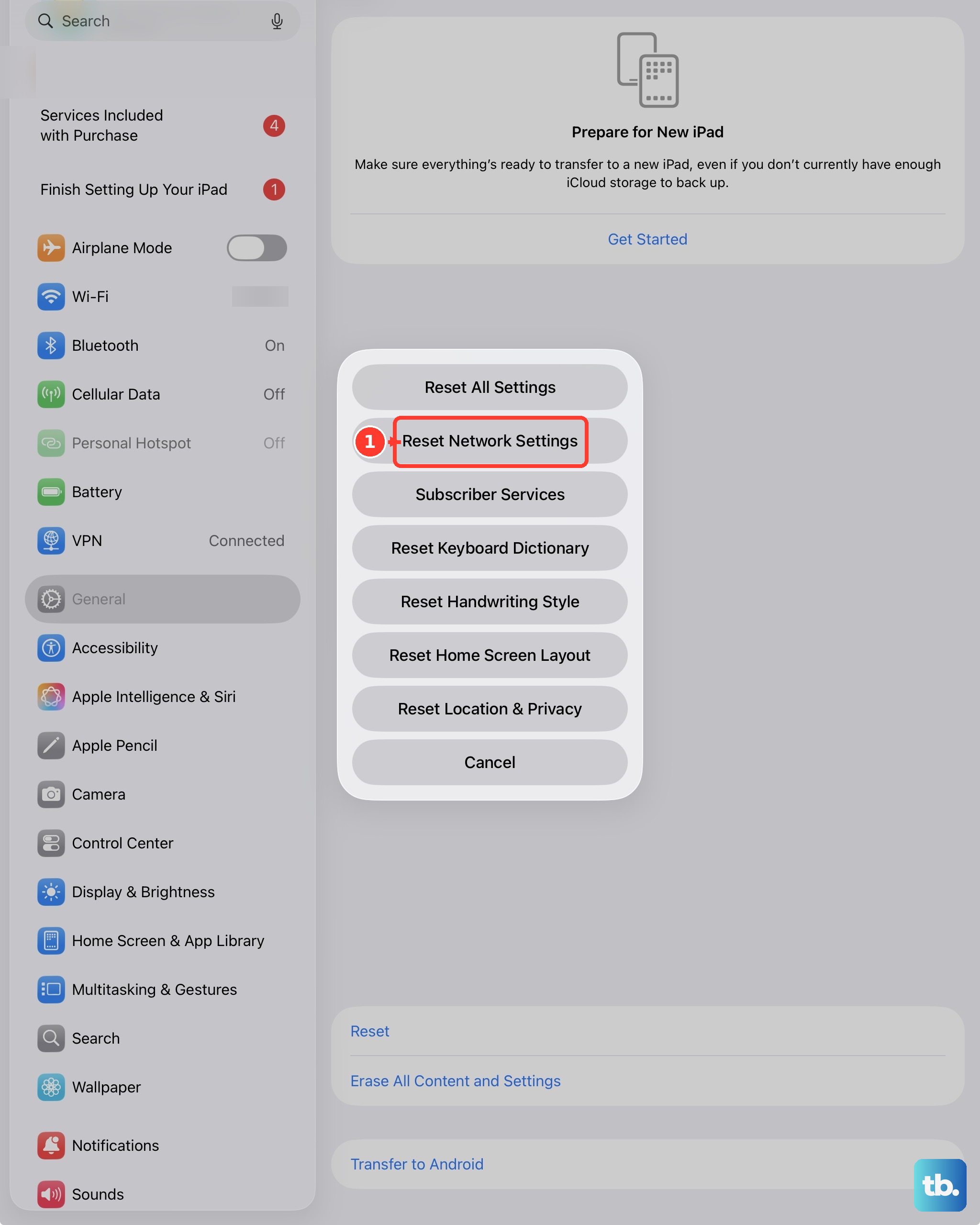
This clears Wi-Fi, Bluetooth, and cellular settings but keeps your personal data intact. Go to Settings > General > Transfer or Reset iPad > Reset > Reset Network Settings. Your iPad will restart, and you'll need to re-enter Wi-Fi passwords after. It's a powerful fix for eSIM detection issues that won't clear your apps or files.
Check for iPadOS Updates
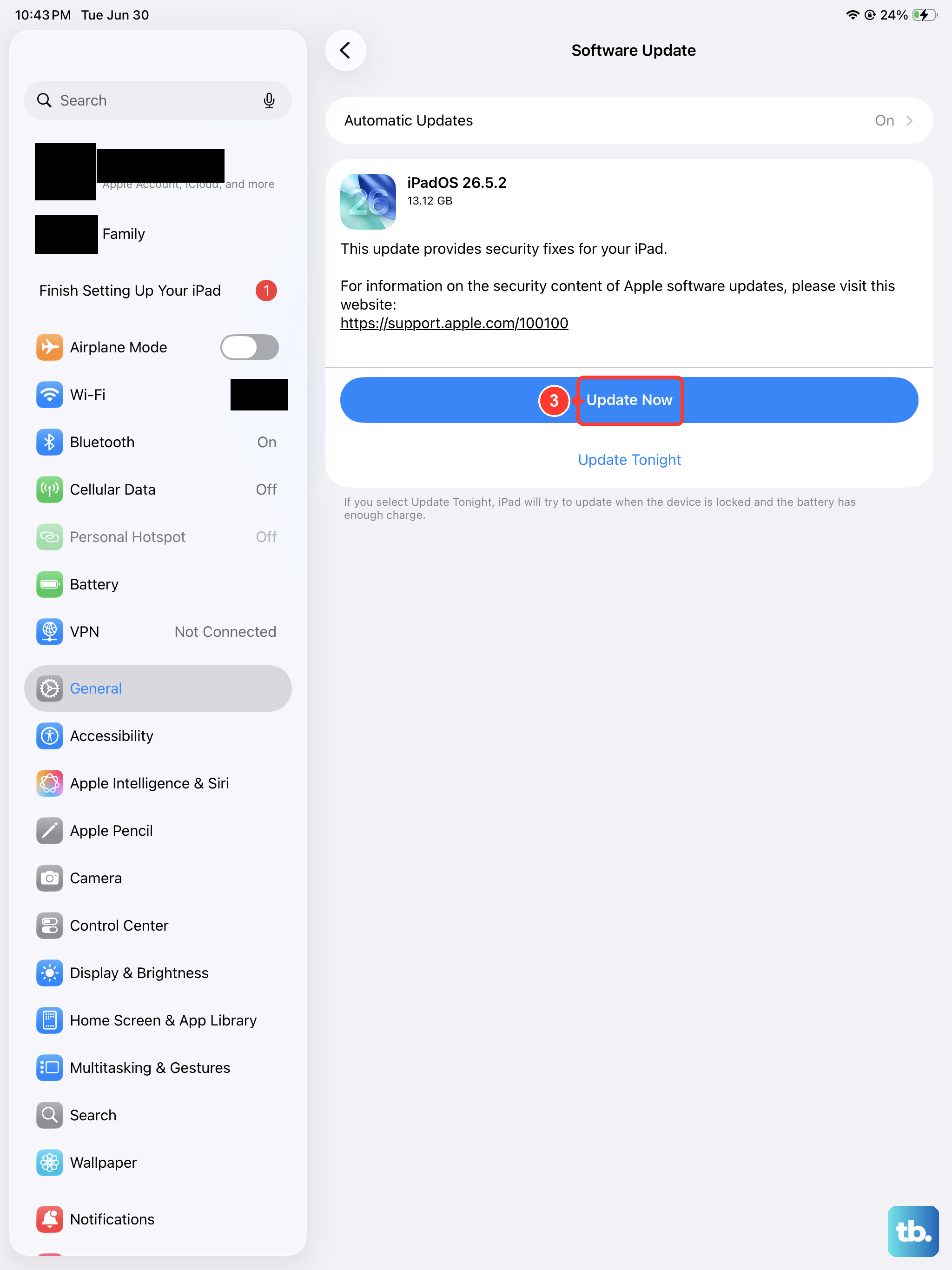
Go to Settings > General > Software Update. If iPadOS 18 has a minor update available, install it. Apple often pushes bug fixes that address cellular modem stability. Plug into a power source before updating to avoid interruptions.
Remove and Re-add Your eSIM Plan
If the eSIM is still not detected, removing it and adding it back can reset its configuration. Go to Settings > Cellular Data, tap your cellular plan, then tap Remove Cellular Plan. After it's deleted, tap Add eSIM and choose Set Up eSIM. You'll need the QR code or activation code from your carrier. This is a nuclear option that usually works when nothing else does.
Contact Your Carrier
Sometimes the issue is on your carrier's end. They may need to refresh your eSIM profile or activate the line again. Give them the IMEI of your iPad (you'll find it in Settings > General > About). They can push a new eSIM configuration over the air, which usually resolves persistent "No SIM" errors.
In my experience, the force restart and the network settings reset fix the vast majority of these problems on the iPad Pro M5. If you're still seeing the error after trying all of the above, the eSIM hardware itself could be faulty, which means Apple will need to take a look at it. But try the software fixes first.